Add External Domain
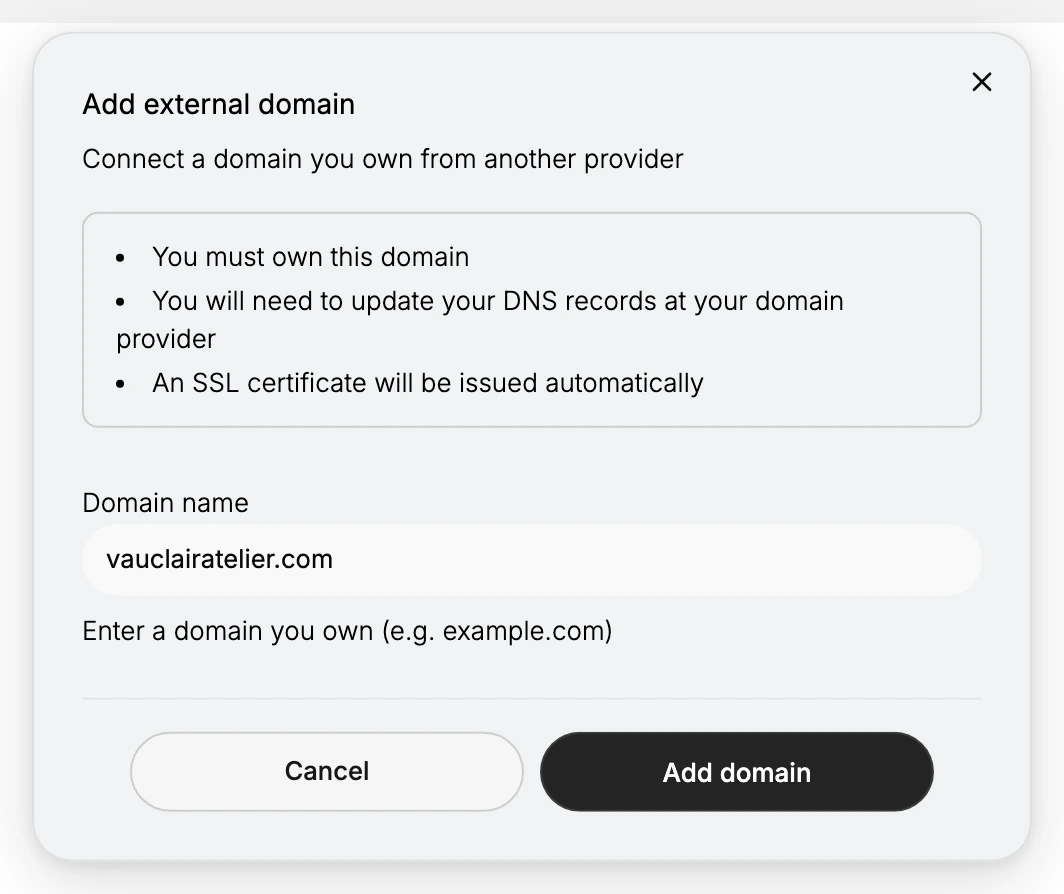
A walk through the Add external domain dialog itself: the three conditions it states before you type anything, what the Domain name field accepts, and what Add domain and Cancel each do.
On this page
The Add external domain dialog is the screen you use to connect a domain you already own from another provider. It states what connecting involves, gives you one field for the domain name, and adds the domain to your store when you confirm. This article explains each part of the dialog. Connect Existing Domain has the full task from start to finish, including the DNS change you make at your provider.
You will find this at Settings, in the Domains area.
Before you begin
- Your role includes Domain settings.
- You own the domain you want to connect and can sign in to the provider where it is registered.
- Open Settings > Domains in the admin sidebar. Select the action to connect a domain you already own.
Connect an external domain
This article stops at the dialog. Connect Existing Domain covers the whole job, adding the domain here and then pointing it at your store from your provider.
What the dialog tells you first
The dialog is headed Add external domain, with the line Connect a domain you own from another provider beneath it. Above the field sit three conditions, and each one is a real requirement rather than boilerplate.
| The dialog says | What it means for you |
|---|---|
| You must own this domain | You need to be able to sign in wherever it is registered, because the next stage of the work happens there |
| You will need to update your DNS records at your domain provider | Adding it here does not move any traffic. Pointing the domain is a separate change you make elsewhere |
| An SSL certificate will be issued automatically | The padlock in the browser is handled for you. You do not buy or upload one, and it arrives after the domain points here, not the moment you add it |
The Domain name field
One field, labelled Domain name, with the line Enter a domain you own (e.g. example.com) beside it. Its placeholder shows shop.example.com, which tells you something the label does not: a subdomain is a valid answer, so you can connect shop.example.com without connecting example.com itself.
Enter the domain the same way in either case, the name and the ending together, with nothing in front of it. No https, no www unless www is genuinely the address you want.
Add domain, or Cancel
Add domain adds the domain to your store and closes the dialog. Cancel, and the close control in the corner, both shut it without adding anything.
After you select Add domain
The dialog closes and the domain is listed on the Domains page, and that is as far as this screen takes you. The domain is not serving your store yet and will not until you point it here from your provider, which is the next thing to do. DNS Records for Your Domain covers the records, and Connect Existing Domain covers the sequence as a whole.
Verify the result
- The domain you added appears on the Domains page.
- After you update its DNS at your provider, your store loads on the domain.
- An SSL certificate is issued for the domain automatically, as the dialog states.
Best practices
- Add a domain you actually control. You need DNS access at the provider to finish, so a domain you cannot edit will not connect.
- Enter the domain cleanly. Type just the domain, matching the field's example, with no protocol or slashes.
- Plan the DNS change. The domain only loads your store once its DNS records point at Tanqory, so be ready to update them at your provider.
Common mistakes
- Entering a domain you do not own, which cannot be completed because it needs DNS access at the provider.
- Adding the domain but not updating DNS, which leaves it pointing somewhere other than your store.
- Including extra characters such as https:// or a trailing slash instead of just the domain.
Next steps
Related articles
Still stuck?
- Ask Tanqory AIAsk in your own words. It answers from these articles and links the ones it used.
- Ask in your adminThe assistant in your Tanqory admin answers and makes the change for you once you confirm.
- Contact TanqoryWrite to our privacy, security or legal teams, or talk to sales about a plan or a move.