Changing Your Store's Web Address
Your store comes with a free Tanqory subdomain, and its name cannot be changed. This explains what that address is, what its page shows you, and how to put your store on an address of your own instead.
On this page
Your store answers on an address from the day it is created: a free Tanqory subdomain, ending in mytanqory.com. It is already connected, already secured, and already the primary domain. What it is not is editable. The name is generated for the store and there is no field anywhere to rename it, so if you want a different address the answer is to add one of your own rather than to change this one.
Before you begin
- Your role includes Domain settings. Nothing on the subdomain's own page can be edited, so this is a page to read rather than to change.
- Open Settings > Domains in the admin sidebar and select the subdomain to open it.
What the subdomain page shows
Selecting the subdomain on the Domains page opens a page of its own.
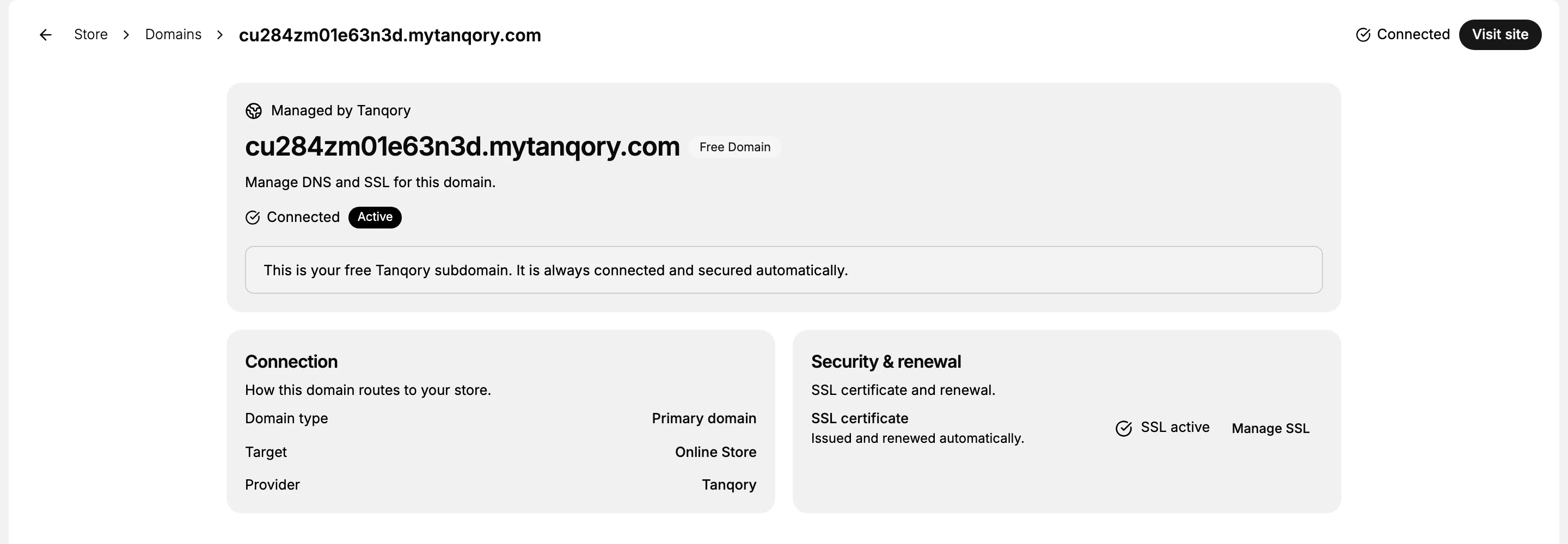
| What it says | What it means |
|---|---|
| Free Domain, Managed by Tanqory | You did not buy it and you do not renew it. It comes with the store |
| Connected, Active | The address works now. Nothing is pending and there is nothing to set up |
| Domain type: Primary domain | Until you add your own, this is the address customers reach the store on |
| Target: Online Store | It points at your storefront rather than anywhere else |
| SSL certificate, issued and renewed automatically | The padlock in the browser is handled for you, including renewals |
Visit site at the top right opens the storefront on this address, which is the quickest way to see what a customer sees.
Note: There is no field on this page to rename the subdomain, and that is the design rather than a permission you are missing. The address is generated for the store and stays as it is for the life of the store. Changing what customers see means adding a domain of your own.
Putting your store on your own address
You do not replace the subdomain. You add a domain beside it and make that one primary, and the subdomain stays where it is.
- Get the domain. Either register a new one through Tanqory, covered in Buy a Domain, or connect one you already own, covered in Connect Existing Domain.
- Make it the primary. Once it is connected, set it as your primary domain so customers land on it instead. Set Your Primary Domain covers the switch.
The subdomain remains on the Domains page after that, still connected, and your store still answers on it. It is no longer the address you give out.
Common questions
- Can I rename the subdomain? No. There is no setting for it anywhere in the admin.
- What do customers see before I add my own domain? The store, on the subdomain. It is a working, secured address, so a store with no custom domain is still open for business; it just does not carry your name.
- Does the subdomain stop working once I add my own domain? No. It stays connected and keeps reaching the store.
- Does any of this change how I sign in? No. You reach the admin through your Tanqory account, which is separate from the address customers use.
Next steps
Related articles
Still stuck?
- Ask Tanqory AIAsk in your own words. It answers from these articles and links the ones it used.
- Ask in your adminThe assistant in your Tanqory admin answers and makes the change for you once you confirm.
- Contact TanqoryWrite to our privacy, security or legal teams, or talk to sales about a plan or a move.