Domain Types
Three kinds of address can point at your store: the free Tanqory subdomain it came with, a domain you buy through Tanqory, and one you already own and connect. This explains what each is, what you are responsible for in each case, and which to choose.
On this page
Three kinds of address can point at your store, and they differ in who registers the domain, who renews it, and how much of the setup falls to you. Your store already has one of them from the day it was created. The other two are the ones you choose between when you want an address of your own. This article explains each, then points to the guide for adding it.
All three are listed on the Domains page in Settings.
Before you begin
- Your role includes Domain settings.
- You know whether you are buying a new domain or connecting one you own.
- Open Settings > Domains in the admin sidebar to see which of these your store already has.
The three kinds of address
| Kind | Who registers and renews it | What you have to do |
|---|---|---|
| The Tanqory subdomain | Tanqory. It is free, it comes with the store, and it is tagged Free Domain on its own page | Nothing. It is connected and secured from the start, and its name cannot be changed |
| A domain bought through Tanqory | Tanqory, on your behalf. It carries an auto-renew option and WHOIS privacy is included | Buy it, then choose whether it becomes the address customers see |
| A domain you already own | Your existing provider, who keeps the registration and the renewals | Add it here, then point it at the store from your provider's DNS settings |
The first is the reason a brand-new store already works: it has an address before you have done anything. The other two are how you replace what customers are given.
Full domains and subdomains
A domain can be a full domain such as example.com, or a subdomain such as shop.example.com. When you connect an external domain, the same Domain name field accepts either one, so you enter shop.example.com to connect a subdomain instead of the full domain. A subdomain is useful when your main site already runs on the full domain and you want your store on a named part of it, such as shop.
Add a domain
You add both kinds from Settings, in the Domains area, using the two controls at the top of the page: Buy new domain and Connect existing domain.
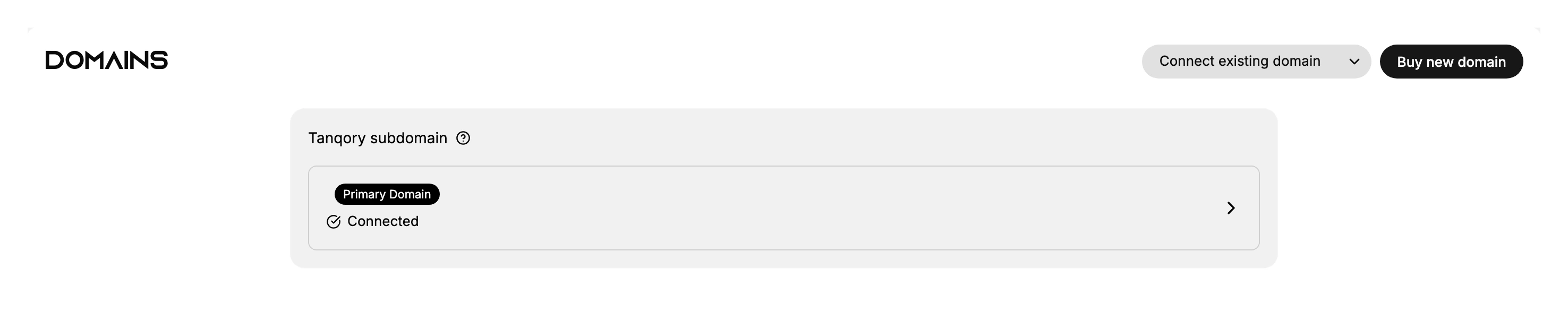
- Decide which kind you need. If you do not own a domain, you will buy one through Tanqory. If you already own one, you will connect it as an external domain. If your main site is on your domain already and you only want your store on part of it, connect a subdomain such as shop.example.com.
- Add the domain for that kind. To buy a new domain, use Buy new domain and follow Buy a Domain. To connect a domain or a subdomain you own, use Connect existing domain, then Add domain, and follow Connect Existing Domain. For a subdomain, enter it in the Domain name field in place of the full domain.
How much work follows depends on which kind you picked, and the difference is larger than it looks. A domain bought here is finished when the purchase is: Tanqory is the provider, so nothing else has to be configured. A domain you own is only half done at this point, because it still has to be pointed at the store from your provider's DNS settings before it reaches anything.
Verify the result
- A domain you bought or connected appears on the Domains page.
- A connected external domain loads your store once its DNS points at Tanqory.
Best practices
- Buy through Tanqory when you have no domain. It is registered and managed in one place, with an auto-renew option so it does not lapse.
- Connect an external domain you already own rather than buying a second one.
- Use a subdomain when your main site is elsewhere, so your store runs on a named part of a domain you control.
Which one you end up with
Most stores end up holding two at once, and that is the normal state rather than a mistake. The Tanqory subdomain stays on the Domains page after you add a domain of your own; it keeps working and keeps reaching the store. What changes is which of them customers are given, and that is decided separately by the primary domain setting.
So the question is rarely which kind to have. It is which one is primary, and whether the one you bought or connected is set up far enough to take that job. Set Your Primary Domain covers the switch, and Changing Your Store's Web Address covers what the subdomain does once it is no longer the address you hand out.
Common mistakes
- Buying a domain you already own instead of connecting it as an external domain.
- Trying to connect a domain you do not control, which you cannot finish because it needs DNS access at the provider.
- Entering a full domain when you meant a subdomain, or the reverse, so the wrong address points at your store.
Next steps
Related articles
Still stuck?
- Ask Tanqory AIAsk in your own words. It answers from these articles and links the ones it used.
- Ask in your adminThe assistant in your Tanqory admin answers and makes the change for you once you confirm.
- Contact TanqoryWrite to our privacy, security or legal teams, or talk to sales about a plan or a move.