Customer List Views
The tabs above the customer list are views, and the plus at the end saves one of your own from whatever filters you have on. This covers what each built-in tab actually returns, why New Customers is worth checking rather than trusting, and the difference between a view and a segment.
On this page
The tabs above the customer list are views: the same list under a different filter, one selection away. Six come with the store, and the plus at the end saves one of your own beside them.
Before you begin
- Your role includes View customers.
- You have the list the way you want it before you save anything, since a view keeps what is on the screen rather than offering filters of its own.
- Go to Customers in the admin sidebar.
The tabs that come with the store
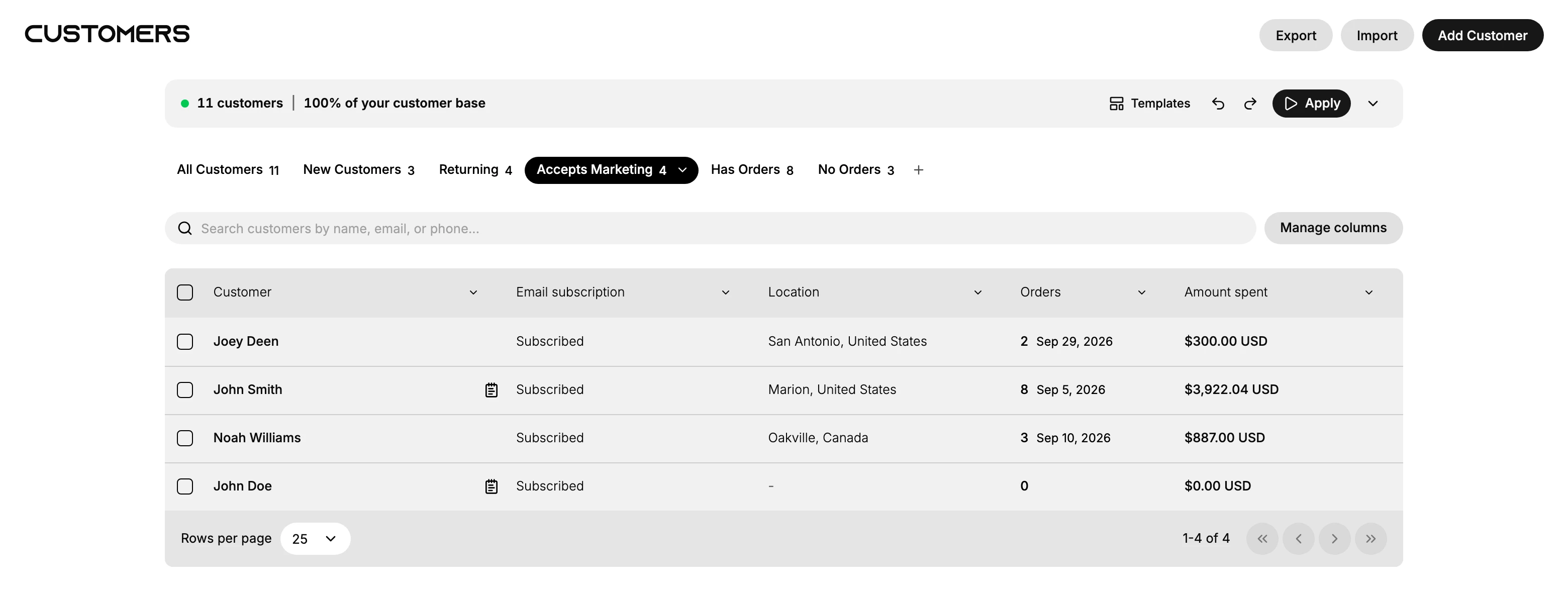
Each tab carries its own count, which is the useful part: you can size a group without opening it.
| Tab | Who is in it |
|---|---|
| All Customers | Everyone |
| New Customers | See the note below. On this store it returns the same people as No Orders |
| Returning | Everyone with more than one order |
| Accepts Marketing | Everyone marked Subscribed in the Email subscription column |
| Has Orders | Everyone with at least one order |
| No Orders | Everyone with none |
A word on New Customers. The admin does not say what makes a customer new, and the tab returns exactly the people that No Orders returns, the same names in the same order. That has now been true of two different sets of customers on this store, months apart. It may be a coincidence of a store where nobody who joined recently has bought anything yet, or the two may be asking the same question. Read the tab as a shortcut rather than a definition, and look at who is in it before you rely on it.
Making your own version of a built-in tab
The six that come with the store cannot be renamed, reordered or removed. What you can do is take a copy and change that.
Select the tab, then open the chevron that appears on it. A built-in tab's menu holds one entry, Duplicate, and taking it puts a seventh tab at the end of the row holding the same filters. The copy arrives named after the original with a suffix on the end, which is not a name you would have chosen, so rename it before you forget what it was for.
From there the copy behaves like any view you saved yourself, and its menu is the longer one:
| Entry | What it does |
|---|---|
| Pin | Keeps the tab in place in the row |
| Rename | Gives it a name of your own, which the built-in six will not accept |
| Duplicate | Copies it again |
| Delete | Removes it, after a confirmation that says the action cannot be undone |
Deleting a view removes the tab and nothing else. The customers it was showing are untouched, since a view is a saved filter rather than a container.
Views are not segments
The two get confused because both save a group.
| A view | A segment | |
|---|---|---|
| Where it lives | A tab on the customer list | Its own page under Customers |
| What it is for | Getting back to a list you look at often | Defining a group other tools can act on |
| How it is built | The filters you have on when you save it | A query, written or generated |
If you only want to stop rebuilding the same filter every morning, a view is the lighter answer. Customer Segments covers the other.
Steps
1. Set the list up the way you want it
A view saves what is on the screen, so build that first: pick a tab, run a search, sort a column, turn columns on or off with Manage columns.
This is the step people skip. The dialog that names the view offers no filters of its own, so whatever is not applied before you open it is not in the view.
2. Save it
There are two ways in, and both open the same dialog. The + at the end of the tab row is one. Save as, which appears beside the search box as soon as you type in it, is the other, and it is the one to reach for when the thing you want to keep is a search.
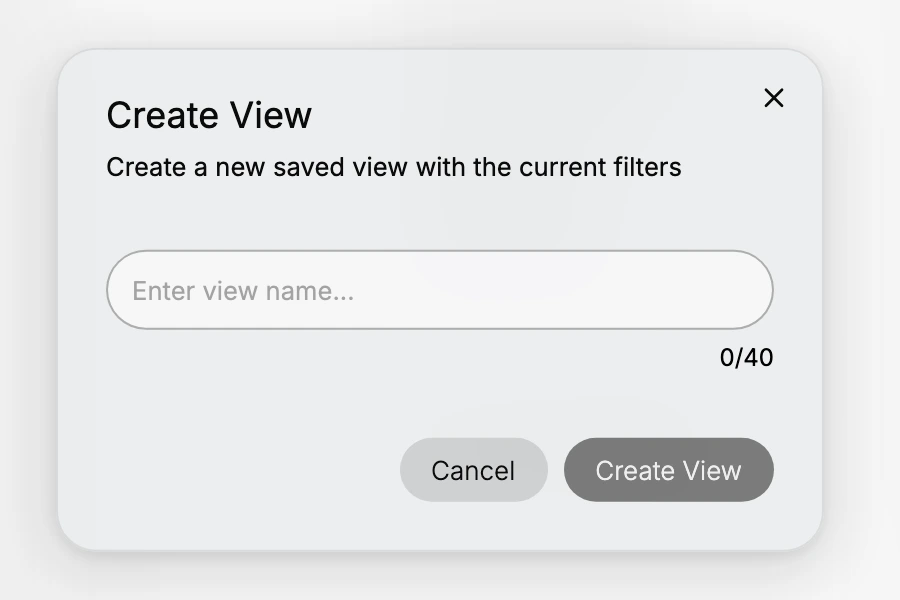
Give it a name, up to forty characters, and take Create View. It joins the tab row. Cancel closes the dialog and leaves your filters on the list, so nothing is lost if you change your mind about keeping them.
Name it for what is in it rather than how you filtered. Subscribed, no orders tells a colleague something in a way that My view 2 never will, and forty characters is enough for a sentence fragment.
3. Come back to it
Selecting the tab reapplies its filters, which is the whole point: the work of setting the list up happens once. The count beside the name is recalculated, so a view also tells you at a glance whether the group it holds is growing.
If something goes wrong
- The view you saved holds everyone. The filters were not on when you saved it. The dialog cannot filter; it only names what is already applied.
- A tab returns nobody. A search may still be in the box. The empty state offers Clear filters, which drops the search and the tab together.
- New Customers and No Orders look identical. On this store they are. Check the names in the tab before you treat it as a list of recent arrivals.
- You cannot find the plus. It is the last thing in the tab row, after No Orders, and it carries no label.
- A built-in tab will not rename or go away. The six that come with the store carry only Duplicate. Duplicate it, then rename and arrange the copy.
- A copy you made has an odd name. It is named after the tab it came from, with a suffix added. Rename on its own menu replaces the whole name.
- You deleted the wrong view. The confirmation says the action cannot be undone, and it is. Build it again from the filters; no customer was affected by the deletion.
Next steps
Related articles
Still stuck?
- Ask Tanqory AIAsk in your own words. It answers from these articles and links the ones it used.
- Ask in your adminThe assistant in your Tanqory admin answers and makes the change for you once you confirm.
- Contact TanqoryWrite to our privacy, security or legal teams, or talk to sales about a plan or a move.