Viewing the Customer List
The Customers page is where most customer work starts, and four bands sit above the table before you reach a single row. This article covers what each band is for, the segment bar and its templates, saving a tab of your own, and the ways out of the page to one record or to a file. It also takes the two controls that are easy to miss entirely: the selection bar, which does not exist until you tick a row, and the counter at the foot that tells a short list apart from the first page of a long one.
On this page
The Customers page is the list of everyone who has an account with your store or has bought from it, and it is where most customer work starts. From here you narrow the list, search it, choose what it shows, open one record, or act on several at once.
This article takes the page as a whole: the bands above the table, the ways in and out of it, and the controls that appear only once you have selected something. The table's own columns are a subject of their own, and The Customers Table takes them. Customers Overview maps the rest of the Customers area if what you need is not on this page.
Before you begin
- Your role includes View customers, which is what opens the page.
- You know whether you are after one person or a group, since the search box answers the first and the tabs answer the second.
What is on the page
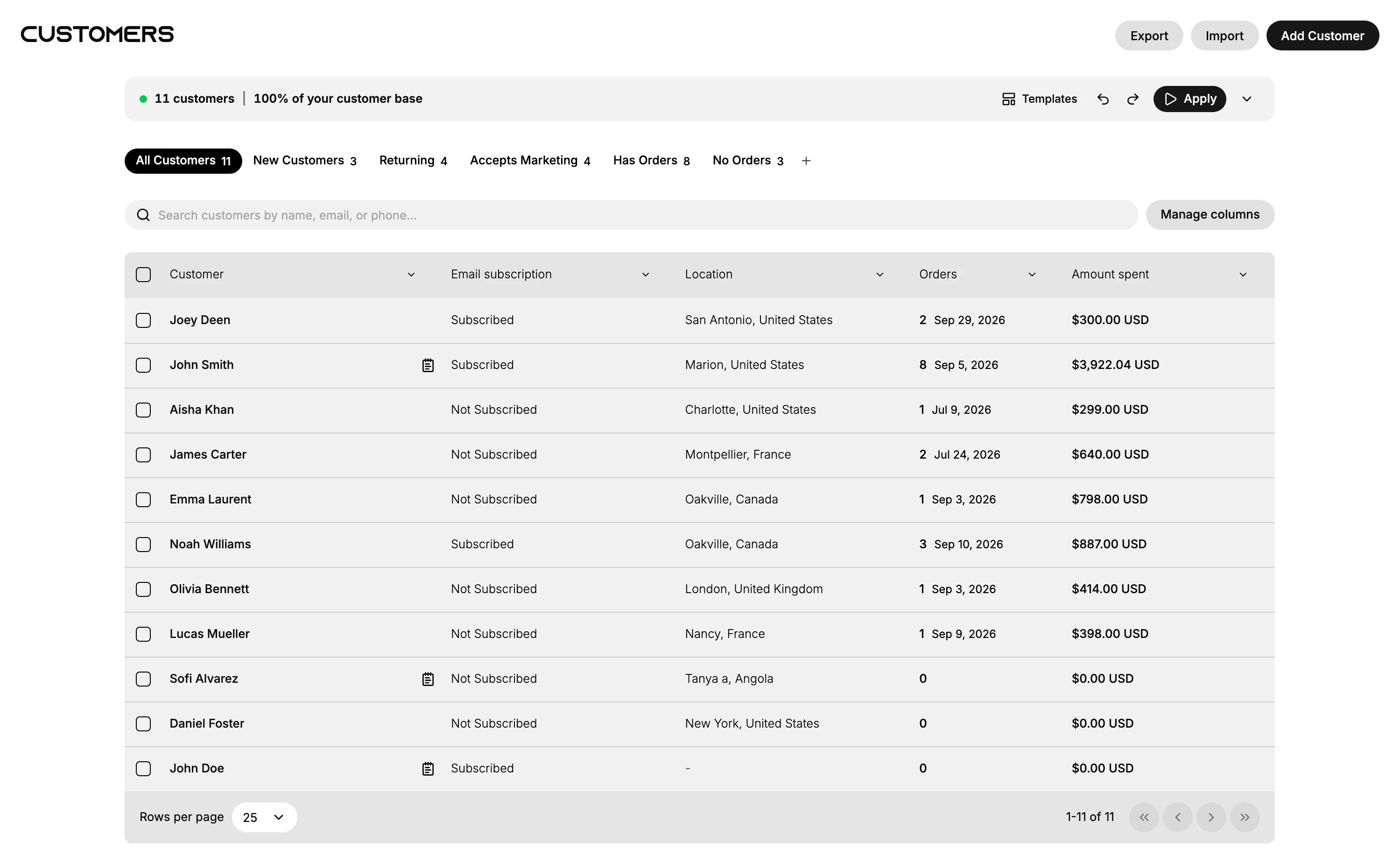
Four bands sit above the table, and each one narrows or changes what you are looking at in a different way.
| Band | What it is for |
|---|---|
| The top buttons | Export, Import and Add Customer |
| The segment bar | How many customers the list in front of you holds, and the controls that turn it into a segment |
| The tabs | Ready-made groups, each carrying its own count, with a + at the end to save one of your own |
| Search and columns | A search box, and Manage columns for deciding which columns the table shows |
The table below them opens on five columns, Customer, Email subscription, Location, Orders and Amount spent, and those five are a starting point rather than the whole set. Manage columns offers twenty, and the same panel puts them in the order you want.
Tags do not appear in the table. They are still on the customer records, and there is no Tags column among the twenty, so the list is not where you scan for a tagged customer.
The segment bar
A segment is a group of customers picked out by conditions you set, such as everyone in one country who has ordered this year, and it goes on answering as your customers change. This bar is where one is built.
It is easy to read past, since on an untouched list it reports nothing but the count and 100% of your customer base. The percentage is the part that matters. It is the share of your customers the list in front of you holds, and it drops as you narrow it.
Templates opens Segment templates, a set of ready-made starting points to refine into a segment of your own. They come grouped in categories, each naming what it selects and how many filters it uses, with its own Use Template button.
Beside it sit an undo and a redo control, an Apply button that runs the conditions you have set, and a chevron that expands the bar to show those conditions written out.
Segments have their own article. Customer Segments covers building and saving them, and this page is where they start.
Steps
1. Narrow with the tabs
The tabs are ready-made groups, and each carries the number of customers in it, so you can see the size of a group before you open it: All Customers, New Customers, Returning, Accepts Marketing, Has Orders and No Orders.
A tab is a filter, and it stays on after you leave the page. A list that looks short when you come back is often a list that is still narrowed, so the active tab is the first thing to read.
Reading the counts against each other is often the quickest read of the list. No Orders standing at half your customers would say something the table itself does not.
Ignore the tabs and nothing breaks. You are reading every customer you have to find the few you meant. That is fine on a store with eleven customers and the reason the page feels unusable on a store with eleven thousand. All Customers puts everyone back whenever a tab has cut too far.
2. Save a tab of your own
A view saves the filters that are on at the moment you create it, so narrow the list first and save second.
The control is the + (1) at the end of the tabs, sitting after the last one with no label of its own.

Selecting it opens Create View. Type a name, which is counted to 40 characters, and the Create View button at the foot turns from grey to black once there is something to save. Cancel and the cross at the top right both leave without saving.
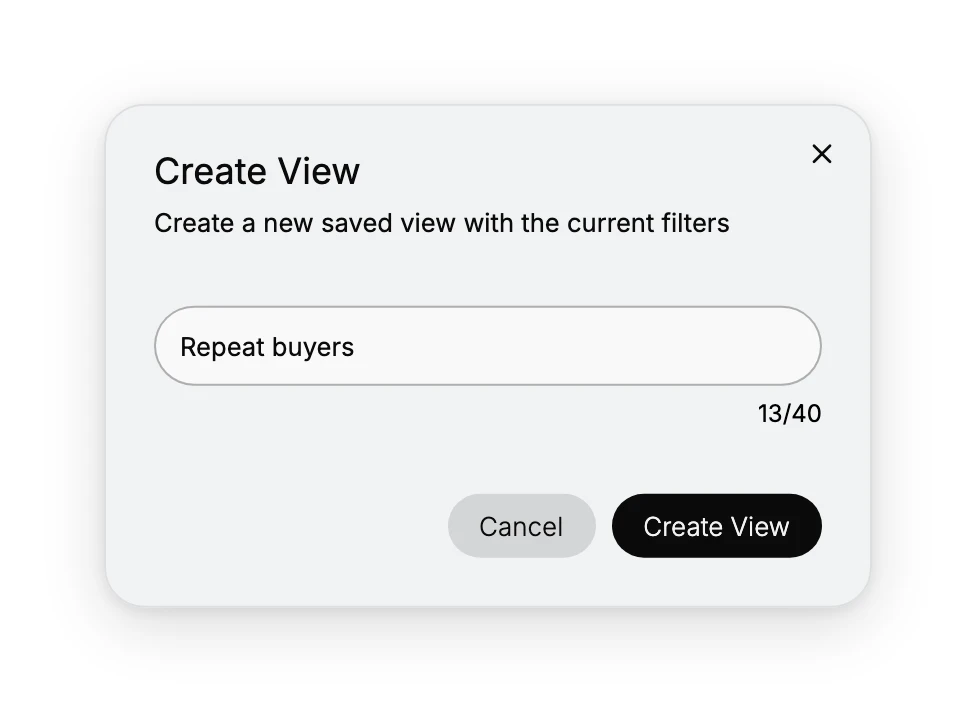
That is the answer to rebuilding the same filter every morning. Customer List Views covers the views themselves.
3. Search for one customer
The search box matches by name, email or phone, as its placeholder says. Use it when you know who you are looking for, and the tabs when you do not.
Search by email rather than by name whenever you have it. Names repeat, and two customers called the same thing look identical in the list, which is how the wrong record gets opened and edited.
Skip the search and you are back to scanning, which works on one screen of customers and stops working somewhere past that. There is a cost to leaving one in place, too. A search left in the box keeps narrowing the list after you have finished with it, so clear it before you read the page as a whole. Otherwise you are reading a filtered list as though it were everyone. Search the Customer List goes further.
4. Shape the table to what you came for
Manage columns, beside the search box, decides which of the twenty columns the table shows and in what order. Every column header also carries its own menu, holding two sorts, Copy column and Hide column.
Do this before you start reading rather than after, because a tab decides which customers you see and the columns decide whether what you need to know about them is on screen. Filter without it and you land on the right customers with the wrong five facts about them, which is the point at which people give up on the list and start opening records.
5. Open a customer, or act on several
Selecting a row opens that customer's record, covered in Customer Detail Page.
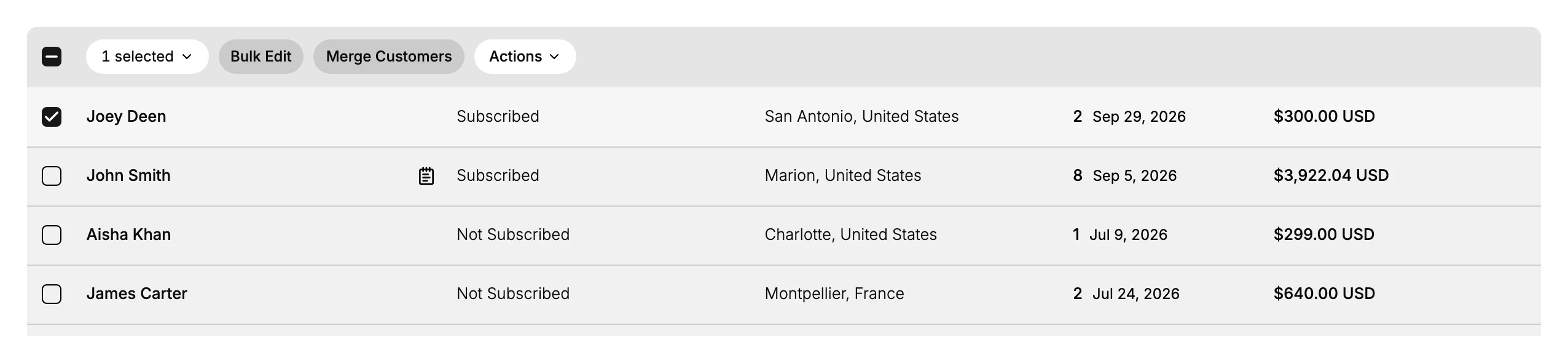
The checkbox at the start of each row, and the one in the header row that takes every row on the page, are for doing something to more than one customer at a time. Tick even one and the column header row is replaced by a bar carrying the count of what you have selected and three controls. Untick everything and the headers come back, which is why the bar is easy to miss until you have used it once.
| On the selection bar | What it leads to |
|---|---|
| Bulk Edit | Editing the selected customers together, covered in Bulk Edit Customers |
| Merge Customers | Folding duplicates into one record, covered in Merge Customers |
| Actions | A short menu holding Add Tags and Remove Tags, which Customer Tags covers, and Delete customers |
Two of those three change every customer you have ticked at once, and the third deletes them, so it is worth reading the count on the bar before using any of them.
Never ticking anything is a perfectly good way to work, and the safest one, since nothing on that bar can be triggered by accident if the bar is not there. What it costs is repetition: the same change made on twenty records is twenty records opened, edited and closed. Tick when the change is genuinely the same for everyone selected, and open records one at a time when it is not.
6. Take the list out, or bring one in
Export takes the list, or whatever you have narrowed it to, out as a file, which Exporting Customer Data covers. Import is the other direction, for bringing a file of customers in. Add Customer is the single-record route, covered in Adding a Customer.
Export is worth reaching for more often than most people do, because it takes the narrowing you have already done with it. A tab or a search applied before you press it is the difference between a file of the customers you care about and a file of everyone. It is also the only copy of the previous state you will have before a bulk change, and there is no undo for one of those.

7. Read the foot of the list
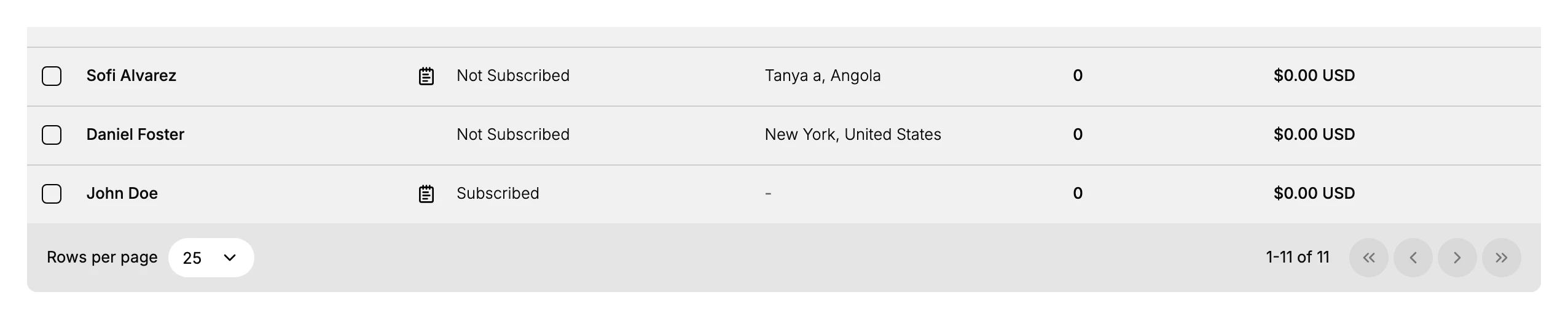
Under the table sit Rows per page, set to 25 to begin with, a counter reading the range you are looking at out of the total, and four buttons for stepping through the pages.
That counter is the one thing on the page that tells a short list apart from the first page of a long one, and the two look identical until you read it. A store with more customers than the rows per page shows you the first page only, and nothing else on the screen says so, which is how a customer gets reported missing when they were on page two all along. The four page buttons say the same thing more quietly: on a list that fits in one page they are all greyed out, so if any of them is live there is more to see.
Worked through in that order, the page narrows to the customers you meant, shows the facts you need about them, and hands you either one record or a whole selection.
If something goes wrong
- A customer is missing. Check which tab is active, since a tab is a filter, then search their exact email.
- A column you expect is not there. Open Manage columns; only Customer is always visible.
- You cannot open Customers. Your role may not include View customers. An owner or admin can add it.
Next steps
Related articles
Still stuck?
- Ask Tanqory AIAsk in your own words. It answers from these articles and links the ones it used.
- Ask in your adminThe assistant in your Tanqory admin answers and makes the change for you once you confirm.
- Contact TanqoryWrite to our privacy, security or legal teams, or talk to sales about a plan or a move.