The Customers Table
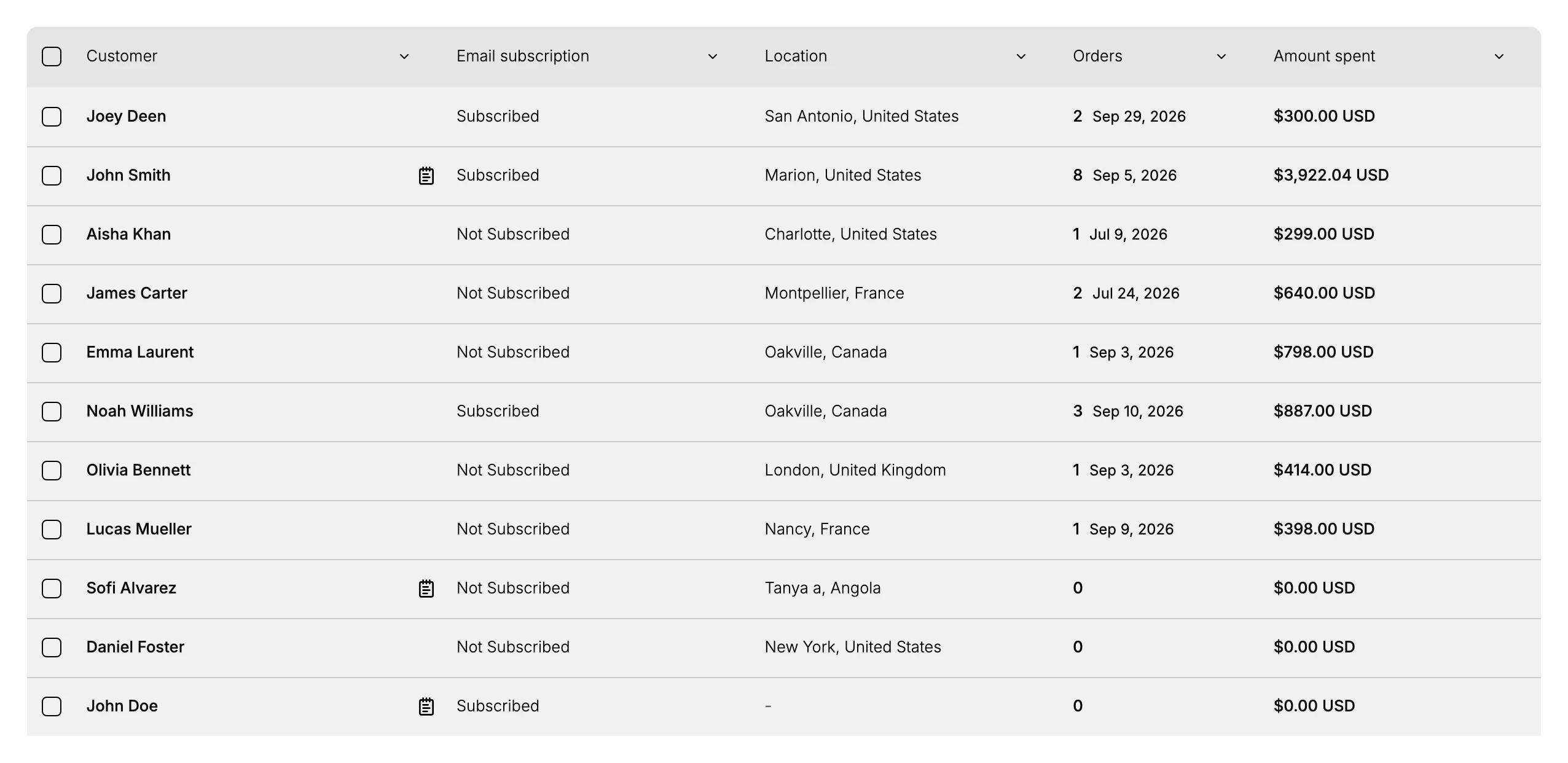
The table on the Customers page shows five columns out of twenty. Manage columns turns the other fifteen on, and the same panel reorders them by dragging. Each column header carries a menu holding two sorts, Copy column and Hide column. This covers which columns are worth adding for which job, what the note icon beside a row means, and why the layout you build here is worth building once.
On this page
The Customers page opens with a table of five columns, and there are twenty to choose from. Fifteen of them are switched off until you ask for them, which means the table most people work with every day is showing a quarter of what it can show.
That default is a reasonable starting point rather than a recommendation. It suits someone glancing at the list to find one person. It does little for the jobs where the list itself is the tool: chasing customers who have never ordered, checking who is on which marketing channel, finding the records a tax question applies to. Each of those is one column away from being readable at a glance, and the column is already there waiting to be turned on.
What the table shows before you change anything
| Column | What it holds |
|---|---|
| Customer | The customer's name. Marked Always visible in the column panel, so it cannot be turned off |
| Email subscription | Subscribed or Not Subscribed, the customer's email marketing consent |
| Location | City and country, or a dash where the customer has no address |
| Orders | How many orders they have placed, with the date of the most recent one beside it where there is one |
| Amount spent | Their lifetime total, shown with the currency, and $0.00 USD where they have never ordered |
Orders is the column worth reading twice. It carries two facts in one cell, the count and the last order date, so a customer reading 8 Sep 5, 2026 has ordered eight times and last did so on that date. A customer with no orders shows a bare 0 and no date, which is what makes the empty cells easy to scan for.
Before you begin
- Your role includes View customers, which is what opens the list.
- You know which job you are setting the table up for, since the panel offers twenty columns and turning on all of them gives you a table to scroll sideways rather than read.
Steps
1. Read the five columns you already have
Before adding anything, read what is in front of you, because for a lot of questions the default five are the answer and the rest of this article is unnecessary.
The reason to start here is that every column you add costs width, and width is the one thing the table is short of. Skip this and the usual outcome is a table with twelve columns where the two you needed are squeezed against the edge. A customer's name, whether they take email, where they are, how much they have ordered and what they have spent already cover finding someone and judging how important they are.
2. Turn on the columns your job needs
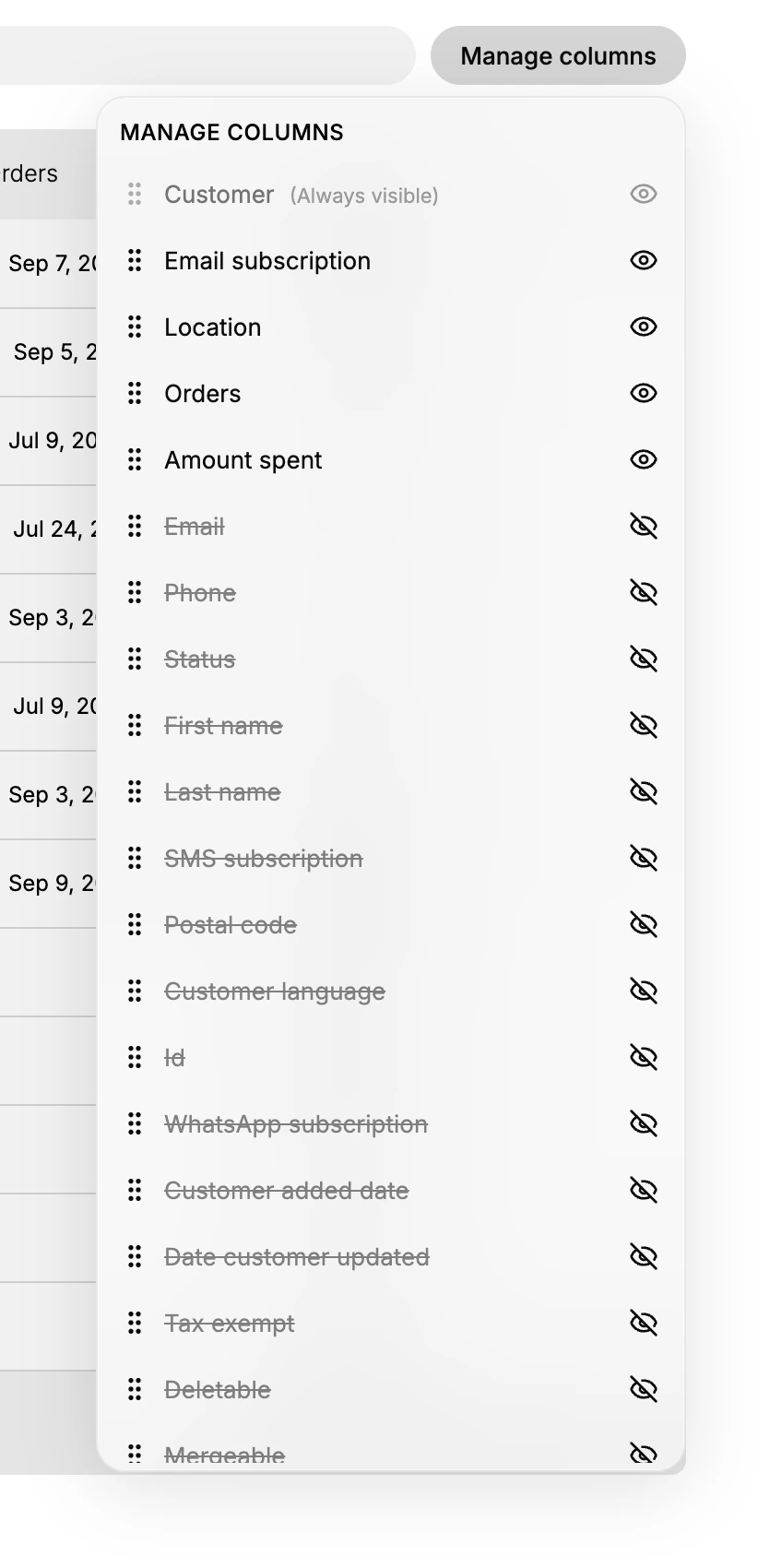
Select Manage columns to the right of the search box. A panel headed MANAGE COLUMNS opens over the table, listing all twenty columns in the order they appear, each with a drag handle on its left and an eye on its right.
The eye is the switch. Columns that are showing have an open eye and ordinary text. Columns that are hidden have a crossed-out eye and their name struck through, so the state of every column is readable without clicking anything. Customer is labelled Always visible and its eye is greyed out, because the table needs one column that identifies the row.
Turn on the column that answers the question you came with. Leave the rest off, since a column you are not reading is width taken from one you are. If you turn nothing on, the table keeps the five defaults and nothing about your list changes, which is the right outcome when you only came to look someone up.
3. Drag the columns into the order you read them
The handle at the left of each row in the same panel moves that column. Drag a row up and its column moves left in the table.
This is the part of the panel most people never notice, and it is worth a minute. Columns are read left to right, so the one carrying your answer belongs beside the customer's name rather than five columns away. Someone chasing unpaid or unordered customers wants Orders second, not fourth. Leave the order alone and the table still works. What it costs you is a session spent tracking your eye across the screen to pair a name with a number, and that friction is what sends people back to opening records one at a time.
4. Sort, copy or hide from the column header
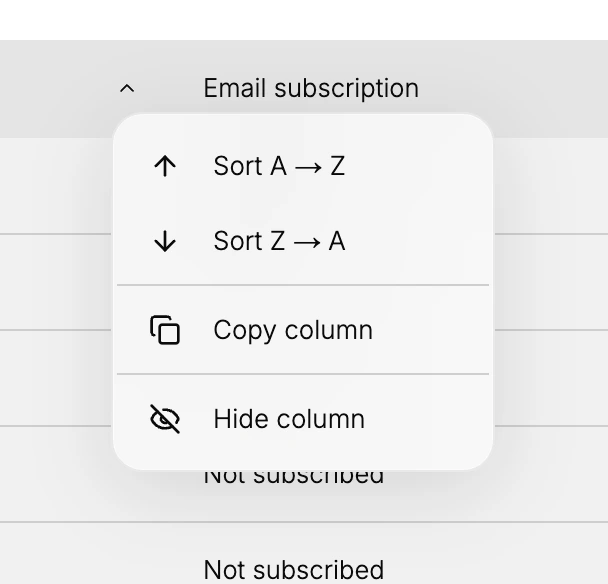
Every column header carries a chevron, and it opens a four-item menu.
| Item | What it does |
|---|---|
| Sort A → Z | Orders the table by that column, ascending |
| Sort Z → A | Orders the table by that column, descending |
| Copy column | Copies every value in that column, one per line |
| Hide column | Removes the column from the table |
Sorting is what turns the table from a list into an answer. Sorting Amount spent descending puts your best customers at the top; sorting Orders ascending gathers everyone who has never bought anything. Neither needs anything set up first, and neither changes any customer record, so it costs nothing to try and nothing to undo.
Leave the sort alone and the table stays in whatever order it opened in, which is fine when you came to find one person and useless when you came to find the top or the bottom of something. That is the whole distinction: search finds a customer you can already name, and a sort finds the one you cannot.
Copy column takes the whole column rather than one cell. Copying Customer on a list of eleven puts eleven names on your clipboard, one per line, ready to paste into a message or a spreadsheet. Narrow the list with a tab or a search first and you have copied exactly that group instead of everyone.
Hide column is the fast way back out when a column turns out not to help. It does the same thing as closing the eye in the panel, and the column comes back from Manage columns whenever you want it, so hiding loses nothing.
5. Open a customer, or take several at once
Selecting a row opens that customer's record. The checkbox at the left of each row does something different: it gathers customers for an action rather than opening them, and the header row's checkbox takes the whole page at once.
Use the row for one customer and the checkboxes for many. Ticking even one reveals a bar above the table carrying the actions that work on a selection, which is how a change you would otherwise make twenty times becomes one. Bulk Edit Customers takes that bar and what each action does.
The columns you switch on stay on. Reloading the page brings back the table you built rather than the five it opened with, so the setup is worth doing properly once rather than roughly every time. What you end up with is a view of your customers shaped to one job, and the next job usually needs a different one.
Every column you can add
Fifteen columns sit switched off, listed under the five that are on.
| Column | Worth turning on when |
|---|---|
| You are working from the list rather than opening records, and you need to reach people | |
| Phone | The same, for a store that calls its customers |
| Status | You want the account state across the list. It reads Active or Disabled |
| First name | You want the name split, which sorting by surname needs |
| Last name | You are sorting or scanning by family name |
| SMS subscription | You are checking consent for a text campaign |
| WhatsApp subscription | You are checking consent for WhatsApp |
| Postal code | You are looking at customers by area |
| Customer language | You send anything written and it matters which language it goes out in |
| ID | You are matching records against another system or a support ticket |
| Customer added date | You want to see who is new without relying on the New Customers tab |
| Date customer updated | You are checking whether a record has been touched recently |
| Tax exempt | You keep exemptions and need to review them together |
| Deletable | You are tidying records. It reads Yes for a customer who has never ordered and No for one who has |
| Mergeable | You are working through duplicates |
The three consent columns are the ones that repay the effort most often. Marketing consent is per channel, so a customer can take email and refuse SMS, and the default table shows only the email half of that. Customer Marketing Subscription covers what each consent means before you act on it.
Tax exempt is the only place a tax status can be seen across customers rather than one record at a time, which makes it the practical way to review exemptions. Customer Tax Status covers setting it.
Deletable is worth reading before you go near a delete. It tracks one thing, whether the customer has ever ordered, and it stops nothing. Delete a Customer still opens its dialog for a customer this column marks No, so treat the column as a signal rather than a lock.
The note icon on a row
A small notepad icon appears beside the Email subscription value on some rows. It marks a customer who carries a note on their record, and resting the pointer on it shows what the note says.
It is easy to read past, and it is the only sign on the whole list that a record has something written on it. A note is where a colleague records why a customer is a special case, so a row carrying one is a row worth opening before you act on it. A row with no icon carries no note.
What this changes for your store
Nothing you do here changes a single customer. Columns, order and sorting are how the list is presented to you, so the whole screen is safe to experiment with, which is worth knowing because the panel looks more dangerous than it is.
What it changes is how much of your customer base you can see at a glance. A store that never opens Manage columns works from five columns and opens records one at a time to find anything else, which is the slow path to every question. A store that sets the table up for the job in front of it reads the answer off the list. The columns are the difference between the two.
If something goes wrong
- A column you added is not visible. It may have gone to the far right. Drag it up the panel to bring it left.
- The table is too wide to read. Close the eye on the columns you are not using.
- A column is missing and you did not hide it. Open Manage columns and check whether its name is struck through.
- The list is shorter than you expect. A tab or a search is still applied. Viewing the Customer List covers clearing them.
- You cannot open the page. Your role may not include View customers. An owner or admin can add it.
Next steps
Related articles
Still stuck?
- Ask Tanqory AIAsk in your own words. It answers from these articles and links the ones it used.
- Ask in your adminThe assistant in your Tanqory admin answers and makes the change for you once you confirm.
- Contact TanqoryWrite to our privacy, security or legal teams, or talk to sales about a plan or a move.