Delete a Customer
Deleting a customer removes the record and everything personal on it, and keeps their orders with the personal information stripped out. The dialog will not let you through until you tick a box confirming you understand, and there is no undo afterwards. This covers what survives the delete, why Erase personal data is usually the right tool instead, and the one thing to do before you confirm.
On this page
Deleting a customer is the only action in the Customers area with no way back. The record goes, along with their addresses, notes and everything else personal on it, and nothing in Tanqory will bring it back.
What makes it worth reading about first is that most people who reach for it want something else. A privacy request usually means clearing the personal data while the record and its history stay, and that is a different item in the same menu. Deleting is for the record that should not exist at all.
What survives and what does not
| What | After the delete |
|---|---|
| The customer record | Gone from the store |
| Addresses, notes and the rest of their data | Deleted with it |
| Their orders | Kept, with the personal information on them removed |
| The action itself | Cannot be undone, and the dialog says so |
The Customers list carries a column about this, and it is worth adding before a tidy-up. Open Manage columns beside the search box: the columns that are off are listed with a line through their names, each row has a switch at its right end, and the rows can be dragged to reorder them. Switch on Deletable and the answer appears on every row. On this store it reads No for all eight customers who have ordered and Yes for the two who never have, which is the same rule the bulk delete dialog states in words.
Two things follow from the orders surviving. Your sales history keeps no hole, so the delete is safe for your accounts. The orders are also no longer attached to a person you can look up, so anything you need off that record has to be taken before you confirm.
The seven items in More actions
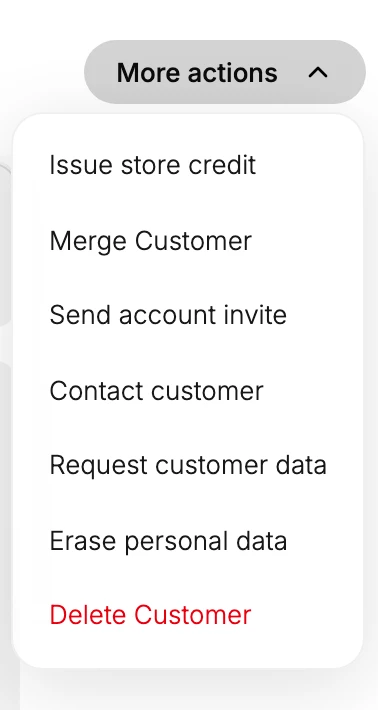
Delete Customer is the last of seven, and two of the others do a less drastic version of the same job.
| Item | What it is for |
|---|---|
| Issue store credit | Giving the customer a balance to spend |
| Merge Customer | Folding a duplicate into another record rather than removing it |
| Send account invite | Inviting the customer to use an account on your storefront |
| Contact customer | Writing to them |
| Request customer data | The privacy route for producing a copy of what you hold on someone |
| Erase personal data | Clearing the personal data while the record itself stays |
| Delete Customer | Removing the record entirely, in red, at the foot of the menu |
Read those two middle items before you use the last one. Customer Privacy covers both, and between them they answer most of the reasons anyone opens this menu. If the person asked you to erase their data, Erase personal data does that and leaves you a record that still ties their orders to something.
Before you begin
- You have taken anything you still need off the record. Their email address, their addresses and their notes go with it, and the orders that remain will not carry them.
- You have a reason you would be comfortable explaining later, and somewhere outside Tanqory to write it down. Nothing here keeps a record of who deleted whom or why.
- You have checked this is the right person, by something more reliable than the name. Two customers can share one.
- Your role includes Delete customers. It is a permission of its own rather than part of Edit customers.
- Open Customers in the admin sidebar, select the customer, and open More actions at the top of their record.
Steps
1. Open the record and read it before you open the menu
Open the customer from the Customers list and read what is on the record while it still exists.
This is the step with no second chance. Once the delete runs, their email address, addresses and notes are gone, and the orders left behind do not carry any of it. The information is not filed somewhere else; it is gone.
2. Choose Delete Customer from More actions
Select More actions at the top of the record and choose Delete Customer, the last item and the only one in red.
The red marks the one item in that menu you cannot take back. If what you need is the customer's data cleared rather than the customer removed, take Erase personal data instead, one line above it.
3. Read the dialog against the customer in front of you
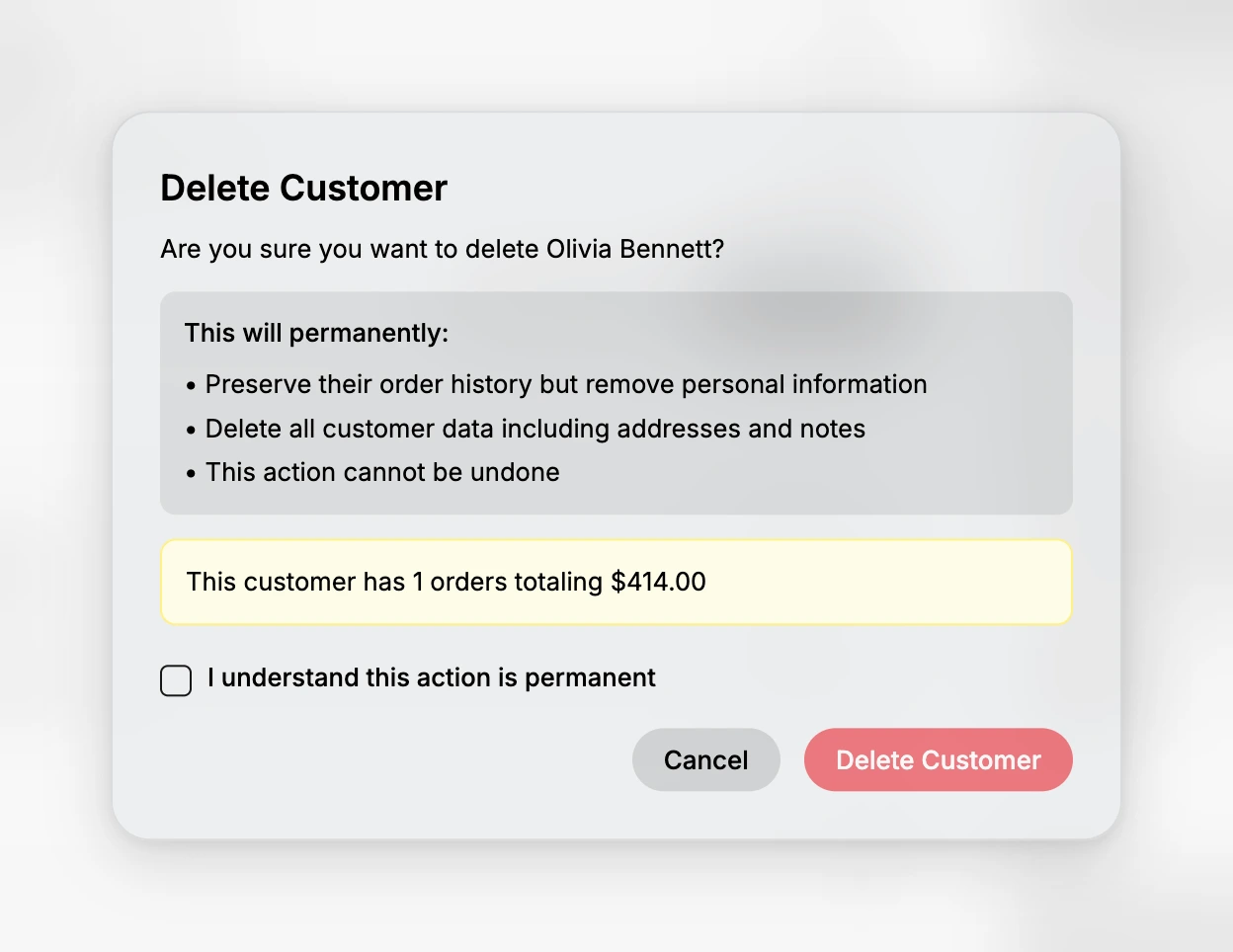
The dialog is headed Delete Customer and asks whether you are sure you want to delete that customer by name. Below the question it states what the delete will do: preserve their order history but remove personal information, delete all customer data including addresses and notes, and that the action cannot be undone.
Where the customer has orders, a highlighted note gives the number and what they total. That note is there to make you stop. A customer with a long order history is more likely to be someone you will need to answer a question about later, and more likely to be the wrong person to delete.
Read the name in the question rather than trusting the record you think you opened. It is the only place that names who is about to be deleted.
4. Tick the confirmation, then delete
Tick I understand this action is permanent, then select Delete Customer.
The box is not a formality. Delete Customer carries a disabled state while the box is unticked, which is why it looks faded when the dialog opens, and it cannot be pressed until you tick it. Leave the box alone and the delete cannot happen by accident, which is what it is for.
Cancel closes the dialog and changes nothing. Up to this point nothing has happened, so backing out costs you only the time it took to read it.
5. Confirm it went through
Go back to the Customers list and confirm the customer is no longer in it, and that a search for their name or email returns nothing. Then open Orders and confirm their orders are still there, which is what the dialog said would happen to them.
Check rather than assume. This is the one action where a surprise a week later cannot be put right.
With the record gone, the only account of what was removed is the one you wrote down yourself. That is worth doing at the moment of deleting rather than afterwards, since by then the details are exactly what you no longer have.
Deleting several at once
The Customers list can delete more than one. Tick the rows, and Actions on the bar that appears holds Delete customers alongside Add Tags and Remove Tags.
The bulk route is not the same action repeated. Its dialog, headed Delete 2 customers?, lists what it will refuse to touch: Order history, Pending redaction because of a customer data erasure request, which means the record is already queued to have its personal details blanked out, and Active subscription. A customer who has ever ordered is skipped there, where the single-record dialog goes ahead and strips their personal data instead. So a bulk delete over a mixed selection removes the customers who never bought anything and leaves the rest exactly as they were.
Treat it more carefully than the single-record route all the same, because a mistaken selection acts on a mistaken set of people. Bulk Edit Customers covers the selection bar and its dialogs.
What this changes for your store
For your figures, nothing. Orders survive, so revenue, order counts and the history you report on are untouched. That is deliberate, and it is what makes deleting a customer safe to do when it is genuinely the right thing.
For your team, the change is that a thread has been cut. Anyone who later needs to reach that customer, check an address, or read a note about them has nothing to open. That cost is invisible on the day and obvious three weeks later, which is the argument for Erase personal data whenever the request is about the data rather than the record.
If something goes wrong
- Delete Customer will not press. The confirmation box is not ticked. The button stays disabled until it is.
- You deleted the wrong customer. There is no recovery in Tanqory. Their orders remain, so what the store owes them is still visible, but the record and everything personal on it has to be rebuilt from your own notes.
- Delete Customer is not in the menu. Your role may not include Delete customers, which is separate from Edit customers. Ask an owner or admin.
- The customer is still in the list. The dialog was closed without confirming. Reopen it and check that the box is ticked before pressing.
- You needed their details after all. They went with the record. This is why the first step is reading it.
Next steps
Related articles
Still stuck?
- Ask Tanqory AIAsk in your own words. It answers from these articles and links the ones it used.
- Ask in your adminThe assistant in your Tanqory admin answers and makes the change for you once you confirm.
- Contact TanqoryWrite to our privacy, security or legal teams, or talk to sales about a plan or a move.