Customer Tax Status
Whether a customer's orders are taxed is set in two places, and the two do not offer the same choices. The Add Customer form has it while you are creating the record, and Edit tax details has it afterwards, where the middle setting will not save until you pick an exemption. This covers both, what each setting means, and why the paperwork behind an exemption is your responsibility rather than Tanqory's.
On this page
Most customers are taxed the way your store's tax setup says they should be, and nothing on their record needs touching. The tax setting on a customer exists for the ones who are not: a reseller buying to sell on, an exempt organisation, a customer in a situation your tax rules do not cover.
Getting this wrong is expensive in a way most settings are not. Charge tax to someone who is genuinely exempt and they will ask for it back. Stop charging someone who is not exempt and the difference comes out of your margin, quietly, on every order they place until somebody notices.
There are two places to set it, and which one you use depends only on whether the customer exists yet.
Before you begin
- You have the paperwork that supports the change, such as a resale or exemption certificate. Tanqory stores the setting, not the evidence, so the record that justifies it has to live somewhere else.
- You know which of the two situations you are in: creating the customer, or changing one who is already in your store.
- Your role includes Create customers to set it on the form, or Edit customers to change it afterwards.
Setting it while you create the customer
If you already know the customer is exempt, set it as you create them and the job is finished in one visit. Go to Customers in the admin sidebar, then Add Customer at the top right, and the form opens on its own page.
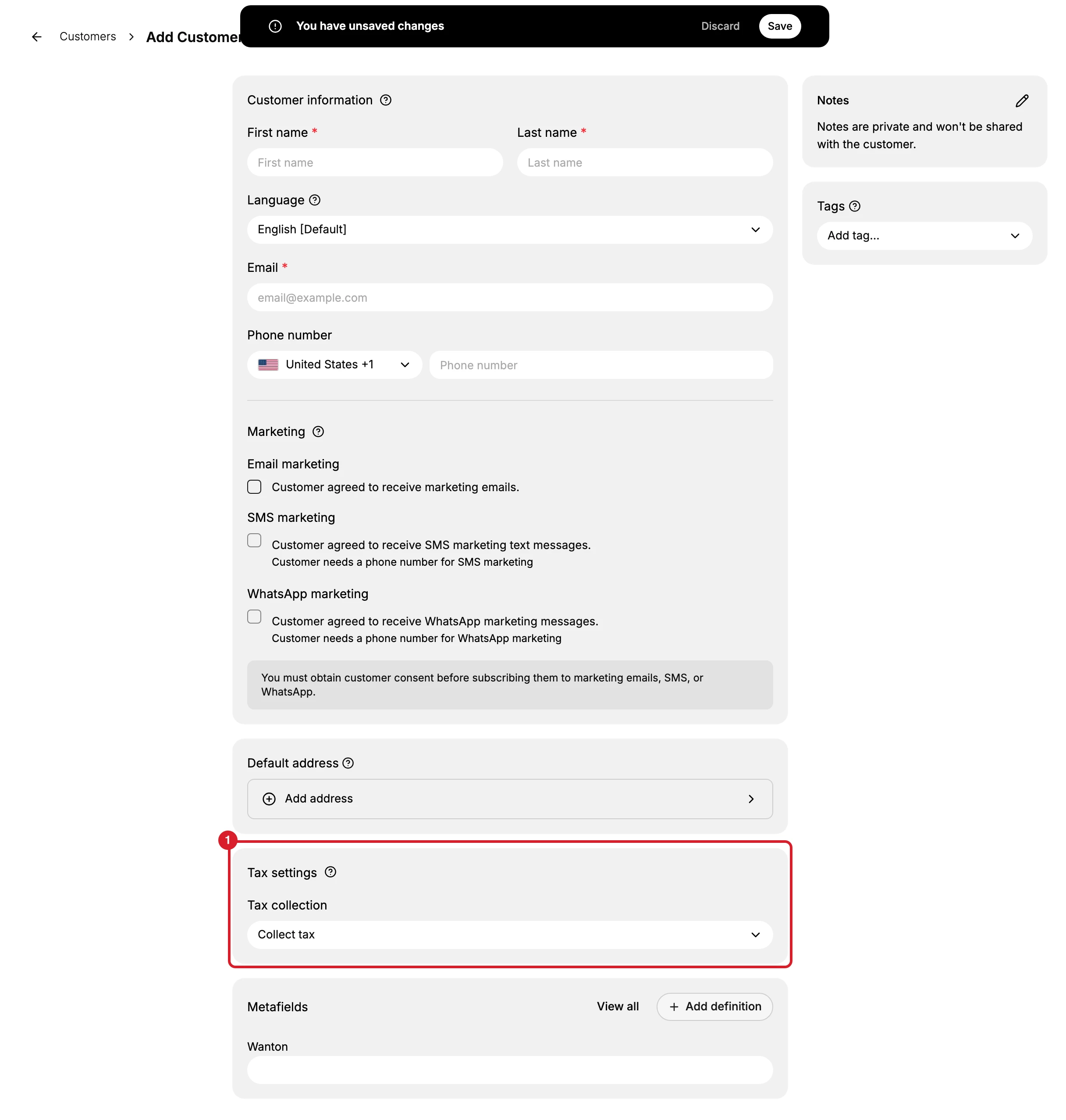
Tax settings (1) is the fourth card down the Add Customer form, below Default address and above Metafields, rather than beside the name and email at the top of it. It holds one control, Tax collection, and it opens on Collect tax, so a customer created without touching it is taxed the ordinary way.
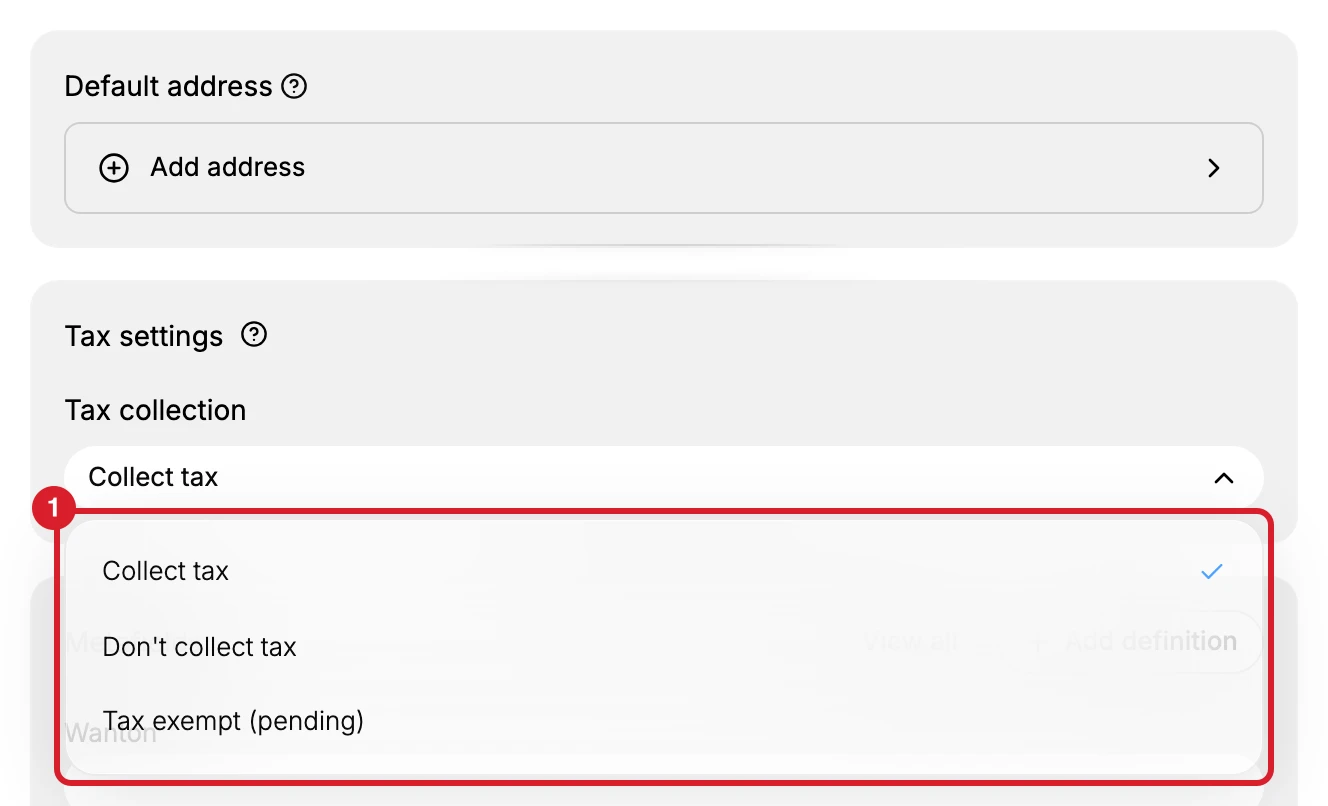
Opening Tax collection gives you three choices (1), with a tick against the one currently set.
| Choice on the form | What it means |
|---|---|
| Collect tax | The customer is taxed the way your store's tax setup says |
| Don't collect tax | No tax is charged on this customer's orders at all |
| Tax exempt (pending) | The customer is recorded as exempt, with the word pending on the status |
Nothing is stored until the form itself is saved, so changing your mind here costs nothing. Adding a Customer walks the rest of the form.
Changing it on a customer who already exists
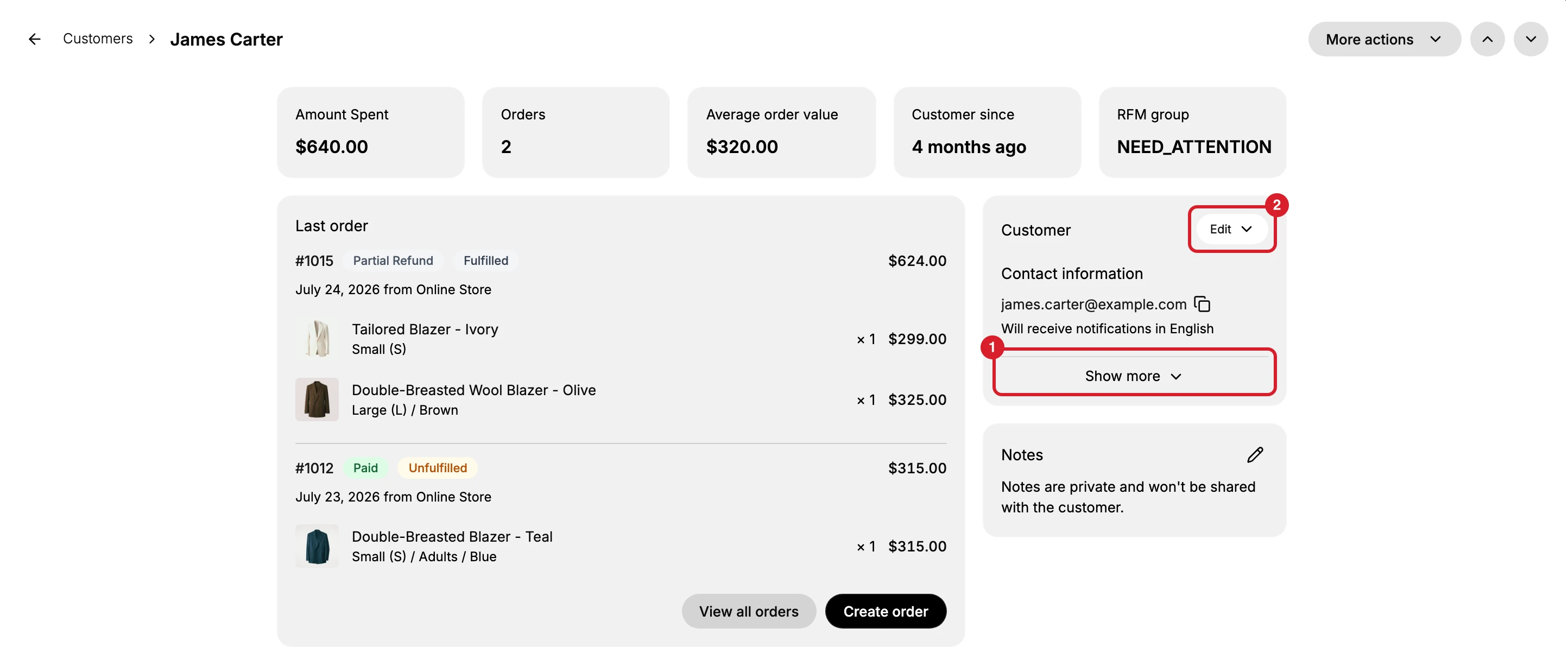
Open the customer from Customers in the sidebar. The Customer card in the right column is where the status lives, and both controls you need are on it: Show more (1) to read the status, and Edit (2) to change it.
1. Read the current status
The card opens holding Contact information only, so the tax status is not on screen yet.
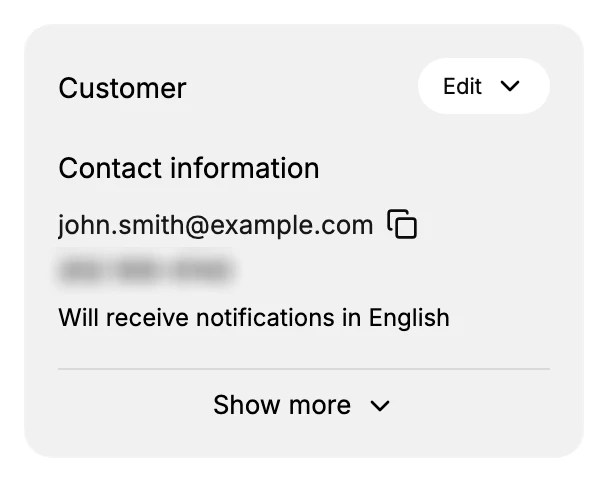
Select Show more (1) and the card grows to hold Default address, Marketing and Tax details, with Show less in place of the control you pressed.
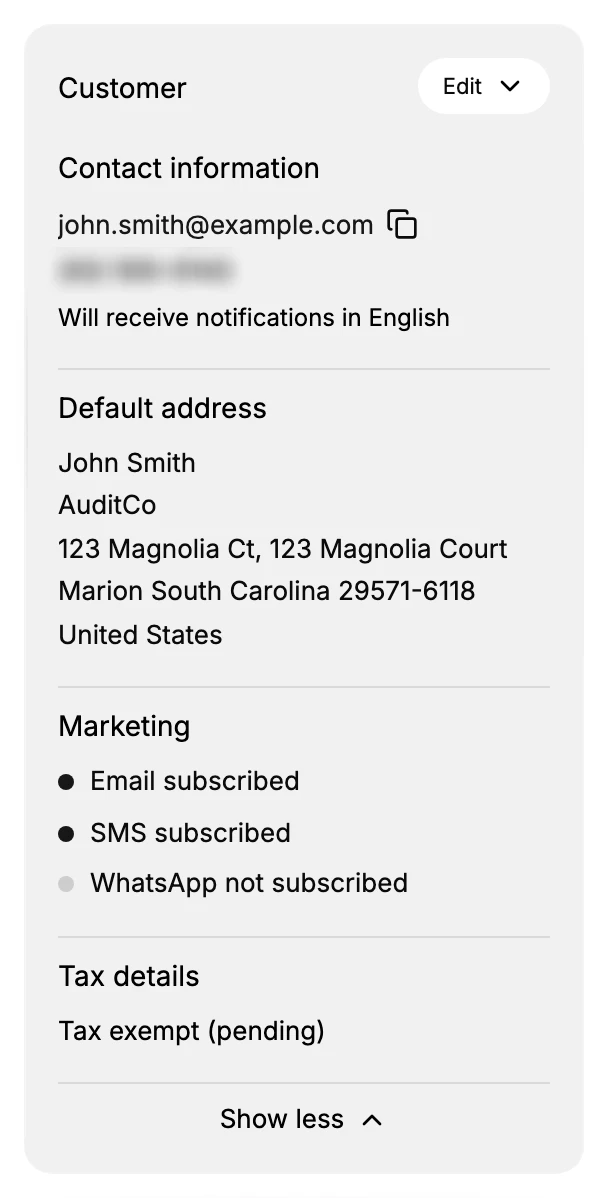
Tax details reads where the customer stands, for example Tax exempt (pending). That line is a summary of the setting rather than one of the options you choose from, so do not expect to find the same words in the dropdown.
Check it before you open anything. A customer who is already set correctly needs nothing from you, and the commonest reason to open the dialog is to confirm rather than to change.
2. Open Edit tax details
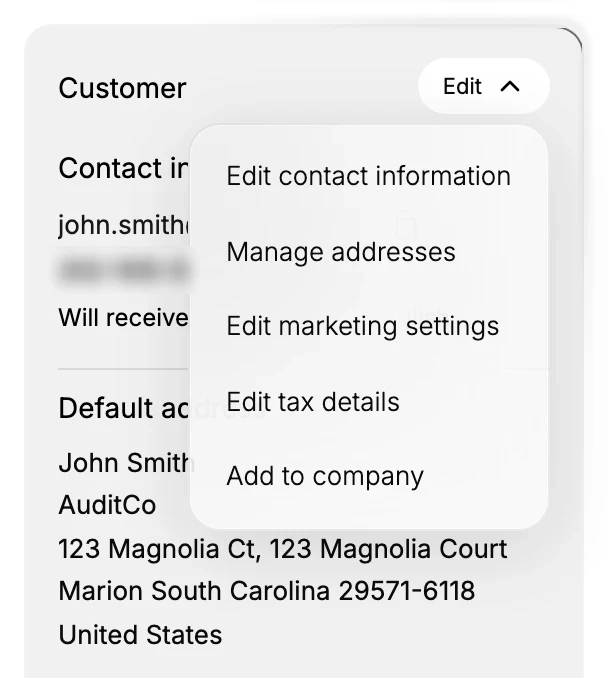
Open Edit (2) at the top right of the card and choose Edit tax details, the fourth of its five entries. The dialog holds one dropdown and, depending on what you choose, one more field.
This is the only place the status can be changed on an existing customer. The Customers list can show it in a column, but that column only reports it.
3. Choose the setting
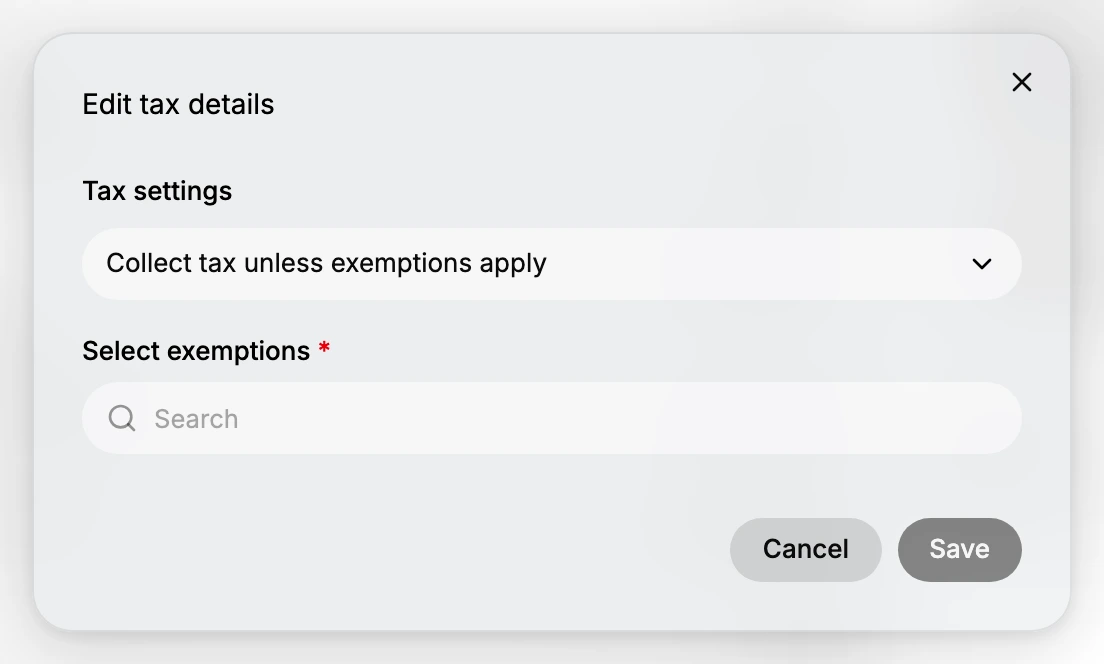
The dialog's own dropdown is headed Tax settings, and its three options are not word for word the three on the creation form.
| Setting in the dialog | What it means |
|---|---|
| Collect tax | The customer is taxed the way your store's tax setup says. This is the ordinary case |
| Collect tax unless exemptions apply | The customer is taxed except where an exemption you choose applies |
| Don't collect tax | No tax is charged on this customer's orders at all |
Leave it on Collect tax unless you have a reason and the paperwork to go with it, because that is the setting that follows your store's tax rules without exception.
The middle option is the one with a condition attached. Choosing it reveals a Select exemptions field, marked required, holding a search box. It searches the exemptions your store has, and it offers nothing when there are none: on a store with no exemptions set up, every term you type returns an empty box with no message, and Save never becomes available.
That is worth knowing before you promise a customer anything. If the search comes back empty whatever you type, the middle setting is not available to you yet, and the choice is between Collect tax and Don't collect tax. This is not a fault to work around. The setting means nothing until an exemption names what is exempt, so the dialog will not store it half finished.
4. Save, and record why elsewhere
Select Save to store the setting, or Cancel to leave the customer as they were.
Then write down why, outside Tanqory. The dialog keeps no note, no certificate and no date, so in a year the record will say a customer is exempt and nothing will say who decided that or on what evidence.
With the setting stored, the customer's orders are taxed according to it from then on, and the Tax details line on their card reflects what you chose. Nothing else on the record changes.
Where the status appears elsewhere
The two places above are where the status is set. There is one more place it can be read.
Manage columns, beside the search box on the Customers list, offers a Tax exempt column. Turning it on is the only way to see the status across your customers rather than one at a time. Until you do, the status is invisible unless you open somebody's record, so it is worth adding as soon as you have more than a couple of exemptions. Search the Customer List covers that control.
What this changes for your store
This setting overrides the tax rules your store applies everywhere else, for one customer. That is its purpose and also its risk: it is a quiet exception that keeps applying to every future order without ever announcing itself.
Leaving a customer on Collect tax is the safe default and needs no defence. The two other settings both mean you have taken a position on that customer's tax status, so treat them as decisions worth a note of their own.
If something goes wrong
- Save is greyed out. You are on Collect tax unless exemptions apply and no exemption has been picked yet.
- The exemption search finds nothing, whatever you type. Your store has no exemptions to choose from, so that setting cannot be completed. Use Collect tax or Don't collect tax instead.
- There is no Tax details line on the card. The Customer card is collapsed. Show more at its foot reveals it.
- The wording on the card is not in the dropdown. The card summarises the status; the two dropdowns have their own wording, and the one on the creation form differs from the one in the dialog.
- A customer is still being taxed. Reopen the dialog and confirm the setting saved, since closing the dialog without saving leaves the old status in place.
- You cannot find where to change it. Seeing it in a list column or a segment is not the same as editing it. Changing it is only on the customer's own record, under Edit, then Edit tax details.
- The Edit menu is missing. Your role may not include Edit customers. Ask an owner or admin.
Next steps
Related articles
Still stuck?
- Ask Tanqory AIAsk in your own words. It answers from these articles and links the ones it used.
- Ask in your adminThe assistant in your Tanqory admin answers and makes the change for you once you confirm.
- Contact TanqoryWrite to our privacy, security or legal teams, or talk to sales about a plan or a move.