Add a Company
You create a B2B company from Add company on the Companies page. The form takes the company name, an optional main contact, a first location with its shipping address, and the ordering, payment terms, checkout, and tax rules that location uses. Only the name is required, so you can save early and fill in the rest later.
On this page
You create a B2B company from the Companies page, using Add company. The form opens as one page called New company: it takes the company name, an optional main contact, and a first location with the addresses, payment terms, checkout rule, and tax settings that location uses. Only the company name is required to save, so you can create the company early and fill in the rest, or add more locations, later. B2B Companies explains what a company is and where it sits.
Every setting in the location section applies to the one location the form creates. A company can have many locations, each with its own addresses, catalogs, payment terms, and checkout rule, so treat this as the first location and add the others afterwards from the company's page.
Before you begin
- Your role includes Create and edit in the Companies permission group, which is what creating a company needs.
- Have the company's details ready: its name, who the main contact is, the shipping address, and any payment terms you have agreed.
- The person you want as the main contact already exists as a customer. The field searches the customers you have and cannot create one, so make the customer first or leave the field empty.
- Your market catalogs are set up, if this company should buy from one. Catalogs are built in the Markets area, not on this form, and a store with none set up sees No catalogs available here with nothing to choose.
- Go to Customers > Companies, then select Add company.
The form, section by section
| Section | What you set |
|---|---|
| Company name | The name shown in the buyer's account and at checkout (required) |
| Company ID | An external or unique ID for the company (optional) |
| Main contact | The buyer who is the company's main point of contact (optional, can be set later) |
| Shipping address | The first location's ship-to address; billing can be the same or separate |
| Markets | The market the location belongs to |
| Catalogs | The catalogs available to the location, which come from Markets |
| Payment terms | The terms the location pays on, such as None or a net term |
| Checkout | Whether one-time addresses are allowed, and whether orders submit or go to draft |
| Tax details | The location's tax ID and whether tax is collected |
| Notes | Anything you want recorded against the company, kept for your team |
Note: The unsaved changes bar appears across the top as soon as the form opens, before you have typed anything. It is not a sign that you changed something by accident, and Discard there closes the empty form.
Fill in the New company form
The form is one page of cards, in the order below. Work down it and save at the end.
1. Name the company
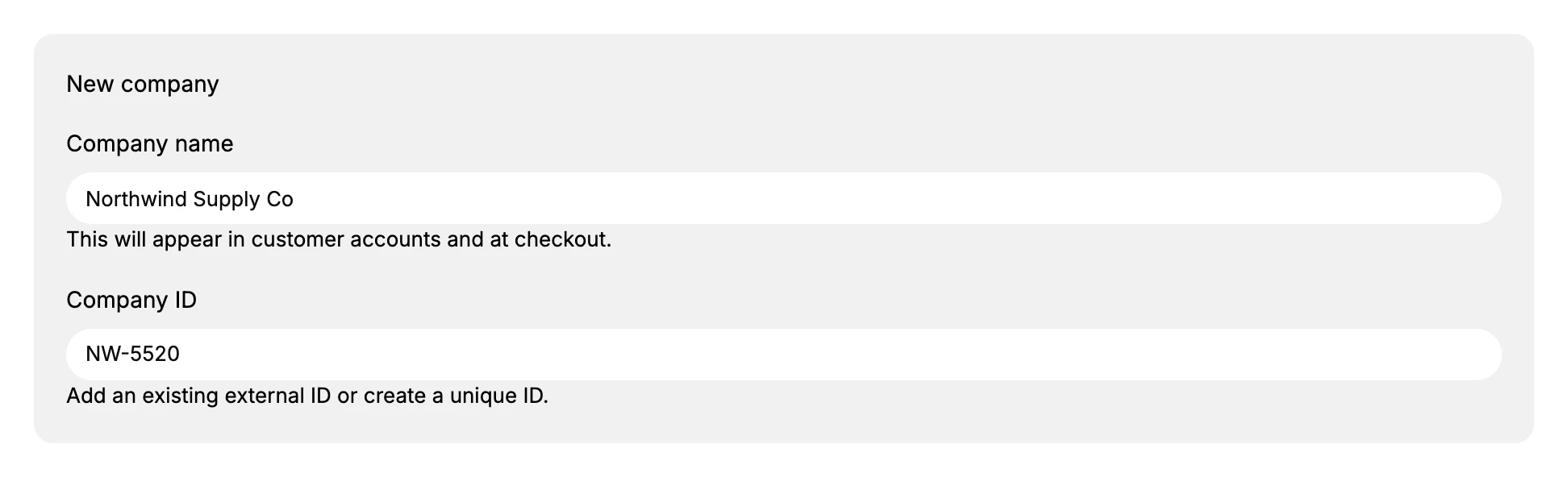
Company name is the only required field on the whole form, and it is the name the buyer sees in their account and at checkout. Save without it and nothing is created: a banner lists what is missing and the field is marked Company name is required.
Company ID is optional. Fill it in when you already identify this company by a number in another system and want the two to match.
2. Choose the main contact

Search for a customer who already exists and pick them. This is the person you deal with, and the company can be created without one, so leave it empty if you do not know yet.
Filling it here is the quick way to get a main contact, because the customer you pick arrives in that role and the Companies list shows their name under Main contact. A customer added later, from the company's page, arrives as an ordinary buyer instead, and making them the main contact is a second step covered in Manage a Company.
3. Give the first location an address
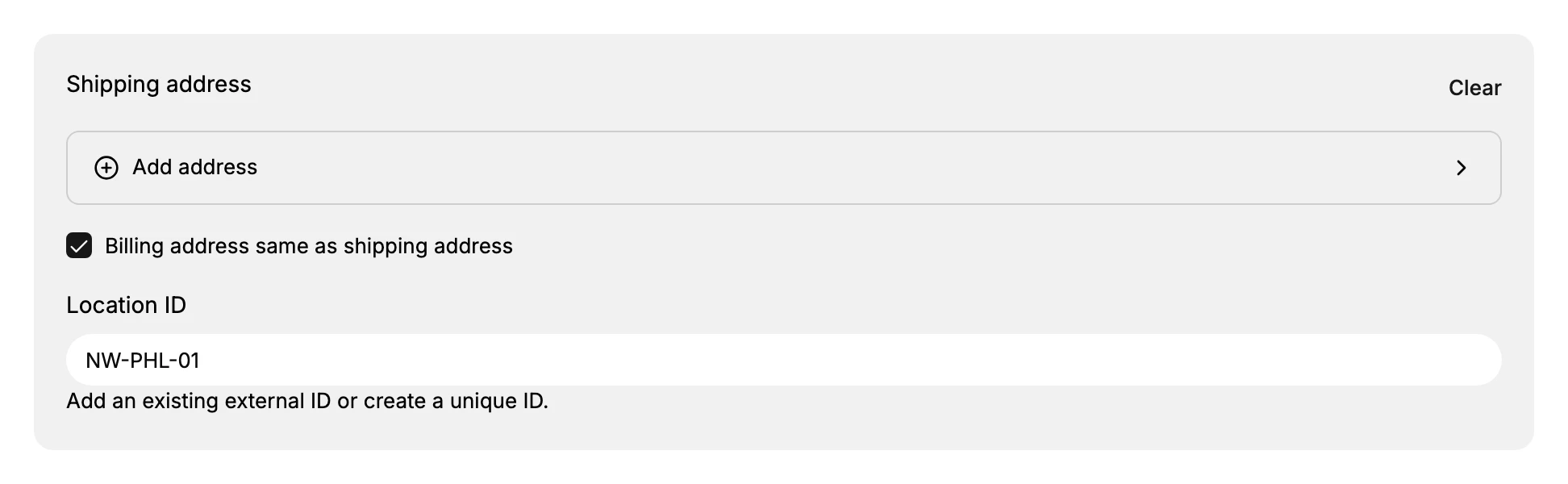
Add address opens a panel headed Add shipping address, for the place this location receives orders.
Set Country/Region first. It arrives on one country and the fields below it change to match the one you pick, so choosing it afterwards rearranges what you have already typed.
The Address field is a search rather than a plain box. Type the street and a list of matching addresses appears beneath it; choose the right one and the city, the state and the postal code fill themselves in. Typing the street and moving on without choosing from that list leaves the address incomplete, and the panel will not save.
Fill in the name and phone number of the person who receives deliveries, then Save in the panel to come back to the form.
Billing address same as shipping address arrives ticked. Clear it only when invoices go somewhere other than the delivery address, which is common for a head office buying for a branch.
Location ID matches the Company ID idea, one level down, and is optional in the same way.
4. Check the market and the catalogs

Markets shows which market the location belongs to, which is what decides the currency and the rules it buys under.
Catalogs lists what this location is allowed to see and buy, and the list is filled from the market above rather than from here. A store that has not built one reads No catalogs available on this card, and there is nothing to pick: the location falls back to the store's ordinary catalog.
5. Set the payment terms

The list holds None, Cash on delivery, Due on receipt, and net terms of 7, 15, 30, 45, 60 and 90 days.
A net term is a credit period. On Net 30 the buyer takes the goods now and the invoice falls due 30 days later, which is the usual arrangement on a trade account. Pick what you agreed with the company; None leaves the location without agreed terms.
6. Decide how orders reach you
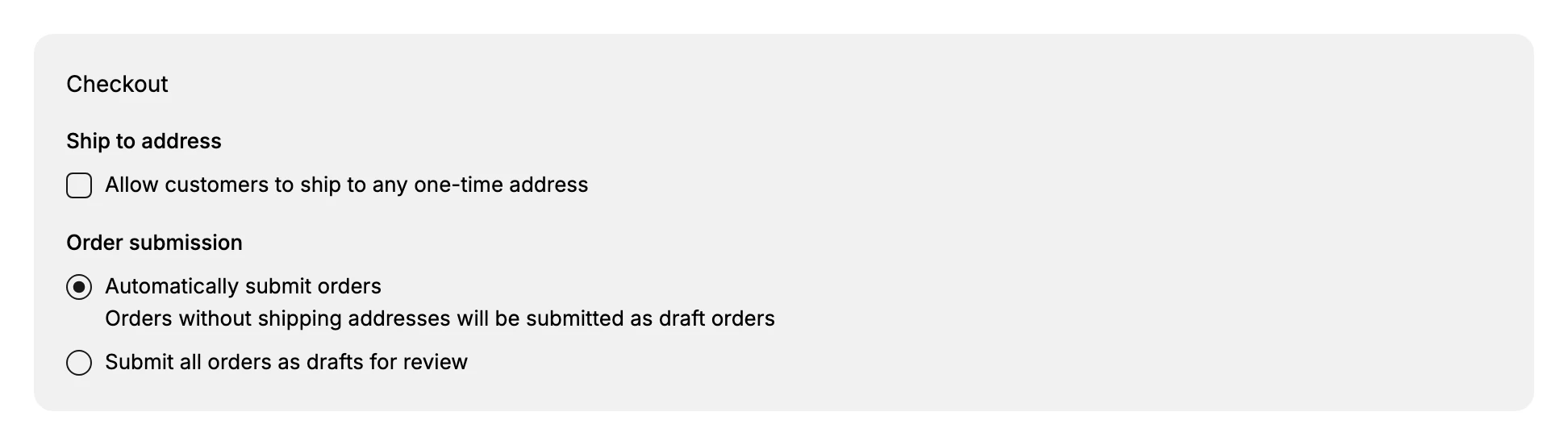
Ship to address decides whether this company's buyers may send an order to a one-off address rather than only to the locations you have set up.
Order submission is the one that changes your work. Automatically submit orders lets the buyer's order through as a real order, while Submit all orders as drafts for review holds every one until somebody on your side approves it. Choose the second for a company you are still getting to know.
7. Add the tax details
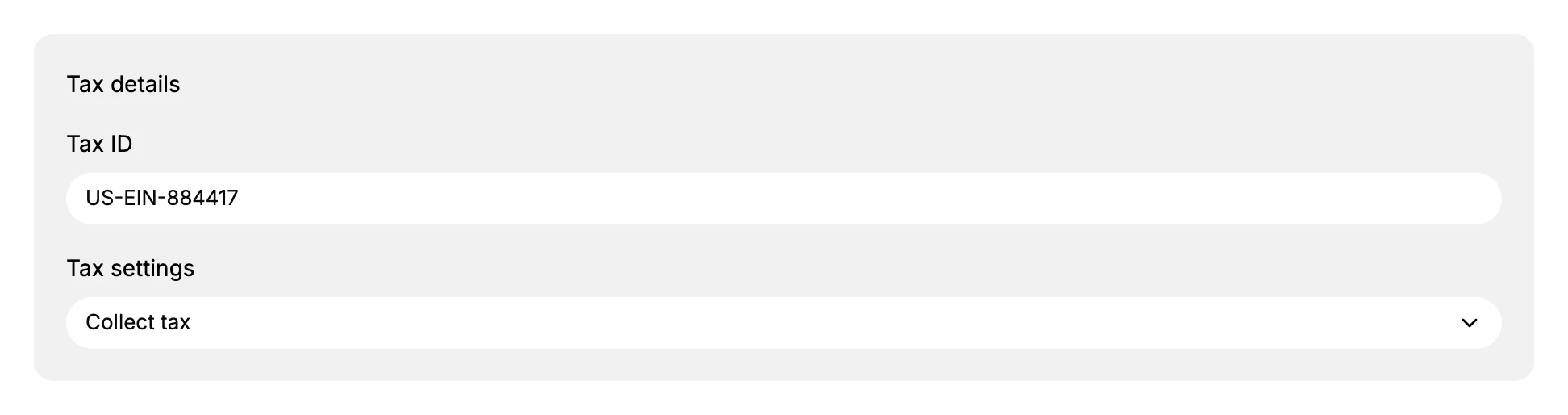
Tax ID is the registration number that belongs on this location's invoices.
Tax settings offers Collect tax and Don't collect tax, and it decides whether this location's orders are taxed at all. Choose Don't collect tax only where the buyer is exempt and you hold the paperwork that says so.
8. Save
Select Save in the bar at the top. The company is created and its own page opens, with an ordering status of Not approved, which means it exists but cannot place orders yet.
What a finished company looks like
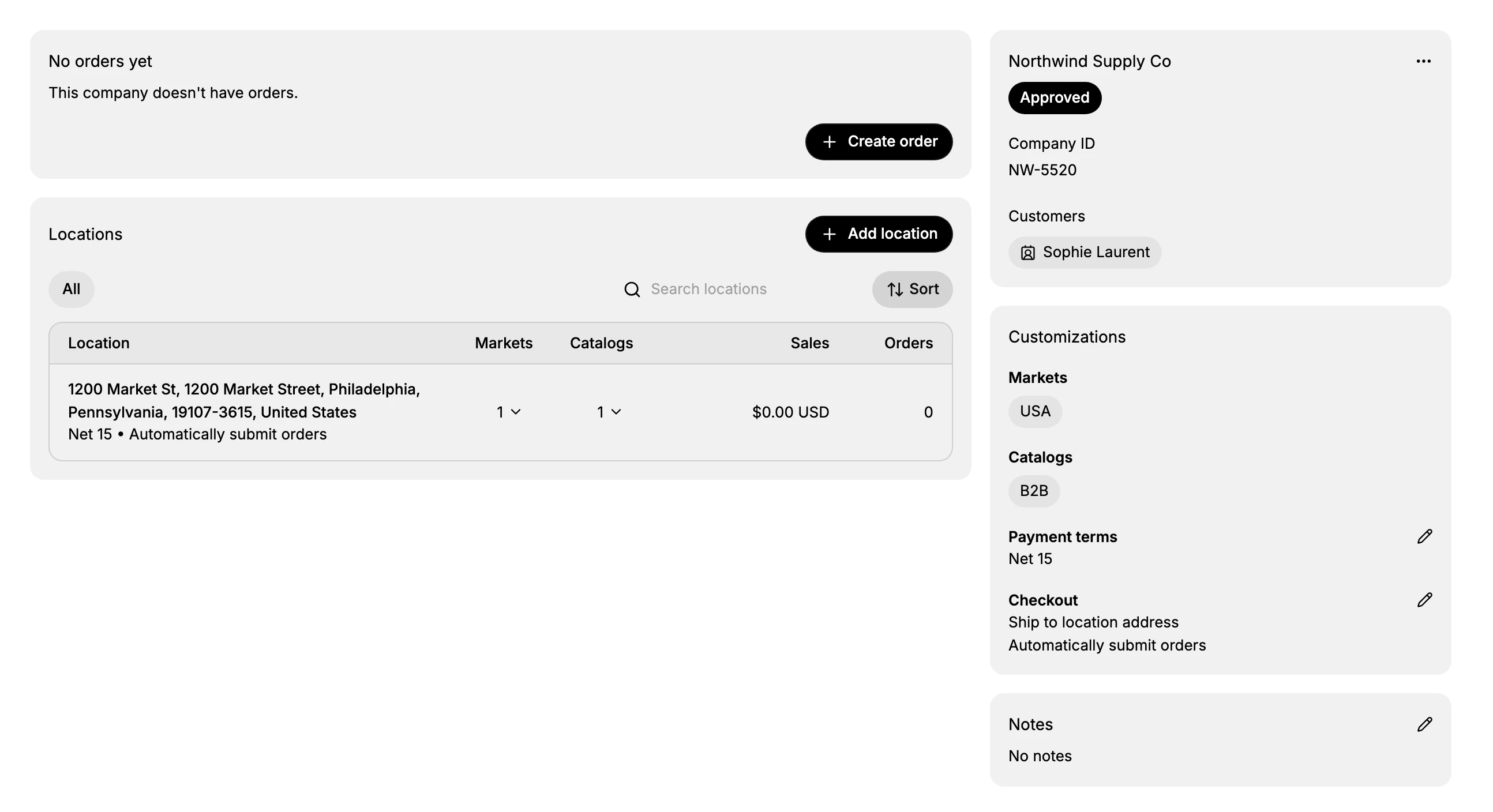
The page above is the same company a few minutes later, after the two things the form cannot do for you.
Give someone permission to order. Add a customer on the company page and the badge turns from Not approved to Approved. Until then the company exists and nobody can buy anything for it. Manage a Company covers that and the rest of the page.
Add the other locations. The form makes one. A company shipping to several sites gets the rest afterwards, each with its own address, terms and checkout rule, which Company Locations takes in full.
If something goes wrong
- Save is refused. A banner lists what is missing and the Company name field is marked Company name is required. Fill the name in; everything else can wait.
- No catalogs are available. None have been built yet. They come from the Markets area, not from this form, and the location falls back to the store's ordinary catalog until one exists.
- The company cannot order. A new company is Not approved until a customer is given permission to order for it, which is done on the company page.
- You cannot open the form at all. Your role may not include Create and edit in the Companies permission group. An owner, or an admin whose role carries it, can create the company for you.
Next steps
Related articles
Still stuck?
- Ask Tanqory AIAsk in your own words. It answers from these articles and links the ones it used.
- Ask in your adminThe assistant in your Tanqory admin answers and makes the change for you once you confirm.
- Contact TanqoryWrite to our privacy, security or legal teams, or talk to sales about a plan or a move.