B2B Companies
Companies is where you sell to businesses rather than to individual shoppers. A company groups the buyers who order for it, one or more locations that each carry their own addresses, payment terms and checkout rules, and an ordering status that decides whether it can place orders yet. This overview explains the Companies list, what the Ordering column is telling you, and which article takes each task from here.
On this page
Companies is how Tanqory handles selling to other businesses. A company is the parent record for a business you sell to. It groups the buyers who order on its behalf, one or more locations that each carry their own addresses, payment terms and checkout rules, and an ordering status saying whether the company is cleared to order at all.
That is what separates it from a regular customer record. A customer is one person with one set of contact details. A company is an organization with several buyers and several ship-to addresses under one account, which is what makes business buying possible.
Open Customers > Companies to reach the list. It holds every company you have set up, and it is where you add one, open one to manage it, and read how each is doing at a glance. This article explains what the list shows and where each task is covered.
What the Companies list shows
The list has one row per company, with these columns:
| Column | What it tells you |
|---|---|
| Company | The company name, which appears in the buyer's account and at checkout |
| Ordering | The ordering status, Approved or Not approved, which decides whether it can order |
| Locations | How many locations the company has, since a company can ship to more than one |
| Main contact | The buyer set as the company's main point of contact, or "No main contact" |
| Total orders | How many orders the company has placed |
| Total sales | What the company has spent with you |
Above the list are a Search and filter box to find a company, a Manage columns control to choose which columns show, and Add company to create one. Longer lists are paged, with a rows-per-page control at the foot of the table.
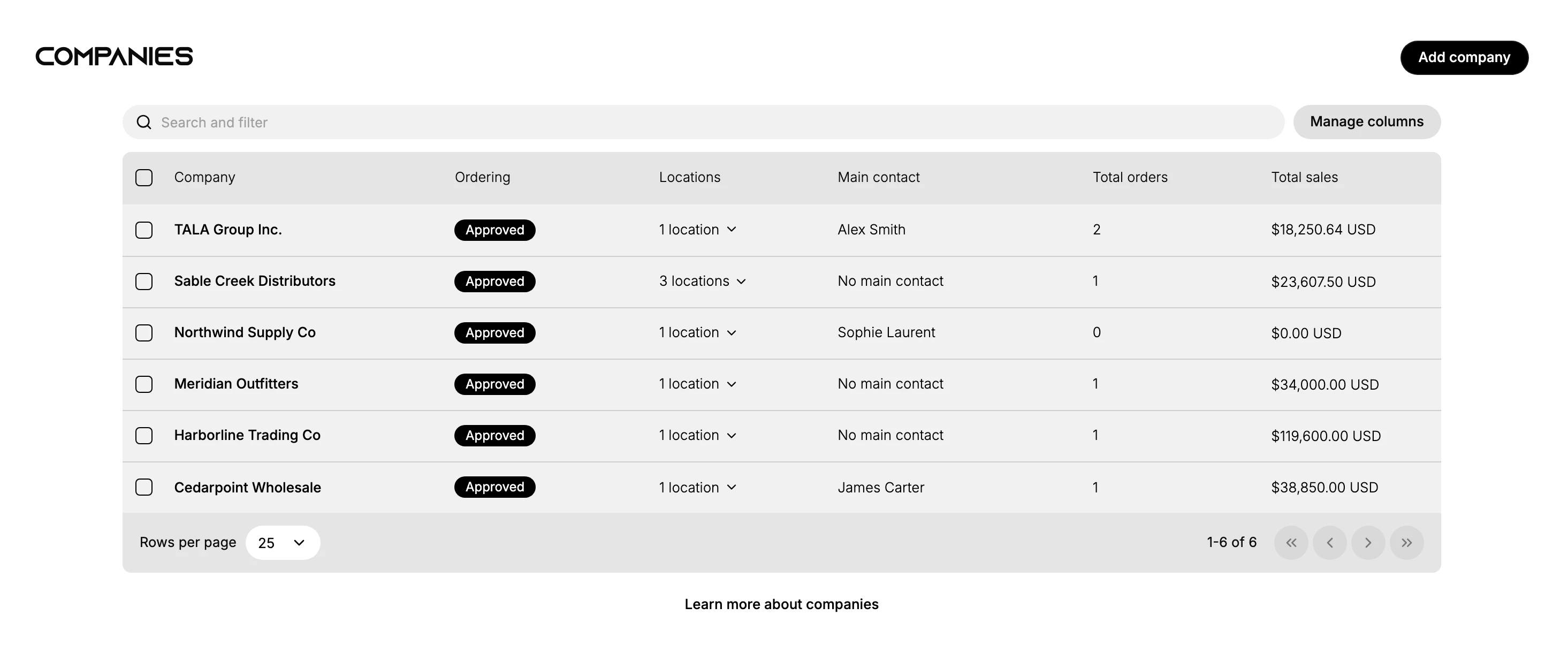
A main contact is not required for a company to order. Three of the companies above have none and are approved all the same.
What the Ordering column means
Read this column first, because it is what stands between a company and its first order.
Not approved means the company exists and its details are saved, but nobody can place an order under it yet. Every company starts here, including one whose form you have finished and saved.
Approved means at least one customer has been given permission to order for the company, so orders can be placed under it.
The status is not a switch you flip. It follows from the customers assigned to the company: give a customer ordering access on the company's page and the badge changes to Approved. That is also why a company with every detail filled in can still read Not approved.
Where each task lives
- Add a company with Add company at the top of the list. The form sets the name, the main contact, the first location, and the company's markets, catalogs, payment terms, checkout and tax rules. Add a Company walks that form step by step.
- Manage a company by selecting its row. Its page is where you give customers ordering access, change the company-wide settings, keep notes, and place an order on the company's behalf. Manage a Company maps that page part by part.
- Add or manage locations from the company's page, since each location carries its own addresses, payment terms, checkout rules and buyers. Company Locations takes the location record on its own.
What a company is made of
- Buyers. The people who order for the company, drawn from your existing customers. One of them can be set as the main contact.
- Locations. The places the company orders and ships for. A company has at least one and can have many, and each is configured on its own.
- Ordering status. Approved or Not approved, which decides whether the company can place orders.
- Company-wide settings. The markets, catalogs, payment terms and checkout rules that apply across the company, each of which a location can carry or replace with its own.
If something goes wrong
- A company cannot place an order. Check the Ordering column. If it reads Not approved, open the company and give one of its customers ordering access.
- A company is approved but has no main contact. That is allowed. The main contact is who you deal with, not who may order.
- You cannot find a company. Use Search and filter rather than paging, and check the company was saved when you added it.
- You cannot open Companies. Your role may not include View in the Companies permission group. An owner or admin can add it.
Next steps
Related articles
Still stuck?
- Ask Tanqory AIAsk in your own words. It answers from these articles and links the ones it used.
- Ask in your adminThe assistant in your Tanqory admin answers and makes the change for you once you confirm.
- Contact TanqoryWrite to our privacy, security or legal teams, or talk to sales about a plan or a move.