Company Locations
A company location is more than an address. Each one carries its own shipping and billing addresses, assigned customers, markets, catalogs, payment terms, checkout rule, and tax settings. You manage a company's locations from the Locations panel on its page, where you can add a location, copy an existing one, and see each location's terms at a glance.
On this page
A company location is the part of a B2B company you actually ship to and bill, and it holds more than an address. Each location carries its own shipping and billing addresses, its assigned customers, its markets and catalogs, its payment terms, its checkout rule, and its tax settings. That is what lets one company order for several sites, each on its own terms, under a single account. A company is created with its first location, and the rest are added from the company's page. Add a Company covers that first one, since it is part of the form that creates the company.
You work with locations in the Locations panel on a company's page. It lists every location the company has, and it is where you add a new one, copy an existing one, and read each location's terms without opening it.
Before you begin
- Your role includes Create and edit in the Companies permission group, since a location is part of a company's record.
- Have the location's shipping address and agreed payment terms ready.
- Open Customers > Companies and open the company you want to work on.
The Locations panel
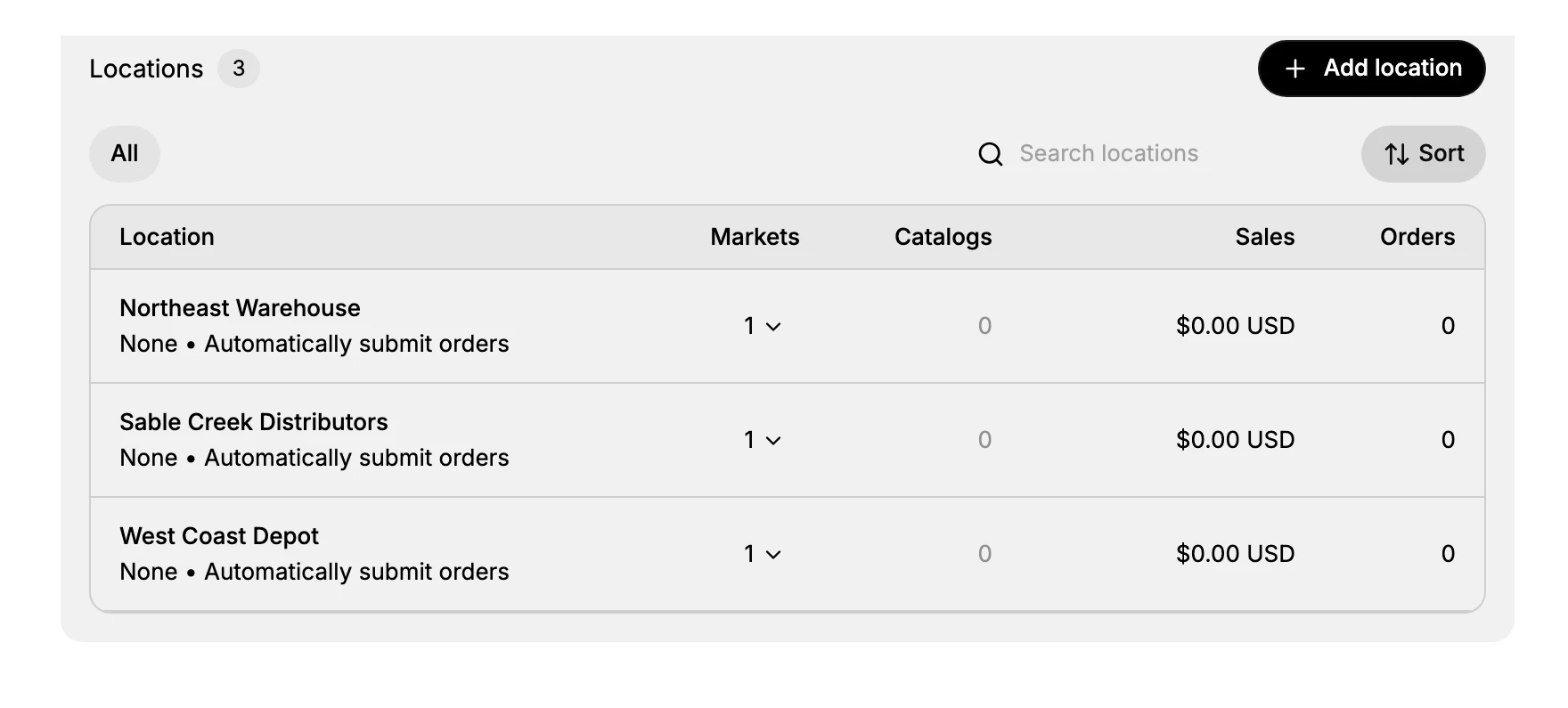
The panel shows one row per location, with the location name and, beneath it, the location's payment terms and order-submission rule, such as "None - Automatically submit orders" or a net term. The columns show each location's Markets, Catalogs, Sales, and Orders, so you can compare locations at a glance. At the top are Add location, a search box, and Sort.
Add a location
Select Add location in the Locations panel. The New location form opens as one page of cards, in the order below.
1. Copy an existing location, or start fresh

The card at the top offers to reuse another location's settings. It names exactly what it copies: the customers, the catalogs, the checkout settings, the payment terms and the tax settings. The address is not among them, so a copied location still needs its own.
Use it when a company's sites buy on the same terms, which is the usual case, and leave it alone when this site is different.
2. Give the location its address
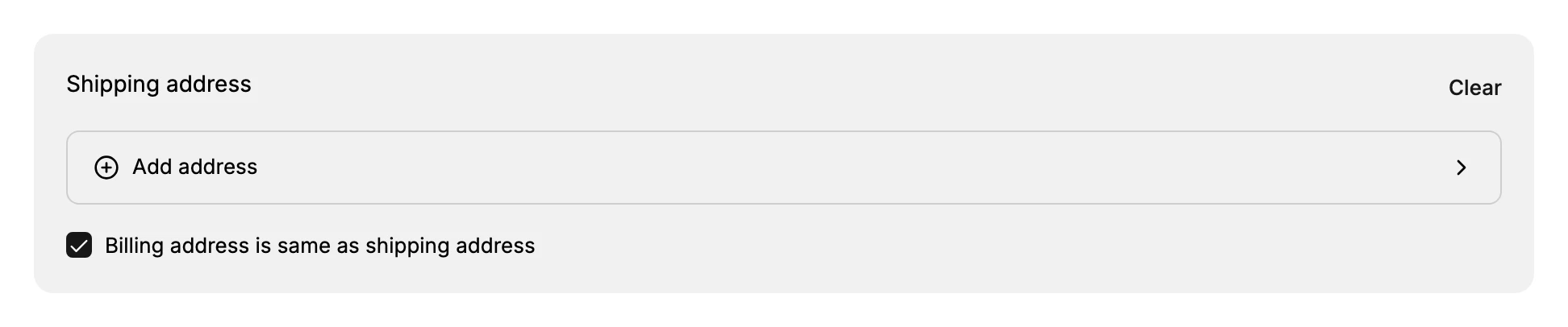
Add address opens a panel headed Add shipping address.
Set Country/Region first, because the fields below it change to match the country you pick. The Address field is a search rather than a plain box: type the street, choose the right match from the list that appears, and the city, the state and the postal code fill themselves in. Typing the street without choosing from the list leaves the address incomplete and the panel will not save.
Billing address is same as shipping address arrives ticked. Clear it when invoices go somewhere else.
3. Name the location
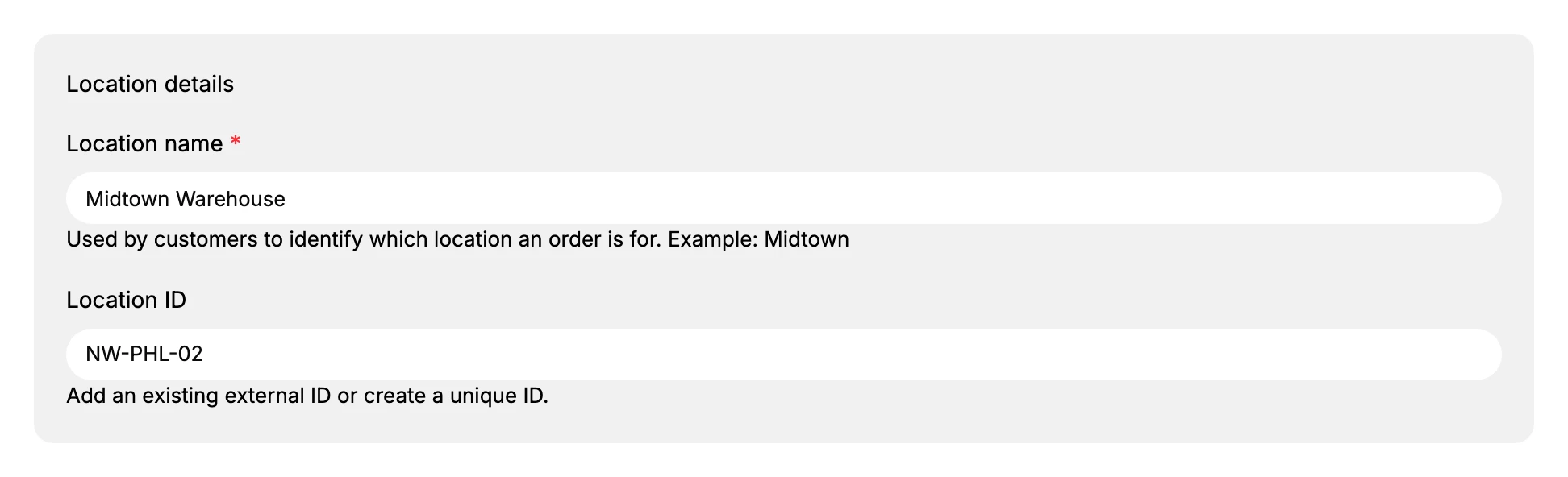
Location name is the one required field on the form, marked with an asterisk. The helper beneath it says what the name is for: customers use it to tell which location an order is for, so name it the way the buyer would, by site or city rather than by an internal code.
Location ID is optional, and matches your own numbering if you keep one.
4. Assign customers, and check the market and catalogs
Under Customers, add the buyers who order for this location. A company can have several locations and several buyers, and this is where you decide who orders for where.
Markets shows the market this location belongs to and Catalogs what it may buy from, both filled from the market rather than set here.
5. Set the payment terms

The list is the same as on the company: None, Cash on delivery, Due on receipt, and net terms of 7, 15, 30, 45, 60 and 90 days. A location's terms are its own, so a site that pays on different terms from the rest of the company is set here rather than on the company.
6. Decide how its orders reach you
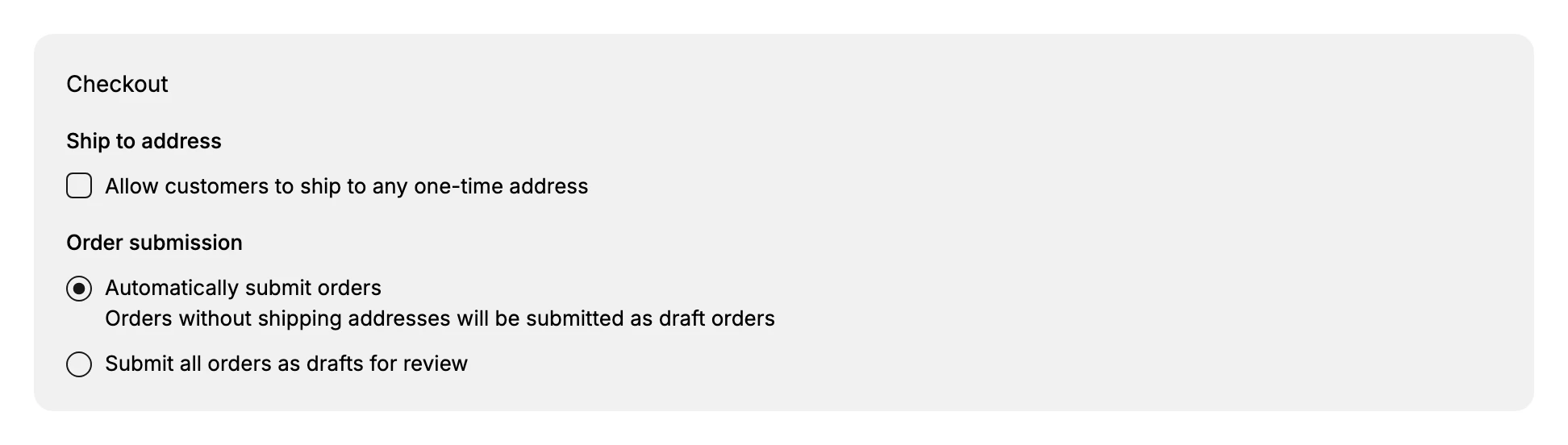
Ship to address decides whether this location's buyers may send an order to a one-off address.
Order submission decides whether their orders arrive as real orders or wait as drafts for someone to approve. This is set per location, so a new site can be held for review while the rest of the company orders freely.
7. Add the tax details and save
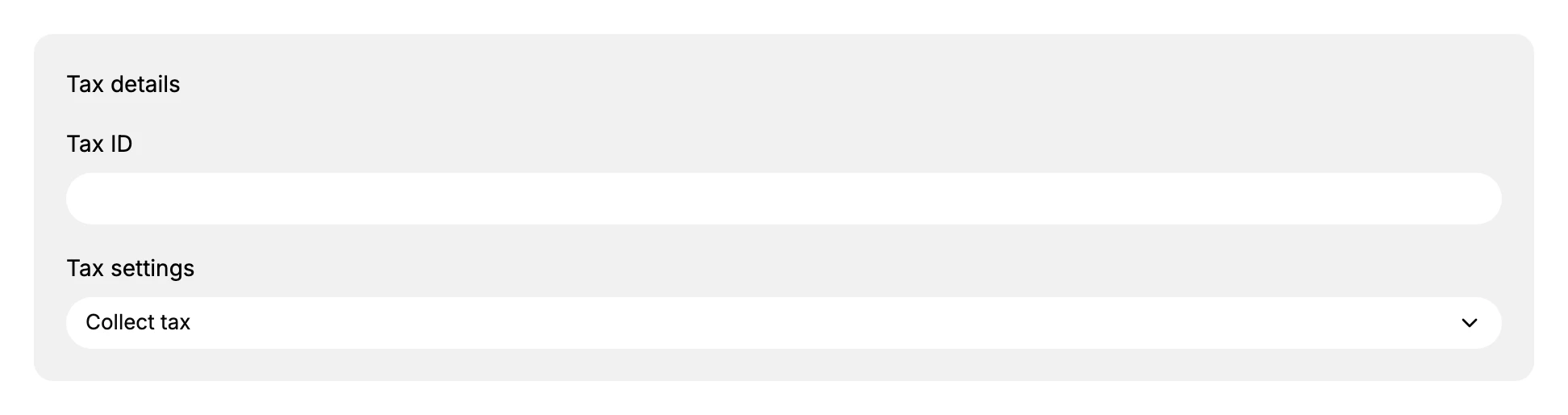
Tax ID is the registration number for this location, and Tax settings offers Collect tax or Don't collect tax.
Select Save in the bar at the top. The location appears in the Locations panel with its payment terms and order-submission rule beneath its name.
If something goes wrong
- Save is refused. Location name is the required field. Fill it in and save again.
- The address will not save. The street has to be chosen from the list the Address search offers, not only typed. Pick the match and the rest of the address fills itself in.
- The new location is not in the panel. Check that the form was saved rather than left open, since nothing is kept until Save is selected.
- You cannot add one at all. Your role may not include Create and edit in the Companies permission group. An owner, or an admin whose role carries it, can add it for you.
Next steps
Related articles
Still stuck?
- Ask Tanqory AIAsk in your own words. It answers from these articles and links the ones it used.
- Ask in your adminThe assistant in your Tanqory admin answers and makes the change for you once you confirm.
- Contact TanqoryWrite to our privacy, security or legal teams, or talk to sales about a plan or a move.