Customer Addresses Section
A customer can hold more than one address, but their record only ever shows one of them, and it is not on the card until you expand it. The Customer card hides the default address behind Show more, and the rest of the addresses live behind Manage addresses. This covers reading the card, working the dialog, and why the Default badge decides what your team sees.
On this page
A customer's record shows one address, under Default address on the Customer card. That is not necessarily the only address they have. It is the one carrying the Default badge, and a customer can hold several with the rest out of sight until you open the dialog that manages them.
The distinction matters because the card is what your team reads. Someone checking where an order should go, or confirming a customer's details on the phone, looks at the card and takes the address there as the address. If the customer has moved and the new address was added without being made the default, the card keeps showing the old one and nobody notices until a parcel goes to the wrong place.
Where each address lives
| Where | What it shows |
|---|---|
| Default address on the Customer card | One address only, the one badged Default, or No address provided when there is none |
| The Manage addresses dialog | Every address on the customer, with the default marked and the rest listed under it |
Before you begin
- The customer record exists. Addresses belong to a customer, so there is nothing to add one to until the customer is created.
- You have the address as the customer gives it. Nothing in the dialog validates or corrects what you type, so a mistyped street survives to the parcel.
- Your role includes View customers to read the card, and Manage customer addresses to change anything.
- Open Customers in the admin sidebar and select the customer.
Steps
1. Read the card first
On the customer's detail page, the Customer card sits in the right column. It opens showing only Contact information, so the address is not on screen yet: select Show more at the foot of the card and the card grows to hold Default address, Marketing and Tax details, with Show less in place of the control you pressed.
Default address then shows one address, or No address provided when the customer has none.
Read it before you open anything, because for most questions this is the answer. Skip straight to the dialog and you will be reading a list without knowing which entry your team has actually been using.
2. Open Manage addresses
At the top right of the Customer card, open Edit and choose Manage addresses, the second of its five entries. The dialog is headed Manage addresses and lists the addresses straight away, with no description under the heading.
This is the only place the full list appears. The card gives you no hint that a second address exists, so a customer who has moved twice looks the same on the card as one who has never given you an address at all beyond the first.
3. Work the list
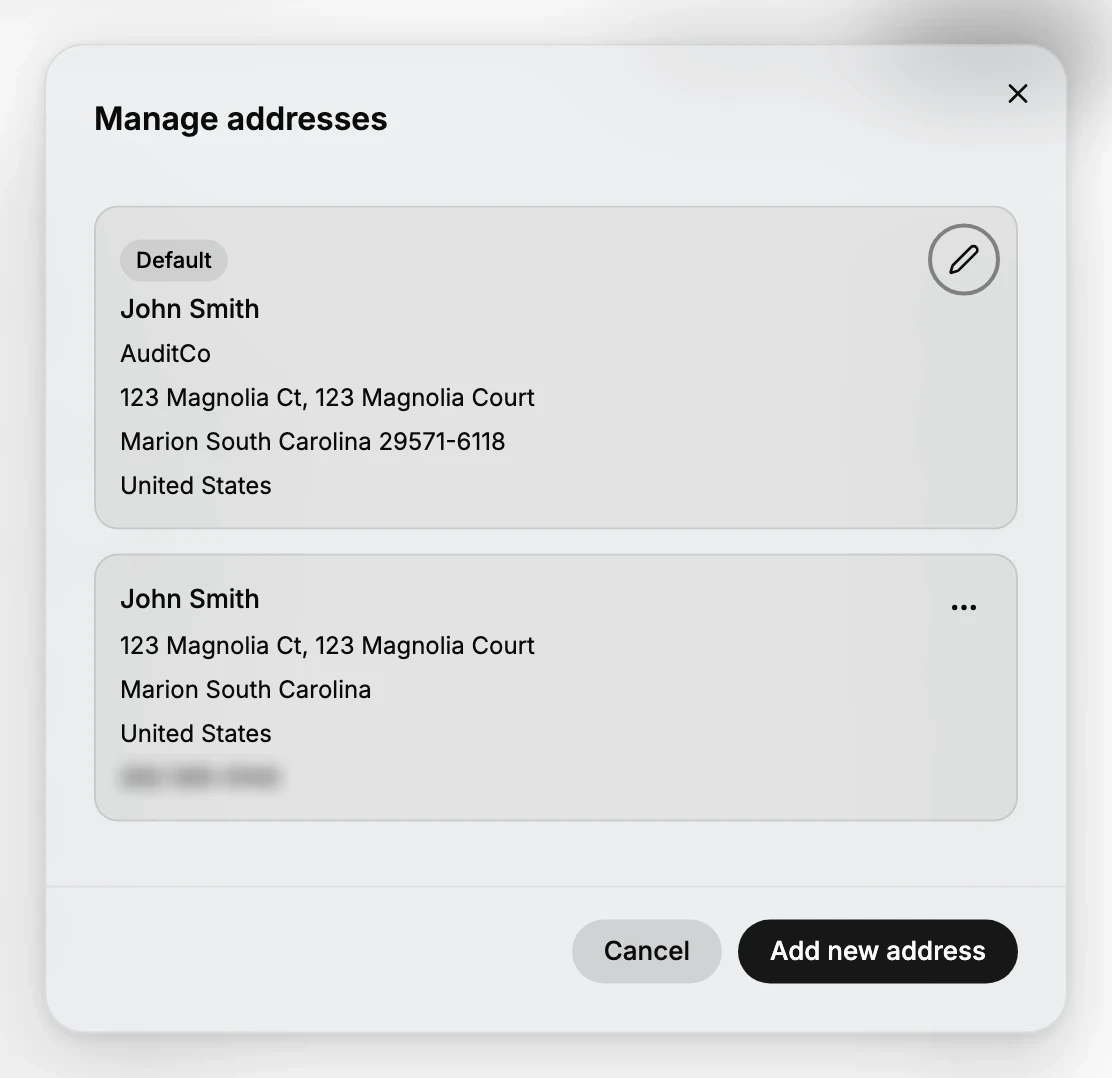
Each address is listed in full, with the company name and phone number where the customer gave them. The one in use carries a Default badge and a pencil for editing it. Every other address carries a menu instead, holding Edit, Set as Default, and Delete.
That difference is worth knowing before you go looking for a control that is not there. The default address cannot be deleted from its own row, because the pencil is all it offers; promote another address with Set as Default first, and the old one gains the menu.
The name at the top of each entry belongs to the address, not to the customer. Opening one for editing shows its own First name and Last name fields, which is why a customer with two addresses usually shows their own name twice. It does not have to: the fields are yours to change, so an address a customer ships to a colleague or a company contact can carry that person's name instead. A merged customer shows this plainly, since an address brought across from another record keeps the name it had rather than taking the name of the record it landed on.
4. Add an address, or promote one you already have
Add new address at the foot of the dialog adds a new entry to the list. Adding is not the same as switching: a new address joins the list without becoming the default, so the card keeps showing the old one until you use Set as Default on the new entry.
That is the step people miss. If a customer tells you they have moved and you only add the new address, everything your team reads still points at the old one, and nothing warns you.
5. Close the dialog and check the card
Close the dialog and look at Default address on the Customer card, expanding it with Show more if it has closed again. It should now show whichever address carries the badge.
This is the check worth doing every time, because the card is the surface everyone else in your team reads. An address list that is correct and a card that is wrong is the same problem as having no address at all, and it is quieter.
What this changes for your store
The default address is what fulfilment reads and what your team quotes back to a customer, so keeping it current is worth more than keeping the list complete. A tidy list with a stale default is still a wrong address.
Leaving old addresses in place is a reasonable choice. They cost nothing, they carry a phone number and a company name that can be useful history, and only the badged one is used. What is not reasonable is adding a new address and assuming that is the job finished.
If something goes wrong
- The card still shows the old address. The new one was added but never promoted. Open Manage addresses and use Set as Default on it.
- You cannot delete an address. It is the default. Promote another address first, and the menu appears on the old one.
- The card reads No address provided. The customer has no address at all. Add one with Add new address.
- There is no address on the card at all. The card is collapsed. Show more at its foot reveals the default address, the marketing consents and the tax status.
- The Edit menu has no Manage addresses. Your role may not include Manage customer addresses. Ask an owner or admin.
Next steps
Related articles
Still stuck?
- Ask Tanqory AIAsk in your own words. It answers from these articles and links the ones it used.
- Ask in your adminThe assistant in your Tanqory admin answers and makes the change for you once you confirm.
- Contact TanqoryWrite to our privacy, security or legal teams, or talk to sales about a plan or a move.