Customer Creation Form
The field-by-field reference for the Add Customer form: the three required fields, the three marketing consents and the notice above them, where Save hides until you change something, and the four sections that are on this form but not in the Edit menu afterwards.
On this page
This is the field-by-field reference for the Add Customer form. When and why you would create a record by hand, and the walkthrough itself, belong to Adding a Customer.
Only three fields are required. Everything else on the form is there for when it applies, and can be filled in later from the customer's own page.
Before you begin
- Your role includes Create customers.
- You have the customer's first name, last name and email, which are the three fields the form marks as required.
- Go to Customers, then Add Customer at the top right of the list.
The form
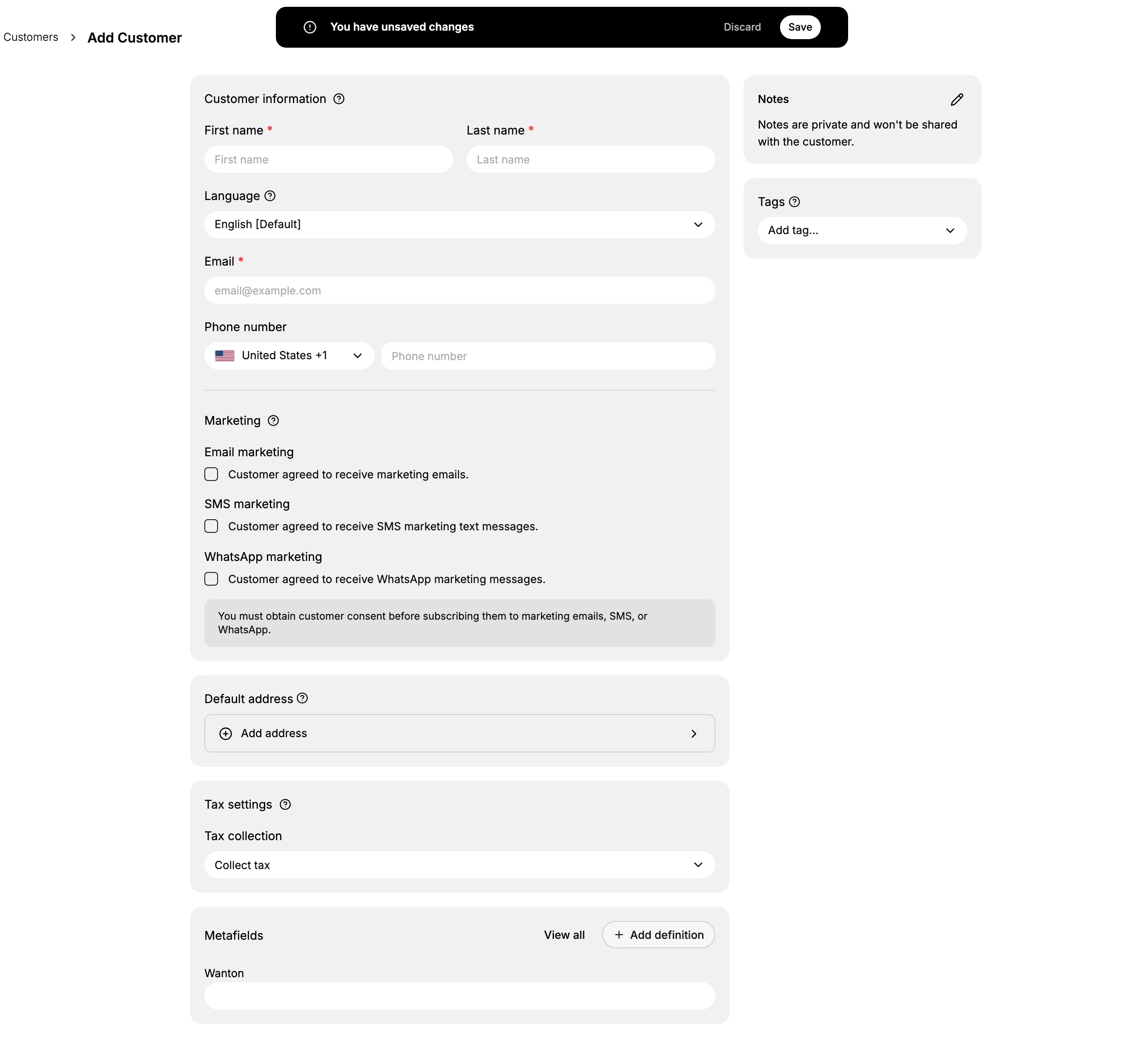
| Section | What it holds |
|---|---|
| Customer information | First name, Last name and Email, each marked with a red asterisk and required; Language, which sets the language their notifications are written in; and Phone number, with its own country selector |
| Marketing | Three consent checkboxes, Email marketing, SMS marketing and WhatsApp marketing, all unticked to begin with |
| Default address | Add address, which opens a dialog asking for Country/Region, first and last name, an optional company, the street address and an optional second line, city, postal code and a phone number, then Save address |
| Tax settings | Tax collection, a dropdown offering Collect tax, Don't collect tax and Tax exempt (pending), opening on the first |
| Metafields | Extra fields your store has defined, with View all and Add definition |
| Notes | An Edit notes control rather than a box, opening the same Add note dialog the saved record uses, which counts to 5000 characters |
| Tags | Add tag, which opens the store's tag selector: a search-or-create field over the tags the store already has, and View all tags |
The three required fields
First name, Last name and Email carry a red asterisk, which is how the form marks a field it needs. The email matters most of the three: it identifies the customer, it is where their order emails go, and it is what a second record for the same person would collide with.
Everything else is optional at this point. A record with only those three is a valid customer, and the rest can be added from their detail page whenever you have it.
Marketing consent starts off
All three consent boxes begin unticked, and the form carries its own notice underneath them:
You must obtain customer consent before subscribing them to marketing emails, SMS, or WhatsApp.
Ticking a box here is a record that the customer agreed, not a request to ask them. Tick only what they actually said yes to, and leave the rest alone; consent is kept per channel, so agreeing to email is not agreeing to SMS.
Where Save is
A bar sits across the top of the form from the moment it opens, reading You have unsaved changes with Discard and Save on it. It is there before you type anything, because the form counts its own defaults as changes, so its presence is not a sign that you have already filled something in. Discard clears the form and leaves you on it; Save is what creates the record. Until you take Save, nothing has been created and leaving the page costs you only what you typed.
More is on this form than in the Edit menu
Worth knowing for later: Notes, Tags and Metafields are on this form but are not in the Edit menu on a saved customer, so afterwards each is changed from its own card on the customer's page. Tax settings is the exception: it has a form of its own in that menu. Editing Customer Information walks the rest of that page.
So filling them in now is quicker than adding them later, and there is no penalty for skipping them.
If something goes wrong
- Save does nothing. Check the three asterisked fields. The bar is on the form from the start, so its presence is not a sign that the form is ready to save.
- Save is refused. One of the three required fields is empty.
- The email is rejected. Another customer may already hold it. Search the list for it before creating a second record.
Next steps
Related articles
Still stuck?
- Ask Tanqory AIAsk in your own words. It answers from these articles and links the ones it used.
- Ask in your adminThe assistant in your Tanqory admin answers and makes the change for you once you confirm.
- Contact TanqoryWrite to our privacy, security or legal teams, or talk to sales about a plan or a move.