Handle Customer Privacy Requests
A customer can ask to see the personal data your store holds about them, or ask you to remove it. Both are handled from the More actions menu on their record, and the requests that arrive from your storefront queue up under Customers > Data requests with a due date and Approve and Reject on each one. An erasure is scheduled rather than immediate, which is the window you have to call it off.
On this page
A privacy request is a customer asking to see the personal data your store holds about them, or asking you to remove it. In many regions this is a right they can exercise, and the request dialog in the admin points at responding within 30 days.
There are two sides to this in Tanqory. You can start either action yourself from a customer's record, and requests that arrive from elsewhere land in a queue of their own, where each one waits with a due date until somebody approves or rejects it. Customer Privacy covers the store-wide settings behind all of this.
Before you begin
- Your role includes Edit customers, since these actions expose or remove customer data.
- You have the request in writing, and you are satisfied the person asking is the customer.
- You know which record the request is about, since none of these actions can be undone once they complete.
The queue of requests waiting for you
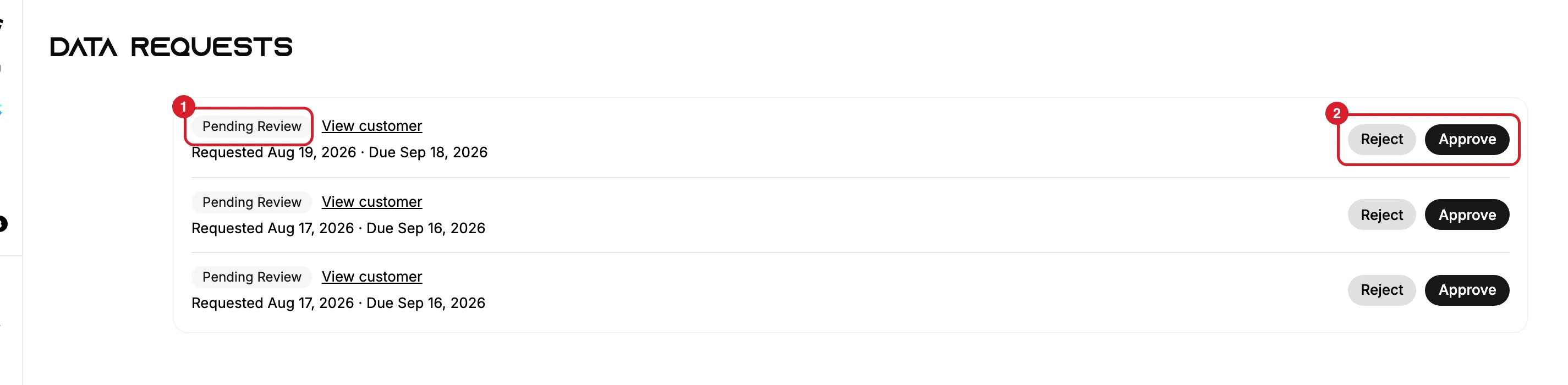
Data requests sits in the sidebar under Customers, below Segments and Companies. Each row is one request, and the row is all you get: a Pending Review chip (1), the date it was made and the date it is due, View customer to find out who it is from, and Reject and Approve (2).
Two things follow from that. The row does not name the customer, so View customer is the only way to see whose request you are about to answer. The due date is the clock that matters: on this store each one falls 30 days after the request, which matches what the request dialog says about responding within 30 days.
The same request also appears on the customer's own page, so you can deal with it while you are looking at them:
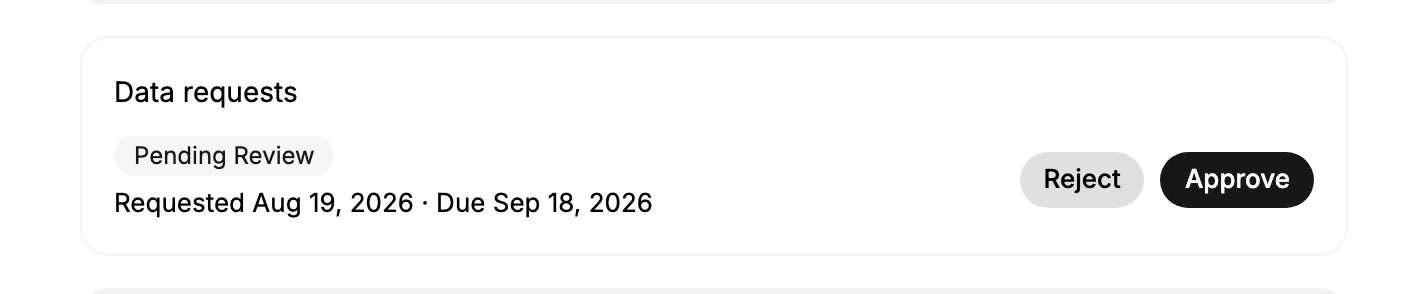
Note: A request that nobody approves or rejects stays as it is. The chip still reads Pending Review after its due date passes, and nothing in the admin chases it, so the queue is worth opening on a schedule rather than when you remember.
The actions you can start yourself
More actions at the top right of a customer's record holds seven entries, three of which belong to privacy.
| Action | Use when |
|---|---|
| Request customer data | A customer asks to see the personal data you hold about them |
| Erase personal data | A customer asks you to remove their personal data |
| Delete Customer | The whole record should go, which is not the same as an erasure |
The other four, Issue store credit, Merge Customer, Send account invite and Contact customer, have nothing to do with privacy, but they share the menu, so read the entry before you take it.
Provide a copy of a customer's data
- Confirm the request and the record. Identify the exact customer it concerns, so you do not hand one person another person's data.
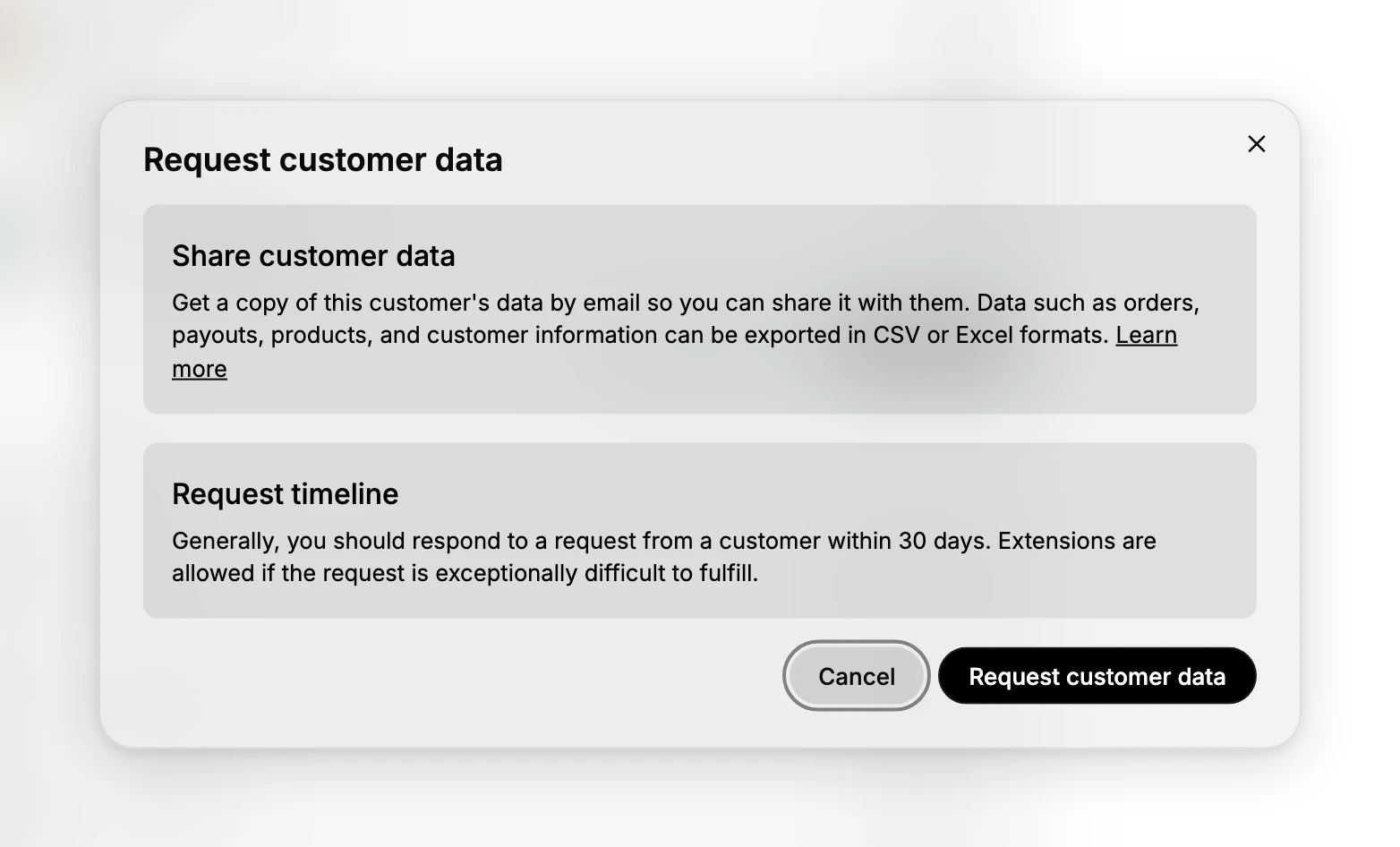
- Open the customer, then More actions, then Request customer data. The dialog explains what you are about to get: a copy of that customer's data, by email, covering orders, payouts, products and customer information, in CSV or Excel format.
- Take Request customer data in the dialog. The copy is prepared and emailed to you rather than shown on screen, which is the same pattern as an export.
- Send it on securely, and note the date you did. The dialog asks for a reply within 30 days, and the due date in the queue counts the same 30 days.
Erase a customer's personal data
- Keep a copy first if you need one. A completed erasure cannot be reversed, so export the customer beforehand if your own records require it, and provide the data copy first if they asked for that too.
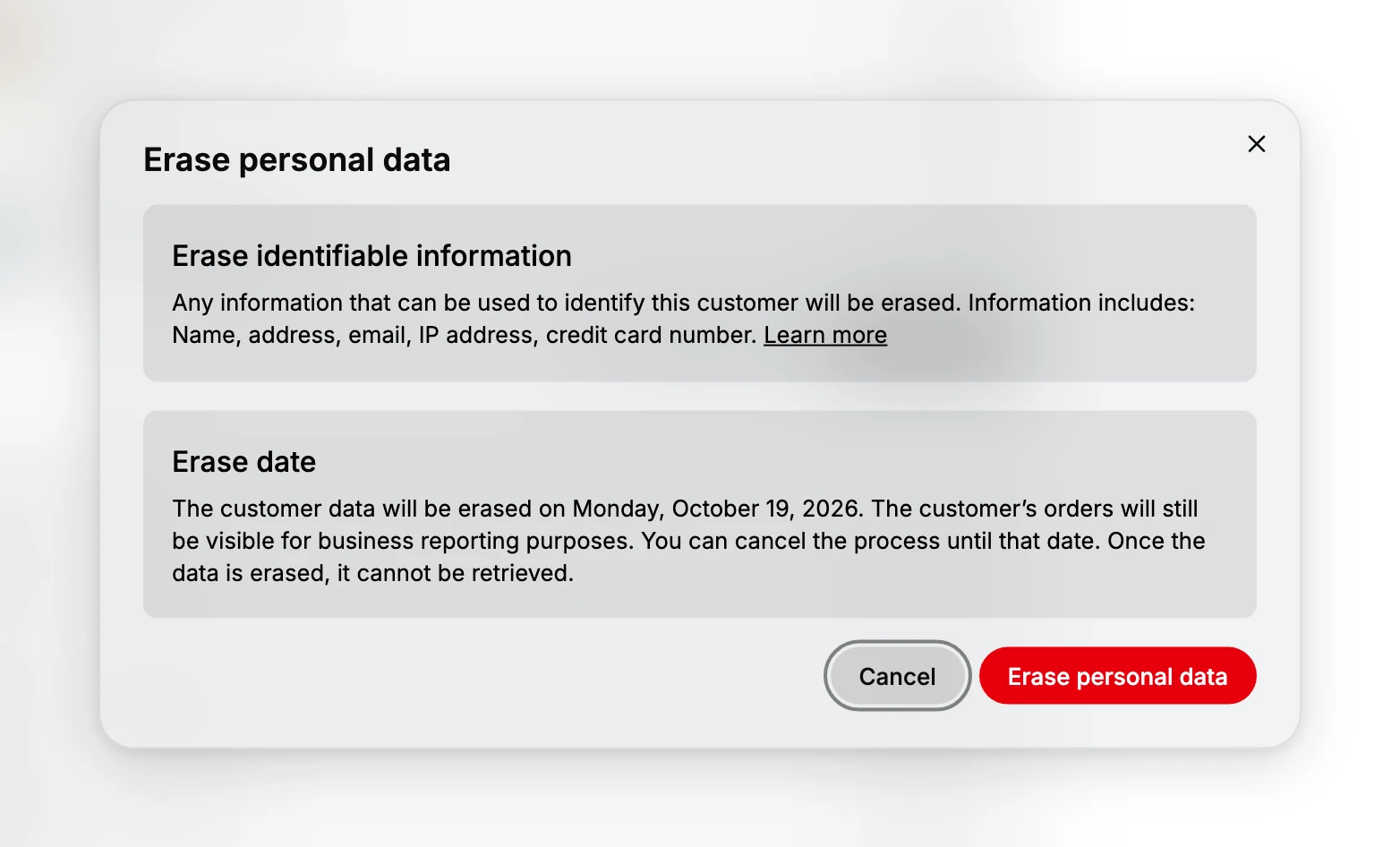
- Open More actions, then Erase personal data. The dialog lists what goes: name, address, email, IP address and card number, which is to say everything that identifies the person.
- Read the erase date before you confirm. The dialog names a specific date rather than running the erasure now. On this store it offered a date 10 days ahead. Until that date the process can be cancelled; after it, the dialog says plainly that the data cannot be retrieved.
- Tell anyone you shared the data with. Erasing here reaches your store's record and nothing outside it.
The confirming button is red, as the admin's destructive actions are. Cancel leaves the record untouched.
What an erasure leaves behind
The orders stay. The dialog says so in its erase date section: the customer's orders remain visible for business reporting once the personal data is gone, so your revenue and order counts are unaffected.
What goes is the ability to recognise the person behind those orders. They cannot be contacted, matched to a new order, or picked up by a segment that asks about their details.
Cancel a scheduled erasure
Until the erase date, the erasure is pending rather than done, and the dialog states that you can cancel the process until that date.
Where that control sits has not been established. Finding it means scheduling an erasure on a real customer, which has not been done, so this article does not say where it is rather than guessing. Start at the customer's own record, where the pending request card appears. If it is not there, contact support while the window is still open rather than letting the date pass.
Delete the whole record instead
Delete Customer removes the record rather than the identifying details, and nothing about it is reversible. Use it when the customer should not be in your store at all, not to answer an erasure request. Delete a Customer covers that dialog.
If something goes wrong
- A request is past its due date and still says Pending Review. Nothing moves it along on its own. Open it from Data requests and approve or reject it.
- You cannot tell who a queued request is from. The row does not name them. Use View customer on that row.
- You started an erasure on the wrong customer. It is pending until the erase date, so cancel it before then; after that date the data cannot be retrieved.
- The customer asked for their data and you erased it instead. The copy can no longer be produced from the record. Provide whatever you exported beforehand, and say what happened.
- The privacy actions are missing from More actions. Your role may lack Edit customers.
Next steps
Related articles
Still stuck?
- Ask Tanqory AIAsk in your own words. It answers from these articles and links the ones it used.
- Ask in your adminThe assistant in your Tanqory admin answers and makes the change for you once you confirm.
- Contact TanqoryWrite to our privacy, security or legal teams, or talk to sales about a plan or a move.