Customer Segment Templates
Fifty ready-made segments you can start from instead of writing a query. Taking one replaces whatever is in the builder and runs it at once, so you see who matches immediately. This article covers the window, the seven groups, what the filter count on each card tells you, and why a template showing zero filters matches everybody.
On this page
A segment template is a ready-made question you can start from instead of writing one. There are 50 of them. Taking one writes the query for you and runs it straight away, so the people it found are on screen before you have committed to anything, and nothing is saved until you say so.
Why start from a template
There are three ways to define a segment: type the query yourself, build it from Field, Operator, Value filters, or take a template. Only the template hands you a condition that already works, and that is worth more than the time it saves.
A template shows you the answer written down. Take Champions and the query reads WHERE rfmSegment = "CHAMPIONS"; take High Value Customers and it reads WHERE totalSpent > 10000. You have not only got the segment, you have seen how that kind of question is phrased, and the next one you write yourself will be easier for it.
They also cover ground you would not think to ask about. Alongside the obvious groups there are templates built on scores the store works out on its own, such as predicted spending and churn risk, and on browsing rather than buying, such as customers who viewed a collection and never ordered. Reading the list is a quicker way to find out what your store can answer than working through the field list.
Before you begin
- You have the Manage customer segments permission if you intend to save what you build.
- You know which builder you are in, because a template behaves differently in each. Both offer the same fifty: Templates in the query builder's bar, Browse templates in the filter form.
- Open Customers > Segments and select Create Segment.
The Segment Templates window
Templates sits in the bar above the query, between the count and the undo controls.
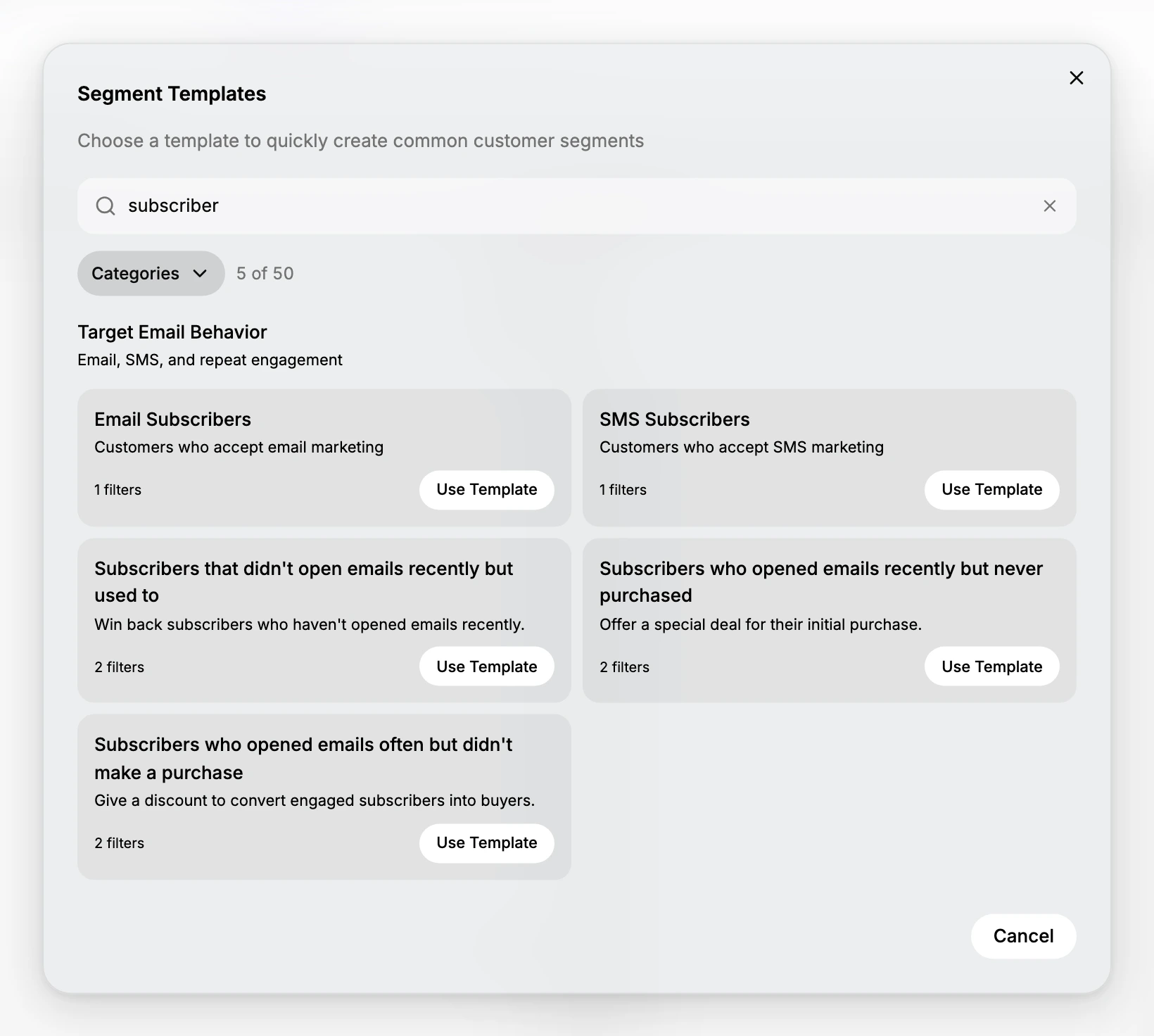
| Part | What it is |
|---|---|
| Search templates | Matches on names and descriptions, and the counter beside Categories shows how many of the 50 are left |
| Categories | Narrows the list to one group |
| A template card | Its name, a plain description of who it targets, how many filters it uses, and Use Template |
| Cancel | Closes without changing anything |
The seven groups
| Group | What it covers |
|---|---|
| Engage High-Value Customers | High spenders and top customers |
| Engage & Re-Engage Customers | First-time, new, at-risk and dormant customers |
| Target Email Behavior | Email, SMS and repeat engagement |
| Target Specific Location | Location-based customer groups |
| Target Purchase Behavior | Champions, loyal and RFM-based customers |
| Target Storefront Behaviors | Storefront and browsing behaviour |
| Target Seasonal Behavior | Time-based customer segments |
The names read as intentions rather than as fields, which is the point: you pick by what you are trying to do, not by which condition you would have written.
What taking a template does
Five things happen the moment you select Use Template, and only the last one is up to you.
| What happens | |
|---|---|
| 1 | The window closes and you are back in the query builder |
| 2 | The template's query replaces what was in the builder. It is not merged, so a condition you had already written is gone |
| 3 | It runs at once. The count and the preview update without you pressing Apply |
| 4 | The SHOW line is rewritten too, so the preview's columns may not be the ones you had |
| 5 | Nothing is saved. No segment exists yet, and Save will ask you for a name, because a template taken here brings none |
Taking High Value Customers on the store used here shows the whole thing in one move. A builder holding no condition and showing all 11 customers became WHERE totalSpent > 10000 showing 1 of 11, with the SHOW line cut from seven fields to four. Nothing was saved.
It behaves differently in each builder
The window is the same from both sides, but what a template leaves behind is not.
| Taken from | What it fills in |
|---|---|
| The query builder | The query itself, run at once. No name comes with it, so Save asks for one |
| The filter form | Segment Name, Description and the filter cards, left for you to edit. The name and description come with it |
Taking High Value Customers in the filter form fills the name with High Value Customers, the description with the template's own sentence, and one card reading Total Spent, Greater Than, with the template's figure in Value. You stay on the form, and nothing runs until you save.
The five points above describe the query builder, which is where the rest of this article stays.
Read the filter count before you choose
Every card carries a count such as 1 filters or 2 filters. It is the number of conditions the template will write, and it is worth a glance before you take one.
A template showing 0 filters writes no condition at all. Eight of the fifty read that way. Taking one leaves the query as FROM customers, so every customer matches and the count does not move off your whole base. Those templates name an idea the store cannot yet answer on its own, usually because it depends on something you have to supply, such as a retail location or a birth date field. They are a starting point to finish yourself, not a finished segment.
Steps
1. Open Templates
In the query builder, select Templates, which sits in the bar above the query between the count and the undo controls. In the filter form the same window opens from Browse templates, beside the filters. The window opens over the page with all fifty templates listed under their groups.
Nothing has changed yet, and nothing will until you choose one. Cancel and the close cross both leave the builder exactly as you found it, so opening the window to browse costs you nothing.
2. Find one close to what you want
Type into Search templates, which matches names and descriptions, or narrow to a single group with Categories. The counter beside it keeps count as you go, reading something like 5 of 50, so you can see how much of the list you are still looking at.
Read the description rather than the name. Several names are near-identical and it is the description that says who is actually included. Read the filter count on the card while you are there, for the reason given above.
3. Use it
Select Use Template on the card you want. The window closes and the template's query is written into the builder, replacing whatever was there rather than being added to it.
It also runs at once. The count and the preview update without you pressing Apply, so the answer to your question is on screen before you have committed to anything. If the count reads your whole customer base, see step 4.
4. Read what it wrote
The query is the template's now, not yours. Open the panel with the chevron past Apply and read the WHERE line: that condition is what your segment will keep asking long after you have forgotten which template it came from.
Check the SHOW line while you are there. A template rewrites that as well as the condition, which is why the preview's columns are sometimes not the ones you had a moment earlier.
5. Adjust and save
Edit the WHERE line to suit your own store, particularly any figure the template brought with it, and select Apply to run it again. The count moves each time, which is how you tell an edit did what you meant.
When it looks right, take Save on the unsaved-changes bar. It asks for a name, because a template does not bring one, and saving puts the segment on the Segments list.
It does not know your figures. A few templates quote a fixed amount in their description, and it is the template's number rather than one worked out from your store. Read the WHERE line and change it to something that means what you intend.
If something goes wrong
- The count did not move. The template probably wrote no condition. Open the query and check whether WHERE is empty.
- Everyone matches. Same cause. Add the condition the template was pointing at, or pick another template.
- Nobody matches. The template's figures are not your store's. Read the WHERE line and adjust the numbers.
- The template filled in a form rather than a query. You are in the filter form. That is what it does there, and the name and description it brought are yours to change.
Next steps
Related articles
Still stuck?
- Ask Tanqory AIAsk in your own words. It answers from these articles and links the ones it used.
- Ask in your adminThe assistant in your Tanqory admin answers and makes the change for you once you confirm.
- Contact TanqoryWrite to our privacy, security or legal teams, or talk to sales about a plan or a move.