Smart Collections
A Smart collection sets conditions and fills itself: every product that matches (now and in the future) is added automatically. Best for rule-driven sets that keep themselves current as matching products are added.
On this page
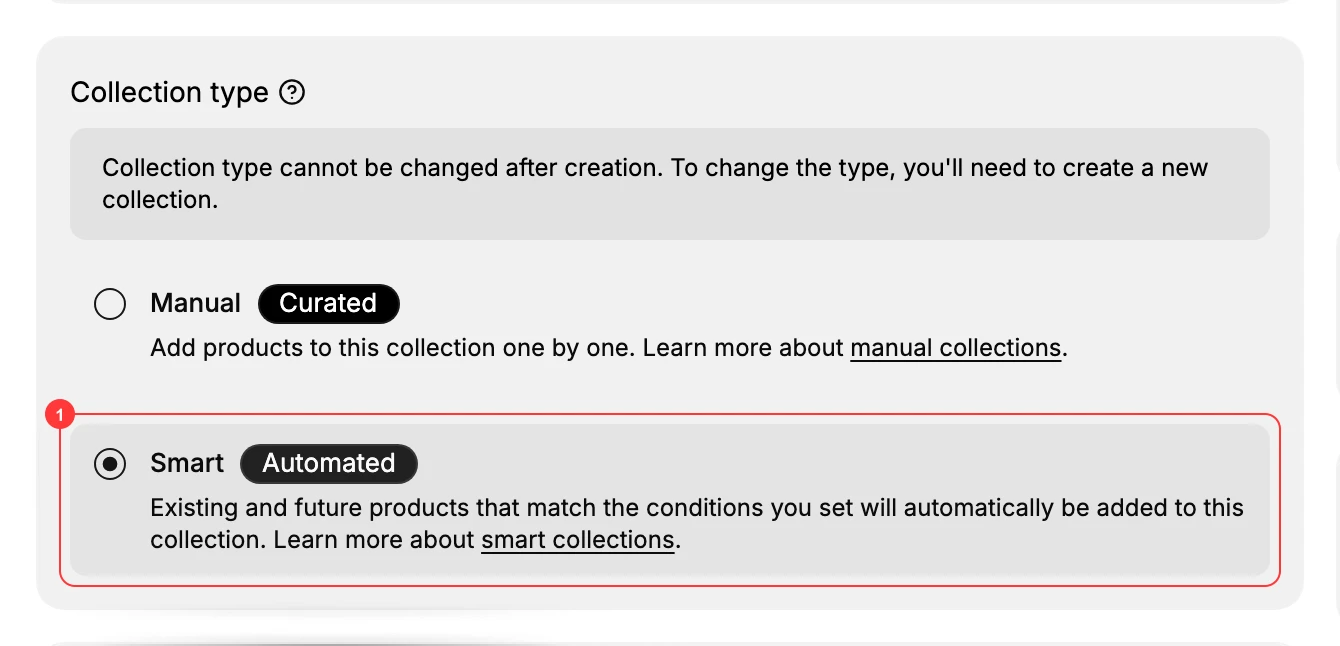
A Smart collection (labeled Automated) doesn't hold products you pick; it holds conditions. Every product that matches those conditions is added automatically, and the form spells it out: Existing and future products that match the conditions you set will automatically be added to this collection. Add a new matching product later and it joins on its own, with no manual upkeep.
Note: the collection type is set at creation and can't be changed afterward, and a collection holds whole products (not individual variants).
You'll work on the Collections page, reached from the admin sidebar.
How a Smart collection works
A Smart collection is defined by its conditions, not by a list of products you save. You set the conditions once and membership is worked out from them:
- Existing products that match are added the moment you save.
- Future products that match are added on their own when you create or edit them, so you never reopen the collection to keep it current.
- Because membership comes from the conditions, the Products section always reflects the current set of matching products in your catalog.
You decide whether a product must match all of your conditions or any of them, which Step 2 covers.
Before you begin
- You have the Manage collections permission.
- Your products carry the data your conditions will match (for example, consistent tags).
- From the admin sidebar, open Products > Collections, then click Create Collection to open the form where you choose the collection type.
Steps
1. Create the collection as Smart
On the Collections page, click Create Collection, name it, and under Collection type choose Smart (Automated) (1).
2. Choose how conditions combine
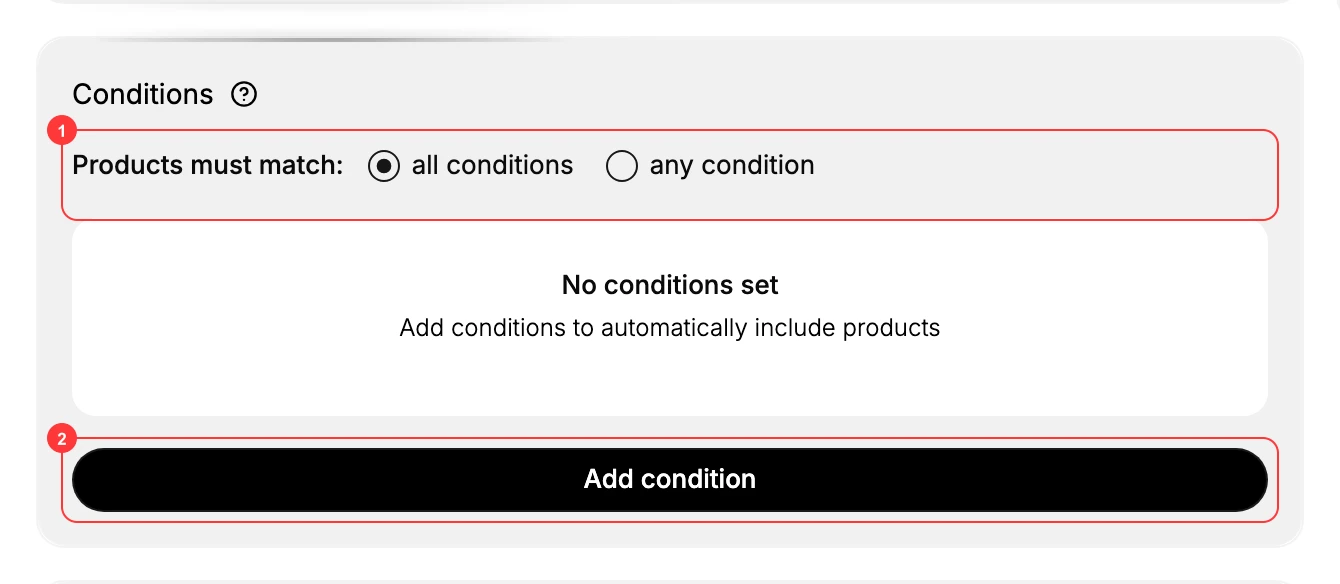
In the Conditions section, the Products must match (1) setting decides how broad the collection is, because it controls whether a product has to satisfy all of your rules or only one of them.
- all conditions: a product is added only if it meets every condition (AND). Each condition you add narrows the set further, so use this to target precisely.
- any condition: a product is added if it meets at least one condition (OR). Each condition you add widens the set, so use this to gather several groups into one collection.
If you are unsure, start with all conditions. A narrow collection you loosen later is safer than a broad one that pulls in products you did not mean to feature.
3. Add your conditions
Click Add condition (2) to add a rule. Each condition matches products on a field (chosen from a dropdown) with an operator and a value. The full list of available fields and operators is covered in Smart Collection Conditions. Add the conditions the set needs; while none are set the section shows No conditions set.
4. Confirm the matching products
As you set conditions, the Products section fills with everything that matches (it reads There are no products in this collection. Add or change conditions to add products. until a condition matches something). Adjust the conditions until the right products appear.
5. Finish and Save
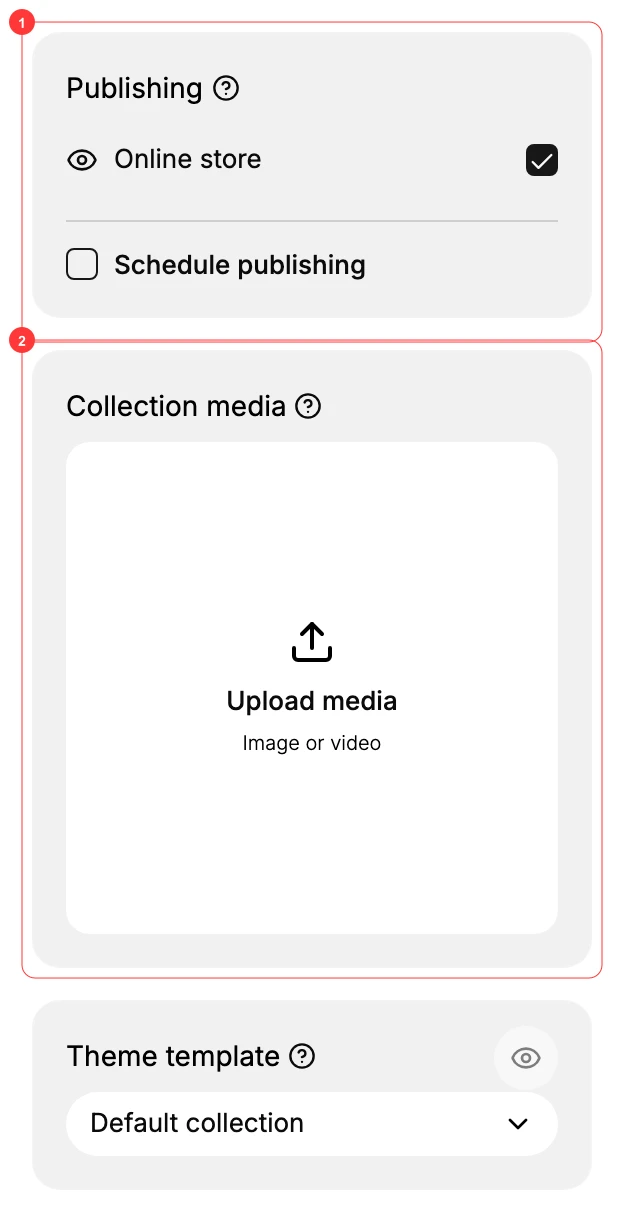
Set Publishing (1), add a Collection media (2) image and SEO, then Save. Create a Collection walks through each of these fields.
Verify the result
- The Products section lists the products that match your conditions.
- Adding a new product that matches the conditions later makes it appear in the collection automatically.
Best practices
- Build on consistent data. Smart collections are only as good as your tags, types, and vendors, so standardize them first.
- Check the matched products before saving, because an over-broad rule can pull in more than you intend.
Common mistakes
- A condition that matches nothing: the collection stays empty; loosen or fix the rule.
- Too-broad conditions: the collection includes products you didn't mean to feature.
- Expecting to hand-add a product: in a Smart collection, membership comes from conditions; use a Manual collection to pick products directly.
If something goes wrong
- The collection is empty: no products match; review the conditions and your products' tags and fields.
- An expected product is missing: confirm it actually has the value your condition checks for, and that it's Active.
- Permission denied: your role lacks the Manage collections permission.
Next steps
Related articles
Still stuck?
- Ask Tanqory AIAsk in your own words. It answers from these articles and links the ones it used.
- Ask in your adminThe assistant in your Tanqory admin answers and makes the change for you once you confirm.
- Contact TanqoryWrite to our privacy, security or legal teams, or talk to sales about a plan or a move.