Set Conditions on a Smart Collection
A smart collection fills itself using conditions you set, so any product that matches is added and future matches join on their own. You choose whether products must match all conditions or any one, then build each condition from a field, an operator, and a value. This keeps the collection up to date without hand-picking products.
On this page
A smart collection builds itself from the conditions you set, rather than from a hand-picked list of products. You set the conditions once, and every product that matches is added, including products you add later that also match. This keeps a collection like a product line or a price range current without you adding each product by hand.
Before you begin
- You have products in your store, since conditions match against them and the collection stays empty until some do.
- The collection is Smart, not Manual, since only a smart collection has conditions. The type cannot be changed after the collection is created.
- Open Products > Collections, then select Create Collection and choose the Smart type.
The Conditions section
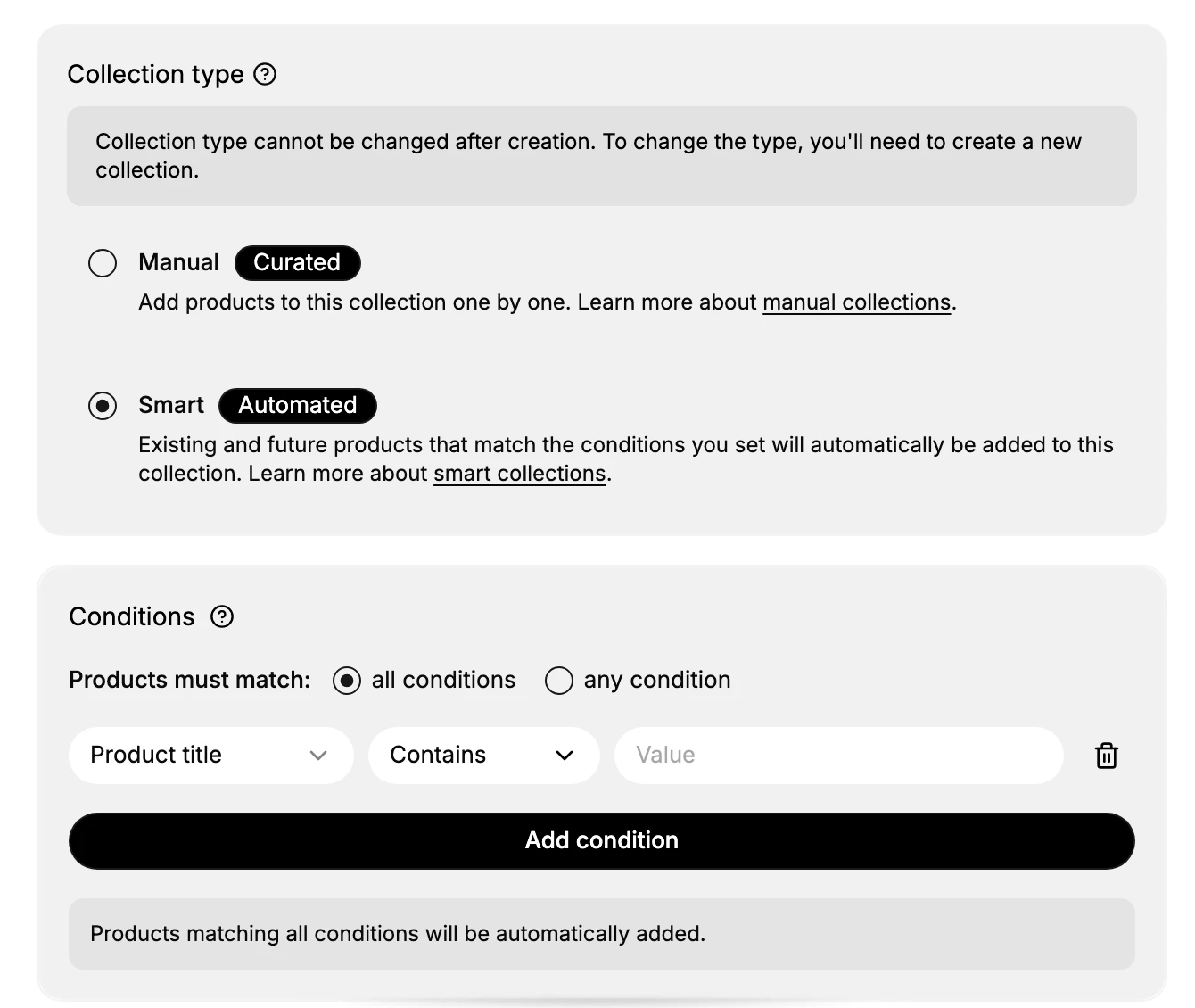
Once the collection type is Smart, a Conditions section appears. It sets how products are matched and holds the conditions you build. It starts with no conditions, so you add the first one with the Add condition button.
Choosing all or any
At the top of the section, the Products must match choice sets how the conditions combine:
- All conditions adds a product only when it matches every condition, which narrows the collection.
- Any condition adds a product when it matches at least one condition, which widens the collection.
Pick all conditions for a precise set, or any condition for a broader one. The note below the conditions restates which rule is in effect.
Building a condition
Select Add condition to create the first condition row. Each condition is a row made of three parts, which you read left to right:
| Part | What it is |
|---|---|
| Field | The product attribute to match, shown here as Product title |
| Operator | How the field is matched, shown here as Contains |
| Value | The text or amount the field is matched against |
Choose the field, then the operator, then type the value the product must match. A delete control at the end of the row removes that condition.
Adding more conditions
Select Add condition to add another row, and repeat for each rule the collection needs. With all conditions selected, every row must match; with any condition, one is enough. As you set conditions, the Products list on the page fills with the products that match, so you can see the result before saving.
Start with one condition and check the matching products, then add more to narrow the set. It is easier to tighten a collection than to work out why it is empty.
Saving
When the conditions are set, select Save. The collection then holds every product that matches, and any product you add later that also matches is included on its own.
Best practices
- Match conditions to your goal. Decide what the collection represents, such as a product line, then set conditions that describe it.
- Use all conditions to be precise. Combine a few conditions with all conditions when you want a tight set.
- Watch the Products preview. The matching products update as you edit conditions, so use them to confirm the rule before saving.
- Keep product data consistent. Conditions only match what your products actually contain, so consistent titles and attributes make them reliable.
If something goes wrong
- The collection is empty. No products match; loosen a condition, switch to any condition, or check the value for a typo.
- The collection is too full. Tighten the conditions, or switch from any condition to all conditions.
- A product you expected is missing. Check that its data matches the condition exactly, since the match is on the product's own fields.
- You cannot set conditions. The collection may be Manual rather than Smart; conditions appear only on a smart collection.
Next steps
Related articles
Still stuck?
- Ask Tanqory AIAsk in your own words. It answers from these articles and links the ones it used.
- Ask in your adminThe assistant in your Tanqory admin answers and makes the change for you once you confirm.
- Contact TanqoryWrite to our privacy, security or legal teams, or talk to sales about a plan or a move.