Manual Collections
A Manual collection holds products you add by hand, one at a time - full control over what is in it. Best for curated sets like capsules, gift guides, and flash sales.
On this page
A Manual collection (labeled Curated) contains exactly the products you add to it - nothing is added automatically. It's the right choice for an editorial set you control: a capsule, a gift guide, a flash sale of specific items. The trade-off versus a Smart collection is that you maintain membership by hand.
Note: the collection type is chosen when you create the collection and can't be changed afterward - so pick Manual deliberately. You also add whole products, not individual variants.
You'll work on the Collections page, reached from the admin sidebar.
Manual vs Smart
| Manual (Curated) | Smart (Automated) | |
|---|---|---|
| What's in it | Products you add by hand | Products matching the conditions you set |
| New matching products | Don't join automatically | Join automatically |
| Best for | Curated, editorial sets | Rule-driven sets that keep themselves up to date |
Before you begin
- You have the Manage collections permission.
- The products you want to add already exist.
- Open Products > Collections in the admin sidebar, then open the collection you want to fill.
Steps
1. Create the collection as Manual
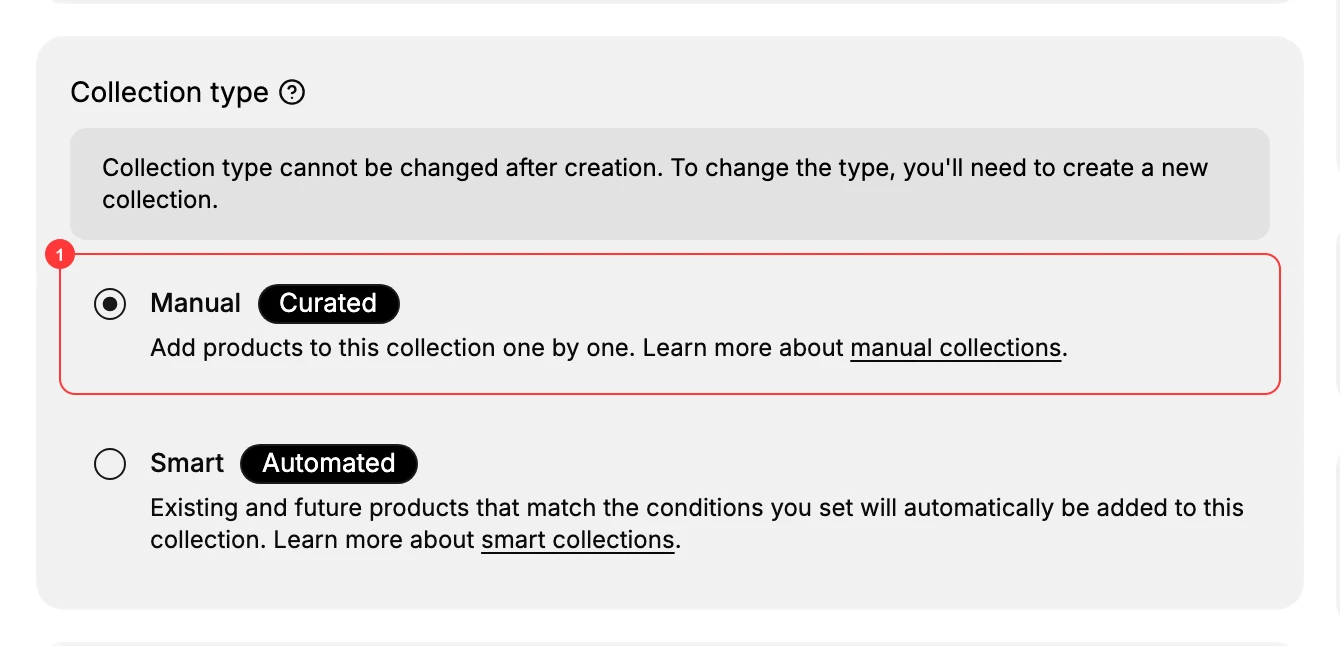
On the Collections page, click Create Collection, name it, and under Collection type choose Manual (Curated) (1) rather than Smart (Automated).
2. Add products in the Products section
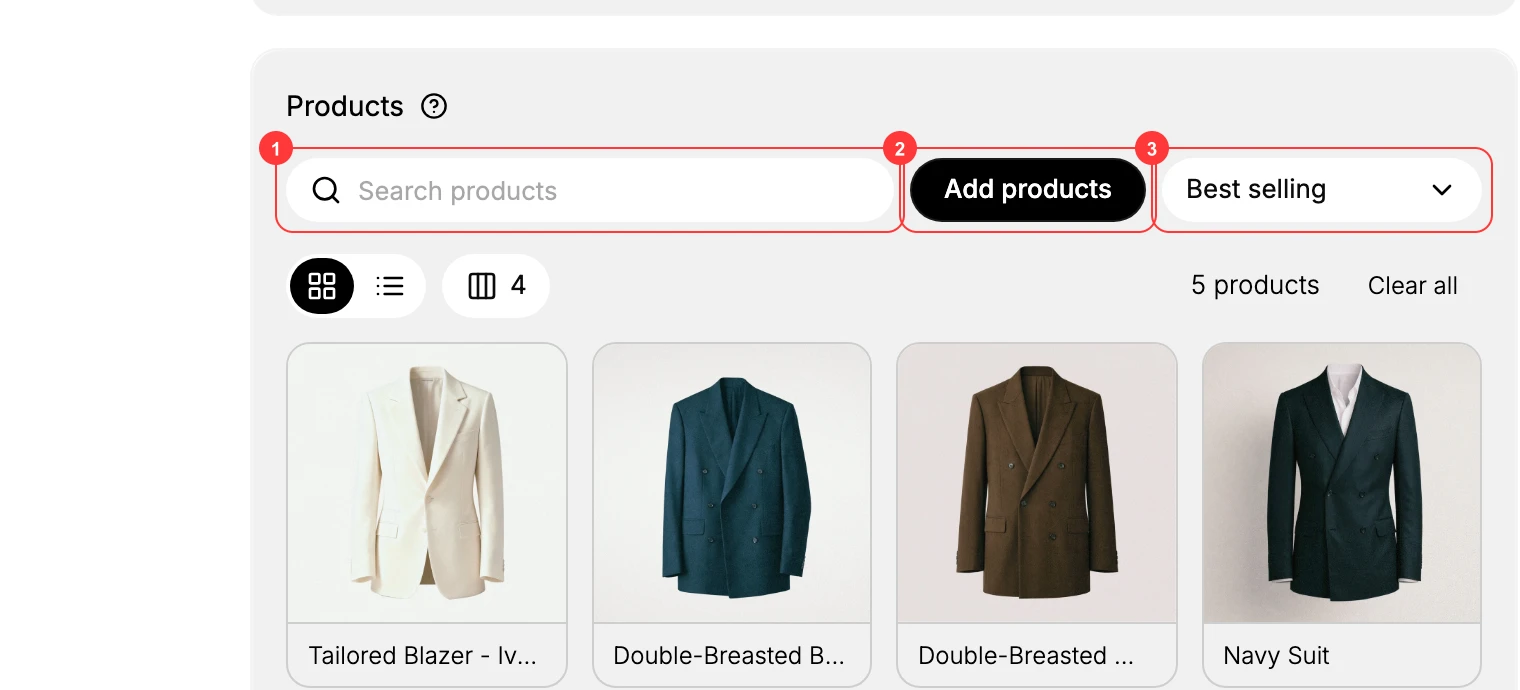
Use the Search products box (1) to find a product and add it, or click Add products (2) to browse and pick from the catalog. Added products appear in the grid below (it reads No products added until you add the first one).
3. Set how the products are sorted
The sort control (3) (showing Best selling by default) decides the order shoppers see the products in. Choose the order that fits the collection - sorting options are covered in Sort a Collection.
4. Finish the rest and Save
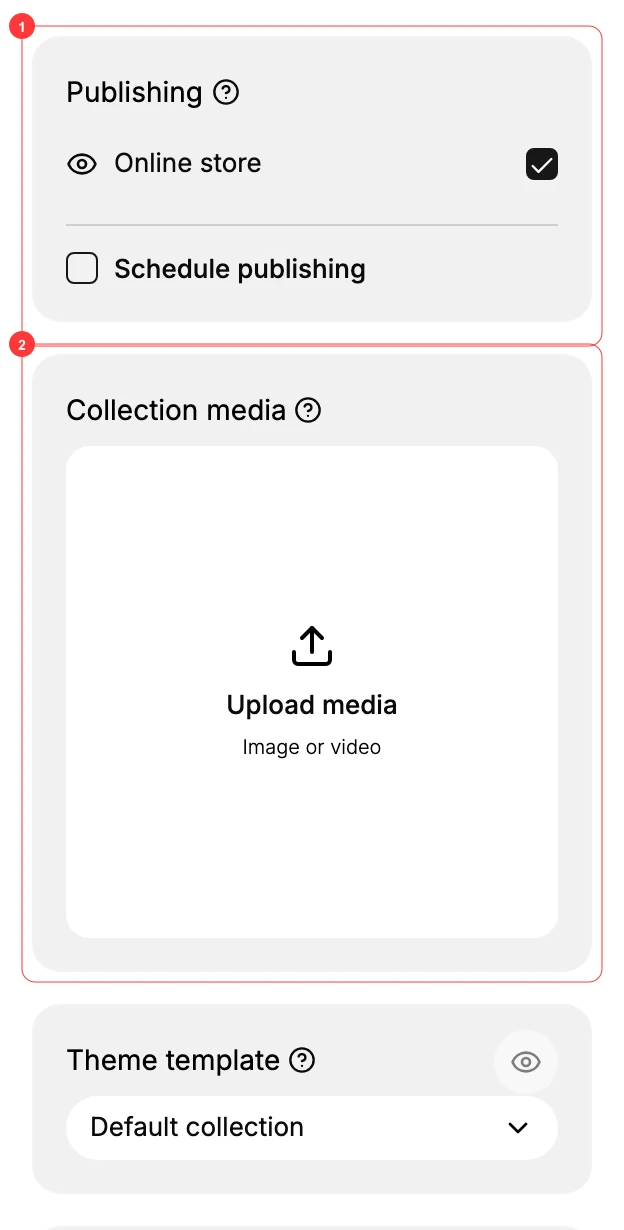
Set Publishing (1), add a Collection media (2) image and the SEO fields, then click Save. Create a Collection walks through the full form.
5. Update it over time
Because nothing is automatic, add or remove products yourself as the set changes.
Verify the result
- The products you added appear in the collection's Products list.
- The collection's storefront page shows those products in the chosen sort order.
Best practices
- Keep it curated. The value of a Manual collection is the hand-picked selection - don't let it sprawl.
- Review it periodically and remove products that are discontinued or out of stock.
- Tag the products too if you might also want a Smart collection that tracks the same theme automatically.
Common mistakes
- Choosing Manual when a rule would do - if "everything tagged sale" should be in it, a Smart collection maintains itself; Manual means you add each one.
- Forgetting to maintain it - a Manual collection only changes when you change it.
- Expecting to add a single variant - collections hold whole products, not individual variants.
If something goes wrong
- A product won't show on the storefront - confirm it's Active and published to the collection's channel.
- The collection looks empty - you haven't added products yet (Manual collections start empty).
- Permission denied - your role lacks the Manage collections permission.
Next steps
Related articles
Still stuck?
- Ask Tanqory AIAsk in your own words. It answers from these articles and links the ones it used.
- Ask in your adminThe assistant in your Tanqory admin answers and makes the change for you once you confirm.
- Contact TanqoryWrite to our privacy, security or legal teams, or talk to sales about a plan or a move.