Sorting Products in a Collection
Set the order products appear in on a collection page. Choose Best selling, by title, by price, by date, or arrange them by hand with Manually.
On this page
The sort order in a collection decides what customers see first on the collection page. You set it with the Sort control in the collection's Products section. It defaults to Best selling, and you can switch to ordering by title, price, date, or a hand-picked Manually order.
You'll work on the Collections page in the admin sidebar, on the collection you want to order.
The sort options
| Option | What it does |
|---|---|
| Best selling | Orders by units sold, highest first. This is the default. |
| Title A-Z | Alphabetical by product title, A to Z. |
| Title Z-A | Reverse alphabetical, Z to A. |
| Price: high to low | Most expensive product first. |
| Price: low to high | Cheapest product first. |
| Newest | Most recently added products first. |
| Oldest | Oldest products first. |
| Manually | You arrange the products by hand, dragging them into the exact order you want. |
Before you begin
- You have the Manage collections permission.
- The collection has products to order. A Smart collection fills from its conditions; a Manual collection holds the products you added.
- Open Products > Collections in the admin sidebar.
Steps
1. Open the collection and find the Sort control
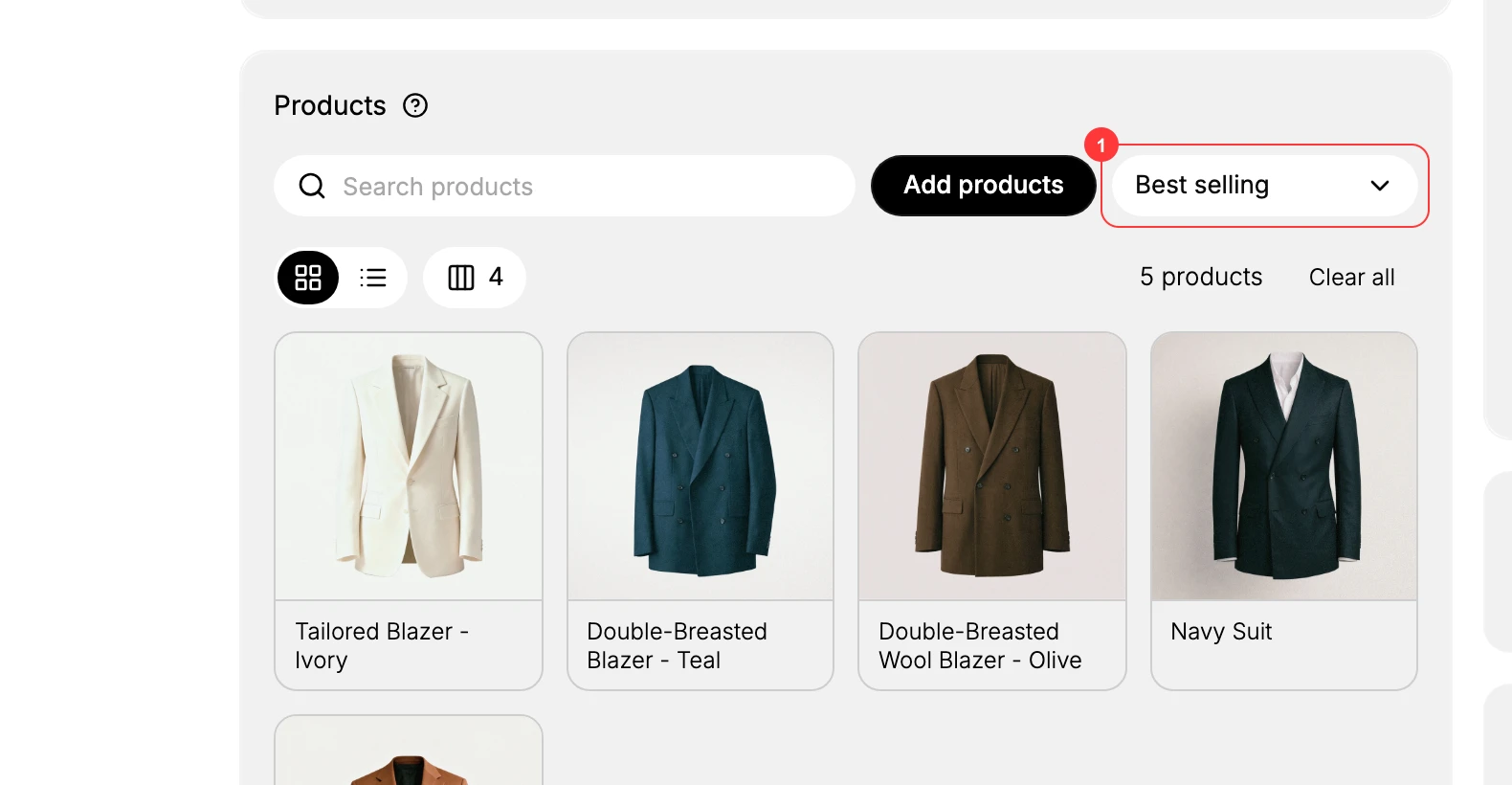
Go to Collections and open the collection. Scroll to the Products section. The Sort control (1) sits on the right of the section, next to Add products, and shows the current order (Best selling by default).
2. Pick an order
Click the Sort control to open it. The eight orders from the table above open in a dropdown (1). Click the one you want: the menu closes, and the Products list reorders at once to preview the new order.
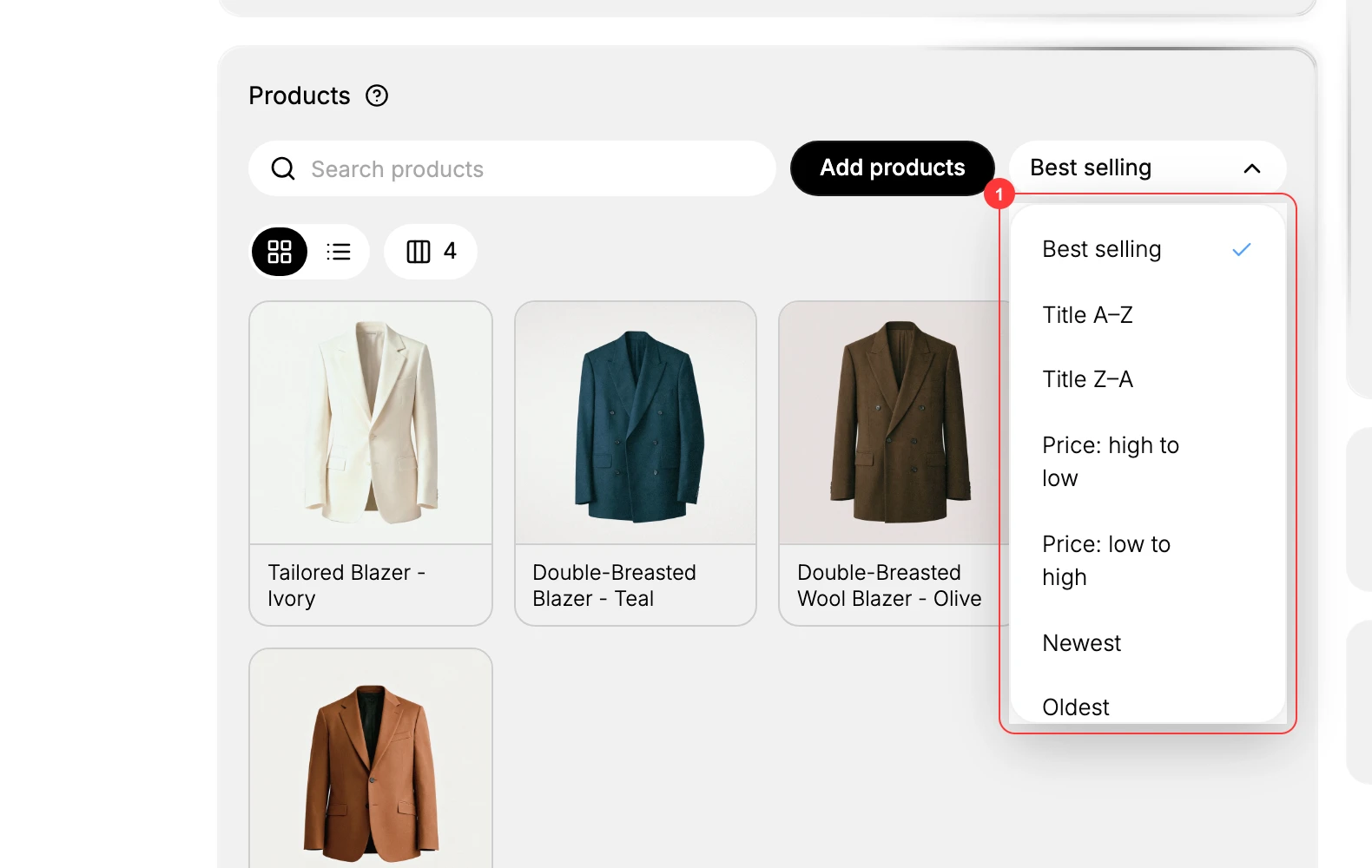
That preview is the order shoppers will see on the collection's storefront page, but it does not reach them until you Save in Step 4. The table above says what each order does. To arrange the products by hand instead, pick Manually and follow Step 3.
3. Arrange by hand (Manually only)
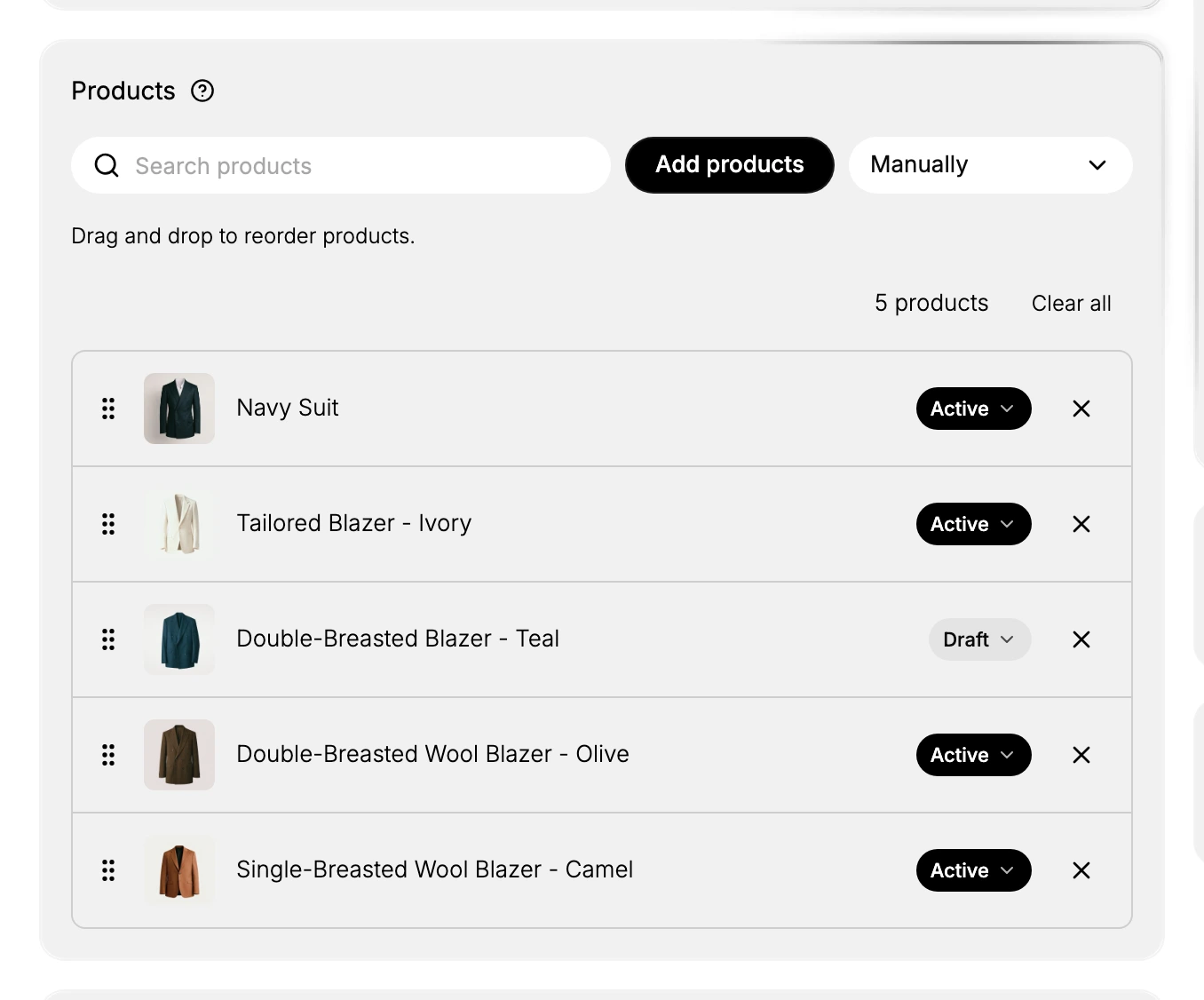
When the Sort is set to Manually, the list shows Drag and drop to reorder products and gives each product a drag handle. Drag the products into the exact sequence you want, and that order is what shoppers see. Use this when the order tells a story, for example a capsule or a seasonal campaign, rather than following a rule like price or sales.
4. Save
Click Save in the unsaved-changes bar. The new order takes effect on the storefront.
Verify the result
- The collection's storefront page shows products in the order you picked.
- For a Manually sorted collection, the drag order you set is kept.
Best practices
- Best selling is a safe default. It surfaces what customers actually buy.
- Use Manually for editorial collections where the sequence matters more than a rule, so your hero product stays first.
- Be careful with Price: low to high on a premium range. It can read like a discount list, so Best selling or Manually often works better.
Common mistakes
- A Manually sorted collection left stale, so a strong seller ends up far down the page. Review the order when the lineup changes.
- Newest on a collection with no recent additions, so the top of the page never changes.
- Expecting the order to change on an empty collection. Add products first, then sort.
If something goes wrong
- Dragging does not stick. The sort is not set to Manually. Switch to Manually, then drag.
- The storefront order looks wrong. Confirm you saved, and that you are viewing the same collection.
- Permission denied. Your role lacks the Manage collections permission.
Next steps
Related articles
Still stuck?
- Ask Tanqory AIAsk in your own words. It answers from these articles and links the ones it used.
- Ask in your adminThe assistant in your Tanqory admin answers and makes the change for you once you confirm.
- Contact TanqoryWrite to our privacy, security or legal teams, or talk to sales about a plan or a move.