Collection Actions
The single-collection actions on a collection detail page - Duplicate, View in online store, and Delete - and what each one does.
On this page
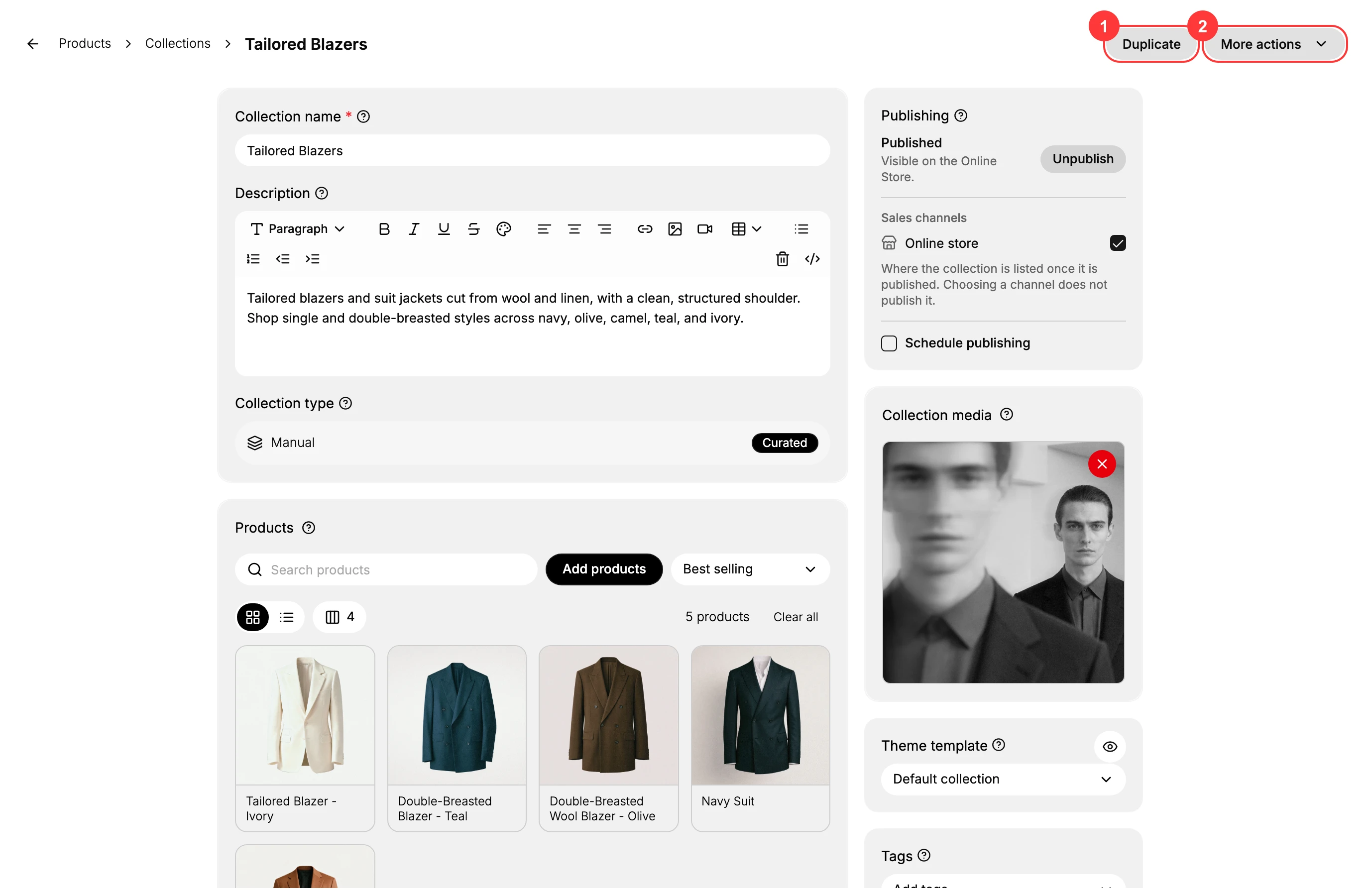
Every collection has its own actions on its detail page. In the top-right of the page you get a Duplicate button and a More actions menu that holds View in online store and Delete. These act on the one collection you have open. Bulk Actions handles several collections at once.
You'll work on the Collections page in the admin sidebar, on the collection you want to change.
The actions
| Action | Where | What it does |
|---|---|---|
| Duplicate | Top-right button | Creates a copy named "(your collection) (Copy)" and opens it, so you can edit the copy without touching the original. |
| View in online store | More actions menu | Opens the collection's page on your storefront so you can see what shoppers see. |
| Delete | More actions menu | Permanently removes the collection after you confirm. It cannot be undone. |
Before you begin
- You have the Manage collections permission.
- You have a collection to duplicate, view, or delete.
- Open Products > Collections in the admin sidebar.
Steps
1. Open the collection
Go to Collections and click the collection you want. Its detail page opens, with the action controls in the top-right: Duplicate (1) and More actions (2).
2. Duplicate the collection
Click Duplicate. Tanqory immediately creates a copy named "(your collection) (Copy)" and opens the copy's detail page, leaving the original untouched. Rename the copy, adjust it, and Save. This is the safe way to try a different sort order or product set without changing the live collection.
3. Open More actions for View in online store or Delete
Click More actions to open the menu. It holds View in online store (1) and Delete (2).
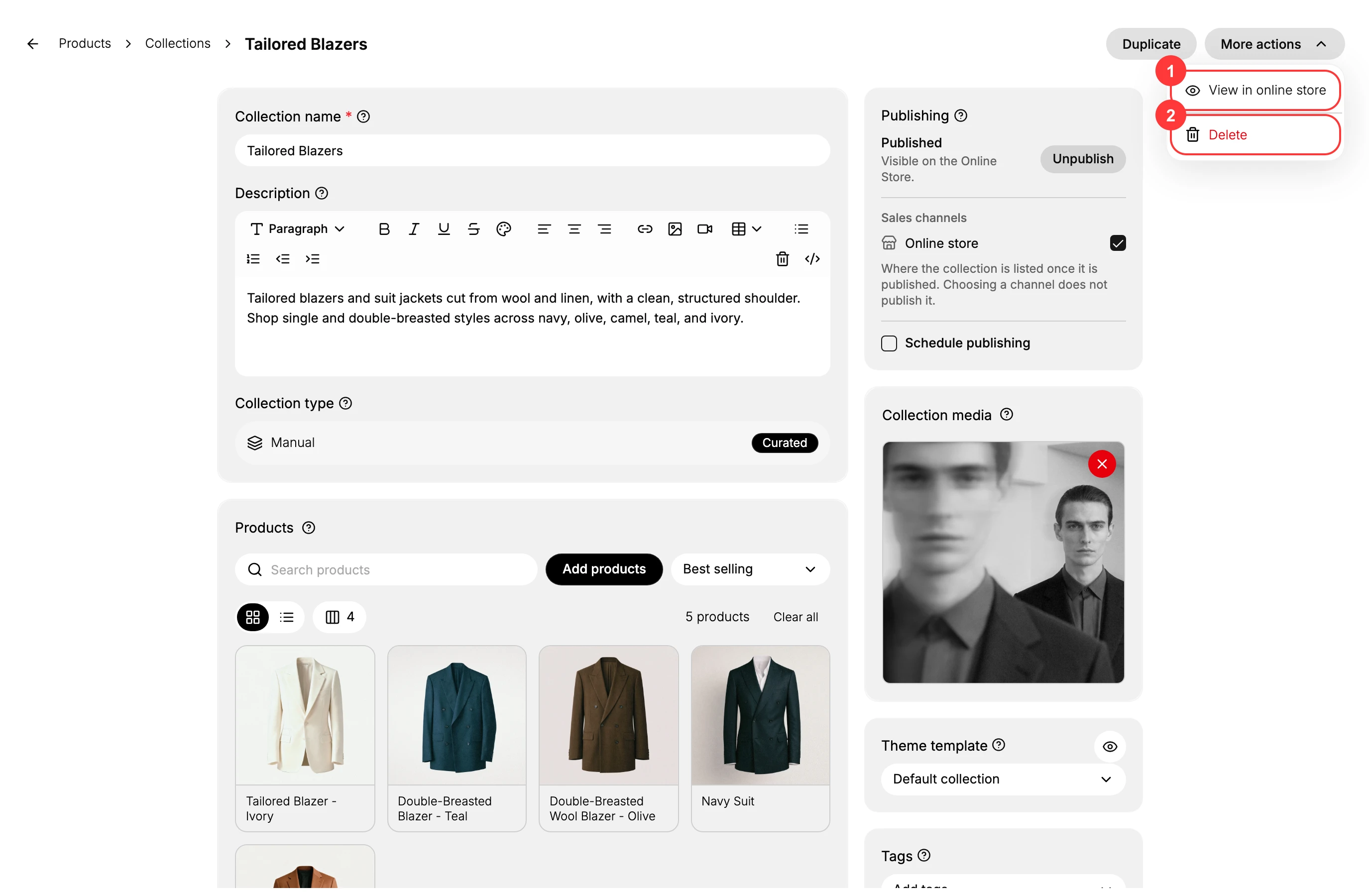
- View in online store (1) opens the collection's storefront page in your browser, so you can check how it looks to shoppers. The collection has to be published for this page to load.
- Delete (2) starts removing the collection and opens a confirmation.
4. Confirm a delete
If you choose Delete, Tanqory asks you to confirm: "This will permanently delete (your collection). This action cannot be undone." Click Delete to remove it for good, or Cancel to keep it. There is no undo once you confirm.
Verify the result
- Duplicate: the copy "(your collection) (Copy)" appears in the Collections list and opens for editing.
- View in online store: the storefront page for the collection loads.
- Delete: the collection no longer appears in the Collections list.
Best practices
- Duplicate before a big change so you can experiment on the copy and keep the original live and safe.
- Use View in online store to preview the collection before and after you edit it.
- Treat Delete as final. If you only want to take a collection off the storefront, unpublish it under Publishing instead of deleting it.
Common mistakes
- Deleting when you meant to unpublish. Delete is permanent. To hide a collection, remove its sales channels under Publishing.
- Editing the wrong collection after a Duplicate. The copy opens automatically, so check the name at the top before you start editing.
- Expecting View in online store to work on an unpublished collection. Publish it first.
If something goes wrong
- You deleted the wrong collection. Delete cannot be undone. Recreate it from scratch, following Creating a Collection.
- View in online store shows a missing page. The collection is not published yet, or it has no products. Publish it and add products.
- Permission denied. Your role lacks the Manage collections permission.
Next steps
Related articles
Still stuck?
- Ask Tanqory AIAsk in your own words. It answers from these articles and links the ones it used.
- Ask in your adminThe assistant in your Tanqory admin answers and makes the change for you once you confirm.
- Contact TanqoryWrite to our privacy, security or legal teams, or talk to sales about a plan or a move.