Bulk Actions on Products
Apply the same change to many products at once from the Products list. Select the products, then use the one-click status buttons, the Bulk edit grid, or the More actions menu. Filtering first, so you act only on the right products, is what keeps a bulk action safe.
On this page
Bulk actions apply the same change to many products in one pass, instead of opening each product on its own. You select products on the Products list, and a bulk toolbar appears with three ways to act: one-click status buttons, the Bulk edit grid for editing fields inline, and the More actions menu for everything else. This article is the overview; the detailed how-tos are Bulk Edit Products and Bulk Tag Products.
You'll work on the Products page in the admin sidebar.
The three ways to act in bulk
Once you select products, the bulk toolbar gives you these routes. Pick the one that matches the change you need.
| Route | What it covers |
|---|---|
| One-click status | Set as active (publish) or Set as draft (unpublish), applied to the selection right away. |
| Bulk edit grid | Edit fields inline per product: Status, Category, Vendor, Price, Compare-at price, Cost per item, SKU, Barcode. |
| More actions menu | Archive, Unlist, Delete; Include in or Exclude from sales channels and catalogs; Add or Remove tags; Add to or Remove from collections. |
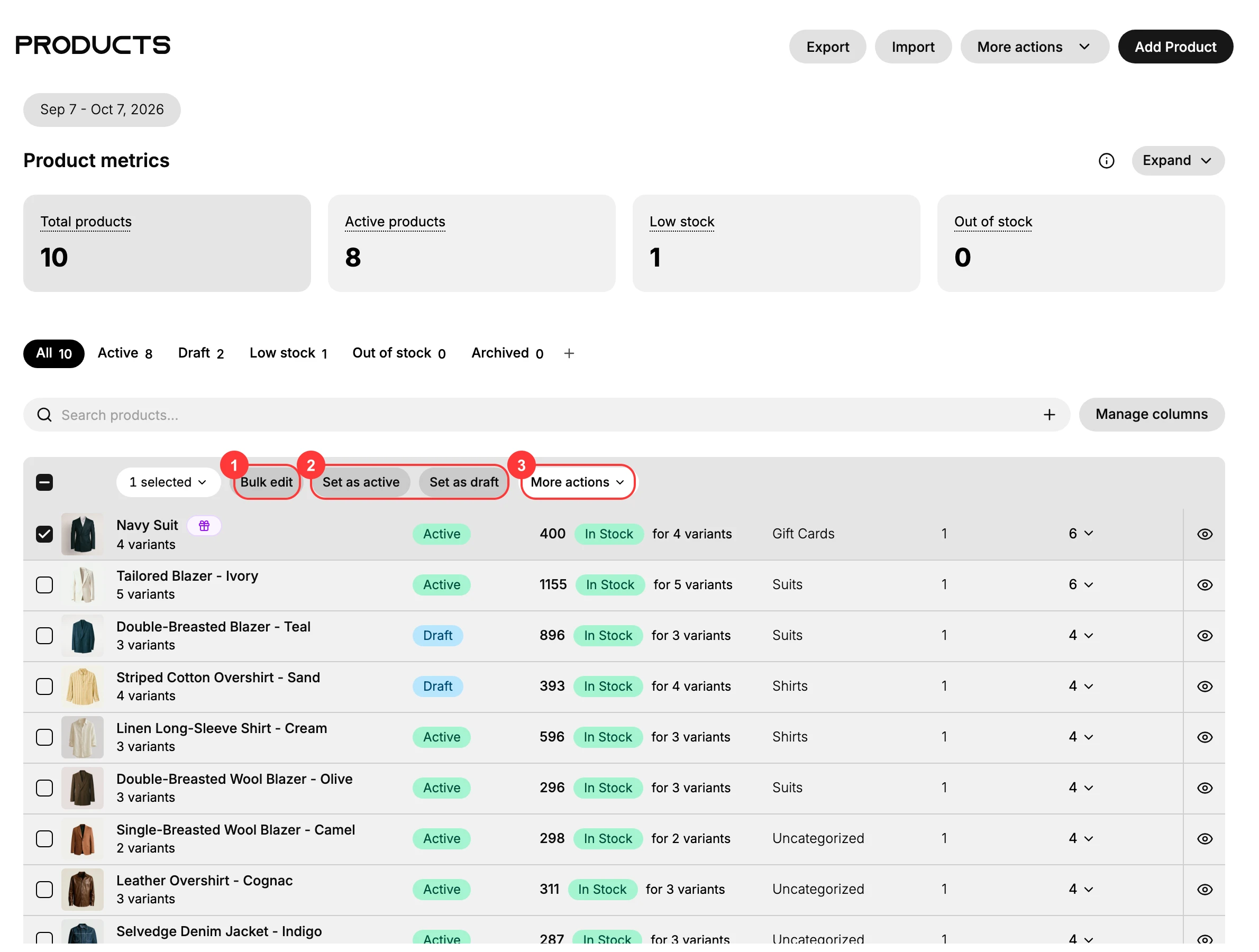
What More actions holds
The More actions menu is where the actions that aren't a status change or a grid field live.
| Action | What it does |
|---|---|
| Archive products | Move products out of the active list into Archived. |
| Unlist products | Take products off the storefront without deleting them. |
| Delete products | Permanently remove the selected products. |
| Include in / Exclude from sales channels | Add or remove the products from your sales channels. |
| Include in / Exclude from catalogs | Add or remove the products from your catalogs. |
| Add tags / Remove tags | Apply or strip tags across the selection, which Bulk Tag Products covers in full. |
| Add to / Remove from collection(s) | Move products into or out of manual collections. |
Before you begin
- Your role includes Edit products, plus Delete products if you plan to bulk delete.
- You have decided the change and the exact products it should apply to.
- Open Products in the admin sidebar, then select the products you want to act on.
Run a bulk action
The safe order is always filter, select, then act.
- Filter to the right products first. Use the status tabs or the search box to narrow the list before selecting, so a bulk action lands only on the products you mean. Acting on the whole catalog by mistake is hard to undo.
- Select the products. Tick each product's checkbox, or the header checkbox to select every product in the current view. The bulk toolbar appears with the selection count.
- Choose the route. Use Set as active or Set as draft for a quick status change; Bulk edit to change fields inline in the grid; or More actions for archive, unlist, delete, channels, catalogs, tags, and collections.
- Confirm, especially for destructive actions. Delete asks you to confirm and cannot be undone, so read the dialog before you proceed.
- Spot-check the result. Open a couple of the products you changed and confirm the new value, and that products you did not select are untouched.
Verify the result
- The products you selected show the change; products you did not select are unchanged.
- The values you set are there when you reopen a product.
Best practices
- Filter before you select, so the action lands only on the intended products.
- Export a CSV first before a high-stakes change such as price or a delete, so you have a snapshot to restore from; Export Products covers how.
- Test on a small selection before applying to a large one.
- Prefer Archive over Delete when you might want the product back, since Delete is permanent.
Common mistakes
- Not filtering first, so the action hits products you did not mean to change.
- Deleting when you meant to archive, which cannot be undone.
- Skipping the spot-check, so an unexpected result goes unnoticed.
If something goes wrong
- The wrong products changed. Reselect them and reverse the change, or restore from your CSV snapshot with Import Products via CSV.
- A field you want is not on the toolbar. Status is one-click; Category, Vendor, Price, and similar are in the Bulk edit grid; tags, channels, catalogs, and collections are under More actions.
- Permission denied. Your role lacks a required product permission, such as Edit products or Delete products.
Next steps
Related articles
Still stuck?
- Ask Tanqory AIAsk in your own words. It answers from these articles and links the ones it used.
- Ask in your adminThe assistant in your Tanqory admin answers and makes the change for you once you confirm.
- Contact TanqoryWrite to our privacy, security or legal teams, or talk to sales about a plan or a move.