Bulk Tag Products
Add or remove tags on many products at once from the Products list. Select the products, open More actions, and choose Add tags or Remove tags. Tags drive smart collections, storefront filters, and search, so tagging in bulk keeps a whole set consistent in one pass.
On this page
Tags are labels you attach to products to group and find them. Bulk tagging applies or removes the same tag across many products in one action, instead of opening each product and editing its tags by hand. Use it to build a set for a smart collection, prepare a seasonal campaign, tidy up inconsistent tags, or label a vendor's products after an import.
You do this from the Products list: select the products, then use Add tags or Remove tags in the More actions menu of the bulk toolbar. You'll work under Products in the admin sidebar.
What tags are used for
Because tags feed several parts of the store, tagging a set of products in bulk updates all of these at once.
| Where | How tags are used |
|---|---|
| Smart collections | A tag-based condition auto-includes every product with that tag. See Smart Collections. |
| Storefront filters | Tags can act as filter facets shoppers use to narrow a collection. |
| Search | Tags are searchable, so a tag helps a product surface in the product list. |
| Organization | Tags group products for your own filtering and housekeeping in the admin. |
The two bulk tag actions
The bulk toolbar's More actions menu offers two tag actions. There is no separate "replace all" action, so to swap a tag you remove the old one and add the new one.
| Action | What it does |
|---|---|
| Add tags | Adds the tags you enter to every selected product, keeping any tags already on them. |
| Remove tags | Strips the tags you enter from every selected product. |
Before you begin
- You have the Edit products permission.
- You have decided the tag text and the exact products it should apply to.
- Open Products in the admin sidebar, then select the products you want to tag.
Bulk tag your products
Go to Products in the admin sidebar, and narrow the list first so you select only the products you mean to tag.
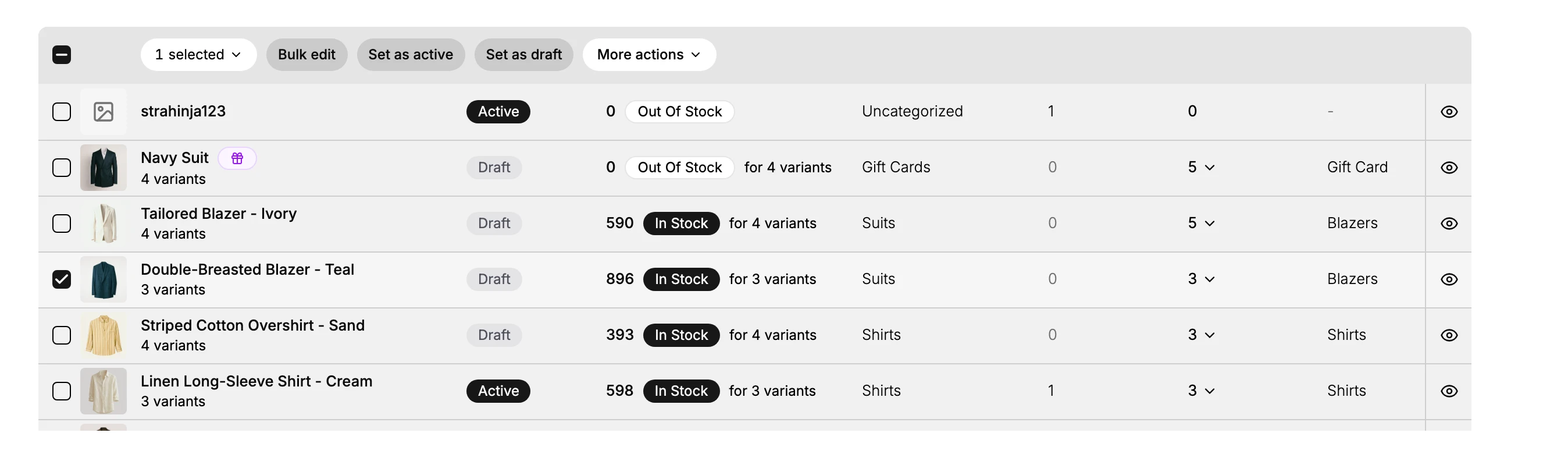
- Filter to the right products first. Use the status tabs or the search box to narrow the list before selecting, so you do not tag products you did not mean to. Bulk tagging every product by mistake is hard to unpick.
- Select the products. Tick each product's checkbox, or the header checkbox to select every product in the current view. The bulk toolbar appears, showing how many are selected.
- Open More actions. In the bulk toolbar, open More actions, which holds the tag actions along with archive, unlist, delete, sales channels, catalogs, and collections.
- Choose Add tags or Remove tags. Pick Add tags to append tags, or Remove tags to strip them, then enter the tag text. Adding keeps the products' existing tags; removing only takes away the tags you name.
- Apply, then spot-check. Apply the change, then open a couple of the products you tagged and confirm the tag is there (or gone). If a smart collection uses that tag, its membership updates to match.
Verify the result
- A few of the products you changed show the new tag added, or the tag removed.
- A smart collection whose condition uses that tag includes or drops the products to match.
- Products you did not select are unchanged.
Best practices
- Filter before you select, so the action lands only on the products you intend.
- Keep tag spelling consistent.
summer-2026andSummer 2026are two different tags, which fragments filters and collections. - Use a clear naming pattern, such as lowercase words joined with hyphens, so tags stay tidy and predictable.
- Spot-check after applying, especially on a large selection, so an unexpected result does not go unnoticed.
Common mistakes
- Tagging the whole catalog because the list was not filtered first.
- Inconsistent spelling or case, which creates duplicate tags that behave separately.
- Expecting a single "replace" action. To change a tag, remove the old one and add the new one.
If something goes wrong
- The wrong products were tagged. Reselect them and use Remove tags to strip the tag you added.
- A smart collection did not update. Confirm its condition uses the exact tag text, since tags are matched literally.
- Permission denied. Your role lacks the Edit products permission.
Next steps
Related articles
Still stuck?
- Ask Tanqory AIAsk in your own words. It answers from these articles and links the ones it used.
- Ask in your adminThe assistant in your Tanqory admin answers and makes the change for you once you confirm.
- Contact TanqoryWrite to our privacy, security or legal teams, or talk to sales about a plan or a move.