Metafields
A metafield is a custom field on a single resource such as a product, collection, customer, or order. Define the field once, then fill its value on each resource.
On this page
A metafield is a custom field attached to one resource, such as a product, collection, customer, or order. Use metafields when the built-in fields do not cover the data you need, for example care instructions on a product or an internal note on a customer.
Each metafield comes from a metafield definition, which sets its name, data type, and access. Create the definition first, as Create a Metafield Definition describes, then fill the value on each resource from its Metafields section.
Before you begin
- Your role can edit the resource you are adding the value to, such as Edit products for a product or Manage collections for a collection.
- A metafield definition already exists for the resource. Create one first if it does not.
- Open the product, collection, customer, or order you want to add the value to, then scroll to its Metafields section.
Metafield compared with metaobject
| Metafield | Metaobject | |
|---|---|---|
| Lives on | One resource (product, collection, customer, order) | Standalone, reusable across resources |
| Best for | A custom field that belongs to one record | Shared data referenced from many records |
| Number of values | One value (or a list) per resource | Many entries per definition |
Custom Data Overview helps you choose between them.
Where a metafield value can be used
| Use | What it does |
|---|---|
| Theme and storefront | If the definition has Storefront API access on, your theme can show the value, for example care instructions on a product page |
| Storefront API and apps | Apps and integrations can read the value through the Storefront API when access is on |
| Admin only | With Storefront API access off, the value stays in the admin for internal use |
Steps
1. Open the resource
Open the product, collection, customer, or order you want to add the value to.
2. Go to the Metafields section
Scroll to the Metafields section. The fields from your definitions appear here, each showing its name and data type, with an input to fill.
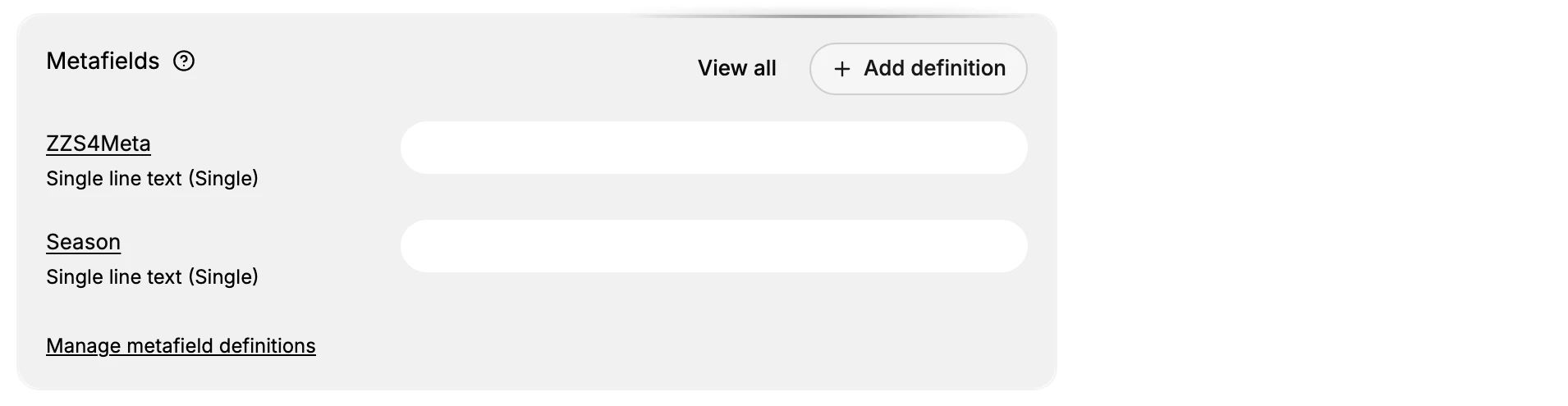
Note: On a product, category-based attributes such as Size and Color appear in a separate Category metafields section, provided by the product's category. Your own metafield definitions appear in the Metafields section below it.
3. Enter the value
Fill in the field's input. It matches the field's data type: a Single line text field (like ZZS4Meta or Season above) shows a text box, while other types such as Multi-line text, Integer, Date, or Image show their own matching input.
4. Save
Save the resource. The value is now stored on that resource.
Verify the result
- The value shows in the Metafields section when you reopen the resource.
- If the definition has Storefront API access on, your theme and the Storefront API can read it.
- Products you did not edit keep their own values.
Best practices
- Create the definition first so the field has a clear type and access setting.
- Match the type to the data, which keeps values consistent across resources.
- Keep internal values admin-only by leaving Storefront API access off in the definition.
Common mistakes
- No definition. Without one, the field has no type or storefront access set up.
- Wrong resource. A product metafield does not appear on customers or orders.
- Expecting a value on the storefront when the definition has Storefront API access off.
If something goes wrong
- The field is missing on the resource. Check that a definition exists for that resource type.
- The value does not show on the theme. Confirm Storefront API access is on in the definition and that the theme reads the field.
- Permission denied. Your role cannot edit that resource (for example, Edit products for a product). Ask an owner or admin.
Next steps
Related articles
Still stuck?
- Ask Tanqory AIAsk in your own words. It answers from these articles and links the ones it used.
- Ask in your adminThe assistant in your Tanqory admin answers and makes the change for you once you confirm.
- Contact TanqoryWrite to our privacy, security or legal teams, or talk to sales about a plan or a move.