Create a Metafield Definition
A metafield definition sets up a reusable custom field on a resource - its name, data type, options, and validations. Define it once from Settings > Metafields & metaobjects, then fill the value on each resource.
On this page
A metafield definition sets up a custom field on a resource such as a product, collection, customer, or order. You define the field once - its name, data type, and options - and then fill in a value on each individual resource. Use metafields when the built-in fields do not cover the data you need, such as care instructions on a product or a loyalty tier on a customer.
You create a definition from the Metafields and metaobjects page in Settings: pick the resource, then select Add definition. You can also start one from the Metafields section on an individual product, collection, customer, or order.
Before you begin
- Your role includes Manage metafields.
- You have decided the resource, the field name, and the data type.
- Open Settings > Metafields & metaobjects, then select the resource you want, such as Product.
What a definition includes
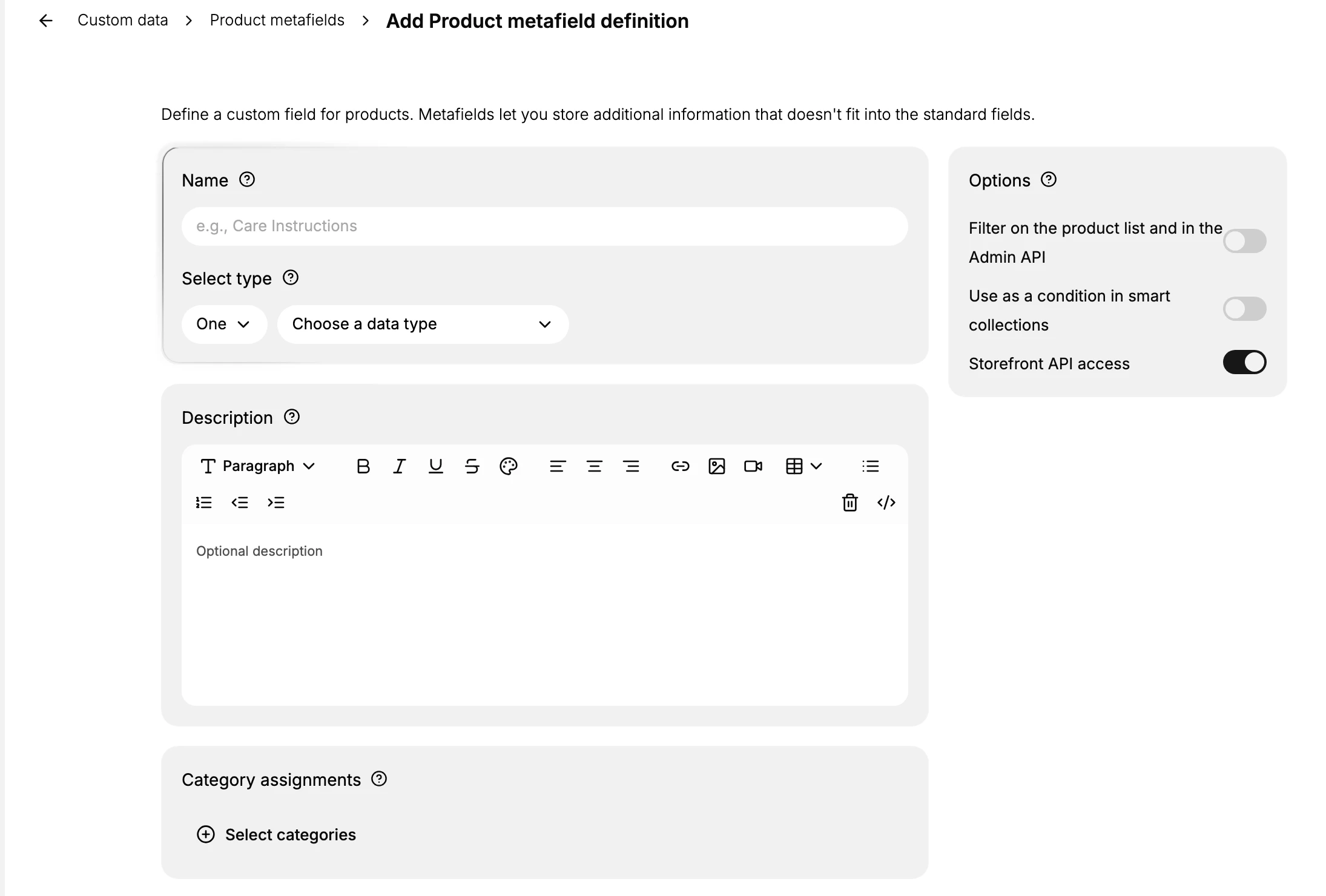
The Add [resource] metafield definition page is where you set the field up:
| Part | What it does |
|---|---|
| Name | The label for the field, such as Care Instructions. Tanqory builds the field's key from it (for example custom.care_instructions). |
| Select type | Whether the field holds One value or a List of values, and the data type (see below). |
| Description | An optional internal note describing what the field is for; it never shows on the storefront. |
| Options | Storefront API access lets your theme and the Storefront API read the field - leave it off for admin-only data. Some resources add their own: a Product definition also has Filter on the product list and in the Admin API and Use as a condition in smart collections. |
| Category assignments | (Product only) Limit the field to products in the categories you choose, instead of every product. |
| Validations | Optional rules a value must pass, shown once you pick a data type (see below). |
Data types
Pick the type that matches the data. The type decides how the value is entered and validated.
| Group | Types |
|---|---|
| Text | Single line text, Multi-line text, Rich text, Choice list, Email |
| Number | Integer, Decimal number, Money, Rating (1 to 5), ID |
| Measurement | Length, weight, volume, and other units |
| Date and time | Date, Date and time |
| Reference | Product, Product variant, Collection, Customer, Order, Page, Blog post, Metaobject, Taxonomy value |
| Media | Image, Video |
| Link | Link (text and URL), URL |
| Other | True or false, Color, Language |
| Advanced | JSON, Mixed reference |
Validations
After you pick a data type, a Validations section appears with rules for that type. Common ones:
| Data type | Validations |
|---|---|
| Single line text, Multi-line text | Character count (minimum and maximum length), Regular expression (a pattern the value must match), Unique values only |
| Integer, Decimal number | Value range (minimum and maximum), Unique values only |
| Choice list | Choice options (the exact values that are allowed) |
| Date, Date and time | Date range (earliest and latest allowed) |
Steps
1. Open the resource's metafield definitions
Go to the Metafields and metaobjects page. Under Metafield definitions, select the resource you want to add a field to, such as Product, to open its list of definitions.
2. Select Add definition
Select Add definition. The Add [resource] metafield definition page opens, for example Add Product metafield definition, with the fields below.
3. Enter a Name
Type a clear Name, such as Care Instructions. This is the label your team sees, and Tanqory builds the field's key from it, for example custom.care_instructions, which the theme and API use to read the value.
4. Choose the type
Under Select type, choose One for a single value or List for several, then open Choose a data type and pick the type. The data type controls what can be entered: a Date type gives a date picker, a Rating type gives stars, and a Reference type links to another record such as a product or a metaobject.
5. Set validation rules (optional)
Once a data type is chosen, a Validations section appears with rules for that type, such as a character or value range, a pattern, the allowed choices, or unique values only. Add any the value must pass, so bad data cannot be saved.
6. Set the Options
In the Options panel, turn Storefront API access on if your theme or the Storefront API needs to read the field, and leave it off for data that should stay in the admin. For a product, you can also turn on Filter on the product list and in the Admin API to filter products by this field, and Use as a condition in smart collections to build smart collections from it.
7. Assign categories (Product, optional)
Under Category assignments, select the categories the field should apply to, so it appears only on products in those categories. Leave it empty to apply the field to every product.
8. Add a Description (optional)
Write a short Description of what the field is for and how to fill it. It is internal only and does not show on the storefront, but it saves the next person from guessing what the field means.
9. Save
Select Save in the bar at the top. The field now appears in the Metafields section of every resource of that type, ready for a value.
Verify the result
- The definition appears under the resource on the Metafields & metaobjects page.
- You can enter a value for the field in the Metafields section of an individual resource.
- If Storefront API access is on, your theme and the Storefront API can read the value.
Best practices
- Pick the most specific type. A Date or Rating type keeps data clean where free text would not.
- Name fields clearly so the team understands them without extra documentation.
- Turn on Storefront API access only when the storefront needs the data. Keep internal data admin-only.
- Add a Description to record the field's purpose.
Common mistakes
- Using JSON or free text when a specific type (Date, Rating, Reference) fits better.
- Turning on Storefront API access for internal data, which can expose it to the storefront.
- Vague names that the team cannot interpret later.
If something goes wrong
- The field is not readable by the theme. Confirm Storefront API access is on.
- The value will not save. Check that it matches the data type and passes the validations you set.
- Permission denied. Your role lacks the Manage metafields permission. Ask an owner or admin.
Next steps
Related articles
Still stuck?
- Ask Tanqory AIAsk in your own words. It answers from these articles and links the ones it used.
- Ask in your adminThe assistant in your Tanqory admin answers and makes the change for you once you confirm.
- Contact TanqoryWrite to our privacy, security or legal teams, or talk to sales about a plan or a move.