Custom Data Overview (Metafields and Metaobjects)
Metafields add a custom field to a single resource. Metaobjects hold reusable custom data referenced by many resources. Use them to extend the standard product, customer, and order model.
On this page
Custom data lets you extend the standard product, customer, order, and collection model with your own fields. Tanqory has two tools for this: metafields and metaobjects. Use them for storefront content, internal operations fields, and data that apps or integrations need.
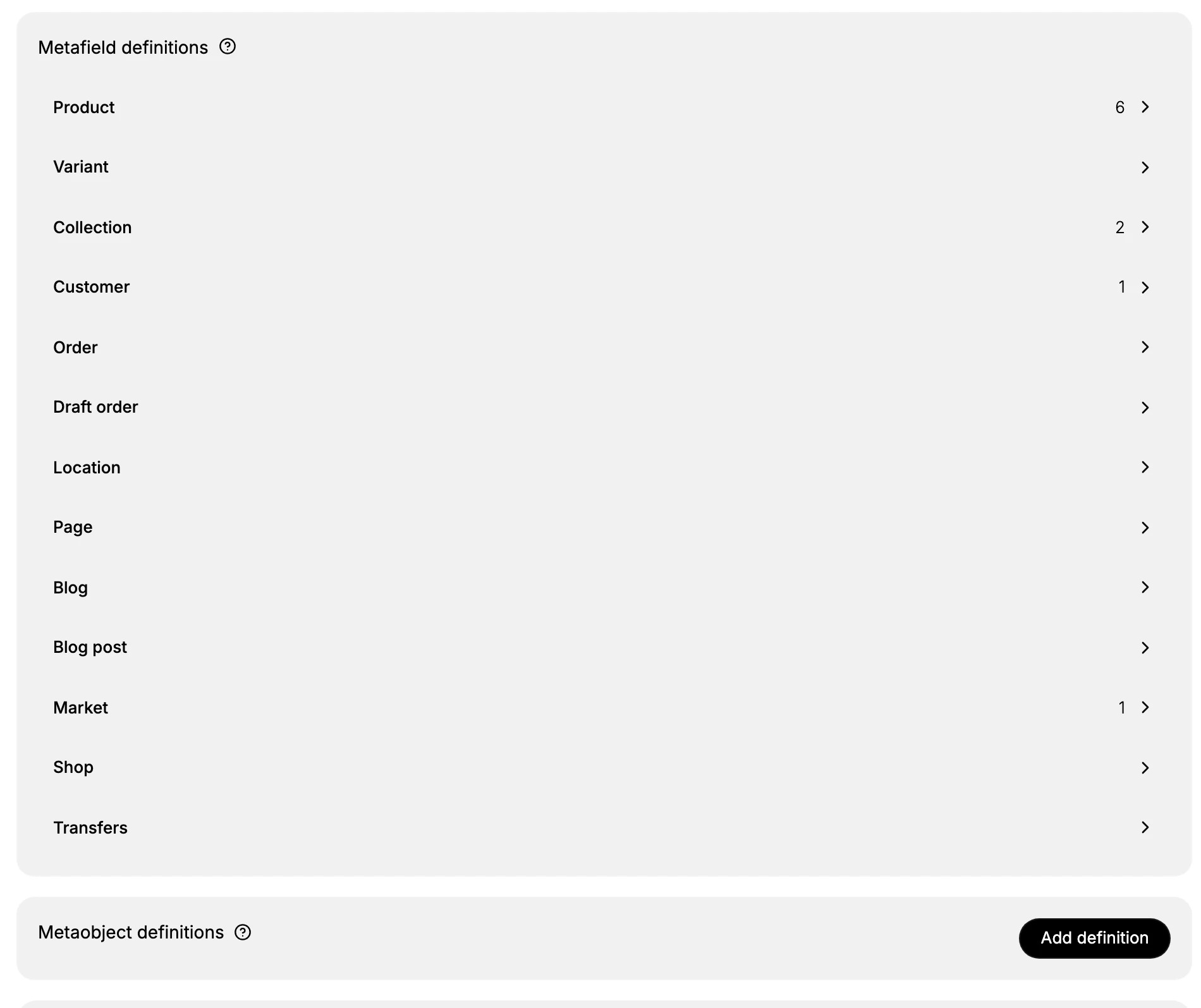
Both metafield and metaobject definitions are managed on one page, the Metafields and metaobjects page in Settings. Metafield definitions are grouped by resource (Product, Customer, and so on), and metaobject definitions have their own section on the same page. Once a definition exists, metafield values are entered on each resource, and metaobject entries are added from the definition.
Before you begin
- Your role can manage custom data: Manage metafields for metafield definitions, or Metaobjects settings for metaobject definitions.
- You have planned the data you need and whether it belongs to one record or is shared.
- Open Settings > Metafields & metaobjects in the admin sidebar to create and manage both metafield and metaobject definitions.
Metafield compared with metaobject
| Metafield | Metaobject | |
|---|---|---|
| What it is | A custom field on a resource | A reusable custom data type with its own entries |
| Lives on | A product, collection, customer, or order | Standalone, referenced from other resources |
| Number of values | One value, or a list, per resource | Many entries per definition |
| Example | Care instructions on each product | A size guide entry that many products point to |
| Use when | The data belongs to one record | The same data is shared by many records |
Common patterns
| Need | Use |
|---|---|
| Storefront copy specific to one product | Metafield |
| An internal operations flag on a product | Metafield |
| A size guide shared by many products | Metaobject |
| An ingredient list reused across products | Metaobject |
| Author profiles reused across blog posts | Metaobject |
Standard and custom definitions
Not every field is one you create. Tanqory provides standard attributes tied to a product's category: open a product in a category such as Suits and its Category metafields section already lists fields like Size, Color, Pattern, and Fabric, ready to fill in. The definitions you add yourself are custom definitions. When you create a product metafield definition, its Category assignments scope it either to every product or only to products in the categories you choose.
Define the field, then fill the value
Both tools are definition first. You set up the structure once, then add values.
A metafield definition includes:
| Part | What it does |
|---|---|
| Name | The label for the field |
| Type | Whether it holds one value or a list, plus the data type you choose |
| Description | An optional internal note |
| Category assignments | For a product metafield, which product categories the field applies to |
| Options | Toggles to filter on the product list and Admin API, use it as a smart-collection condition, and turn on Storefront API access |
A metaobject definition instead holds one or more fields of its own, each with a name, a one-or-list setting, and a data type, plus options such as Storefront API access.
Steps
1. Choose metafield or metaobject
Decide this first. It sets how the data is stored and how much work it is to maintain later.
- Use a metafield when the value belongs to one record and is not repeated elsewhere, such as care instructions on a single product.
- Use a metaobject when the same value is shared by many records, such as a size guide that many products point to. You then edit it in one place instead of copying it onto every product.
Watch for the common misstep, which is picking a metafield for shared data. The value ends up duplicated on many records, and every change has to be repeated. A metaobject avoids this, because it keeps one entry that all of the records reference.
2. Create the definition
Open the Metafields and metaobjects page. How you start depends on which tool you chose:
- For a metafield, the page lists metafield definitions grouped by resource (Product, Variant, Collection, Customer, Order, and more). Pick the resource the field belongs to, then click Add definition.
- For a metaobject, click Add definition under Metaobject definitions instead.
A definition form then opens, where you set the field's structure:
- Name, the label for the field.
- Type, which sets whether it holds one value or a list, plus the data type.
- Description, an optional internal note.
- For a product metafield only, Category assignments (which product categories the field applies to) and the Options toggles: filter on the product list and Admin API, use as a smart-collection condition, and Storefront API access.
Saving creates the definition. It is an empty structure with no values yet, so the field now exists on the resource, ready to be filled. Create a Metafield Definition and Define a Metaobject Schema each give the full field-by-field walkthrough.
3. Fill the values
With the structure defined, you can now enter data. Where you enter it depends on the tool:
- A metafield value is entered on the individual record. Open a product, customer, or order and fill the field in its Metafields section. For a category field, the product's Category metafields section already lists it, ready to fill.
- A metaobject entry is added from the metaobject definition itself. Each entry is one reusable record that other resources can then reference.
The definition has to exist first because it decides the input you get. The type you chose controls whether the field takes one value or a list, and what data it accepts, which is what keeps values consistent across records.
4. Show the data on your storefront
A saved value is shown to shoppers only if its definition has Storefront API access turned on.
- With it on, your theme and the Storefront API can read the value and display it, for example on the product page.
- With it off, the field stays internal. It is readable in the admin and the Admin API, but is not exposed to the storefront, which is what you want for operations-only data.
So turn Storefront API access on for fields the storefront needs to show, and leave it off for internal ones. Metafields covers entering and displaying values in your theme.
Verify the result
- The definition appears where you created it.
- Values can be entered, and the right type of input is shown.
- With Storefront API access on, your theme and the Storefront API can read the data.
Best practices
- Plan the structure before you add values. Changing a definition later is more work than getting it right first.
- Choose the most specific data type so values stay clean.
- Turn on Storefront API access only when the storefront needs the data.
- Document each field with a description.
Common mistakes
- Free text where a specific type, such as a date or a choice, would fit.
- A metafield where a shared metaobject would avoid duplicating the same data on many records.
- Storefront API access on internal data, which can expose it.
If something goes wrong
- A field does not show on the theme. Confirm Storefront API access is on and the theme reads the field.
- The same data is repeated on many products. Move it to a metaobject and reference it.
- Permission denied. Your role cannot manage custom data. Ask an owner or admin for Manage metafields (metafield definitions) or Metaobjects settings (metaobject definitions).
Next steps
Related articles
Still stuck?
- Ask Tanqory AIAsk in your own words. It answers from these articles and links the ones it used.
- Ask in your adminThe assistant in your Tanqory admin answers and makes the change for you once you confirm.
- Contact TanqoryWrite to our privacy, security or legal teams, or talk to sales about a plan or a move.