Define a Metaobject Schema
Create a metaobject definition - its name, its fields and their types, and the options that control drafts, translations, web pages, and API access - so you can add reusable entries that match it.
On this page
A metaobject definition is the schema for a reusable custom content type. You give it a name, add the fields each entry will hold, and set a few options. Once the definition exists, you can add entries that match it and reference them from products and pages. Without a definition there are no entries to create.
You'll work on the Metafields & metaobjects page, reached from the admin sidebar.
What a definition contains
| Part | What it is |
|---|---|
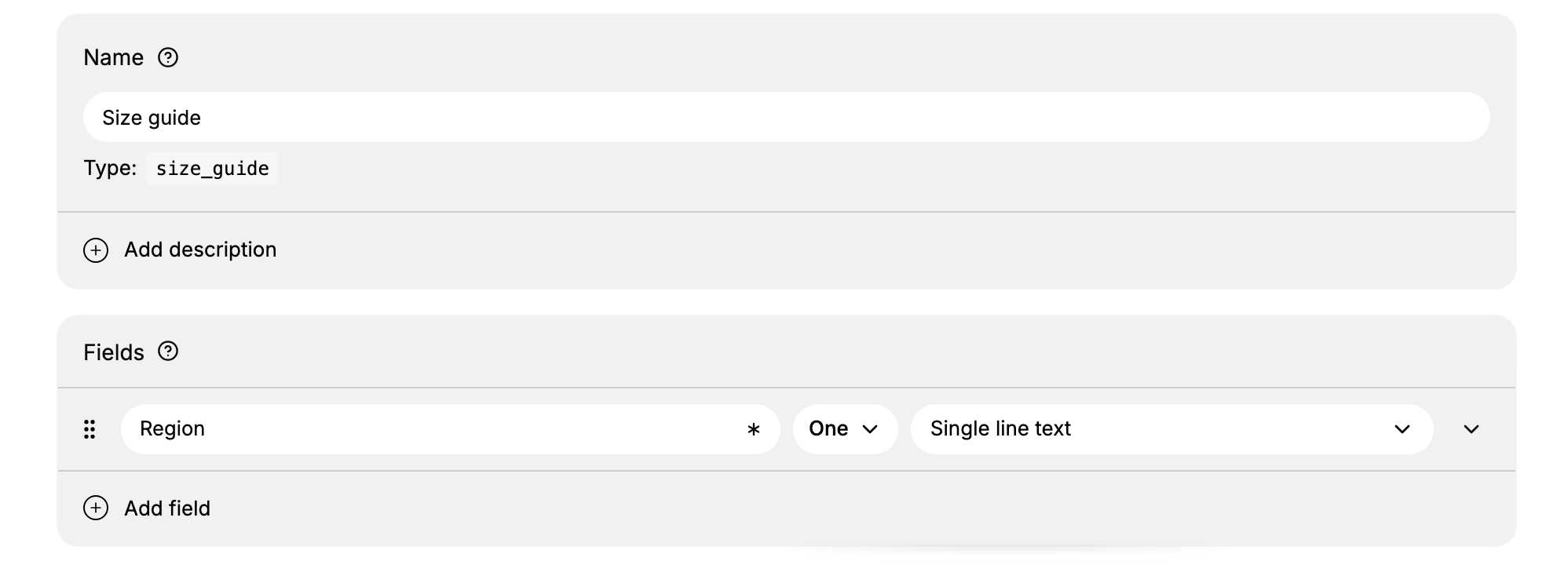
| Name | The definition's name (for example Size guide). Below the name, Tanqory fills in a Type identifier automatically (size_guide), which themes and the API use to refer to it. |
| Description | An optional Add description note explaining what the content type is for; it is internal and does not show on the storefront. |
| Fields | The typed data each entry holds. Each field has a label, a type, a required toggle, and a One or list setting. |
| Metaobject options | Toggles that control drafts, translations, web pages, and API access. |
| Field options | The Display name (which field labels an entry in lists) and which fields can be used as filters. |
Each field takes a type from the Select field type menu, which groups the choices:
- Text: Single line text, Multi-line text, Rich text, Choice list, Email.
- Number: Integer, Decimal number, Money, Rating, ID.
- Measurement: units such as length, weight, and volume.
- Date and time: Date, or Date and time.
- Media: Image, Video, File.
- Reference: a link to a Product, Product variant, Collection, Page, Blog post, Customer, Order, Taxonomy value, or another Metaobject.
- Link: Link (text and URL), URL.
- Other: True or false, Color, Language.
- Advanced: JSON.
Before you begin
- You have the Metaobjects settings permission.
- You have planned the fields the entries will need.
- Open Content > Metaobjects in the admin sidebar, then select Add definition.
How to create a definition
1. Open Metaobjects and click Add definition
On that page, click Add definition. The create form opens.
2. Name the definition and add its fields
Enter a Name that describes the content type, for example Size guide. Tanqory fills in the Type identifier (size_guide) below it for you. In Fields, type a field label (for example Region), pick its type from Select field type, set the required toggle and the One or list setting, then use Add field for the next one.
3. Pick each field's type
Open Select field type for each field and choose the type that matches the data. Pick the type carefully, since changing it later can affect entries that already use the field.
4. Set the Metaobject options
These toggles decide how entries behave once the definition is saved.
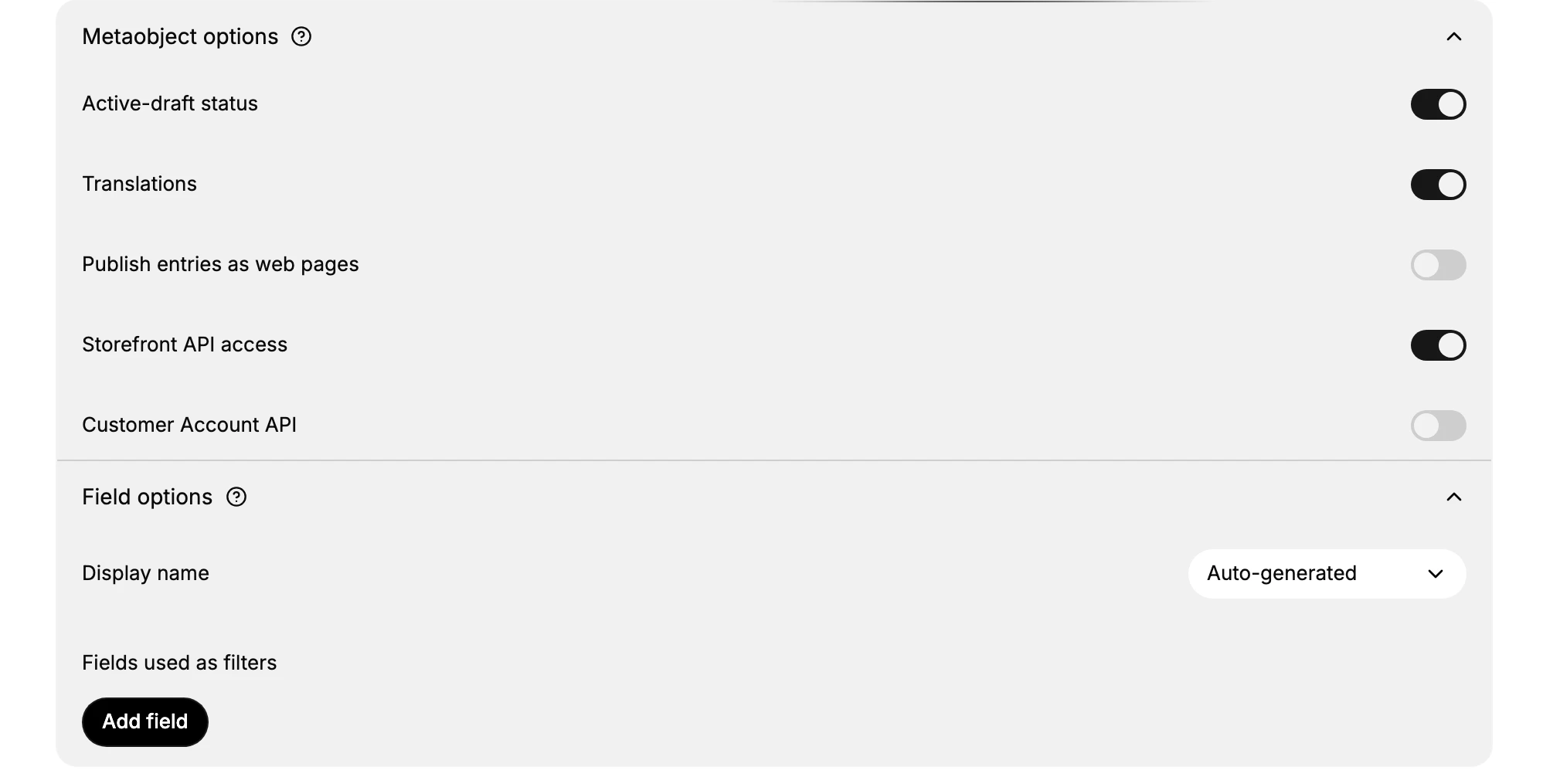
- Active-draft status gives each entry a draft or active state, so you can prepare an entry before it goes live.
- Translations lets the entry fields be translated into your other store languages.
- Publish entries as web pages makes each entry available as its own page on the storefront.
- Storefront API access exposes entries to the storefront, so your theme can read and display them.
- Customer Account API exposes entries to the customer account API.
5. Save
Click Save on the bar at the top of the form. The definition appears on the Metafields & metaobjects page, listed by name and ready for entries. Open it to add entries with the fields you defined.
Note: If your theme cannot read the entries you create later, open the definition and turn on Storefront API access. If you cannot reach this form at all, your role is missing the Metaobjects settings permission.
Best practices and common mistakes
- Plan the fields before you save. You can add a field later, but changing a field's type can affect entries that already use it, so choose each type carefully the first time.
- Name fields clearly so the entry form is easy to fill, and give the definition a specific name so its auto-generated Type stays easy to recognize later.
- Turn on Storefront API access only when the theme needs the data, to keep internal-only content out of the storefront.
- Do not change a field that entries already use in a way that breaks them. Add a new field and migrate instead.
- Do not leave Publish entries as web pages on for content that should not have its own page on the storefront.
Next steps
Related articles
Still stuck?
- Ask Tanqory AIAsk in your own words. It answers from these articles and links the ones it used.
- Ask in your adminThe assistant in your Tanqory admin answers and makes the change for you once you confirm.
- Contact TanqoryWrite to our privacy, security or legal teams, or talk to sales about a plan or a move.