Setting Product Prices
Learn how to set up the Pricing section of the product editor, from the customer-facing Price and an optional Compare-at sale price to the Cost that fills in Profit and Margin automatically.
On this page
The Pricing section on the Product Detail Page holds the numbers that drive the checkout total and margin reporting: Price (what the customer pays), Compare-at price (the optional strikethrough), and Cost (your internal cost basis, which auto-calculates Profit and Margin).
You'll work under Products in the admin sidebar, in the Pricing section of the product editor, below Media and Category and above Inventory. Product Detail Page covers the rest of the editor.
Before you begin
- You have the Edit products permission.
- You know what the customer should pay (Price) and what you paid your supplier (Cost); both are needed to fully populate the section.
- Open Products in the admin sidebar, open the product, and scroll to its Pricing section.
Steps
1. Set the Price (required)
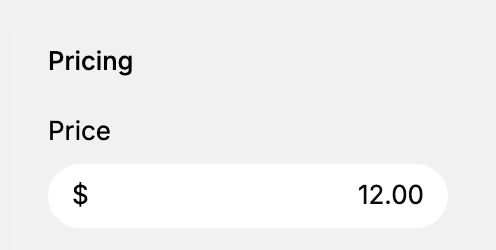
Open the product from Products in the admin sidebar (or click Add product) and find the Pricing section, below Media and Category and above Inventory. Enter the customer-facing Price, the amount charged at checkout. The input shows a 0.00 placeholder.
2. Add the optional display, unit, and tax fields
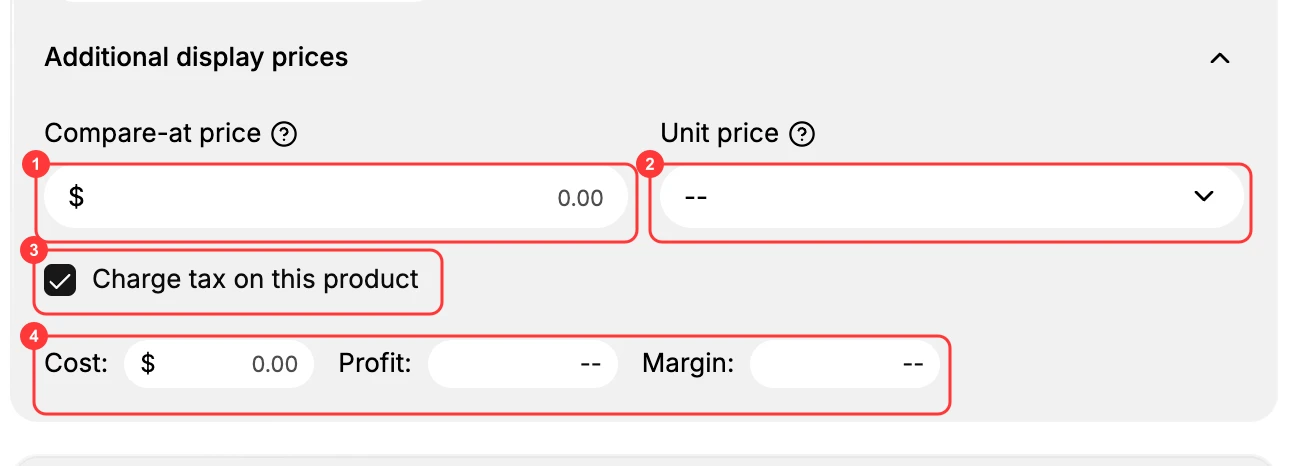
Below the Price, Additional display prices and the field pills reveal:
- Compare-at price: an optional reference price. Set it higher than the Price, and the storefront shows the original price struck through next to the current one (the "on sale" look). Leave it blank when the product is not on sale.
- Unit price: an optional price per unit of measure (for example, per 100 g or per liter) for markets that require it. It is a dropdown next to Compare-at price.
- Charge tax on this product: a checkbox (ticked by default) that controls whether tax applies to this product; clear it for tax-exempt items.
3. Set Cost, then Save
In the same Additional display prices block, set Cost, your internal cost basis, never shown to the customer. As soon as you enter it, Tanqory fills in Profit and Margin right beside it (both stay blank until Cost is set). Cost also feeds the margin figures in your Analytics reports. When the section is complete, click Save in the floating bar at the top of the editor.
Verify the result
- The Price you entered shows in the Pricing section after saving.
- If you set a Compare-at higher than Price, the storefront shows the strikethrough sale price.
- If you set Cost, Profit and Margin populate beside it (they stay blank until Cost is set).
Best practices
- Always populate Cost. Profit and Margin depend on it, so without a Cost value they stay blank.
- Use Compare-at only for active promotions. Clear it when the sale ends, or the strikethrough lingers on the storefront.
- Set prices in the store's display currency.
- Avoid negative-margin pricing unless it is intentional, such as a loss-leader. The Margin figure updates as you enter Cost.
- For products with variants, set prices per variant in the Variants section. The product-level Pricing section is hidden once a product has options.
Common mistakes
- Setting Compare-at the same as or below Price: no strikethrough sale price appears; set it higher than Price.
- Forgetting to clear compare-at after a sale: the strikethrough lingers on the storefront.
- Skipping Cost: Profit and Margin stay blank.
If something goes wrong
- No strikethrough sale price on the storefront: set Compare-at price higher than the Price.
- Profit and Margin stay blank: Cost is not set; enter Cost to populate them.
- Permission denied: your role lacks Edit products.
Next steps
Related articles
Still stuck?
- Ask Tanqory AIAsk in your own words. It answers from these articles and links the ones it used.
- Ask in your adminThe assistant in your Tanqory admin answers and makes the change for you once you confirm.
- Contact TanqoryWrite to our privacy, security or legal teams, or talk to sales about a plan or a move.