Migration Overview
A move to Tanqory splits in two. Your products, inventory and customers arrive as CSV imports, while your theme, payments, shipping, taxes and domain are built fresh because they do not travel in a data file. This overview sorts your store into those two halves and gives the order that keeps the work predictable.
On this page
Moving to Tanqory from another commerce platform happens in two parts. Your records, such as your product catalog, come across as data through CSV file imports, where you upload a spreadsheet and Tanqory creates the matching records. The rest of your store is configured fresh in Tanqory rather than copied over. That covers its look, its payment and shipping setup, and its domain, all of which are tied to the platform they were built on and do not travel inside a data file. Knowing which half a given piece of your store falls into is what keeps a migration predictable. This overview sorts your store into those two halves, then gives the order to work through them.
Before you begin
- You can sign in to your current platform and export its data to CSV files.
- For a large or complex catalog, you have someone available to check the imported data, since problems are easier to catch in stages than all at once.
- Open Products and select Import when you are ready to bring your catalog in.
Which half is each part of your store in
This is the question the whole migration turns on, so here is the answer in one place. Anything in the left column arrives as data you upload. Anything in the right column is work you do in Tanqory afterwards, because those settings belong to the platform they were built on and cannot travel inside a spreadsheet.
| Comes across as a CSV import | Built fresh in Tanqory |
|---|---|
| Products, with titles, descriptions, variants, prices and SKUs. Import Products via CSV walks the columns and the checks | Your storefront look, by choosing and customizing a theme. Manage Themes covers picking one and changing it |
| Inventory quantities per location, in an import of its own so stock can be updated without touching product details. Import Inventory covers the per-location columns | Your payment providers, connected through Tanqory rather than transferred. Add a Payment Provider takes you through connecting one |
| Customers, so your existing contacts and their addresses exist in Tanqory. Adding a Customer covers the import alongside the manual form | Your shipping zones and rates, rebuilt in Tanqory's format. How Shipping Zones Work describes the shape you are rebuilding into |
| Your tax settings, configured for the regions you sell to. Taxes and Duties covers the regional settings | |
| Your domain, pointed at Tanqory when you are ready to go live. Connect Existing Domain is the last move before customers arrive |
Each importer expects its own column layout and each offers a sample file, so match your exported file to the sample before you upload. Tanqory then tells you which rows it will create before anything is saved.
Past orders belong in neither column, and that is the thing worth knowing before you start. There is no order importer in Tanqory, so order history cannot be brought across in a file at all. Keep the export from your old platform as your record of it, and bring your customers across instead, so returning shoppers still exist in Tanqory even though their past purchases do not. Bringing Past Orders into Tanqory sets out what to do with the export you cannot upload.
The right column is also the half people underestimate. It carries no data and therefore feels like nothing. A theme, payment provider, shipping rates and taxes usually take longer to get right than every import put together, and until they are in place the catalog sits in an admin that nobody can buy from.
The migration, step by step
- Take stock of your current store. List what you are moving and how much of it: how many products, customers, and past orders, and which pages and settings matter. This count is what you check the migration against later, so a record that never got exported is caught rather than missed.
- Export your data from your current platform. In your current platform's admin, export your products, customers, inventory, and orders to CSV files. Export the orders even though they cannot be imported, because that file becomes your only record of them once the old account closes. Each platform lays its columns out differently, which is why the next step exists.
- Match your files to Tanqory's format. Compare each exported file against Tanqory's sample CSV for that record type, then rename or rearrange columns so they line up. The import reads every field it recognizes and drops the ones it cannot map, so a column left unmatched is a column left behind. Tanqory CSV Format Reference lists the columns each importer expects.
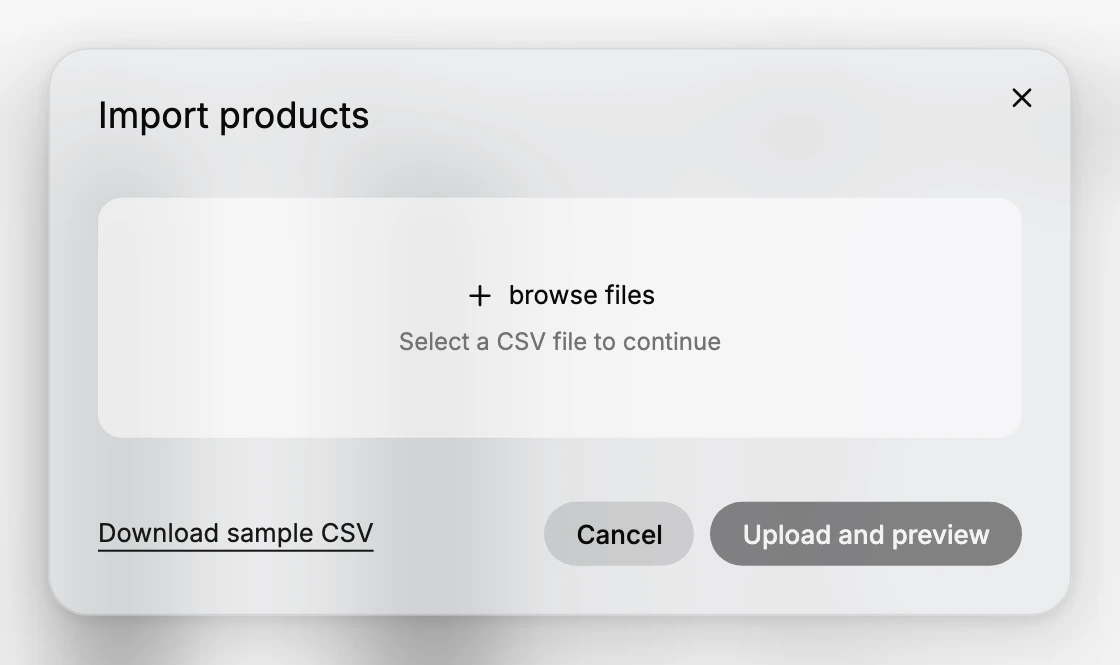
- Import your product catalog. Open Products, select Import, then use browse files to choose your prepared CSV (or Download sample CSV to match the exact format first). Select Upload and preview to see the rows Tanqory will create before anything is saved, so you can fix the file and retry if a column looks wrong.
- Import your other records. With products in place, import your inventory and customers the same way, each from its own importer. Stock counts then land on products that already exist rather than on nothing. Orders are not part of this step, since they have no importer.
- Rebuild your store setup. Choose a theme, connect your payment providers, and configure your shipping and taxes. These are the settings that do not arrive in a CSV, and the storefront cannot take real orders until they are in place.
- Connect your domain. When your catalog and setup look right, point your domain at Tanqory so customers reach the new store.
- Test before you switch over. Place a test order and walk the storefront before you send customers to it. A broken payment or shipping setting is then a fix you make quietly rather than one a customer reports.
The two ends of this list carry the most weight. Step 1 gives you the numbers everything else is checked against, and without them there is nothing to compare the finished store to. Step 8 is what stands between a broken payment setting and a customer being the one who finds it.
Verify the result
- Your product count in Tanqory matches the number you exported.
- Inventory and customers appear where you expect them. Orders will not, because they are not imported.
- A test order completes end to end, which confirms payments and shipping are set up.
- The storefront loads on your domain once you connect it.
Working order
Move in stages rather than all at once, products first, so a problem in one file does not hold up the rest. Work on a copy and leave the original export untouched, because it is the only unedited record of what your old platform actually gave you. Read the preview on every import instead of trusting the file; a mismatched column is cheap to catch before the rows are created and expensive afterwards. Keep your current store running and serving customers until the Tanqory one has been tested, so there is always something working to fall back to.
Common mistakes
A migration goes wrong in ways that are cheap to avoid and expensive to discover late.
- Assuming everything moves. This is the big one, and orders are where it bites. People export their order history, spend an afternoon mapping columns, and only then find there is no importer for it. Read What you bring in with a CSV import before you start preparing files, not after.
- Closing the old store too early. Your old platform is both your fallback and your only copy of anything that did not come across, including order history. Keep it running and keep its exports until the Tanqory store has taken real orders.
- Importing everything in one go. Products first, then inventory, then customers. Inventory that arrives before its products has nothing to attach to. A bad file at the end of one enormous import is also far harder to unpick than a small one you caught early.
- Skipping the preview. The import dialog offers Upload and preview so you can see what will be created. Trusting the file instead is how a column-mapping error becomes a thousand wrong products.
- Pointing the domain before testing. Once the domain moves, customers are on the new store. Place a test order first so a broken payment or shipping setting is something you fix quietly rather than something a customer reports.
- Forgetting the fresh-setup half. Theme, payments, shipping, and taxes take longer than the imports for most stores. Treating them as an afterthought is what leaves a catalog sitting in an admin with no way for anyone to buy from it.
A guide for each platform
Every platform exports its records differently, so each of these takes the same migration and works it through with that platform's own export in hand.
If you are moving from somewhere not listed, the steps on this page still hold. What changes is only how you get the CSV out of your old platform.
Next steps
Related articles
Still stuck?
- Ask Tanqory AIAsk in your own words. It answers from these articles and links the ones it used.
- Ask in your adminThe assistant in your Tanqory admin answers and makes the change for you once you confirm.
- Contact TanqoryWrite to our privacy, security or legal teams, or talk to sales about a plan or a move.