Migrate from Shopify
Move a Shopify store to Tanqory: your product export lines up with the Tanqory import template, then bring in other records and rebuild your store setup.
On this page
Moving from Shopify to Tanqory follows the same two-part shape as any migration: your records come across through CSV imports, and the rest of your store is set up fresh in Tanqory. Shopify is the smoothest starting point for the catalog step, because Tanqory's product import template uses the same column layout as a Shopify product export. That means the product CSV you export from Shopify lines up with Tanqory's template with little or no editing, so the catalog, the part most stores worry about, is mostly a straight export and import. If you have not read the general framework yet, start with the Migration Overview.
What moves and what you rebuild
- Your product catalog moves by CSV. A Shopify product export already carries the columns Tanqory expects, such as Handle, Title, Variant SKU, and Image Src. See the CSV Format Reference.
- Your inventory and customers each move through their own Tanqory importer once exported from Shopify. See Import Inventory and Add and Import Customers.
- Your past orders do not move. Tanqory has no order importer, so order history stays in Shopify and cannot be uploaded. Export it before you close the account and keep the file as your record, and bring your customers across so returning shoppers still exist in Tanqory. See Bringing Past Orders into Tanqory.
- Your storefront look, apps, payment providers, shipping, taxes, and domain are set up in Tanqory rather than carried in a file. These are the same rebuild steps every migration needs, covered in the sections linked below.
Before you begin
- You can sign in to both your Shopify admin and your Tanqory admin.
- You can export your data from Shopify to CSV.
- You have time set aside for the rebuild work, since the storefront cannot take orders until payments and shipping are configured.
Steps to migrate
- Export your catalog from Shopify. In your Shopify admin, export your products to CSV. This file already uses the column names Tanqory's template expects, which makes the next step short.
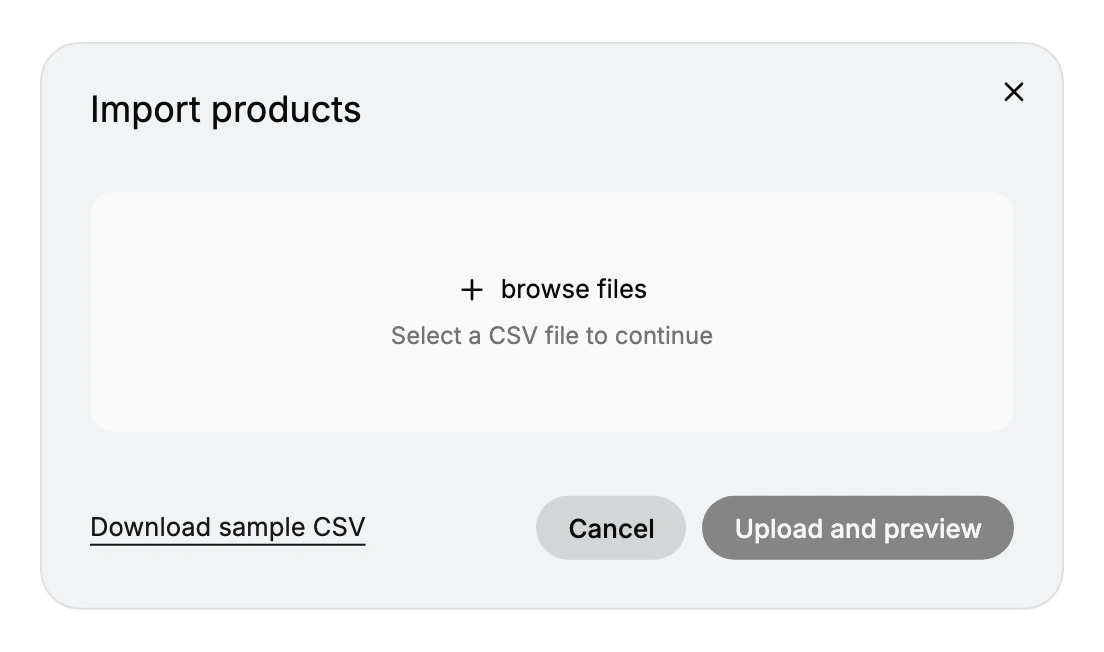
- Import your products into Tanqory. Open Products and select Import to open the Import products dialog. Use browse files to choose your Shopify product CSV, or Download sample CSV first to compare its columns against your export. Choose Upload and preview to see the products and variants Tanqory will create before anything is saved; if a column looks wrong, use Cancel, fix the file, and try again. Because the formats match, most Shopify exports import with little or no adjustment.
- Import your other records. Export your inventory and customers from Shopify and bring them in through their own Tanqory importers, so products exist first for these records to attach to. Orders are not part of this step, since they have no importer. See Import Inventory and Add and Import Customers.
- Rebuild your storefront and settings. Choose a Tanqory theme and rebuild your brand look, then set up the pieces that do not travel in a file: payment providers, shipping, and taxes. See Themes, Add a Payment Provider, and How Shipping Zones Work.
- Test, then move your domain. Place a test order and walk the storefront. When it is right, point your domain at Tanqory so customers reach the new store. See Domains.
Verify the result
- Your product count in Tanqory matches your Shopify export, and variants attached to the right products.
- Inventory and customers appear where you expect them. Orders will not, because they are not imported.
- A test order completes end to end, which confirms payments and shipping.
- The storefront loads on your domain once you connect it.
Best practices
- Import a small batch of products first and check the preview, so a column mismatch is caught before the whole catalog.
- Keep your Shopify store running until the Tanqory store is tested, so you always have a working fallback.
- Rebuild and test payments and shipping before you move the domain, since those settings do not come across in any export.
- Set up redirects from your old product and page URLs where you can, so existing links and search results still reach the right pages.
Common mistakes
- Trusting the Shopify export because the headers match. They do line up, which is what makes this migration short, but matching headers only means the columns are read correctly. Check the values too, especially Published and Status, since a product can arrive Active in Tanqory and still not be published to your Online Store.
- Expecting order history to come across. It does not, and this is the assumption that costs the most time, because it is usually discovered after the export has already been prepared. Plan to keep the old records readable somewhere else.
- Importing inventory or customers before products. Stock counts and customer records attach to products that already exist, so bringing them in first leaves them with nothing to attach to.
- Skipping the preview. The Import products dialog offers Upload and preview so you can see what will be created. A mismatched column caught in a preview is a two-minute fix; caught after the import it is a cleanup job.
- Closing the old store too early. It is both your fallback and your only copy of anything that did not travel, order history included. Keep it until the Tanqory store has taken real orders.
- Pointing the domain before testing. Once the domain moves, customers are on the new store. Place a test order first, so a broken payment or shipping setting is something you find rather than something a customer reports.
Next steps
Related articles
Still stuck?
- Ask Tanqory AIAsk in your own words. It answers from these articles and links the ones it used.
- Ask in your adminThe assistant in your Tanqory admin answers and makes the change for you once you confirm.
- Contact TanqoryWrite to our privacy, security or legal teams, or talk to sales about a plan or a move.