Tanqory CSV Format Reference
Tanqory's product import template has 33 columns, and this is what each one holds. It also covers the part that trips people up: a product with several variants or images is not one row but several, tied together by a repeated Handle. Customers and inventory import through their own templates, and past orders cannot be imported at all.
On this page
When you import products into Tanqory you upload a CSV, and Tanqory reads it column by column to build each product. Matching your file to the exact column names below is what lets the importer place every field correctly instead of skipping the ones it cannot recognize. The most reliable way to get the format right is to start from the template rather than from your own file. Open Products, select Import, then choose Download sample CSV, and you get a file with these headers already in place to fill in or paste your data into.
This article documents the product import format. Customers and inventory each have their own importer with its own columns, so for those follow Adding a Customer and Import Inventory. Each of those importers has its own Download sample CSV, which is the source of truth for its columns. Past orders are the exception: there is no order importer in Tanqory, so a CSV of orders from another platform cannot be uploaded. Bringing Past Orders into Tanqory covers what to do with that file instead.
Before you begin
- You have downloaded the sample CSV and are working from that file. It comes from the same importer that will read your file back, so its headers are the ones that are guaranteed to be understood.
- Have your product data ready, or an export from another platform, in a spreadsheet you can edit.
- Decide what to do about images before you start, since they are added by public URL rather than uploaded with the file. Any image you want on a product has to already be reachable at a web address.
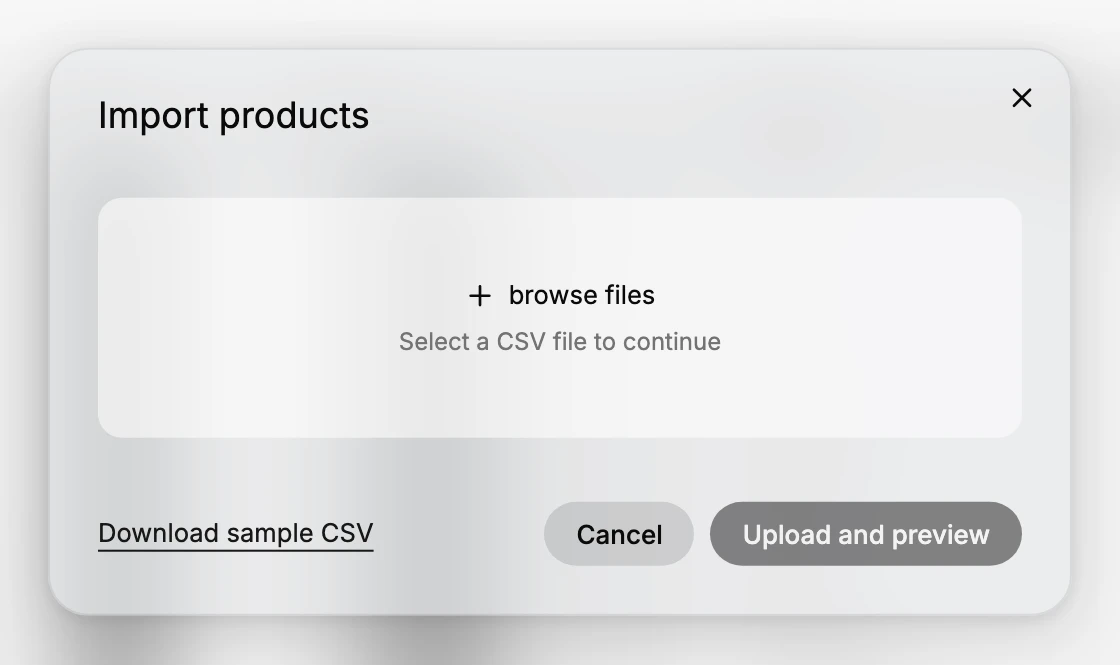
- Open Products and select Import, which opens the Import products dialog.
Product and organization columns
These columns describe the product as a whole. Fill them on the product's first row.
| Column | What it holds |
|---|---|
| Handle | The URL-safe identifier that ties a product's rows together, for example example-t-shirt. Every row for the same product repeats this value. |
| Title | The product name shown to customers. |
| Body (HTML) | The product description, which may contain HTML markup. |
| Vendor | The brand or supplier of the product. |
| Product Category | The standard category, for example Apparel & Accessories > Clothing. |
| Type | Your own product type label, for example Shirts. |
| Tags | Tags for the product, separated by semicolons, for example cotton;unisex. |
| Published | Whether the product is published to the Online Store sales channel, true or false. |
| Status | The product's own state, for example active or draft. |
Published and Status are two different switches, and this is the pair that most often surprises people after an import. In the admin they live in different places: Status sits with the product's details and reads Draft or Active, while publishing sits in a separate Publishing section headed "Choose which sales channels and apps display this product", where Online Store reads Published or Not published. A product can therefore be Active and still not be on your storefront, because it was never published to that channel. If your imported products exist in the admin but customers cannot find them, check both columns rather than assuming the import failed.
Variant columns
A variant is one buyable version of the product. These columns define its options and its selling details.
| Column | What it holds |
|---|---|
| Option1 Name / Option1 Value | The first option and its value, for example Size and S. |
| Option2 Name / Option2 Value | The second option, for example Color and White. |
| Option3 Name / Option3 Value | A third option, if the product needs one. |
| Variant SKU | The stock-keeping unit for this variant. |
| Variant Price | The price the customer pays for this variant. |
| Variant Compare At Price | The higher was-price shown struck through, if you show one. |
| Variant Grams | The variant weight in grams, used for shipping. |
| Variant Inventory Tracker | Who tracks stock for the variant, for example tanqory. |
| Variant Inventory Qty | The stock quantity for the variant. |
| Variant Inventory Policy | What happens when stock hits zero, for example deny to stop sales or continue to allow them. |
| Variant Fulfillment Service | Who fulfills the variant, for example manual. |
| Variant Requires Shipping | Whether the variant is shipped, true or false. |
| Variant Taxable | Whether tax applies to the variant, true or false. |
| Variant Barcode | The barcode, such as a UPC, EAN, or GTIN. |
Image columns
Images are added by URL. A product with several images uses one row per image.
| Column | What it holds |
|---|---|
| Image Src | The public URL of the image, for example https://example.com/tshirt-white.jpg. |
| Image Position | The order the image appears in, starting at 1. |
| Image Alt Text | Descriptive alt text for the image. |
Other columns
| Column | What it holds |
|---|---|
| Gift Card | Whether the product is a gift card, true or false. |
| SEO Title | A meta title override for the product page. |
| SEO Description | A meta description override for the product page. |
| Cost per item | Your own cost for the item, used for profit reporting and not shown to customers. |
How rows work for variants and images
A simple product is one row. A product with several variants or images spreads across several rows that share the same Handle, and this is the part most worth getting right.
- The first row carries the product columns (Title, Body, Vendor, and so on) plus the first variant and first image.
- Each additional variant is a new row that repeats the Handle, leaves the product columns blank, and fills only that variant's columns.
- Each additional image is a new row that repeats the Handle and fills only Image Src, Image Position, and Image Alt Text.
For example, one t-shirt with three sizes is three rows. The first row names the product and its Small variant. The next two repeat the Handle, leave the product columns blank, and add the Medium and Large variants.
How to use the template
- Get the Tanqory template. In Products, select Import, then Download sample CSV. Working from this file means your headers already match what the importer expects, so nothing is dropped for a mismatched column name.
- Fill in or map your data. Enter your products into the template, or line your exported columns up with these headers and copy the data across. Keep one row per variant and per image, repeating the Handle as described above.
- Import a small batch first. Import a few rows before the whole file. The importer previews the rows it will create, so you can confirm the columns landed correctly and fix the file before importing everything. Import Products via CSV walks that import end to end.
The order of those three steps is what keeps a mistake cheap. Starting from the template removes the whole class of header errors, and importing a handful of rows first means a column that landed in the wrong place costs you one correction rather than a catalog you have to unpick product by product.
Verify the result
- The importer accepts the file and its preview shows the products and variants you expect.
- Imported products open in the admin with their titles, variants, prices, and images in place.
- Variant rows attached to the right product, rather than creating separate products, which confirms the Handle was repeated correctly.
Best practices
- Save the file as CSV with UTF-8 encoding, so accented characters and symbols survive the import.
- Wrap any field that contains a comma in quotation marks, so it is not read as a column break.
- Keep the Handle identical across every row of the same product, since a changed Handle splits the rows into separate products.
- Import a small batch first and check the preview before running the full file.
Common mistakes
Most failed imports come from the file rather than from Tanqory, and they repeat.
- Changing the Handle between rows of the same product. The Handle is the only thing joining the rows together. A typo in one row splits that variant off into a product of its own, which is the single most common cause of an import creating far more products than you expected.
- Repeating the product columns on every row. Only the first row of a product should carry Title, Body, Vendor and the rest. Filling them again on variant rows is not what the format expects.
- Editing the headers. Renaming a column, translating it, or adding a space changes what the importer is looking for. Leave the header row exactly as the sample file has it and change only the data below it.
- Saving from a spreadsheet in the wrong format. A file saved as .xlsx is not a CSV no matter what it is named. A CSV saved without UTF-8 encoding turns accented characters and currency symbols into unreadable text.
- Unquoted commas. A description containing a comma splits into two columns unless the whole field is wrapped in quotation marks, which shifts every value after it into the wrong column.
- Image URLs that are not public. Image Src has to be an address anyone can open. A link to a file in a private drive, or one that requires a login, gives you a product with no image.
- Running the whole file first. The dialog offers Upload and preview for a reason. Importing a few rows and checking the result costs a minute; discovering a column-mapping error after a thousand products have been created costs far more.
Next steps
Related articles
Still stuck?
- Ask Tanqory AIAsk in your own words. It answers from these articles and links the ones it used.
- Ask in your adminThe assistant in your Tanqory admin answers and makes the change for you once you confirm.
- Contact TanqoryWrite to our privacy, security or legal teams, or talk to sales about a plan or a move.