Migrate from WooCommerce
WooCommerce and Tanqory disagree about something more basic than column names: how a variant knows which product it belongs to. WooCommerce points each variation at a parent ID, while Tanqory repeats a handle down every row, so the link has to be rebuilt rather than renamed. This guide covers that, the price columns that swap meaning during a sale, and the rest of the move.
On this page
This is the longest of the platform guides, and the reason is one column. WooCommerce and Tanqory do not disagree about what to call things so much as about how a variant knows which product it belongs to, and no amount of renaming fixes a disagreement like that. WooCommerce ties a variation to its product with a Parent column holding the parent's ID or SKU. Tanqory has no such column. It repeats one Handle down every row of a product instead. That link has to be rebuilt in the spreadsheet before anything is uploaded, and this guide shows one product being taken apart and put back together before it lists the steps.
What moves and what you rebuild
- Your product catalog moves by CSV, once the WooCommerce export has been reshaped into Tanqory's layout. The sections below cover both the column names and the row structure.
- Your inventory and customers each move through their own Tanqory importer. Import Inventory and Adding a Customer cover those two.
- Your past orders do not move. Tanqory has no order importer, so order history stays in WooCommerce and cannot be uploaded. Export it before you close the site and keep the file as your record, then bring your customers across so returning shoppers still exist in Tanqory. Bringing Past Orders into Tanqory explains what to do with that file.
- Your storefront look, plugins, payment gateways, shipping, taxes, and domain are built in Tanqory rather than carried in a file.
Before you begin
- You can sign in to both your WordPress admin and your Tanqory admin.
- You can reach Products > All Products in WordPress, which is where the WooCommerce exporter lives.
- You have a spreadsheet editor, since this migration needs real restructuring rather than a straight upload.
- You have time set aside for the rebuild work, since the storefront cannot take orders until payments and shipping are configured.
The two structural differences
Get these right and the column names are the easy part.
Variations are linked by parent, not by handle. In a WooCommerce export, a variation row carries Type set to variation and a Parent column pointing at the parent product's ID or SKU. Tanqory has neither column. It works out that rows belong together because they repeat the same Handle. That means choosing a Handle for each product and writing it down every one of its rows yourself. The parent product's SKU is usually the most convenient thing to build it from.
All the images sit in one cell. WooCommerce puts every image URL in a single Images column as a comma-separated list, with the first one as the featured image. Tanqory expects one row per image, each repeating the Handle and filling Image Src, Image Position and Image Alt Text. So a product with four images becomes three extra rows, numbered from 1 in the order the list had them.
Matching WooCommerce columns to Tanqory columns
| WooCommerce column | Tanqory column |
|---|---|
Name |
Title |
Description |
Body (HTML) |
SKU |
Variant SKU |
Regular price |
Variant Price, or Variant Compare At Price if the item is on sale |
Sale price |
Variant Price, but only when the item is on sale |
Stock |
Variant Inventory Qty |
Backorders allowed? |
Variant Inventory Policy |
Tax status |
Variant Taxable |
Weight (unit) |
Variant Grams |
Tags |
Tags |
Published |
Published |
Images |
Image Src, split across rows |
Attribute 1 name |
Option1 Name |
Attribute 1 value(s) |
Option1 Value |
Note: The price pair is the one that catches people. WooCommerce keeps the everyday price in Regular price and the discounted one in Sale price. Tanqory keeps the price the customer pays in Variant Price and the higher struck-through figure in Variant Compare At Price. For anything on sale the two columns therefore swap places, and copying Regular price straight into Variant Price sells your discounted stock at full price.
Values that need translating, not just moving. Published in WooCommerce is a number, 1 for published, 0 for private, -1 for draft and 2 for pending review, though it also accepts true and false. Tanqory wants true or false in Published and a separate word in Status. Backorders allowed? takes 1, 0 or notify, where Tanqory's Variant Inventory Policy takes continue or deny; there is nothing on the Tanqory side that notifies. Tax status takes taxable, shipping or none, while Variant Taxable is only true or false.
What WooCommerce sends that Tanqory has nowhere to put. ID, Parent and Type do their job in the spreadsheet and then have no destination. Neither do Short description, Upsells, Cross-sells, Grouped products, Shipping class, Purchase note, Allow customer reviews? or the meta: columns holding custom fields.
What Tanqory asks for that WooCommerce does not send. Handle is the important one, and you build it yourself. Vendor, Product Category, Variant Inventory Tracker, Variant Fulfillment Service, Image Position, Gift Card, SEO Title and SEO Description have no WooCommerce source either.
What one product looks like before and after
A variable t-shirt with two sizes and three photos leaves WooCommerce looking roughly like this. Only the columns that matter to the rebuild are shown.
| ID | Type | SKU | Name | Parent | Regular price | Sale price | Images |
|---|---|---|---|---|---|---|---|
| 100 | variable |
TS | Example T-Shirt | url1, url2, url3 | |||
| 101 | variation |
TS-S | id:100 |
29.99 | 24.99 | ||
| 102 | variation |
TS-M | id:100 |
29.99 |
Three rows, and the link between them lives in the Parent column. The same product has to reach Tanqory like this:
| Handle | Title | Variant SKU | Variant Price | Variant Compare At Price | Image Src | Image Position |
|---|---|---|---|---|---|---|
| example-t-shirt | Example T-Shirt | TS-S | 24.99 | 29.99 | url1 | 1 |
| example-t-shirt | TS-M | 29.99 | ||||
| example-t-shirt | url2 | 2 | ||||
| example-t-shirt | url3 | 3 |
Four rows now, and four separate things happened. A Handle was invented and written down every row. The parent product's own row disappeared, because Tanqory has no such thing: its first row is the first variant. The small size was on sale, so its two prices swapped columns. Last, the image list came out of its cell to become rows of its own, numbered in the order it held them.
Rebuilding the file, in this order
Unlike the other platform guides, this one is a numbered list because the order genuinely matters: the image rows in step 3 need the Handle from step 2 to exist before they can be written.
- Export your catalog from WooCommerce. In WordPress, open Products > All Products and use the exporter there. Before you close the file, look at the weight header: WooCommerce writes your store's unit into the header text itself, so it reads
Weight (kg)orWeight (lbs)rather than just Weight. That is the number you will be converting later, and it is the only place the unit is recorded. - Give every product a Handle. Add a Handle column and fill it for the parent row, then copy that same value down every one of that product's variation rows. The parent's SKU is usually the easiest thing to build it from, lowercased with spaces turned into hyphens. Nothing else in the file survives to link these rows once
Parentis gone, so this is the step that decides whether your catalog arrives as products or as debris. - Turn the image list into rows. For each product, take the
Imagescell apart at the commas. The first URL stays on the product's first row with Image Position 1. Every other URL gets a row of its own that carries the Handle, the URL and its position, and nothing else. Leave the product and variant columns on those rows empty. - Settle the prices. Go through the rows where
Sale pricehas a value. For each one, the sale price becomes Variant Price and the regular price moves to Variant Compare At Price. WhereSale priceis empty, the regular price is the Variant Price and the compare-at column stays blank. Getting this backwards is the one error that costs money on every order rather than looking wrong on the page. - Map the remaining columns and translate the values. In Tanqory, open Products, select Import, then Download sample CSV, and move the rest of your data across using the table above. Convert the weights to grams. Turn the numeric
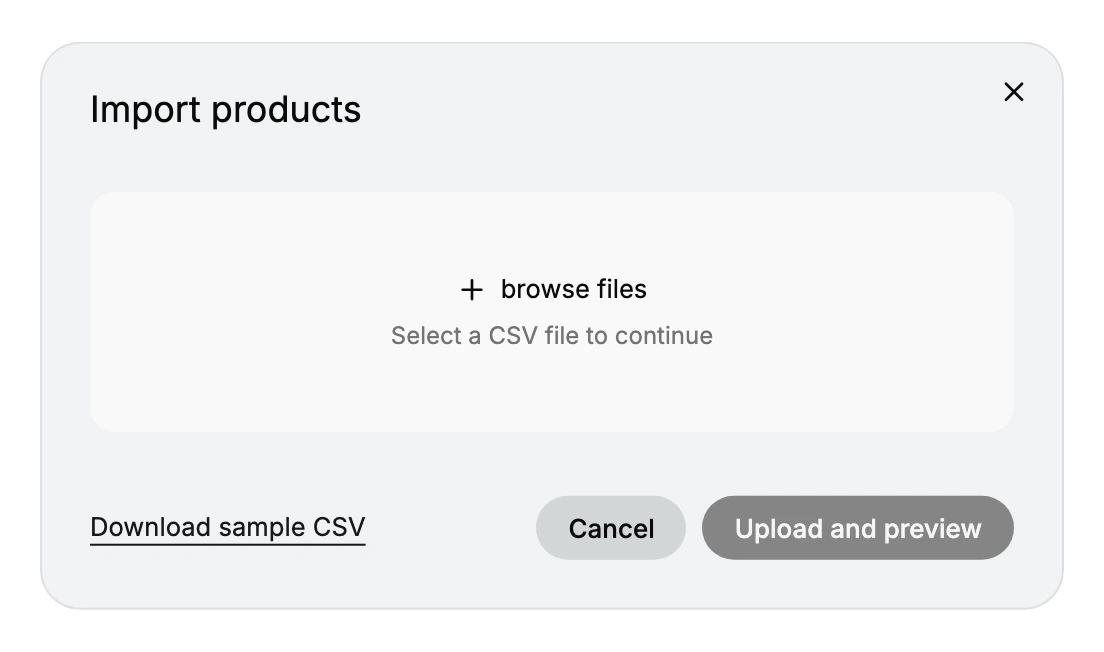
Publishedvalues into true or false. Decide whatBackorders allowed?should become, sincenotifyhas no Tanqory equivalent and has to land ascontinueordeny. DropID,ParentandType; their work is done. - Import, and check the count before anything else. Open Products, select Import, use browse files, then Upload and preview. The first thing to look at is how many products the preview says it will create. If that number is closer to your row count than your product count, the Handle is not repeating and you are about to create a product for every variant. Use Cancel and go back to step 2.
Steps 2 to 4 are the whole difficulty of a WooCommerce migration, and they are all spreadsheet work done before Tanqory ever sees the file. Everything after the import is the same for every store: inventory and customers through their own importers, then a theme, a payment provider, shipping, taxes, a test order and the domain. Migration Overview carries those in order.
Verify the result
- Your product count matches the number of parent products you exported, not the number of rows, since variation rows are not products of their own.
- Variants sit under their products rather than beside them, which is what tells you the Handle repeated correctly.
- Anything that was on sale shows the discounted price as its price, with the old figure struck through rather than the other way round.
- Every product has all its images, in the order the
Imageslist had them. - Weights are in grams.
- Inventory and customers appear where you expect them. Orders will not, because they are not imported.
Best practices
- Convert one product by hand before you write a rule for the file. Pick a variable product that is on sale and has more than one image, so the single pass covers all three of the changes at once.
- Keep a column with the original
IDin it until the very end, even though it does not travel. If the preview shows the wrong product count, it is the only thing that tells you which rows were supposed to be together. - Number your image rows as you create them rather than afterwards. Going back to work out which picture came first in a comma-separated list you have already split is the one part of this that cannot be undone from the file in front of you.
Common mistakes
- Uploading the export as it comes. Nothing in a WooCommerce product CSV tells Tanqory which rows belong together. An unmodified file arrives as a pile of unrelated products, one per row.
- Copying
Regular priceinto Variant Price for a discounted product. It imports without complaint and then charges every customer the pre-sale price. - Leaving the images in one cell. Tanqory reads one image per row. A comma-separated list in Image Src gives you a product whose image is a string of URLs that resolves to nothing.
- Copying weights without checking the header. The unit is written into the WooCommerce header, and Tanqory's column means grams. This is the one error that stays invisible until a customer is quoted the wrong postage.
- Building the Handle from the product name. Two products called Blue Shirt in different categories give you one Handle and therefore one merged product. Build it from the SKU, which WooCommerce already keeps unique.
Next steps
Related articles
Still stuck?
- Ask Tanqory AIAsk in your own words. It answers from these articles and links the ones it used.
- Ask in your adminThe assistant in your Tanqory admin answers and makes the change for you once you confirm.
- Contact TanqoryWrite to our privacy, security or legal teams, or talk to sales about a plan or a move.