Migrate from Squarespace
A Squarespace product export is close enough to Tanqory to be deceptive. Most columns have an obvious counterpart, but the images arrive stacked in a single cell, the alt text is not exported at all, and an On Sale flag decides which of two price columns the customer actually pays. This guide names each of those before you upload anything.
On this page
A Squarespace migration is not difficult. It is quiet, which is worse. Almost every column lines up with something in Tanqory, so the mapping goes quickly and feels finished, and then three of them turn out to have been carrying something you did not notice. Most Squarespace columns have an obvious Tanqory counterpart, so it is tempting to map them quickly, but three of them behave differently enough to spoil a catalog quietly. This guide names those three first, then does the mapping, then shows what each of them looks like when it goes wrong on a live storefront.
What moves and what you rebuild
- Your product catalog moves by CSV, once the Squarespace export has been reshaped into Tanqory's layout.
- Your inventory and customers each move through their own Tanqory importer. Import Inventory and Adding a Customer cover those two.
- Your past orders do not move. Tanqory has no order importer, so order history stays in Squarespace and cannot be uploaded. Export it before you close the account and keep the file as your record, then bring your customers across so returning shoppers still exist in Tanqory. Bringing Past Orders into Tanqory explains what to do with that file.
- Your storefront look, payment providers, shipping, taxes, and domain are built in Tanqory rather than carried in a file.
Before you begin
- You can sign in to both your Squarespace account and your Tanqory admin.
- You can reach the Products & Services panel in Squarespace, which is where the export lives.
- You have a spreadsheet editor, since the image column has to be broken apart before this file can be uploaded.
- You have time set aside for the rebuild work, since the storefront cannot take orders until payments and shipping are configured.
Three columns that do not behave the way they look
The images arrive in one cell. Hosted Image URLs holds every image for a product, separated by spaces or line breaks. Tanqory expects one row per image, each repeating the Handle and filling Image Src and Image Position. A product with four images therefore becomes three extra rows, numbered from 1 in the order the cell listed them.
The alt text is not in the file. Squarespace documents its product export as leaving out product image alt text, along with customer reviews, featured images and variant images. Tanqory has an Image Alt Text column and it will arrive empty. Write the alt text yourself after the import, or accept that your product images carry none.
A separate flag decides which price is the real one. Squarespace exports Price, Sale Price and On Sale as three columns. Tanqory has two: Variant Price, which is what the customer pays, and Variant Compare At Price, which is the higher struck-through figure. Where On Sale is true the sale price is the one that belongs in Variant Price, and the ordinary price moves to Variant Compare At Price. Where it is false, the ordinary price is the only one you carry across.
Matching Squarespace columns to Tanqory columns
Squarespace ties a product's variant rows together with Product ID, in the same way Tanqory repeats a Handle. The column is marked non-editable and is meant to be left blank when moving products between sites, so build your own Handle instead. Product URL is usually the best thing to build it from, since it is already in the URL-safe shape Tanqory's Handle expects.
| Squarespace column | Tanqory column |
|---|---|
Product URL |
Handle, as the source to build it from |
Title |
Title |
Description |
Body (HTML) |
SKU |
Variant SKU |
GTIN |
Variant Barcode |
Price |
Variant Price, or Variant Compare At Price when On Sale is true |
Sale Price |
Variant Price, but only when On Sale is true |
Stock |
Variant Inventory Qty |
Weight |
Variant Grams |
Tags |
Tags |
Visible |
Published |
Hosted Image URLs |
Image Src, split across rows |
Option Name 1 |
Option1 Name |
Option Value 1 |
Option1 Value |
Note: Tanqory's weight column is Variant Grams and means grams. Check what unit your Squarespace figures are in before copying them, since a weight in the wrong unit imports without complaint and then quotes the wrong postage.
What Squarespace sends that Tanqory has nowhere to put. Product ID and Variant ID do their job in the spreadsheet and then stop. Product Page, Product Type, MPN, Categories, On Sale itself, and the Length, Width and Height columns have no destination, since Tanqory's product template carries weight but not dimensions.
What Tanqory asks for that Squarespace does not send. Vendor, Product Category, Type, Status, Variant Inventory Tracker, Variant Inventory Policy, Variant Fulfillment Service, Variant Requires Shipping, Variant Taxable, Image Alt Text, Gift Card, SEO Title and SEO Description all arrive empty. Status is worth filling deliberately, since it decides whether an imported product lands Active or Draft.
Getting the file out
Open the Products & Services panel, go to Products, and use Export all, or select the products you want and export those. The file comes back in the same format Squarespace imports, with one extra column for pages.
Everything else on this page is three repairs to that file. They are independent of each other, so do them in whatever order suits your spreadsheet.
Repair one: break the image cell apart
Take each product's Hosted Image URLs cell apart at the spaces or line breaks. The first URL stays on the product's first row with Image Position 1. Every other URL gets a row of its own carrying the Handle, the URL and its position, and nothing else.
Do this one first if you do nothing else first. It is the only repair that changes how many rows the file has, and it is easier to do while the file still looks like the one Squarespace gave you.
Repair two: decide which price is the price
Filter to the rows where On Sale is true. On those, the sale price becomes Variant Price and the ordinary price moves to Variant Compare At Price. Everywhere else the ordinary price is the only figure that travels and the compare-at column stays empty.
Then delete On Sale. Tanqory has no column for it, and once the prices are settled it has nothing left to tell you.
Repair three: build a Handle and fill what the export left out
Build your Handle from Product URL, which is already in the URL-safe shape Tanqory wants, and repeat it down every row of a product. Convert the weights to grams.
Image Alt Text has no source at all, since Squarespace leaves alt text out of the export. Writing it into the spreadsheet now takes one pass; writing it later means opening products one at a time.
Importing it
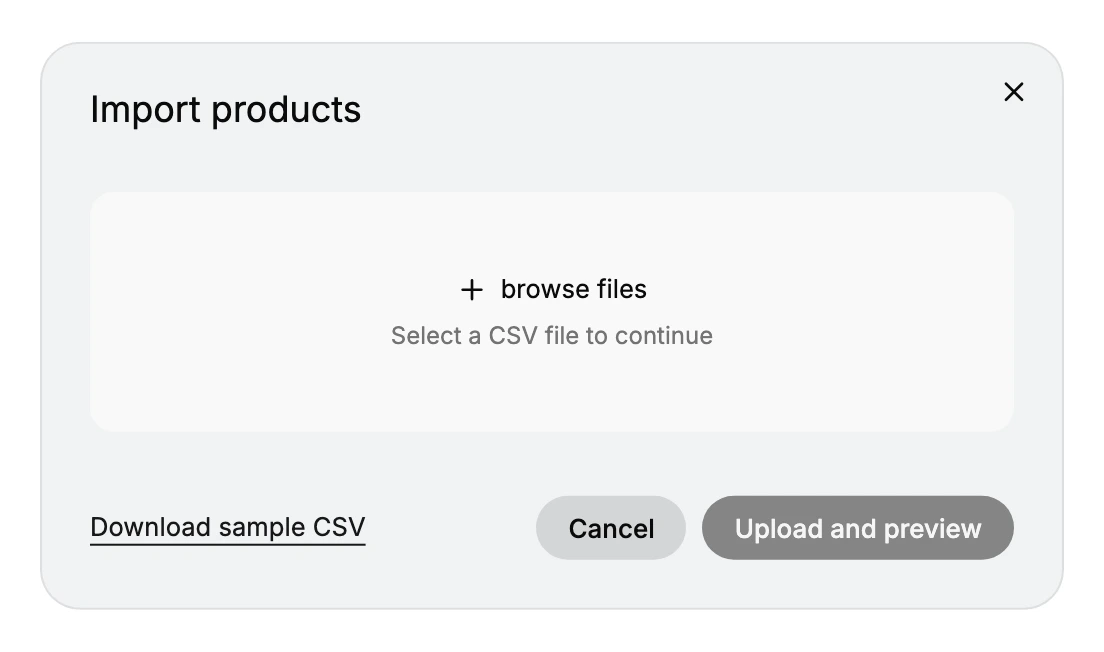
Open Products, select Import, use browse files, then Upload and preview.
Then ignore the preview and go and look at a product. This is the one migration where a clean preview proves nothing, because all three of the repairs above fail without an error. Open a product that had several images and one that was on sale. If those two are right, the rest will be.
What each mistake actually looks like
The reason this migration deserves care is that none of its three traps produces an error. The import reports success and the damage appears on the storefront instead.
| What you got wrong | What the import tells you | What the customer gets |
|---|---|---|
| Left the image URLs in one cell | Nothing. The row imports | A product with no picture at all, because Image Src holds a string of URLs that resolves to none of them |
Put Price into Variant Price for a discounted item |
Nothing. The number is valid | The pre-sale price, charged in full, on every order |
| Copied the weight without converting | Nothing. The number is valid | A postage quote calculated from the wrong figure, usually at checkout |
Reused Product ID as the Handle |
Nothing, if it is filled | Products that arrive but are awkward to work with later, since the column is meant to be blank between sites |
That is the Squarespace-specific work. What follows is the same for every store arriving at Tanqory: inventory and customers through their own importers, then a theme, a payment provider, shipping, taxes, a test order and finally the domain. Migration Overview carries those steps in order.
Verify the result
- Your product count matches the number of products you exported rather than the number of rows.
- Every product has all its images, in the order the
Hosted Image URLscell listed them. - Anything that was on sale shows the discounted figure as its price, with the ordinary price struck through rather than the other way round.
- Weights are in grams.
- Image alt text is empty, which is expected, and is a job waiting rather than a failed import.
- Inventory and customers appear where you expect them. Orders will not, because they are not imported.
Best practices
- Do a product with four images and a sale price first, all the way through to looking at it on the storefront. Those are the two traps, and one product proves both.
- Count your image rows before you import. A product with four pictures should have produced four rows; if your file has the same number of rows it started with, step 2 did not happen.
- Write your alt text in the spreadsheet rather than after the import. The column is there and empty, and filling it once in a file is quicker than opening products one at a time later.
Common mistakes
- Leaving the images stacked in one cell. Tanqory reads one image per row. A cell holding four URLs goes into Image Src as a single unusable string, and the product arrives with no picture at all.
- Copying
Priceinto Variant Price for a discounted product. The import succeeds and the storefront then charges the pre-sale figure.On Saleis the column that tells you which products this applies to, and it is the one people skip because it has no Tanqory counterpart. - Expecting the alt text to come across. It is not in the export. Products import with empty Image Alt Text however carefully the columns are mapped.
- Reusing
Product IDas the Handle. It is marked non-editable and is meant to be blank when products move between sites. Build the Handle fromProduct URLinstead.
Next steps
Related articles
Still stuck?
- Ask Tanqory AIAsk in your own words. It answers from these articles and links the ones it used.
- Ask in your adminThe assistant in your Tanqory admin answers and makes the change for you once you confirm.
- Contact TanqoryWrite to our privacy, security or legal teams, or talk to sales about a plan or a move.