Add a Payment Method for Subscription
This is the card Tanqory charges you with, not the one your customers pay you through. It covers your subscription and anything else billed to the account, and it is added from the billing preferences page behind Settings, Billing. Choose a card or PayPal, fill in the details, and set it as the default so future bills go to it.
On this page
This is the card that pays Tanqory. Your subscription and anything else charged to your account come off it. The billing preferences page says as much in its own currency note: your subscription is charged in the currency set there.
It is worth being clear about which payment this is, because a store has two sorts and they have nothing to do with each other.
| What it is for | Where it lives | |
|---|---|---|
| This article | Money going from you to Tanqory: your plan and your invoices | Settings, then Billing, then billing preferences |
| The other one | Money coming from your customers to you at checkout | Settings > Payments, where you connect a provider |
Adding a card here does not let you take a single order, and connecting a payment provider does not pay a single invoice. Add a Payment Provider is the article for the other one.
Why a store needs one
A new store runs for a while without any card at all, which is why plenty of people reach this page later rather than on their first day.
| When | Is a card needed |
|---|---|
| The first 3 free days | No. Nothing is asked for and nothing is charged |
| The month offered afterwards at $1 | Yes. There is a charge, however small, and it needs somewhere to land |
| Subscribing or renewing at the plan's real price | Yes |
| Choosing not to continue | No, but some features close off until a plan is taken up again |
So the card is what turns the decision at the end of the trial into a store that keeps working. Subscription Overview sets out that sequence in full.
There is a second reason, and it is the one that catches established stores rather than new ones. A card that has expired or been cancelled fails quietly at the next invoice, and a plan can lapse without anyone deciding that it should. Keeping a current method on file, and a spare if the account matters, is what prevents that.
What you enter
The Add credit card dialog collects the details needed to save a card, or lets you choose PayPal instead.
| Field | What it is |
|---|---|
| Payment method | Credit or Debit Card, or PayPal |
| Card number | The long number on the card |
| Expiry date | The card's expiry month and year |
| CVC | The security code on the card |
| Name on card | The cardholder's name |
| Billing address | The country or region first, then the address, city, and postal code for the card |
| Set as default | Whether this method is used for future bills |
Before you begin
- Your role includes Billing settings.
- You have the card or PayPal account you want to add, and the billing address that goes with it.
- Open Settings > Billing, then select Manage payment methods, which is where the cards on your account are kept.
Add a payment method for subscription
Getting there takes two steps rather than one. On the Billing page, the Payment method panel shows the card in use and a Manage payment methods link. That link opens the billing preferences page, and the Payment methods section there is where your cards are listed and where Add payment method sits. Selecting it opens the Add credit card dialog, headed "Add a new payment method for billing and subscriptions".
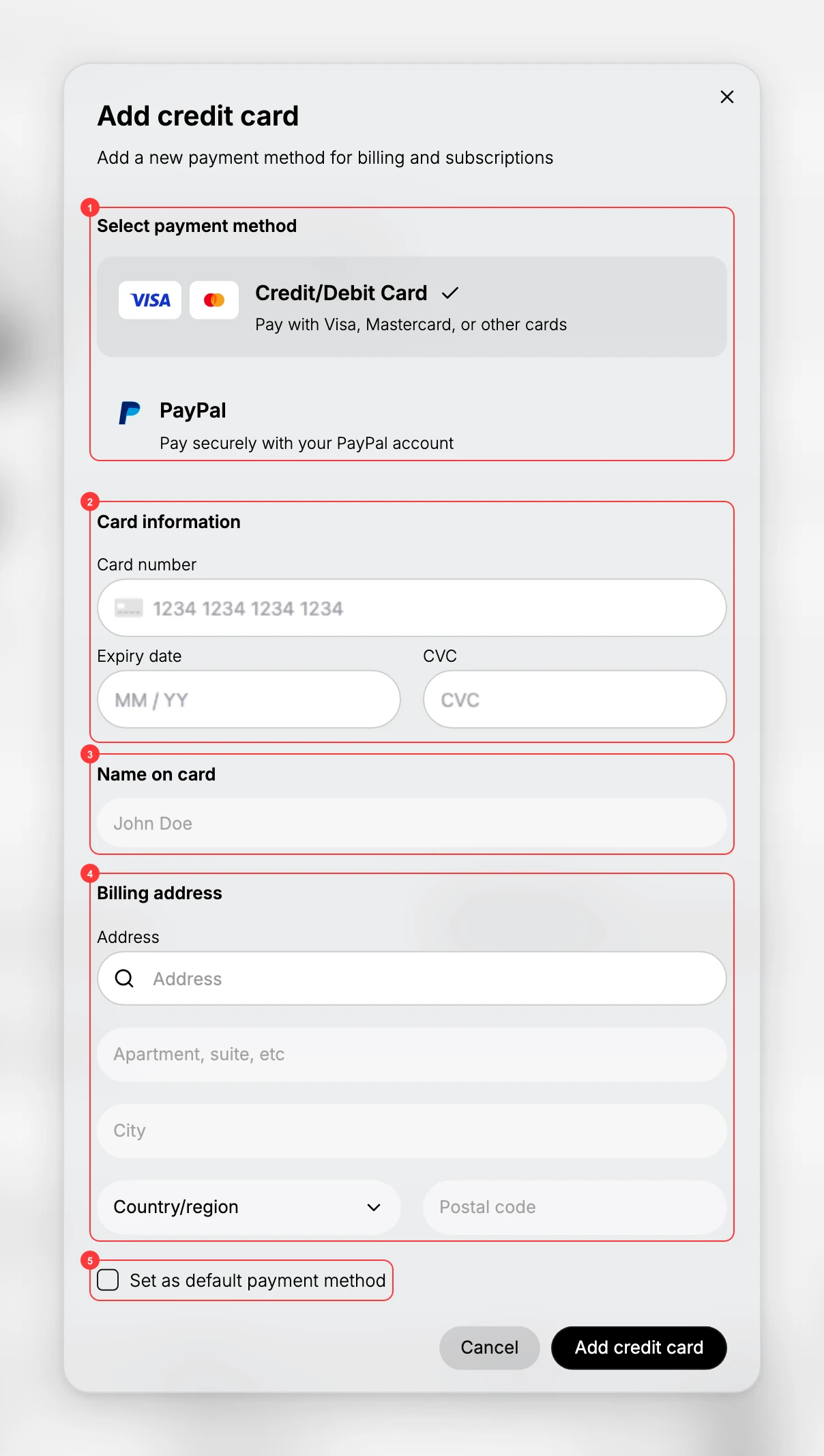
- Choose the payment method. At the top, under Select payment method (1), choose Credit or Debit Card to enter a card, or PayPal to pay with a PayPal account. Card is selected by default.
- Enter the card details. Under Card information (2), enter the Card number, the Expiry date, and the CVC. Then enter the Name on card (3) as it appears on the card. These identify the card that will be charged.
- Enter the billing address. Under Billing address (4), start with the Country or region, then the Address, the Apartment or suite if there is one, the City, and the Postal code. This is the address the card is registered to, and the country comes first because it decides the shape of the rest.
- Set as default and save. Select Set as default payment method (5) if this should be the method used for future bills. When the details are complete, select Add credit card to save it. It then appears in your Payment methods list and can be used for billing.
Adding a card does not charge it. The first time it is used is your next invoice, or sooner if you change plan, and the card marked Primary is the one that will be charged.
Best practices
- Add the card you want billed. Set it as the default so your bills are charged to the right method.
- Keep a valid method on file. A current, non-expired card avoids a failed payment.
- Match the billing address. Enter the address associated with the card so it verifies correctly.
- Consider a backup. A second saved method can cover a bill if the first fails.
If something goes wrong
- The card is not accepted. Check the number, expiry, and CVC, and that the billing address matches the card.
- You want to change which card is billed. Add the method and set it as the default, so future bills use it.
- You cannot add a method. Your role may not allow managing billing. Ask an owner or admin.
Next steps
Related articles
Still stuck?
- Ask Tanqory AIAsk in your own words. It answers from these articles and links the ones it used.
- Ask in your adminThe assistant in your Tanqory admin answers and makes the change for you once you confirm.
- Contact TanqoryWrite to our privacy, security or legal teams, or talk to sales about a plan or a move.