Activity Log
The Store activity log records the changes your team makes in your store, so you can see who did what and when. You filter it by category and time range, search it, and export it, which helps you keep your store accountable and audit-ready. Logs are kept for ninety days.
On this page
The Store activity log is the record of changes made in your store by the people on your team. It tracks things like product updates, order fulfillments, settings changes, and customer management, so you can see who did what and when. Having this record is what lets you hold your team accountable and answer questions during an audit or a security review. You reach it under Settings > General, on the Activity tab.
Before you begin
- You know what you are looking for, so you can set the category and time range.
- Your role includes Billing settings.
- Open Settings, open General, and select the Activity tab.
What the log records
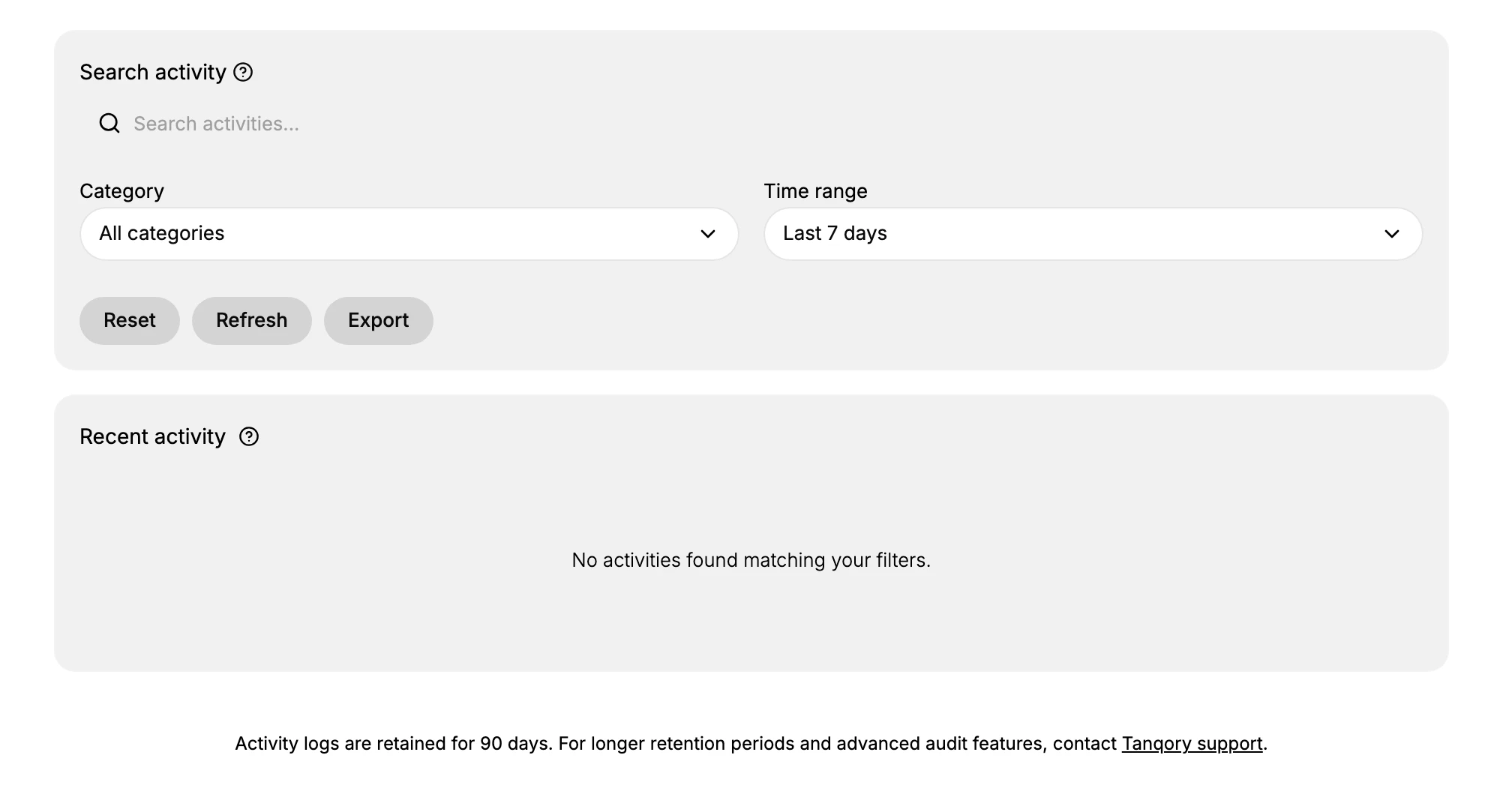
The log captures the actions your team takes across the main areas of the store, so changes are traceable back to a person and a time. The description at the top of the page states that it tracks product updates, order fulfillments, settings changes, and customer management activities, to maintain accountability and audit compliance.
Filtering the log
Above the list of activity are filters that narrow what you see, so you can focus on the changes that matter.
| Filter | What it does |
|---|---|
| Search | Find activity by typing in the Search activities box |
| Category | Show one area only, such as Users, Products, Orders, Customers, Settings, or Security, or All categories |
| Time range | Limit to a period: Today, Last 7 days, Last 30 days, Last 90 days, or All time |
The actions
Alongside the filters are three actions. Reset clears the filters back to their defaults. Refresh reloads the log so the latest activity appears. Export downloads the activity, which is useful for keeping a record outside the store for compliance or auditing.
Reading recent activity
The Recent activity area lists the matching entries for your filters. When no activity matches, it shows that no activities were found, which is expected on a new or quiet store. As your team works, their changes appear here, each tied to the person and the time.
How long logs are kept
A note at the foot of the page states that activity logs are retained for ninety days. For longer retention or advanced audit features, it directs you to contact Tanqory support. Plan around this window, and export the log if you need a record that lasts longer than ninety days.
Best practices
- Review the log regularly. Checking it from time to time helps you spot changes you did not expect.
- Filter to narrow your search. Set a category and time range to find a specific change faster.
- Export for a lasting record. Since logs are kept for ninety days, export anything you need to keep longer.
- Investigate the unexpected. If a change looks wrong, use the log to see who made it and when.
If something goes wrong
- The log looks empty. Widen the Time range and set Category to All categories, then Refresh.
- You cannot find a change. Clear the Search box and select Reset, then filter again more broadly.
- You need older activity. Logs are kept for ninety days; contact Tanqory support for longer retention.
- You cannot open the log. Your role may not allow viewing store settings. Ask an owner or admin.
Next steps
Related articles
Still stuck?
- Ask Tanqory AIAsk in your own words. It answers from these articles and links the ones it used.
- Ask in your adminThe assistant in your Tanqory admin answers and makes the change for you once you confirm.
- Contact TanqoryWrite to our privacy, security or legal teams, or talk to sales about a plan or a move.