Account Activity Log
Opened from Your profile, this page answers one question: has anything happened to your account that was not you. Do not confuse it with the store activity log, which is about what your team does inside a store. Entries are kept for 90 days, and the export carries details the page itself does not show.
On this page
Your account activity log is the record of things that have happened to your Tanqory account itself. It is the page to open when you want to know whether anyone has been in your account besides you, or to confirm when a security change was actually made.
It is worth separating from its namesake straight away, because the two are easy to confuse. This log is about your account, and it follows you across every store the account can reach. The other one is about a store, and it records what the team does inside it. Activity Log is that other one.
Before you begin
- You are logged in to the account you want to look at. The log only ever shows your own account, and there is no way to view somebody else's from here.
Where it is
The log belongs to your account rather than to any store, so it is not in the store settings. Open the profile picture at the top right, choose Your profile, open the navigation menu, and select Activity under Account settings.
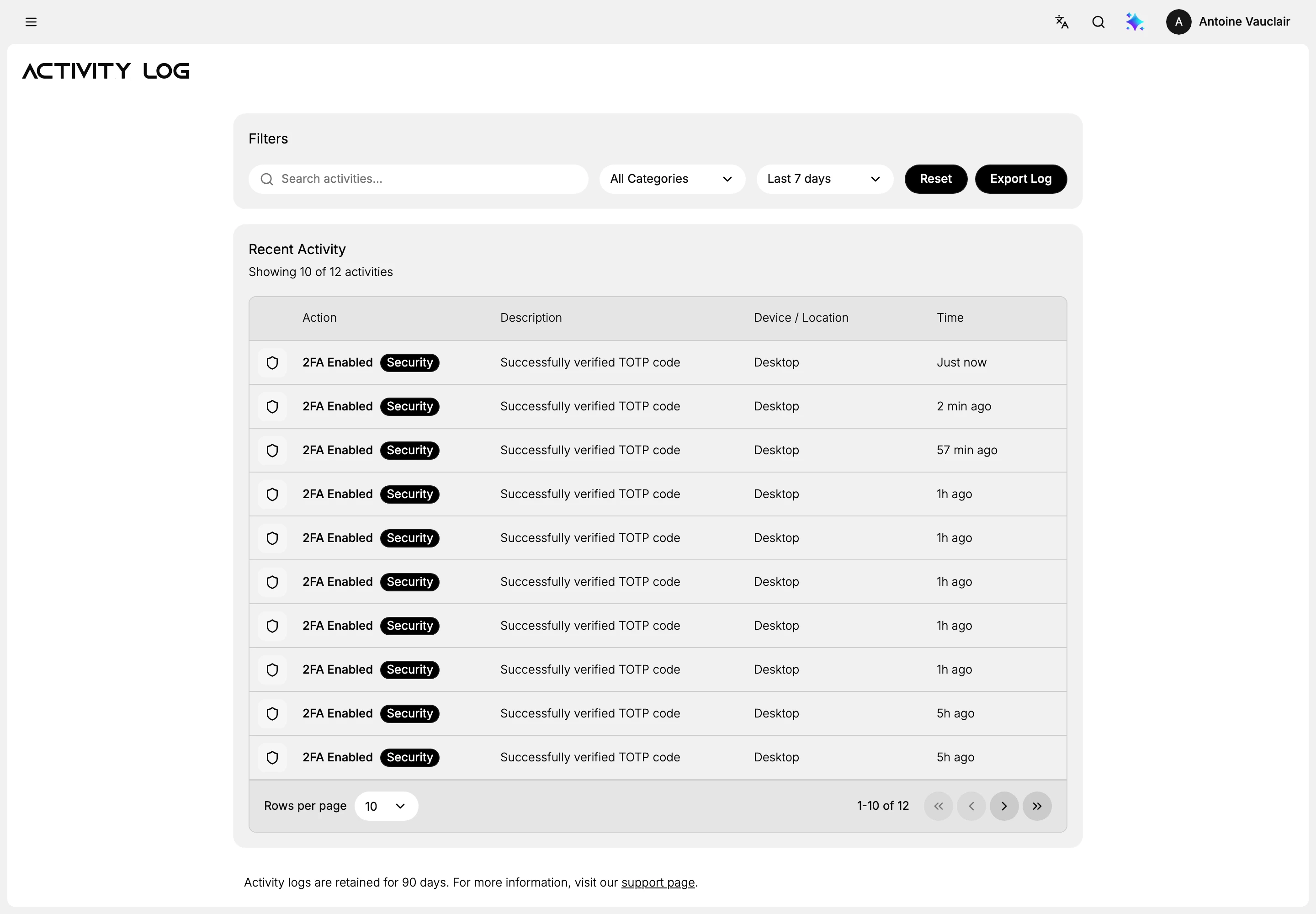
Nothing here changes anything
This page only reads. The search box, the two selectors, Reset, the rows-per-page control and the page arrows all change what you are shown and nothing else.
No entry can be removed from here either. There is no delete button, no way to select rows, and the rows do nothing when clicked. The one control that produces anything is Export Log, and that takes a copy out rather than altering what is kept.
So the log is a mirror. Every line in it was caused somewhere else in the admin, which is why the category on each entry is worth reading. The selector offers six, but they are not equally useful.
| Category | The kind of event it holds |
|---|---|
| Security | Two-factor authentication being switched on or off, and the code check at log-in when it is on |
| Authentication | Offered in the selector |
| Account | Offered in the selector |
| Store | Offered in the selector |
| Team | Offered in the selector |
| Integration | Offered in the selector |
Security is the one that fills. Every entry seen on two accounts, going back to July, was a two-factor event: switching the method on or off, or the code being verified as you log in. The other five names are there to be chosen but had nothing behind them, so do not read an empty result under one of them as proof that nothing happened.
That shapes what the page is good for today. It will show you a two-factor change you did not make, which is worth knowing. It will not show you a password change, a profile edit, or an ordinary log-in on an account without two-factor authentication.
Reading an entry
Each row answers four questions, one per column.
| Column | What it tells you |
|---|---|
| Action | What happened, with a coloured label for the category it falls under |
| Description | The same event in a sentence, which is where the detail is |
| Device / Location | What the event came from, such as Desktop |
| Time | How long ago, counted from now rather than shown as a date |
The Device column is the one to read closely. An entry you do not recognise matters less than a device you do not recognise, since the first may be your own doing forgotten and the second is somebody else's.
Narrowing the list
Four controls sit above the table.
- Choose a category. The selector offers Authentication, Security, Account, Store, Team and Integration, or All Categories to leave it open. Pick one when you know the sort of event you are after.
- Set the time range. Today, Last 7 days, Last 30 days, Last 90 days, or All time. It opens on Last 7 days, so an event from last month is hidden until you widen it. This is the single most common reason a log looks emptier than it should.
- Search by word. The Search activities box matches against the entries, which is quicker than filtering when you already know roughly what you are looking for.
- Select Reset to start again. It returns all three controls to their defaults in one go.
Below the table, Rows per page and the page arrows carry you through a long list, and the count beside Recent Activity tells you how many entries your filters matched out of the total.
Keeping a copy
Export Log downloads what the filters currently show, as a CSV file, which is a plain spreadsheet file any spreadsheet program opens. Set the category and the range first, because the file follows them: with the range on Today you get today's entries and nothing else.
The file is worth having even when you are not keeping records, because it carries more than the page does. The table on screen has four columns; the file has nine.
| In the file | On the page |
|---|---|
| Timestamp | Shown as Time, and only as how long ago |
| Type, Category | Combined into the Action cell and its label |
| Description | The same |
| Device, Browser, OS | Only Device is shown |
| Location, IP Address | Not shown at all |
So the three columns that identify where a log-in came from, the browser, the operating system and the IP address, exist only in the export. If you are checking an entry you do not recognise, the file is where the answer is, not the screen.
The other reason to export is the line at the foot of the page: activity logs are kept for 90 days. Anything older is gone, and nothing warns you as an entry ages out. If you need a history that outlives that window, take the file while the entries are still there.
Best practices
- Look after anything unexpected. A password change or a new log-in you did not make is worth checking here first, since the log shows the device it came from.
- Widen the range before concluding nothing happened. The page opens on 7 days, which is short.
- Export before the 90 days run out. Nothing warns you as an entry ages out.
If something goes wrong
- The log is empty. Check the time range first, since the page opens on 7 days. If All time is still empty, the likely reason is that the account has never had a two-factor event, which is the one kind of entry that reliably appears.
- You cannot find a change somebody on your team made. That belongs to the store's own log, not this one. Your account log records your account.
- An entry shows a device you do not recognise. Change your password, and check the sessions listed on your account Security page so you can end any that are not yours.
Next steps
Related articles
Still stuck?
- Ask Tanqory AIAsk in your own words. It answers from these articles and links the ones it used.
- Ask in your adminThe assistant in your Tanqory admin answers and makes the change for you once you confirm.
- Contact TanqoryWrite to our privacy, security or legal teams, or talk to sales about a plan or a move.