Customer Privacy
The Customer privacy page is where you manage your store's privacy and consent settings: your privacy policy, cookie banner, data sharing opt-out, marketing consent, data hosting region, and network protection, all on one page.
On this page
The Customer privacy page gathers your store's privacy and consent settings in one place. It groups them into four cards: privacy compliance, which holds your privacy policy, cookie banner, and data sharing opt-out page; marketing consent, which controls how customers opt in to email and SMS marketing; the data storage hosting location; and Tanqory Network Intelligence. Reviewing these before you launch helps your store meet the privacy rules of the regions you sell to. You reach the page under Settings, in Customer privacy. Privacy rules differ by region, so treat this as a starting map and confirm your obligations with your own legal advisor.
What's on the page
| Card | What it covers |
|---|---|
| Privacy compliance | Your privacy policy, the cookie banner, and the data sharing opt-out page |
| Marketing consent | Email and SMS marketing consent in checkout, and double opt-in |
| Data storage hosting location | The region where your store data is hosted |
| Tanqory Network Intelligence | An optional network protection feature |
Before you begin
- Your role includes General settings.
- Open Settings > Customer privacy to open the customer privacy settings.
Review the Customer privacy settings
From the admin, open Settings, then Customer privacy. The page shows four cards stacked down the page: Privacy compliance, Marketing consent, Data storage hosting location, and Tanqory Network Intelligence.
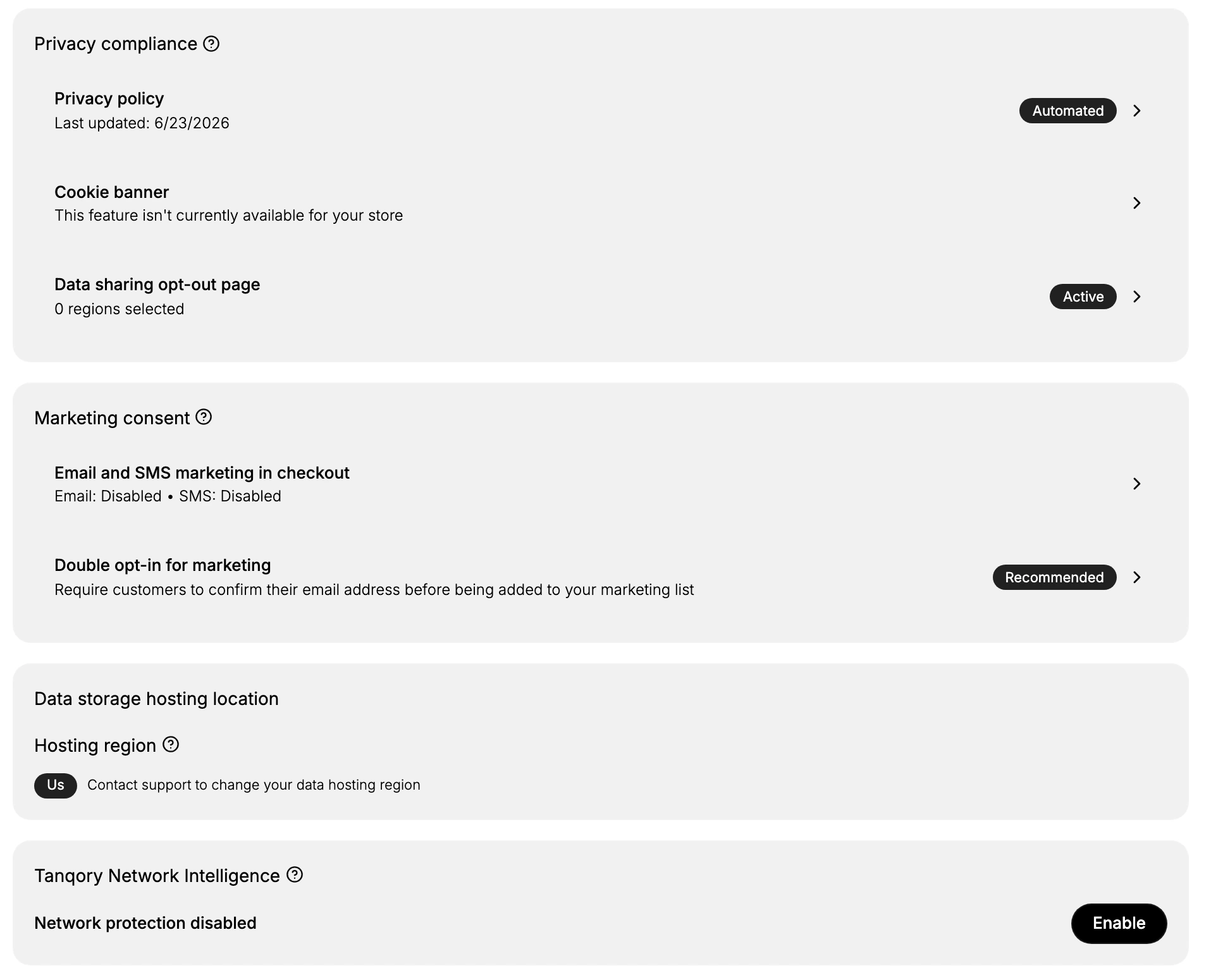
- Review privacy compliance. The Privacy compliance card holds three rows, each of which opens its own settings. Privacy policy shows when it was last updated and is marked Automated, meaning Tanqory keeps it current for you, which Privacy Policy explains. Cookie banner is the consent banner shown to shoppers, and on this store it reads that the feature is not currently available, a state Cookie Banner describes. Data sharing opt-out page gives customers a way to opt out of having their data shared, shows how many regions it is set for, and is marked Active here. Start with these, since they are the compliance basics customers and regulators expect.
- Set marketing consent. The Marketing consent card controls how customers agree to marketing. Email and SMS marketing in checkout shows the current state for each channel, both disabled here, and opens to let you turn them on so customers can opt in during checkout. Double opt-in for marketing is marked Recommended and requires customers to confirm their email address before they are added to your marketing list. Turning on double opt-in keeps your list to people who genuinely want your emails, which protects your sender reputation.
- Check the data storage hosting location. The Data storage hosting location card shows the Hosting region where your store data is kept, set to Us on this store. This region is fixed from the page, and the note explains you contact support to change your data hosting region. Confirm the region matches where you need your data held, because some regions require data to stay within their borders.
- Consider Tanqory Network Intelligence. The Tanqory Network Intelligence card is an optional network protection feature. It reads Network protection disabled here, with an Enable button to turn it on. Review what it protects against for your store before enabling it, so you know what changes for your shoppers.
Best practices
- Start with the compliance basics. A current privacy policy, a cookie banner where required, and a data sharing opt-out page are what customers and regulators look for first.
- Turn on double opt-in. It confirms each email address before adding it to your list, so you keep engaged subscribers and a healthier sender reputation.
- Match consent to the regions you sell to. Marketing consent and the opt-out page should reflect the rules of the markets your customers are in.
- Confirm your data region. Check the hosting region is right for your obligations, and contact support early if you need it changed.
If something goes wrong
- The cookie banner is not available. On this store the feature reads as not currently available; check the Cookie banner row for its current state before relying on it.
- You need a different data region. The hosting region is not changed from this page. Contact support to move it.
- You cannot change a setting. Your role may not allow managing settings. Ask an owner or admin.
Next steps
Related articles
Still stuck?
- Ask Tanqory AIAsk in your own words. It answers from these articles and links the ones it used.
- Ask in your adminThe assistant in your Tanqory admin answers and makes the change for you once you confirm.
- Contact TanqoryWrite to our privacy, security or legal teams, or talk to sales about a plan or a move.