Cookie Banner
The cookie banner is the consent message shown to shoppers on your online store. From its settings you control the regions it appears in, its text, colors, and position, and whether it shows in checkout.
On this page
The cookie banner is the consent message your online store shows to shoppers, asking whether they accept cookies and similar technologies before those run. From its settings page you control which regions see the banner, the wording and buttons shoppers read, the banner's colors and position, and whether it also appears in checkout. Setting it up helps your store meet the consent rules of the regions you sell to. You reach it from Settings, then Customer privacy, then the Cookie banner row. Because consent rules vary by region, confirm your obligations with your own legal advisor.
What you control here
| Section | What it does |
|---|---|
| Regions and content | Which regions see the banner, kept in sync automatically or set by you |
| Cookie banner and Cookie preferences | The banner wording and its Accept, Decline, and Manage preferences buttons |
| Colors | The banner's color scheme: Light, Dark, or Custom |
| Position | Where the banner sits on the online store |
| Checkout | Whether the banner also appears in checkout |
Before you begin
- Your role includes General settings.
- Open Settings > Customer privacy in the admin sidebar, where the cookie banner settings live.
Customize the cookie banner
Open the Cookie banner settings
From the admin, open Settings, then Customer privacy, then select the Cookie banner row. The settings page opens with a View and a More actions button at the top, and the banner's settings laid out down the page in cards.
Set the regions and content
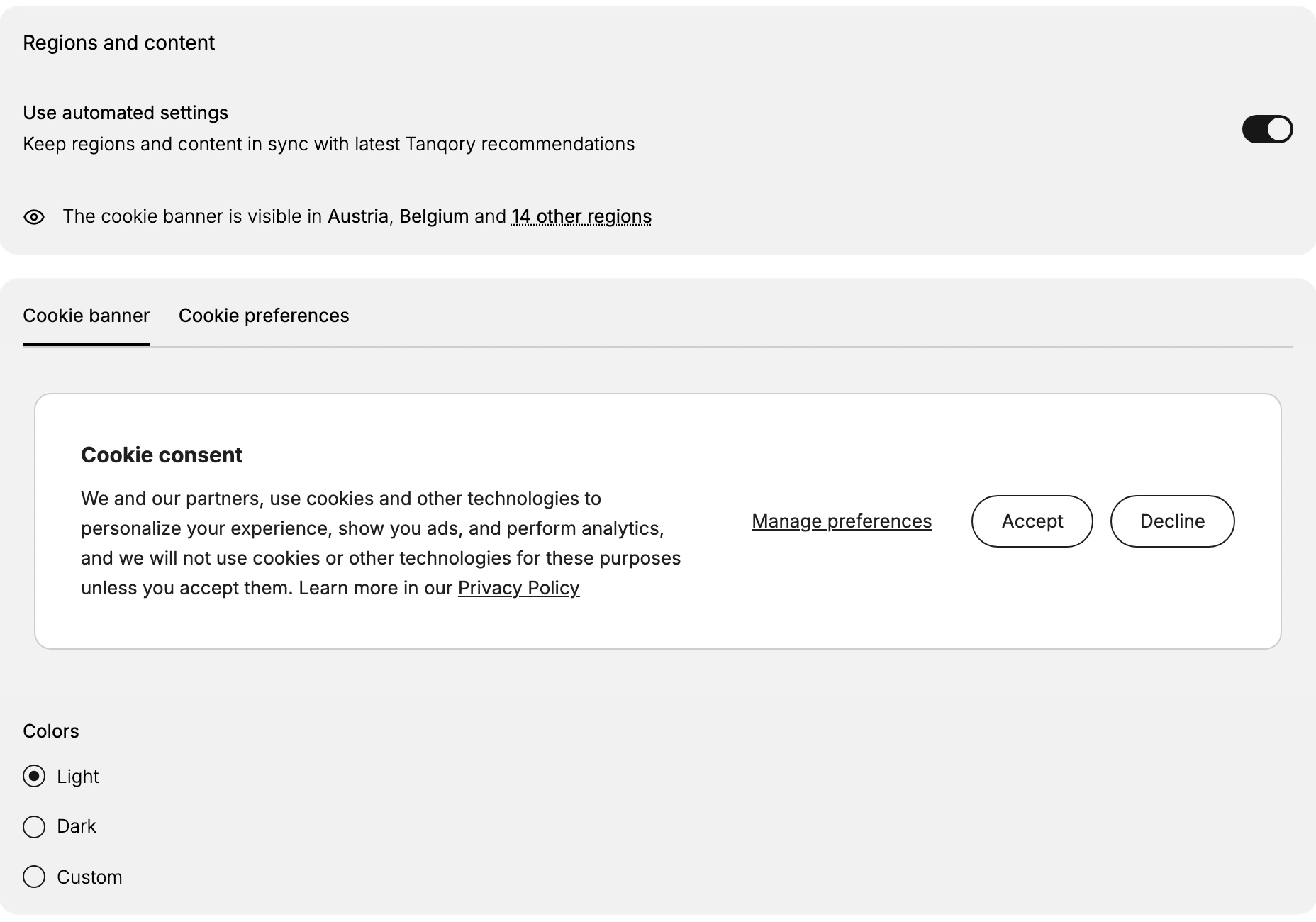
The Regions and content card decides where the banner appears. Use automated settings keeps the regions and content in sync with the latest Tanqory recommendations, and it is on here. A line below shows where the banner currently appears, for example that it is visible in Austria, Belgium, and a number of other regions. Leaving automated settings on is the simplest way to keep coverage current as rules change; turn it off only if you need to set the regions and content yourself.
Review the banner and preferences content
Below the regions, a preview shows how the banner reads, with two tabs, Cookie banner and Cookie preferences. The Cookie banner preview is the Cookie consent message shoppers first see, explaining that you and your partners use cookies to personalize the experience, show ads, and run analytics, and that these are not used unless the shopper accepts. It carries the buttons shoppers act on, Manage preferences, Accept, and Decline, and links to your Privacy Policy. The Cookie preferences tab is the detailed view shoppers reach from Manage preferences. Keep the wording clear, since this is the shopper's first choice about their data.
Choose the colors
Under Colors, pick the banner's color scheme: Light, Dark, or Custom. Light is selected here. Choose the scheme that stays readable against your storefront, and use Custom if you need the banner to match your brand colors exactly.
Choose the position
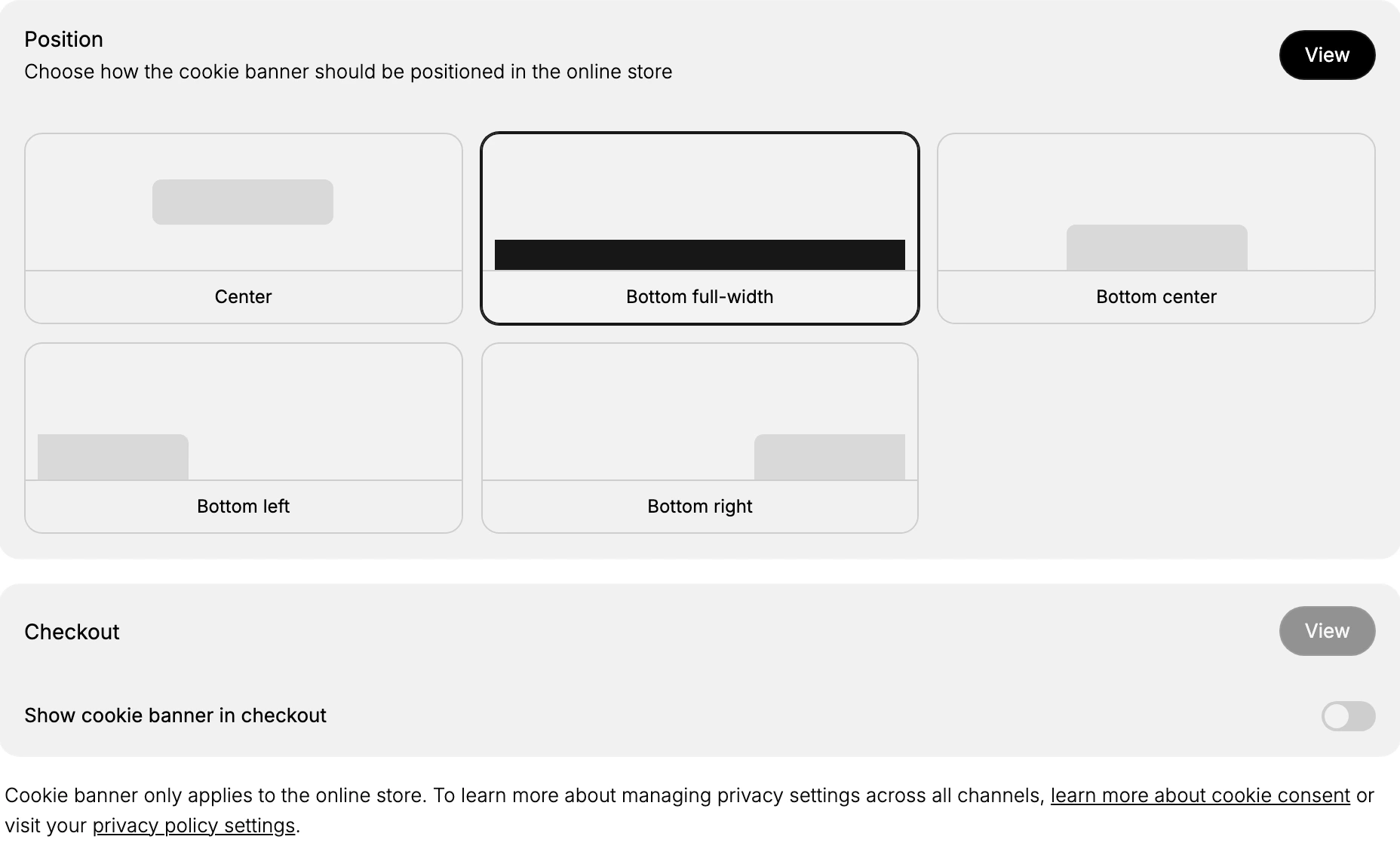
The Position card sets where the banner sits on the online store, with a View button to preview it. The choices are Center, Bottom full-width, Bottom center, Bottom left, and Bottom right, shown as small layout previews; Bottom full-width is selected here. Pick a position that is clearly visible without hiding your main content or key storefront controls.
Decide whether to show it in checkout
The Checkout card has a Show cookie banner in checkout toggle, off here, and its own View button. A note explains that the cookie banner only applies to the online store, and points you to learn more about cookie consent or to your privacy policy settings for managing privacy across all channels. Turn this on if you want shoppers to see the banner during checkout as well as while browsing.
Best practices
- Keep automated settings on unless you have a reason not to. It keeps the regions and content current with the latest recommendations as rules change.
- Make Accept and Decline both easy to see. The banner is the shopper's first data choice, so do not hide one option.
- Keep the banner readable. Choose a color scheme and position that stay clear against your storefront without covering key content.
- Link to your privacy policy. The banner references your Privacy Policy, so make sure that policy is published and current.
If something goes wrong
- The banner does not appear for a shopper. Check the Regions and content card to confirm the shopper's region is covered.
- You need it in checkout too. The banner applies to the online store by default; turn on Show cookie banner in checkout to extend it.
- You cannot change a setting. Your role may not allow managing settings. Ask an owner or admin.
Next steps
Related articles
Still stuck?
- Ask Tanqory AIAsk in your own words. It answers from these articles and links the ones it used.
- Ask in your adminThe assistant in your Tanqory admin answers and makes the change for you once you confirm.
- Contact TanqoryWrite to our privacy, security or legal teams, or talk to sales about a plan or a move.