Store Languages
Add the languages your storefront offers from Settings, then Languages. Adding one installs the Translate and Adapt app, and the content still has to be translated, either by hand or with auto-translate. This article covers the page, the Add a language window, and what adding a language does and does not do on its own.
On this page
The Languages page is where you decide which languages your store is available in. Adding one does not translate anything by itself: it installs the translation app and gives you a language to fill in, which you then do by hand or with auto-translate. Knowing that split up front saves the common disappointment of adding a language and finding the storefront unchanged.
Before you begin
- Your role includes General settings.
- You know which languages your customers actually read. Each one you add is content you then have to keep translated, so a language nobody uses is ongoing work for nothing.
- You have decided whether the translations will be written by hand or generated with auto-translate, since that decides how much work follows.
- Open Settings > Language in the admin sidebar to open the Languages page.
The Languages page
The page is headed Languages, with Add language at the top right. Below it sits a card explaining that this is where you configure the languages available in your store and manage translations, and a table with four columns.

| Column | What it holds |
|---|---|
| Language | The language itself |
| Status | Whether that language is currently available to customers |
| Domains | The domains the language is served on, which matters once you sell in more than one market |
| Actions | What you can do to that language once it is added |
On a store that has never added a language the table is empty, which is the normal starting state rather than a sign that something failed.
Add a language
Select Add language to open the Add a language window.
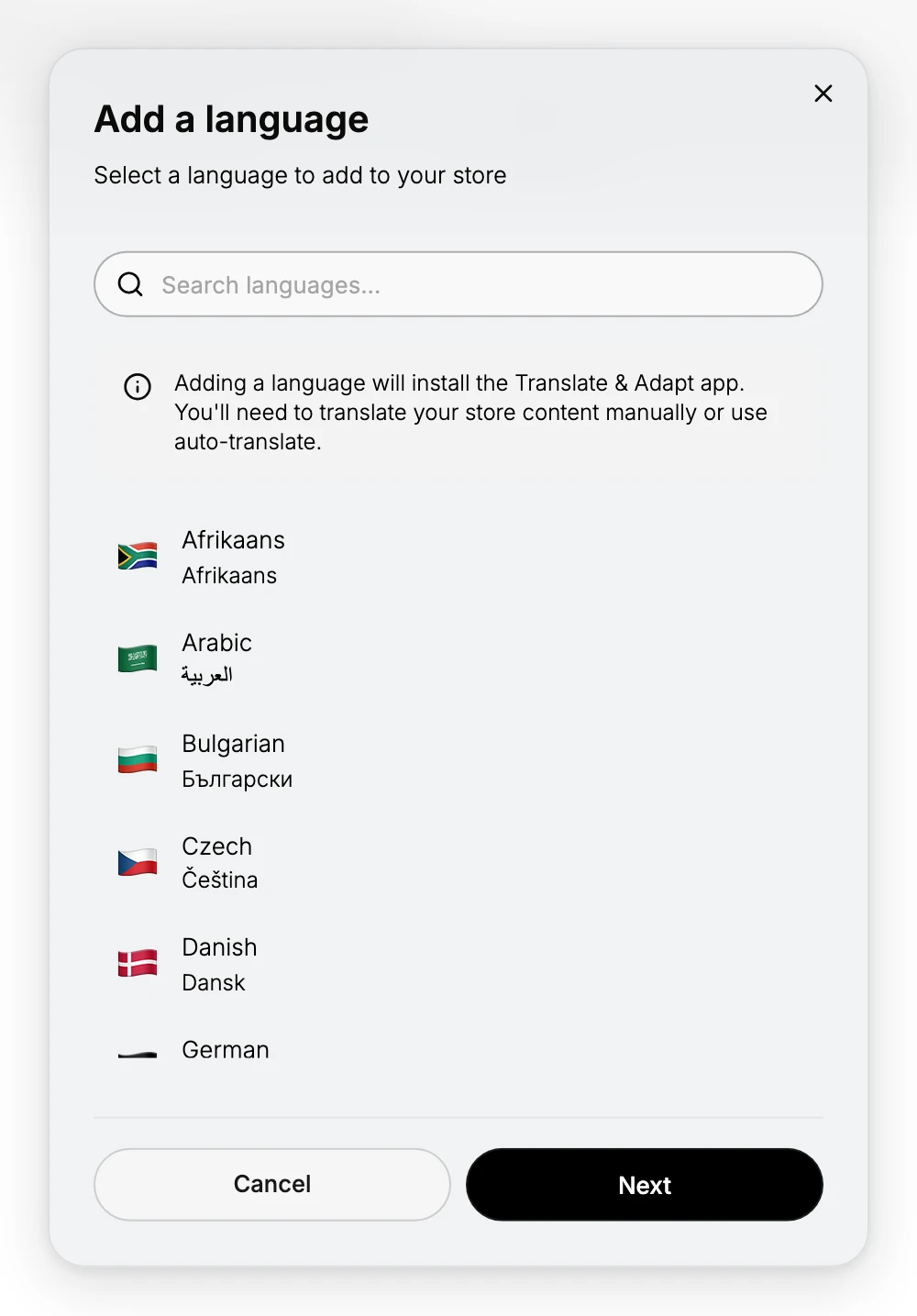
The window holds three things worth reading before you choose.
- Search languages filters the list, which is long enough that scrolling to find one is slower than typing it.
- The note near the top states plainly what adding a language does: it installs the Translate & Adapt app, and you still have to translate your store content manually or use auto-translate.
- The list shows each language twice, once in English and once in its own script, for example Arabic with العربية beneath it. Picking from the native name is the safer way to be sure you have the right one.
Choose a language and select Next to continue, or Cancel to close the window without adding anything.
What adding a language does not do
This is the part that catches people out. Adding a language sets up the place for the translation to live. It does not write the translation.
Until the content is translated, a customer who switches to that language sees your original text, not their own. That applies to product titles and descriptions, your pages and blog posts, and the wording in checkout and in customer emails. Plan the translation work as part of adding the language, not as something to get to later.
Verify the result
- The language appears in the table on the Languages page, with a status.
- The Translate & Adapt app is installed on your store.
- On the storefront, switching to the new language shows translated text where you have provided it, and the original text where you have not yet.
Best practices
- Add a language only when you can keep it translated. A half-translated storefront reads worse than one that is confidently in a single language.
- Start with the content customers meet first: product titles, the pages they land on, and checkout.
- Use auto-translate as a first pass, then have someone who speaks the language read it, since machine wording is often correct but off-tone.
- Check the translated storefront on a phone as well, because a longer translation can break a layout that fits in English.
Common mistakes
- Adding a language and expecting the storefront to change on its own.
- Translating the storefront but leaving customer emails in the original language, so the experience breaks after the order is placed.
- Adding several languages at once, which multiplies the translation work before any of it is finished.
If something goes wrong
- The storefront still shows the original text. The language was added but the content has not been translated yet. Translate it, or run auto-translate.
- The language is not offered to customers. Check its status in the table on the Languages page.
- You cannot open the page. Your role cannot manage settings. Ask an admin to grant it.
Next steps
Related articles
Still stuck?
- Ask Tanqory AIAsk in your own words. It answers from these articles and links the ones it used.
- Ask in your adminThe assistant in your Tanqory admin answers and makes the change for you once you confirm.
- Contact TanqoryWrite to our privacy, security or legal teams, or talk to sales about a plan or a move.