Keyboard Shortcuts
The Keyboard shortcuts page lists the shortcuts for moving around and acting in your admin faster. You can search the shortcuts or filter them by category, from Settings, General.
On this page
The Keyboard shortcuts page is a reference for the shortcuts that let you move around and act in your admin without reaching for the mouse. As the page notes, there are more than a hundred and seventy shortcuts, and you can search them or browse them by category. Navigation shortcuts jump you to a section, and action shortcuts run a command like saving. Learning a few of these speeds up the tasks you repeat all day. You reach the page from Settings, then General, and selecting Keyboard shortcuts under Resources.
What's on the page
| Element | What it does |
|---|---|
| Search shortcuts | Finds a shortcut by keyword, such as save, order, or bulk |
| Filter by category | Tabs that narrow the list to one category, each with a count |
| Shortcut list | The shortcuts grouped by category, each with its keys |
Before you begin
- Any role can use the shortcuts; they do not depend on a permission.
- Open the keyboard shortcuts reference from the admin. The shortcuts work anywhere in the admin, so there is no page to configure first.
Using the Keyboard shortcuts page
Open Keyboard shortcuts
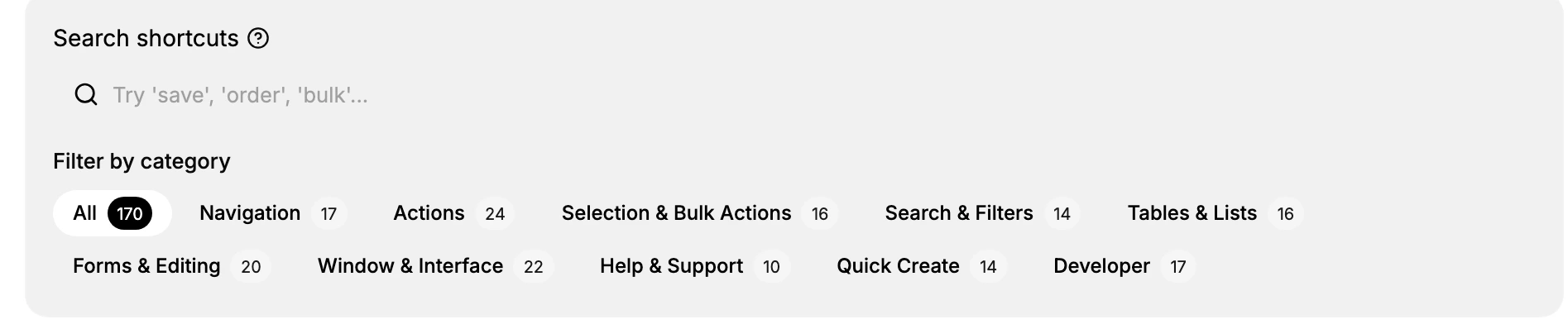
From the admin, open Settings, then General, and under Resources select Keyboard shortcuts. The page opens with a short intro, a Search shortcuts box, and a Filter by category row.
Search or filter by category
Use the Search shortcuts box to find a shortcut by keyword. Or use Filter by category to browse a group: the categories are All, Navigation, Actions, Selection & Bulk Actions, Search & Filters, Tables & Lists, Forms & Editing, Window & Interface, Help & Support, Quick Create, and Developer, each showing how many shortcuts it holds. Pick a category to focus on the shortcuts for the kind of task you are doing.
Use the navigation shortcuts
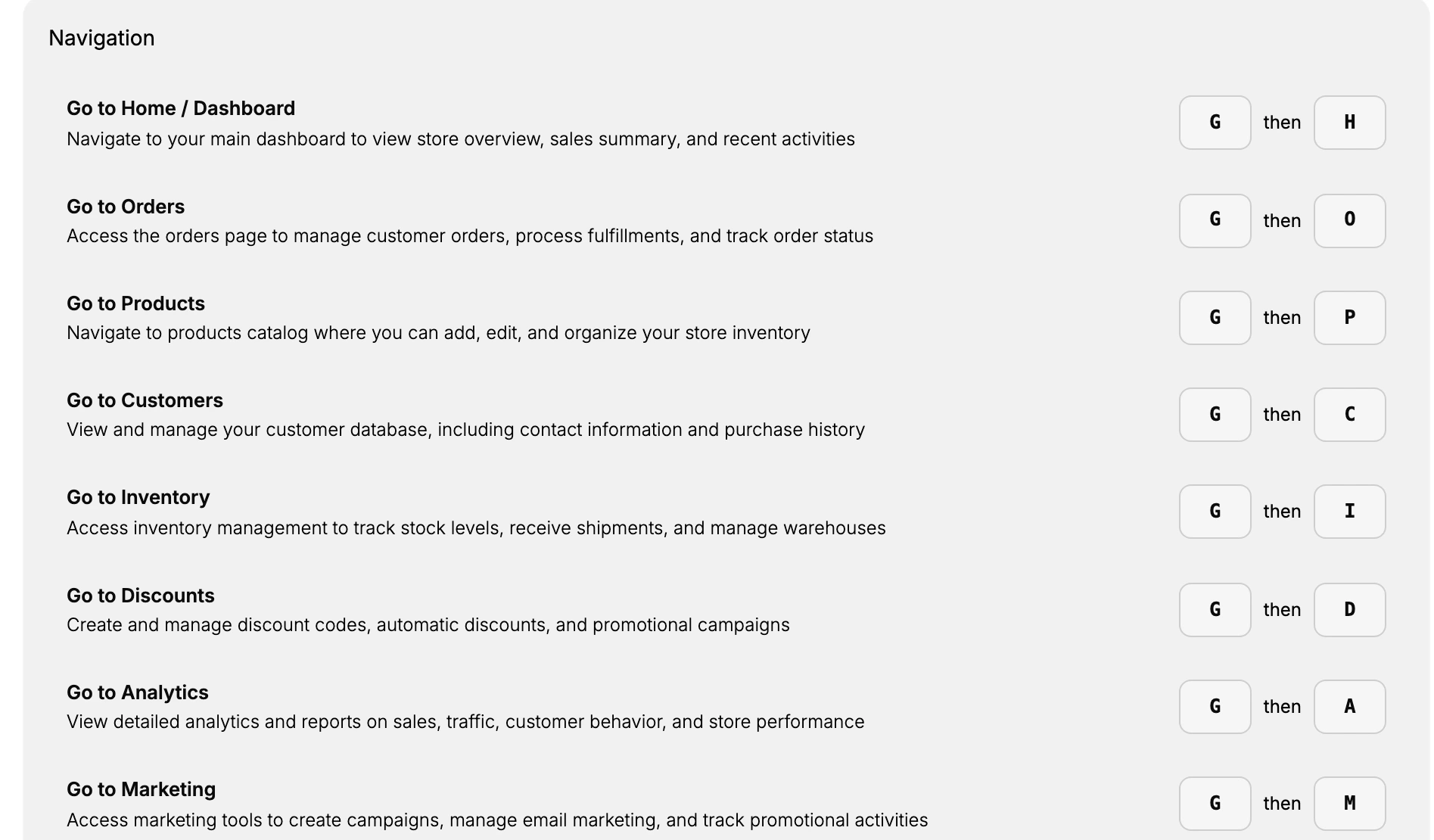
The Navigation category jumps you to a section. Each is a sequence: you press G, then the section's key. These are the navigation shortcuts:
| Shortcut | Goes to |
|---|---|
| G then H | Home / Dashboard |
| G then O | Orders |
| G then P | Products |
| G then C | Customers |
| G then I | Inventory |
| G then D | Discounts |
| G then A | Analytics |
| G then M | Marketing |
| G then S | Settings |
| G then T | Themes |
| G then B | Blog Posts |
| G then N | Notifications |
| G then L | Collections |
| G then F | Files / Media Library |
| G then R | Reports |
| G then U | Users / Staff |
| G then W | Workflows / Automations |
Use the action shortcuts
The Actions category runs commands on the current page. These use the command key, sometimes with another key pressed after it, and sometimes with the shift key at the same time. For example, the command key then S saves your changes, the command key then K opens the command palette to search and jump anywhere, and the command key then N creates a new item. Browse the Actions category to see the full set, including editing, duplicating, deleting, and undo.
Best practices
- Learn the ones you repeat. Start with the navigation shortcuts for the sections you open most, since they save the most time.
- Press the keys in order. A sequence like G then O means press G, then the next key, rather than both at once.
- Search when you forget. Use the Search shortcuts box to find a shortcut by keyword instead of scrolling the whole list.
- Browse by category for a task. Filter to Actions or Tables and Lists when you want the shortcuts for that kind of work.
If something goes wrong
- A shortcut does nothing. Make sure you are not typing in a text field, and press the keys in the order shown rather than together.
- You cannot find a shortcut. Search by a keyword for the task, or switch to the All category to see every shortcut.
Next steps
Related articles
Still stuck?
- Ask Tanqory AIAsk in your own words. It answers from these articles and links the ones it used.
- Ask in your adminThe assistant in your Tanqory admin answers and makes the change for you once you confirm.
- Contact TanqoryWrite to our privacy, security or legal teams, or talk to sales about a plan or a move.