Configure Fulfillment Notifications
Fulfillment notifications are the customer emails your store sends as an order moves from fulfillment to delivery. They live in the Shipping group under Customer notifications: shipping confirmation, out for delivery, package delivered, and shipping status update.
On this page
The Shipping group holds the customer emails your store sends as an order moves from fulfillment to delivery. It sits inside Customer notifications and gathers four templates: a shipping confirmation when the order ships, an out for delivery note, a package delivered confirmation, and a shipping status update as the parcel moves. Each one keeps the customer informed while the order is on its way, which cuts down on where-is-my-order questions. You reach it from Settings, then Notifications, then Customer notifications, and open the Shipping group. This article covers the four templates and how to manage them; and Configure Customer Notifications edits a single template's subject and body.
The shipping templates
| Template | Sent when | Includes |
|---|---|---|
| Shipping confirmation | The order is fulfilled and shipped | Tracking number and shipping carrier |
| Out for delivery | The order is out for local delivery | A note that the order is on the way today |
| Package delivered | Delivery is confirmed (optional) | Delivery time and location |
| Shipping status update | The shipping status changes | Current status, location, and estimated delivery |
Before you begin
- Your role includes General settings.
- Open Settings > Notifications in the admin sidebar. Open Customer notifications, then the Shipping group.
Work with the Shipping notification templates
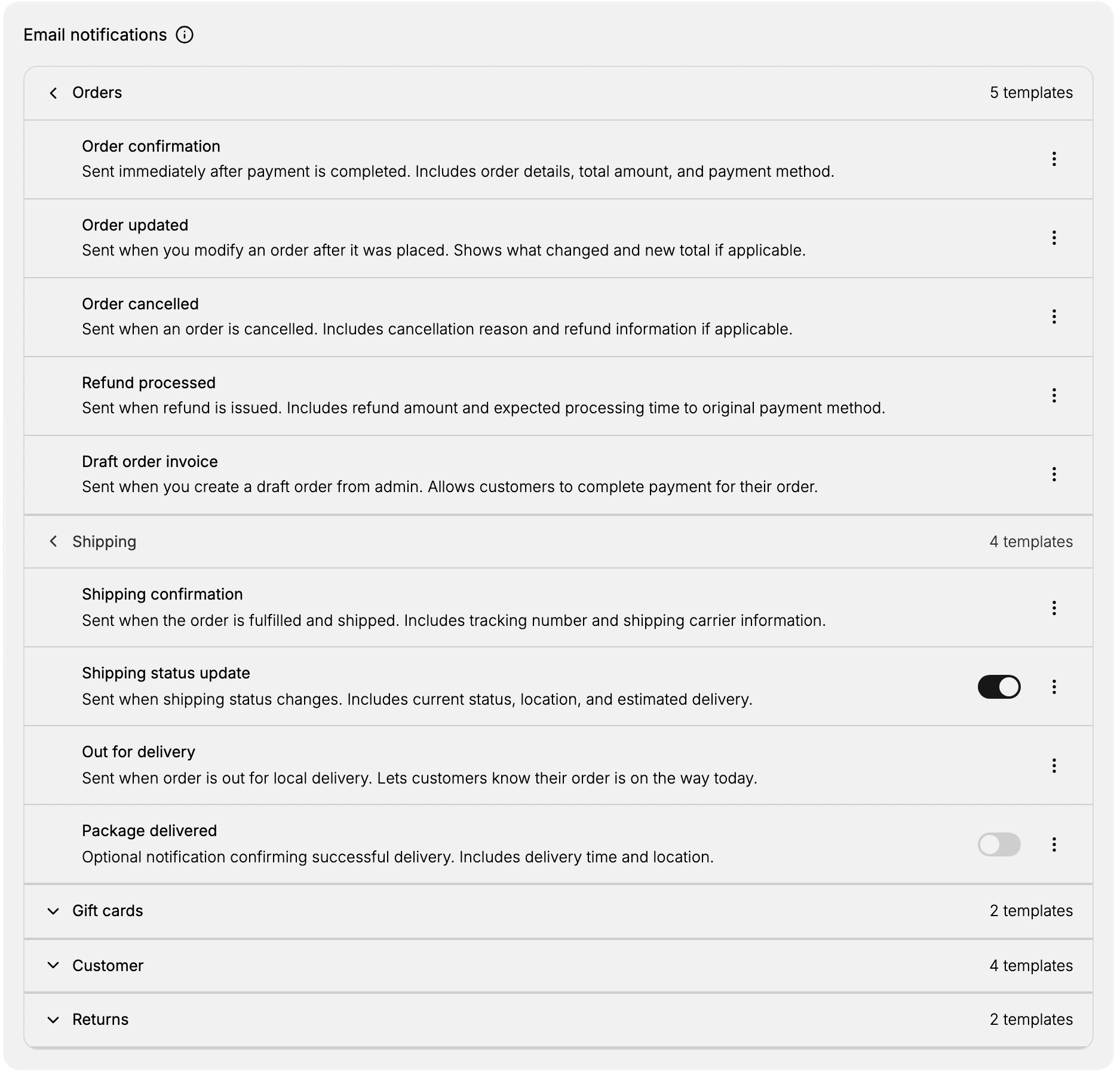
From the admin, open Settings, then Notifications, then Customer notifications. Under Email notifications, select the Shipping heading to expand it. The group opens to show its four templates, each with a short note of when it is sent and a three-dot menu on the right.
Shipping confirmation
The main shipping email, sent when the order is fulfilled and shipped. It includes the tracking number and the shipping carrier so the customer can follow the parcel. Because this is the message customers watch for after they buy, keep the tracking details clear and easy to find.
Out for delivery
Sent when the order is out for local delivery, letting customers know their order is on the way that day. It is useful when a package needs someone to receive it, since it gives the customer a heads-up to be available.
Package delivered
An optional notification that confirms a successful delivery, including the delivery time and location. It has an on and off toggle on the right and is off by default, so turn it on if you want customers to receive a delivery confirmation. A delivery confirmation can reassure the customer and cut down on lost-package claims.
Shipping status update
Sent when the shipping status changes. It includes the current status, the location, and the estimated delivery, and it has a toggle to turn it on or off. Use it when you want customers to follow each step of the journey rather than only the first and last.
Edit or turn a template on or off
Each template row has a three-dot menu that opens its options, and the optional templates have a toggle to turn them on or off. Opening a template leads to the same editor used across customer notifications, where you can change the subject and body, preview the email, send a test, and reset it to the default. Review the shipping confirmation first, since it is the one customers rely on most, then set the optional templates to match how much detail you want to send.
Best practices
- Get the shipping confirmation right first. It carries the tracking number and carrier, so it is the message customers open most.
- Turn on only the updates you can back up. Package delivered and shipping status update are optional, so enable them when your carrier data is reliable enough to send.
- Keep tracking details easy to find. Place the tracking number and carrier where the customer sees them without scrolling.
- Send a test before you rely on a template. A test copy shows exactly what the customer will receive, so you catch problems before a real shipment does.
If something goes wrong
- A tracking link or number is missing. The template pulls tracking from the fulfillment, so confirm the order was fulfilled with tracking and a carrier before it ships.
- A template does not send. Package delivered and shipping status update are off unless their toggle is on, so check the toggle in the Shipping group.
- You cannot manage a template. Your role may not allow managing settings. Ask an owner or admin.
Next steps
Related articles
Still stuck?
- Ask Tanqory AIAsk in your own words. It answers from these articles and links the ones it used.
- Ask in your adminThe assistant in your Tanqory admin answers and makes the change for you once you confirm.
- Contact TanqoryWrite to our privacy, security or legal teams, or talk to sales about a plan or a move.