Product Field Reference
Every field in the Tanqory product editor, grouped by section, with what each one does and which are required - a lookup for when you need to check a single field rather than walk the whole flow.
On this page
The product editor is the single page where you set up everything about a product. This article lists every field in it, grouped by the section it appears in, with what each field does and which are required. Use it when you need to check one specific field rather than walk the whole flow: to learn how to fill the editor step by step, use Create a Product (Detailed Walkthrough), and for a visual map of the sections, see Product Detail Page.
The editor has a main column for the product's content and a right column for its status and organization. Of all the fields below, only Title and Price are required.
The variant rule: on a product with no variants, Pricing, Inventory, and Shipping are their own sections. Once a product has options, those three move into each variant and the product-level sections disappear, which Product Variants explains.
Main column: the product's content
Product details
The product's identity: its name and the copy that sells it.
| Field | What it does |
|---|---|
| Title | Required. The customer-facing name, shown on the storefront, in search, and on order receipts. |
| Description | The rich-text body on the product page; use headings, lists, links, and media to answer a shopper's questions. |
Media
Media holds the product's images, video, and 3D models (an empty section reads Accepts images, videos, or 3D models). Upload new or Select existing open the media picker, and the first tile becomes the featured image used wherever the storefront shows the product as a thumbnail. Managing Product Images covers it in full.
Category
Category is a standardized product category. Choosing one sets the product's tax rates and adds category-specific fields that improve search, filtering, and selling across channels.
Pricing (no-variant products)
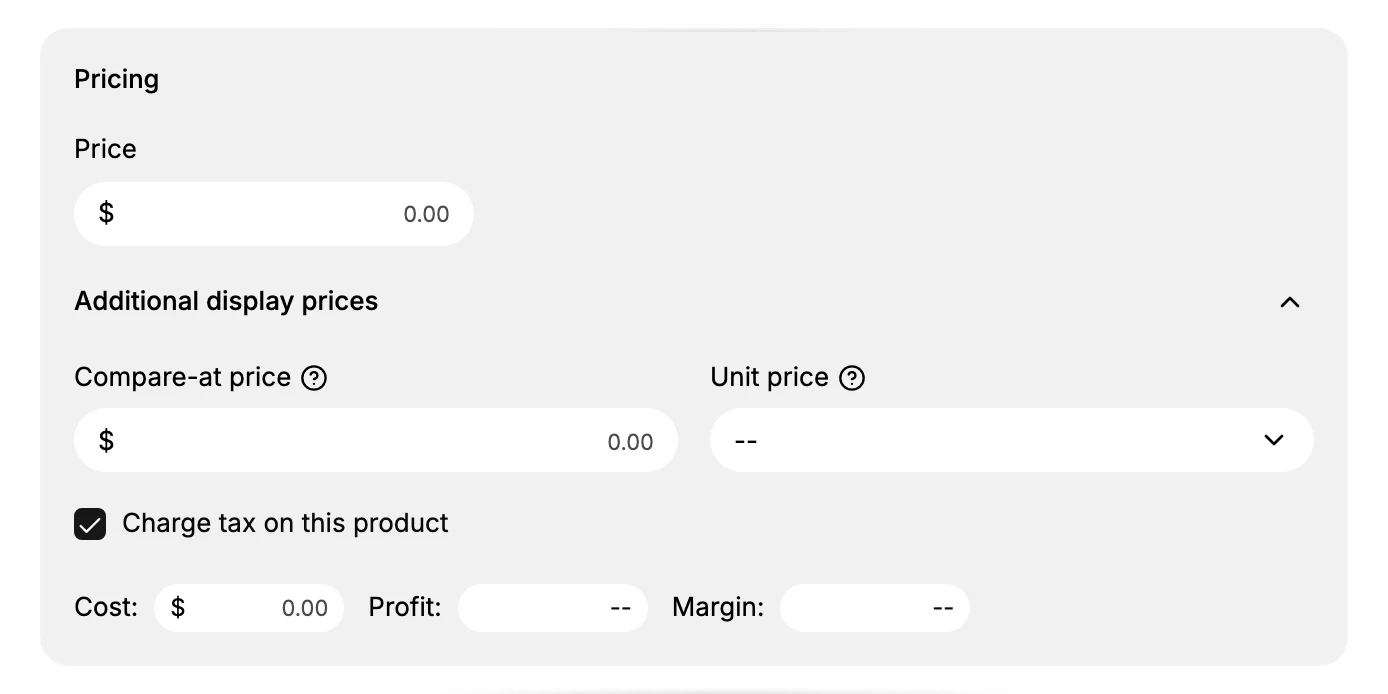
What the customer pays and what the product costs you. The Price sits at the top; expand Additional display prices to reach the rest.
| Field | What it does |
|---|---|
| Price | Required. The amount the customer pays. |
| Compare-at price | A higher reference price shown struck through when the item is on sale. |
| Unit price | The price per unit of measure, where regulations require it. |
| Charge tax on this product | Whether tax applies to this product. |
| Cost per item | What the item costs you; fills in the Profit and Margin beside it, and is never shown to customers. |
Pricing is covered in depth in Setting Product Prices.
Inventory (no-variant products)
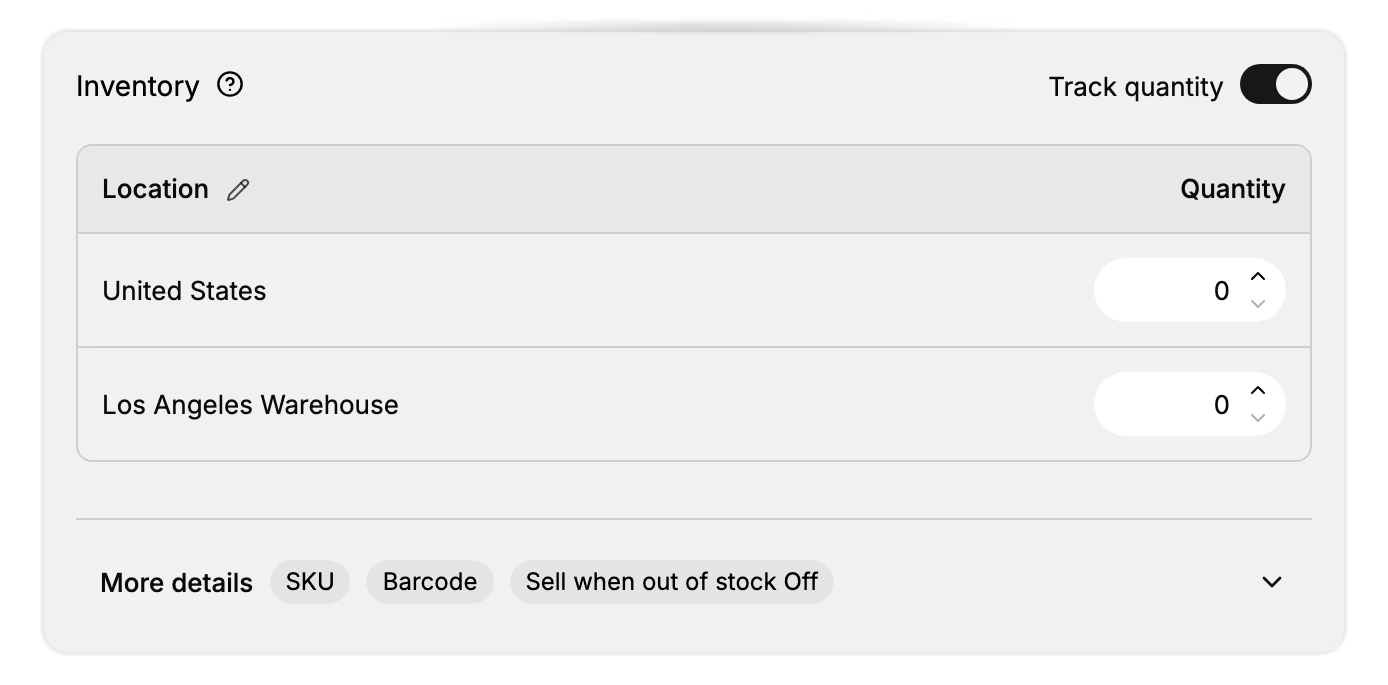
How stock is counted and identified.
| Field | What it does |
|---|---|
| Track quantity | Toggle (top-right of the section) that turns stock tracking on. |
| Quantity (per location) | A starting quantity per location when you create the product; a saved product shows the breakdown Unavailable, Committed, Available, and On hand. |
| SKU | Your internal stock-keeping code (under More details). |
| Barcode | UPC, EAN, or GTIN (under More details). |
| Sell when out of stock | Whether the product still sells at zero stock (under More details; off by default). |
Shipping (no-variant products)
The physical details carriers and customs need. Turn off Physical product for a digital item that needs no shipping.
| Field | What it does |
|---|---|
| Physical product | Toggle; off marks the product as digital (no weight, no customs). |
| Package | The package preset used to rate shipping. |
| Weight | The product weight, with a unit (kg, g, lb, or oz). |
| Country of origin | Where the product was made, for customs. |
| HS code | The product's customs tariff number. |
Variants
Options such as size or color. Adding options turns the single product into one variant per combination, and Pricing, Inventory, and Shipping then live inside each variant.
| Field | What it does |
|---|---|
| Option name | A combobox of standard types (Size, Color, Material, Style, Pattern, and more) or your own name. |
| Option values | The values for each option (for example, Small, Medium, Large). |
| Variants | One per combination of values, each with its own price, image, SKU, barcode, weight, cost, compare-at, and inventory. Product Variants |
Metafields
Metafields are custom fields beyond the standard ones, such as a material, a season, or a care instruction. Add definition creates one, and definitions you have already set up appear here ready to fill. Metafields explains how to define and use them.
Search engine listing
How the product appears in search results. Leave these blank to use the title and description by default.
| Field | What it does |
|---|---|
| Page title | The SEO title shown in search results. |
| Meta description | The snippet shown under the title. |
| URL handle | The product's URL slug, generated from the title. |
Search listings are covered in Product SEO (Search Engine Listing).
Right column: status and organization
Status
Status controls who can see the product: Active (visible in search and collections), Draft (not visible to customers, for a product you are still working on), or Unlisted (reachable only through a direct link). Manage Product Status sets out what each one does.
Organization and publishing
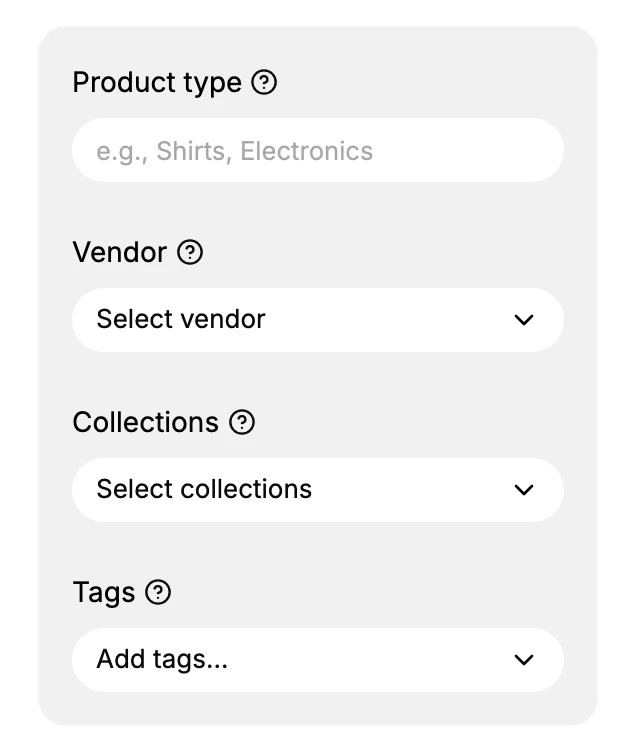
Where the product sits in your catalog and which channels sell it.
| Field | What it does |
|---|---|
| Product type | Your own free-text classification, separate from Category. |
| Vendor | The brand, manufacturer, or supplier. |
| Collections | The manual or automated collections this product belongs to. |
| Tags | Free-form keywords for filtering and search. |
| Publishing | The sales channels that carry the product: Online Store (Published) and Mobile App (Coming soon). |
| Theme template | Which theme template renders the product page (default Default product). |
Next steps
Related articles
Still stuck?
- Ask Tanqory AIAsk in your own words. It answers from these articles and links the ones it used.
- Ask in your adminThe assistant in your Tanqory admin answers and makes the change for you once you confirm.
- Contact TanqoryWrite to our privacy, security or legal teams, or talk to sales about a plan or a move.