Tax Display and Calculation
Control display, tax-inclusive or tax-exclusive, and calculation, at line or order level. Choices vary by jurisdiction expectation.
On this page
How tax is displayed + calculated must match local jurisdiction expectation. Mismatch confuses customers + can be illegal in regions requiring inclusive pricing.
Before you begin
- Go to Settings, then open Taxes.
- You have Taxes settings permission.
- You know jurisdiction expectations.
Display: Inclusive vs Exclusive
| Pricing | Storefront shows |
|---|---|
| Inclusive | $107 (tax built in) |
| Exclusive | $100 + $7 tax = $107 at checkout |
| Jurisdiction | Default expectation |
|---|---|
| US | Exclusive (consumers don't see tax until checkout) |
| EU | Inclusive required by law |
| UK | Inclusive required |
| AU | Inclusive required |
| TH | Inclusive typical |
| JP | Inclusive typical |
Calculation: Line vs Order
| Level | When |
|---|---|
| Line-level | Per-item tax: required where category rates differ |
| Order-level | Single calculation on subtotal: simpler |
Steps
1. Open Settings > Taxes
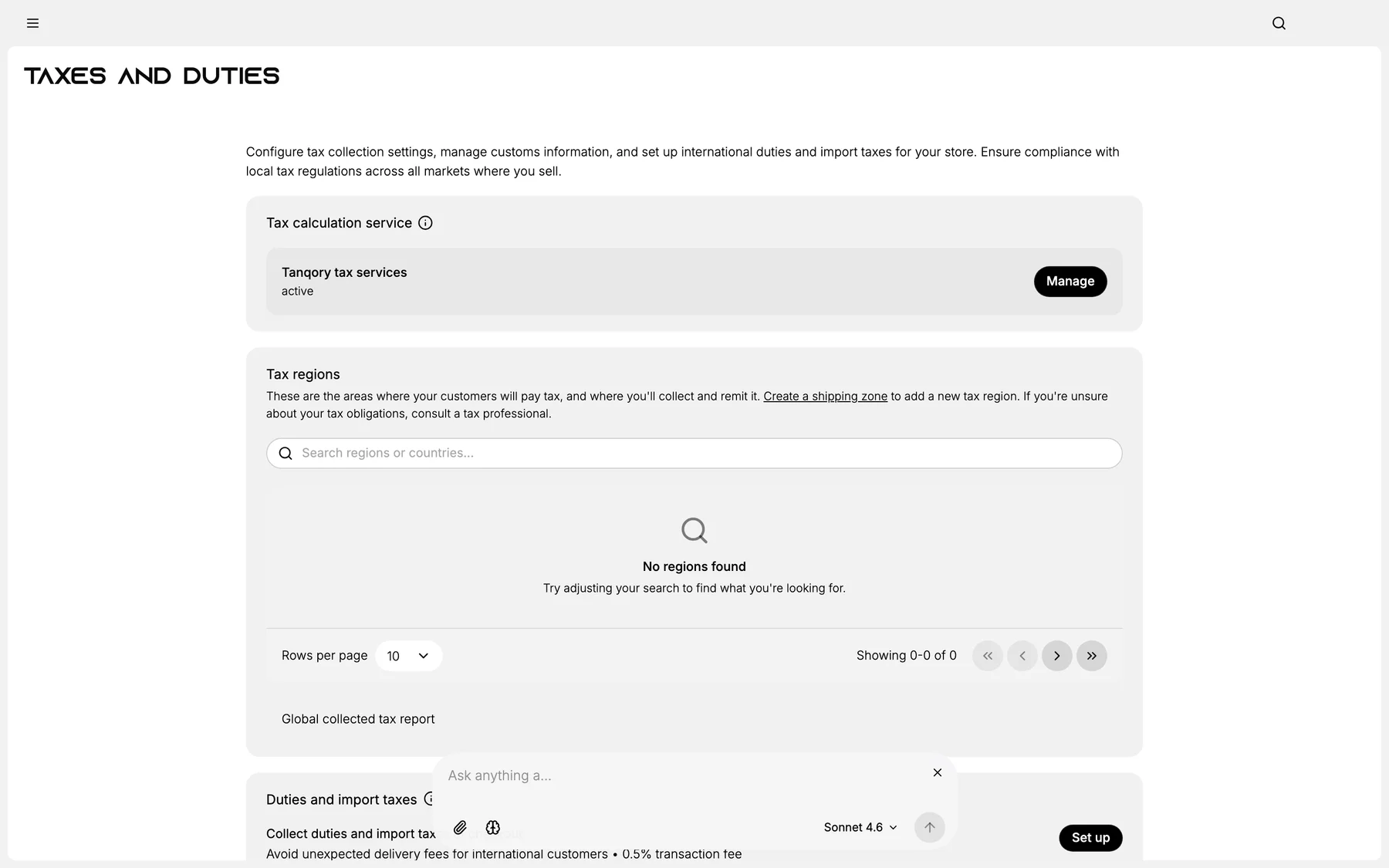
2. Pick display mode (Inclusive / Exclusive)
3. Pick calculation level (Line / Order)
4. Save
5. Verify storefront price displays match jurisdiction expectation
Best practices
- EU + UK + AU = Inclusive.
- US = Exclusive.
- Line-level if category rates differ.
Common mistakes
- Exclusive in EU: illegal display.
- Order-level when line-level needed.
Next steps
Related articles
Still stuck?
- Ask Tanqory AIAsk in your own words. It answers from these articles and links the ones it used.
- Ask in your adminThe assistant in your Tanqory admin answers and makes the change for you once you confirm.
- Contact TanqoryWrite to our privacy, security or legal teams, or talk to sales about a plan or a move.