Product Template Reference
Which product templates you can assign depends on your theme, not on Tanqory. This reference explains what a product template controls, how to see the exact templates your theme provides, and how to assign one from a product.
On this page
A product template decides the storefront layout a product page is rendered with. Every product uses one, chosen in the Theme template field in the right column of the product editor. Which templates you can pick is not fixed by Tanqory: the list comes from your current theme, so it varies from one theme to another. This article is the lookup companion to Product Templates, which walks through assigning one.
You'll work on the product's detail page under Products, and inspect templates in your theme under Online Store.
What a product template controls
A product template sets the sections and layout of the product page on the storefront, for example the image gallery, the title and price block, the buy button, and the description. Assigning a different template to a product renders that product's page with a different layout, without changing the product's data. It does not change the product's price, inventory, or variants, only how the page is presented.
Which templates you actually have
The templates you can assign are the ones your current theme provides, and nothing more. On a store's default theme this is often a single template, Default product. Additional templates only appear once a theme includes them, so the dropdown is the source of truth for your store, not a fixed list.
| To find your theme's templates | How |
|---|---|
| From a product | Open any product and open the Theme template dropdown in the right column. It lists exactly what your theme provides. |
| From the theme | Under Online Store, open your theme. The product templates it ships are what appear in that dropdown. |
Before you begin
- You have the Edit products permission to assign a template, and Manage themes to inspect the theme.
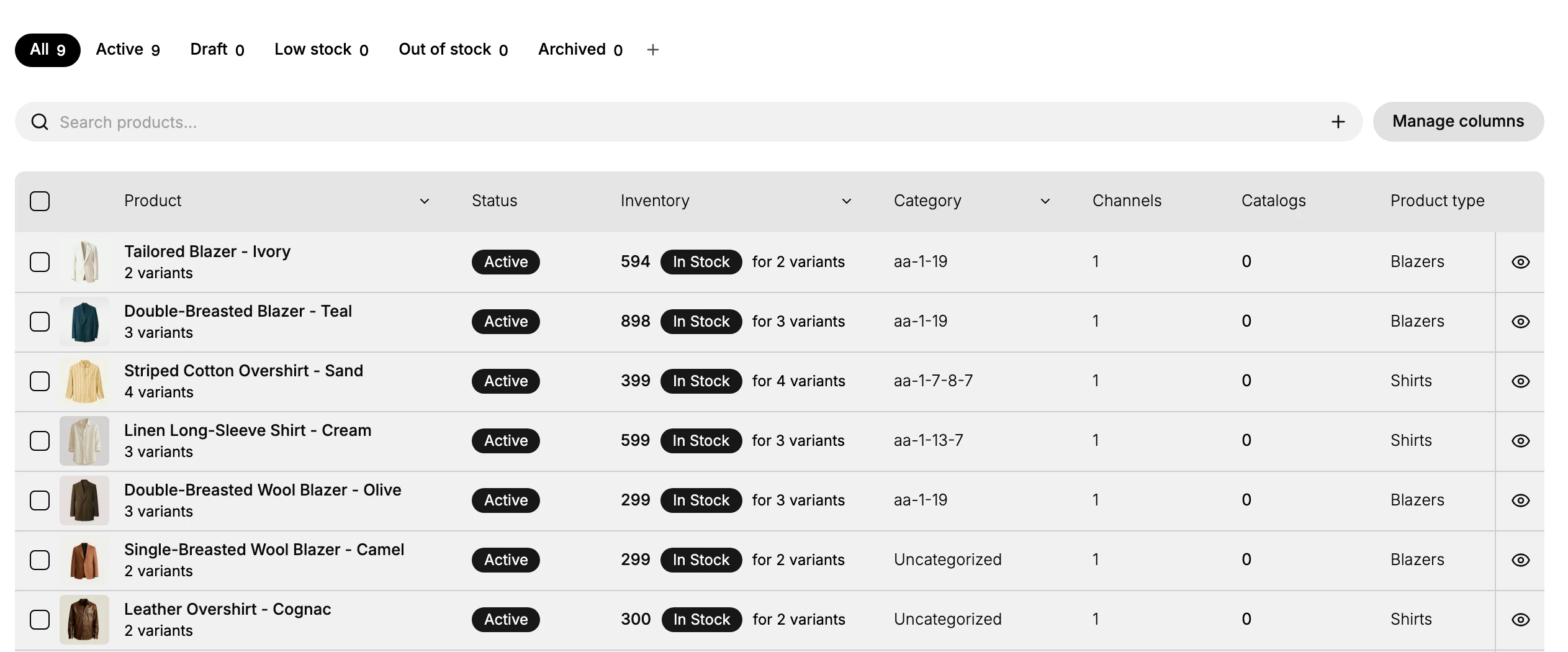
- Open Products and open any product to see the Theme template field, or open your theme under Online Store to see which templates it provides.
How to assign a template
Open the product from the Products list, then use the Theme template control in the right column to pick a template your theme provides. If the theme ships only one product template, Default product is the only choice. Save, then open the product on the storefront to confirm it renders the way you expect.
Verify the result
- The Theme template dropdown shows the templates your theme provides.
- After you assign and save, the product's storefront page renders with the chosen template.
- The product's data (price, inventory, variants) is unchanged; only the layout differs.
Best practices
- Treat the dropdown as the source of truth. Only assign a template you can see there, since it reflects your actual theme.
- Assign a non-default template only when a product needs a different layout. Keep most products on Default product so the catalog stays consistent.
- Preview on the storefront, including mobile, after assigning, so you catch a layout that does not suit the product.
- Recheck after a theme change. A theme update can add or remove templates, so confirm each product still points to one that exists.
Common mistakes
- Expecting templates that your theme does not ship. If the dropdown shows only Default product, that is all your theme provides.
- Assigning a template built for a different kind of product, so the page sections do not fit.
- Assigning without previewing, so a broken layout goes live.
If something goes wrong
- Only Default product is listed. Your current theme provides a single product template. Add more templates to the theme before you can assign them.
- The page looks wrong after assigning. Switch back to Default product or pick a more suitable template, then save.
- Permission denied. Your role lacks the Edit products permission.
Next steps
Related articles
Still stuck?
- Ask Tanqory AIAsk in your own words. It answers from these articles and links the ones it used.
- Ask in your adminThe assistant in your Tanqory admin answers and makes the change for you once you confirm.
- Contact TanqoryWrite to our privacy, security or legal teams, or talk to sales about a plan or a move.