Issue Store Credit
One dialog both gives credit and takes it back, through an Adjustment field set to Credit or Debit. The currency is a full list rather than your store's own, so the wrong choice quietly starts a second balance instead of changing the one the customer has, and the Notify customer box is ticked while the emails behind it are not available yet.
On this page
One dialog does all of it: giving a customer credit, and taking it away again. This article walks that dialog field by field.
It is not the toggle in Settings. Settings > Customer accounts has a Store credit row, but it holds one store-wide switch and no amount, so nothing there gives anyone credit. Everything here happens on a customer's own record. Store Credit covers what store credit is for and how it relates to that setting.
Before you begin
- Your role includes Manage store credit.
- You know the amount and which currency it is in, since a customer can hold a balance in more than one.
- Go to Customers and open the customer.
Finding the control
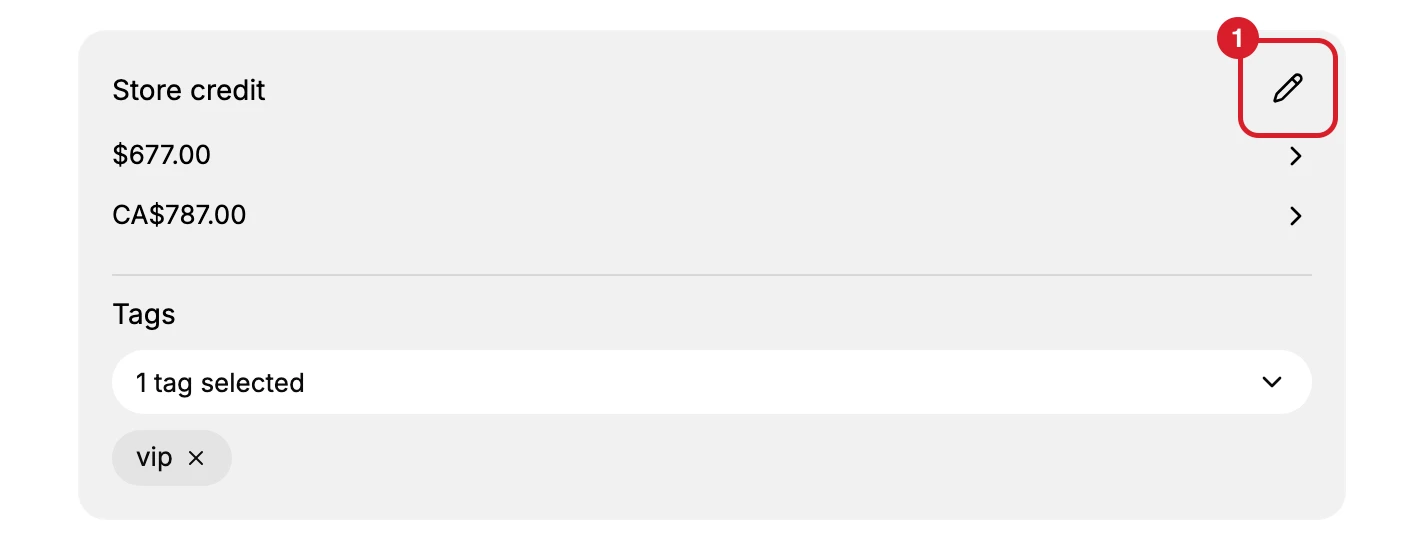
The route is Customers, then the customer, then down their record.
The card is in the main column below Draft orders, and it shares a card with Tags, so the heading sits above a tag selector rather than alone. Its only control is the small pencil at the top right (1), which carries no visible words and is labelled Adjust for a screen reader, so scanning the page for a button with a name on it will not find it.
| How you open it | What it is called |
|---|---|
| The pencil at the top right of the Store credit card | Adjust store credit if they already have a balance, Issue store credit if they have none |
| More actions, then Issue store credit | The same dialog, under the same two names |
On a customer who already has a balance the dialog opens with a Current balance line at the top and its confirming button reads Adjust credit. On a customer with none, neither of those is there and the button reads Issue credit.
The fields
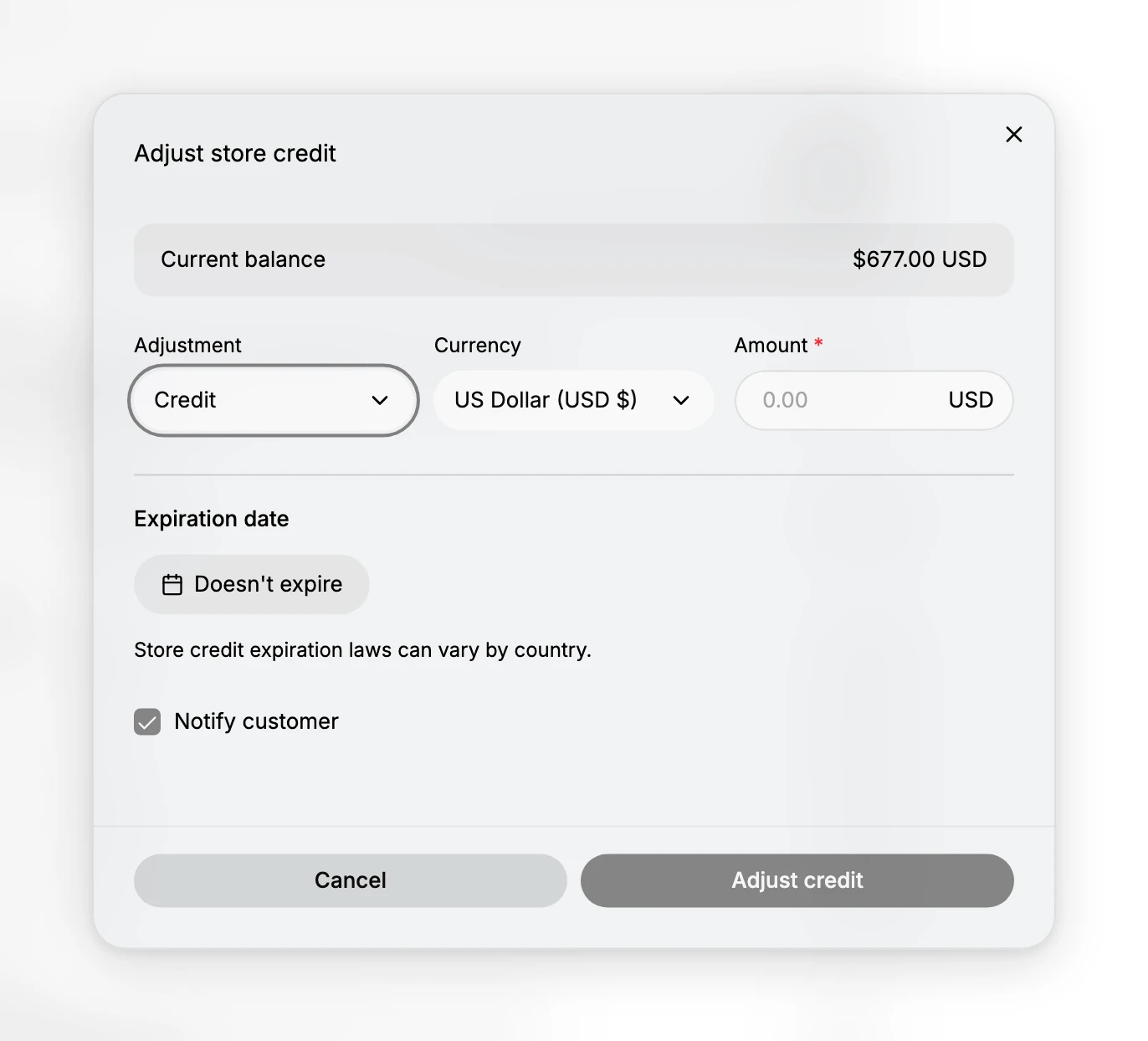
| Field | What it does |
|---|---|
| Current balance | What they hold in that currency now, so you can see what you are starting from. Absent on a customer with no balance |
| Adjustment | Credit adds to the balance, Debit takes away from it. This is the field people miss |
| Currency | A full list rather than your store's currency alone. Whatever you pick becomes the balance that moves |
| Amount | Required, and shown with the currency beside it so you can see which balance you are changing |
| Expiration date | Reads Doesn't expire unless you set one, over the store's own note that expiration laws can vary by country |
| Notify customer | Ticked, with a line underneath saying customer notification emails are not available yet |
Currency is the field to slow down on. A customer can hold a balance in more than one currency at once, and this field decides which one moves. Picking the wrong one does not fail and does not warn you: it starts a second balance, in a currency the customer may have no way to spend.
Notify customer is ticked and sends nothing. The dialog says so itself. If the customer needs to know they have credit, tell them.
Steps
1. Open the dialog
On the customer's record, use the pencil at the top right of the Store credit card, or More actions, then Issue store credit. Both open the same thing.
Read the Current balance line first if there is one. The amount you are about to type is a change rather than a new total, so the figure in that line is what you are starting from.
2. Choose credit or debit
Set Adjustment. Credit is the default and adds to what they have. Debit takes it away.
There is no other way to reduce a balance, which makes this the field to check before anything else: a mistaken credit is corrected by debiting the same amount, not by editing the entry you made.
3. Set the currency and the amount
Pick the Currency, then type the Amount. The currency shown beside the amount field follows what you choose, and that is the check that you are moving the balance you meant rather than opening a new one.
The amount is required, so the dialog has nothing to confirm until it is filled in.
4. Decide about expiry, then confirm
Leave Doesn't expire unless you have a reason not to. The dialog warns that expiration laws vary by country, which is a hint to check your own before you set a date rather than after.
Then take Adjust credit, or Issue credit on a customer who had no balance. Cancel leaves the balance exactly as it was.
The card behind the dialog is where the result shows: the balance for that currency, and a second balance under it if the currency you chose was not the one they already held. The customer's timeline records the change with its amount, and that entry is the only history the balance has.
If something goes wrong
- Nothing happens when you confirm. Check Amount. It is the only field the dialog marks as required.
- A second balance appeared. The currency chosen was not the one the customer already held. Debit the new one back to nothing in that same currency, then credit the right one.
- You cannot find the card. It is in the main column below Draft orders, sharing a card with Tags, and its control is a pencil rather than a labelled button.
- Issue store credit is missing from More actions. Your role may lack Manage store credit.
Next steps
Related articles
Still stuck?
- Ask Tanqory AIAsk in your own words. It answers from these articles and links the ones it used.
- Ask in your adminThe assistant in your Tanqory admin answers and makes the change for you once you confirm.
- Contact TanqoryWrite to our privacy, security or legal teams, or talk to sales about a plan or a move.