Order Tags
Tags are short labels you add to an order to recognize it and group it with similar orders, such as wholesale, gift, or fragile. You add them in the Tags card on the order by typing in the Search or create tags field and then picking an existing tag or creating a new one, and the tag applies straight away. Each tag shows as a chip you can remove, and View all tags lists the tags you have already used. This article explains the Tags card and how to add and remove tags.
On this page
You find the Tags card in the right column when you open an order under Orders.
Before you begin
- Your role includes Edit orders.
- Open Orders in the admin sidebar and open the order you want to work on.
The Tags card
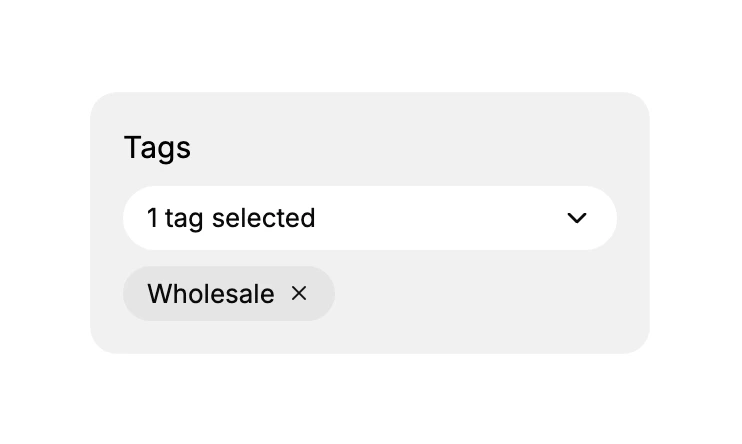
The card is headed Tags and has a Search or create tags field. When you type into it, a short menu appears: it offers to add the tag you typed as a new one, lists any existing tags that match, and has a View all tags link to see the tags you have already used. Choose a tag and it applies to the order at once, with no separate save. The field then shows how many tags are selected, and each tag appears below as a chip.
Adding a tag
Type the tag into the Search or create tags field. If it already exists, pick it from the menu. If it is new, choose the Add option that shows the tag you typed, and it is created and applied to the order. Because tags apply as soon as you choose them, there is no save step.
Removing a tag
Each tag appears as a chip with a small cross. Select the cross on a chip to remove that tag from the order.
Best practices
- Keep your tags consistent, for example always wholesale rather than a mix of wholesale and b2b, so the same kind of order carries the same tag.
- Use a tag for something you will look for later, such as orders that need special handling, so the label is worth having.
- Reuse existing tags from the menu rather than creating near-duplicates, which keeps your list of tags tidy.
Common mistakes
- Creating a new tag when a similar one already exists, which splits the same idea across two labels. Check the menu first.
- Tagging inconsistently, so some orders that belong together are missed because they carry a different label.
- Leaving a wrong tag on an order instead of removing it with the cross on its chip.
Next steps
Related articles
Still stuck?
- Ask Tanqory AIAsk in your own words. It answers from these articles and links the ones it used.
- Ask in your adminThe assistant in your Tanqory admin answers and makes the change for you once you confirm.
- Contact TanqoryWrite to our privacy, security or legal teams, or talk to sales about a plan or a move.