Manage Suppliers
Create and reuse supplier records inside Purchase Orders: company, address, and contact details for the vendors you reorder stock from.
On this page
A supplier is the vendor you buy stock from. In Tanqory you create and reuse suppliers inside the Purchase Orders workflow: each purchase order names one supplier, so saving a supplier once lets you pick it again on every future order without retyping its address and contact details.
There is no separate "Suppliers" page; suppliers are managed from the Purchase Orders page. You add one the first time you raise an order to that vendor, and it is then available in the Supplier list for later orders.
Before you begin
- Your role includes purchase-order access, so the Purchase Orders page opens for you.
- Have the vendor's company name ready: it is the only required field.
- Open Products > Purchase Orders in the admin sidebar, then open or create a purchase order.
Steps
1. Open the Purchase Orders page
In the admin sidebar go to Products, then Purchase Orders. The list shows one row per order; the Supplier column is the vendor each order is assigned to. This is where saved suppliers are reused.

2. Click Create purchase order and open the Supplier & Destination section
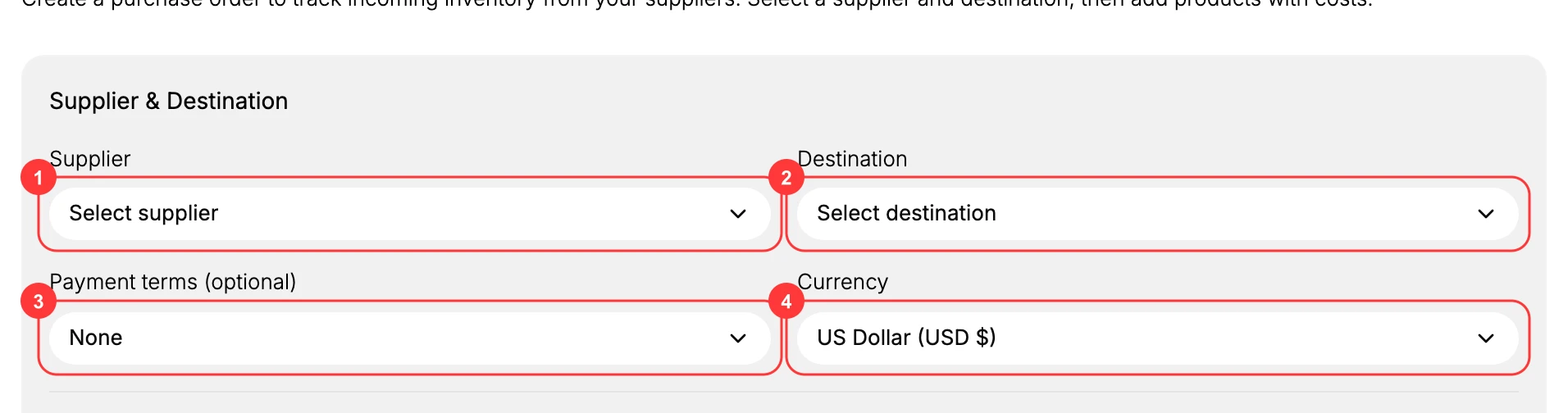
A new purchase order opens with a Supplier & Destination section holding four fields: Supplier (the vendor), Destination (the location that receives the stock), Payment terms (optional), and Currency. You must choose a Supplier before you can add products to the order.
3. Open the Supplier dropdown and choose Create new supplier
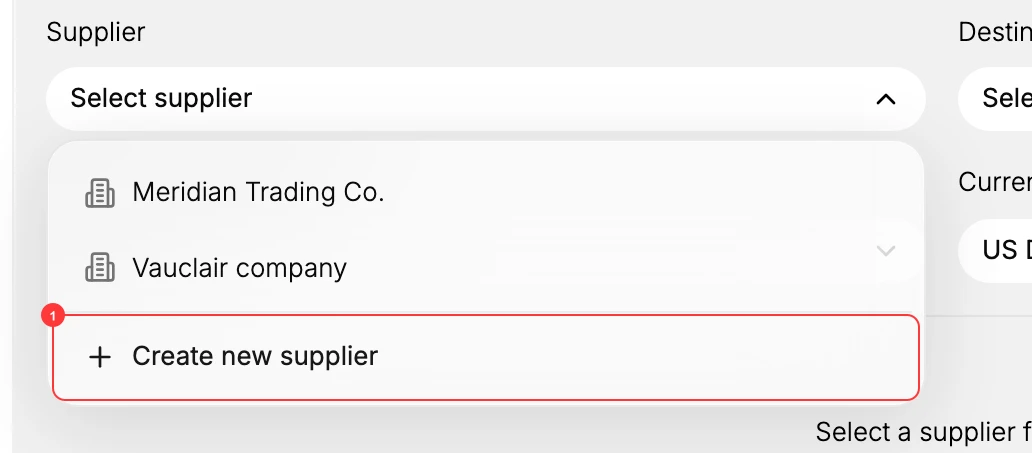
Click Select supplier. The dropdown lists suppliers you have already saved; to add a new one, click Create new supplier at the bottom.
4. Fill the supplier record, then Create supplier
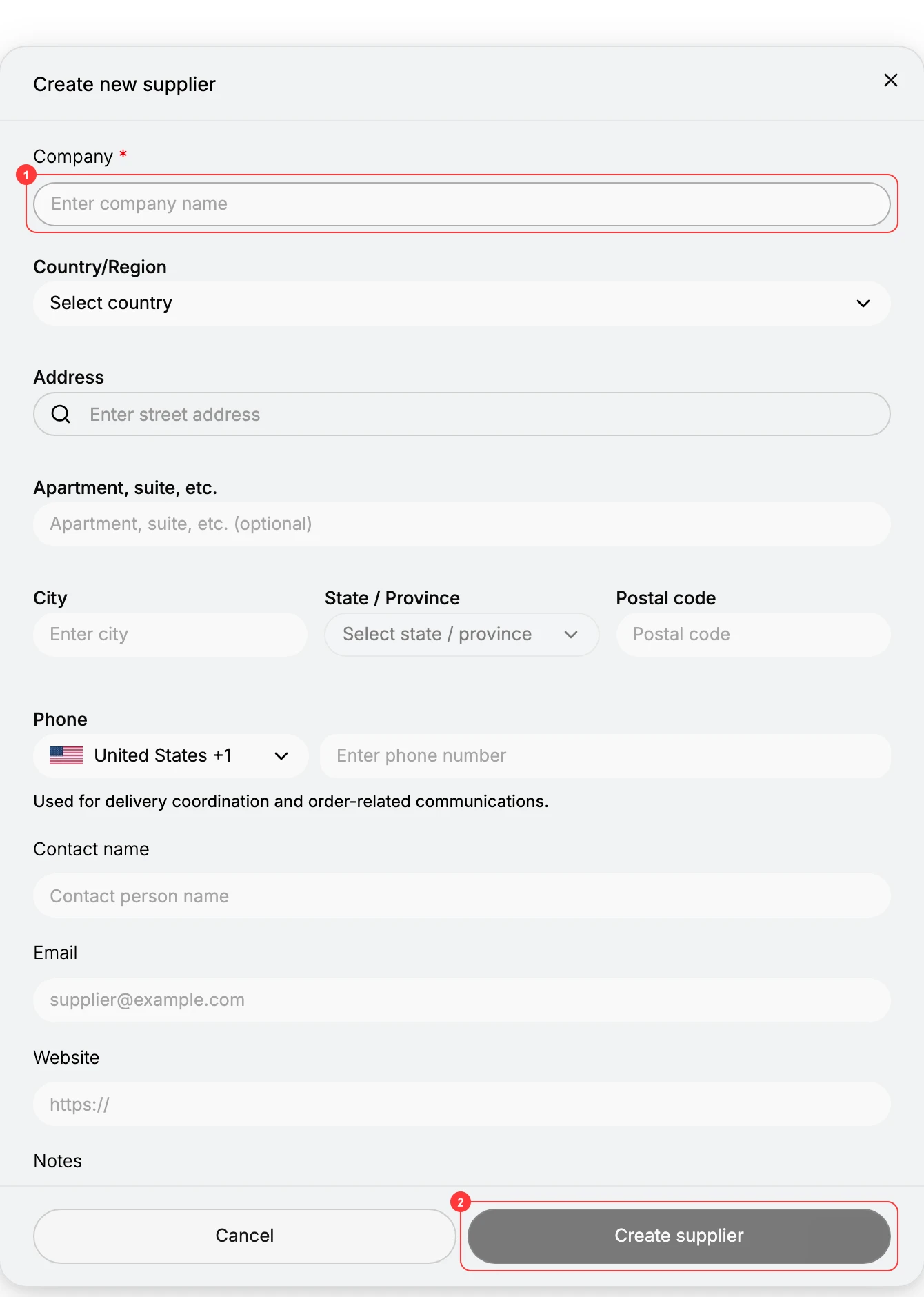
The Create new supplier form opens. Only Company is required (marked with a red asterisk); every other field is optional. Fill what you have and click Create supplier; the supplier is saved and selected on the current order, and is available in the Supplier list from now on.
Verify the result
After you click Create supplier, the supplier name appears in the Supplier field of the open purchase order, and selecting Select supplier on a future order lists it as an existing option. The product search on the order also becomes available once a supplier is set.
Supplier fields
The Create new supplier form holds these fields:
| Field | Notes |
|---|---|
| Company | The vendor's name. Required, the only field you must fill. |
| Country/Region | Country the supplier ships from. |
| Address | Street address, with an Apartment, suite, etc. line below it. |
| City, State / Province, and Postal code | The rest of the postal address. |
| Phone | A country-code selector plus the number. Labeled Used for delivery coordination and order-related communications. |
| Contact name | The person you deal with at the supplier. |
| The supplier's email address. | |
| Website | The supplier's website URL. |
| Notes | Free-text notes about the supplier. |
Note: Payment terms and Currency are set on the purchase order itself (in the Supplier & Destination section), not on the supplier record. A supplier you create on one order is reused on later orders, but those two fields are chosen fresh each time.
Edit or delete a supplier
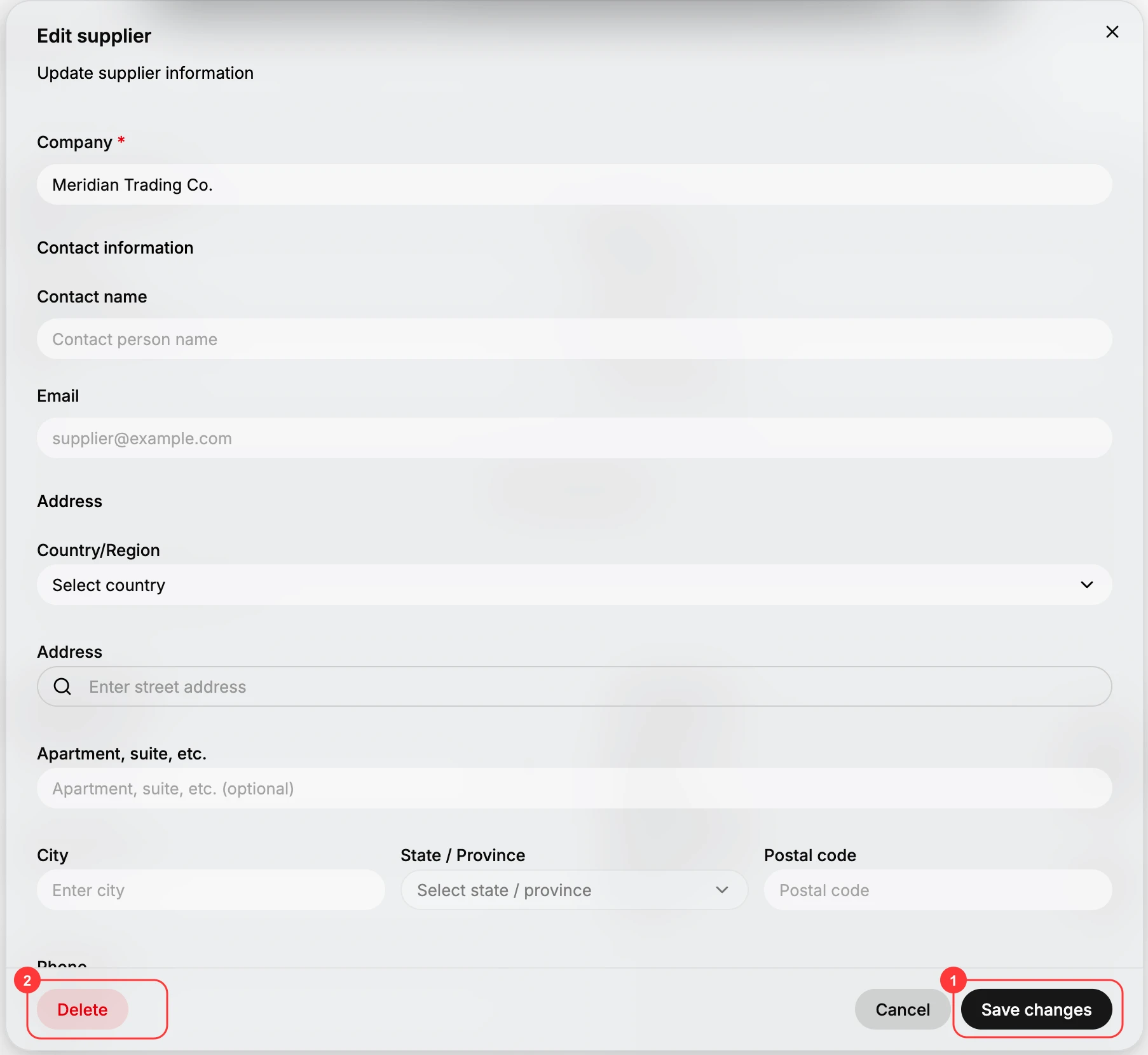
You can update a saved supplier's details, or remove it, from the same Supplier dropdown. In the dropdown, hover the supplier you want to change and click the pencil (Edit) icon on its row.
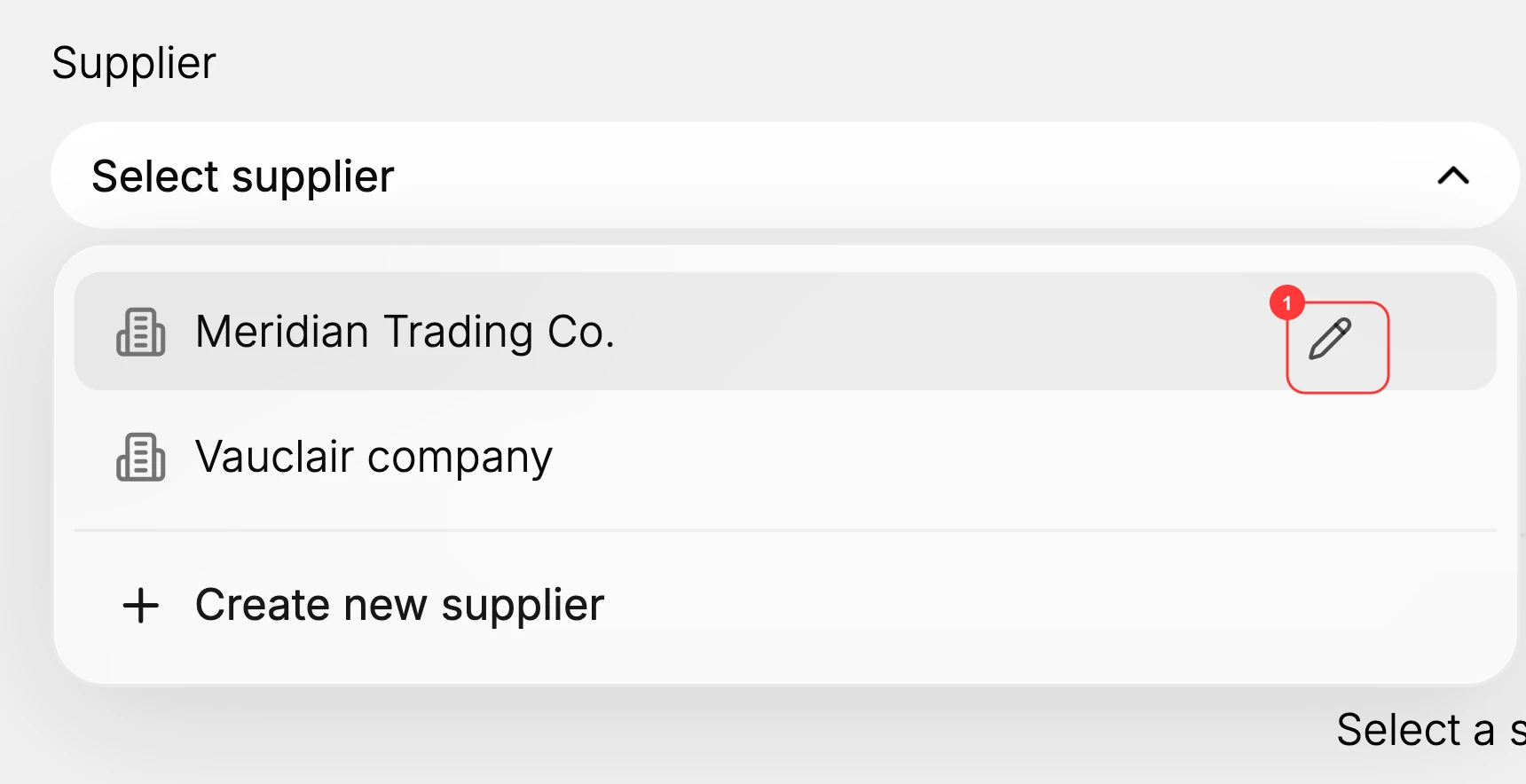
The Edit supplier dialog opens with the supplier's current details, under the same fields as the create form: Company (required), Contact name, Email, and the Address block. Change what you need and click Save changes to keep the edits. To remove the supplier from your store entirely, click Delete.
Next steps
- Create a purchase order to send your first order to the supplier.
- Receive a purchase order when the stock arrives.
Related articles
Still stuck?
- Ask Tanqory AIAsk in your own words. It answers from these articles and links the ones it used.
- Ask in your adminThe assistant in your Tanqory admin answers and makes the change for you once you confirm.
- Contact TanqoryWrite to our privacy, security or legal teams, or talk to sales about a plan or a move.