Switch Customer Account Type
Account type decides which account system your store runs on, and the page states that only the recommended one enables store credit in full. This covers what each option says on screen, how to tell which you are on, and why leaving it alone is usually the right answer.
On this page
Every store runs on one of two customer account systems, and Account type is where that is decided. It sits near the top of the Customer accounts settings, above the switches for self-serve returns and store credit. That position is not accidental. The features underneath behave differently depending on which type is selected, so this is the choice to settle before you touch anything else on the page.
Most stores never need to come here. A store created recently is already on the recommended system, and the reason to read this section is usually the opposite of switching: to confirm which type you are on before you rely on a feature that depends on it.
The two options
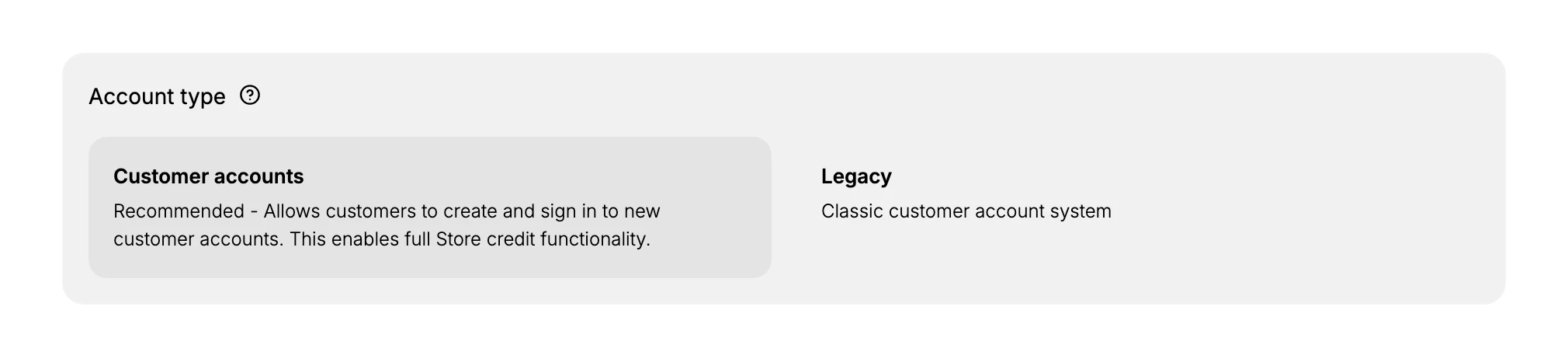
The section shows both types side by side, with the one your store is using shaded to mark it as selected.
| Option | What the page says about it |
|---|---|
| Customer accounts | "Recommended - Allows customers to create and sign in to new customer accounts. This enables full Store credit functionality." |
| Legacy | "Classic customer account system" |
Read the first description closely, because it carries the only concrete difference the page states. Customer accounts is described as enabling full store credit. Nothing on the page says what Legacy does differently beyond being the classic system, so treat store credit as the one dependency you can rely on and check anything else against your own store.
Before you begin
- Your role includes Customer settings, which is what opens the page.
- You know what depends on the type before you change it. Customer accounts is what enables store credit in full, so a store already issuing credit has something to lose by moving to Legacy.
- You have a reason to change it. Confirming which type you are on is a safe read, but switching changes the account system your customers already use, and nothing on the page offers to undo it.
Steps
1. Check which type your store is on
Open the section and look at which of the two cards is shaded. That shading is the only indication of the current type; there is no label reading "current" and no summary of it anywhere else in settings.
Do this before you go looking for a fault elsewhere, because a store credit balance that does not behave as described is far more often a store sitting on Legacy than a broken feature, and this is the fastest place to rule that out. Skip the check and you can spend a long time on the store credit page looking for a problem that is not there.
2. Decide whether the choice is worth changing
If your store is already on Customer accounts, there is nothing to do. That is the recommended system and the one the rest of the page is written for, so the safest action here is usually none.
Change it only when you have a specific reason for the classic system, because switching moves every customer to a different account system rather than adding a second one alongside. Leaving it alone is the right answer for most stores, and it costs nothing: a store on the recommended type gets the current sign-in experience and store credit in full without anyone touching this section.
3. Select the type you want
Select the card for the type you want. The page carries no Save button, so nothing at the foot is waiting to collect this choice along with the rest of your changes. If you open the section and select nothing, the store stays on the type it is already using.
Switching a store that already has customers changes the system those customers sign in with, so check the result yourself rather than assuming it is instant and silent.
With the type settled, the rest of the Customer accounts page can be set with confidence, since the switches under Account features now sit on a system you have chosen rather than one you inherited. Customer Account Settings walks the whole page from here.
What the choice changes for your store
The page makes one promise and no others: the recommended type is what enables store credit in full. That is enough to decide by, because store credit is the feature most likely to be quietly diminished on the classic system, and the one your customers notice when it does not work.
Everything else about the choice is about your customers rather than your admin. The account system decides how they sign in and what their account area offers, so a switch is felt by people outside your team rather than by you. That is the reason to treat it as a deliberate decision rather than a setting to try.
If something goes wrong
- Store credit does not do what the documentation describes. Check this section first. Full store credit functionality is tied to the Customer accounts type.
- You cannot tell which type is selected. The current one is shaded rather than labelled. Compare the two cards side by side.
- You cannot change the type. Your role may not include Customer settings. Ask an owner or admin.
Next steps
Related articles
Still stuck?
- Ask Tanqory AIAsk in your own words. It answers from these articles and links the ones it used.
- Ask in your adminThe assistant in your Tanqory admin answers and makes the change for you once you confirm.
- Contact TanqoryWrite to our privacy, security or legal teams, or talk to sales about a plan or a move.