Customer Orders on the Detail Page
A customer detail page carries two order cards. The one headed Last order lists their recent orders in full, with the line items, both status badges, and the buttons that open the whole history or start a new sale. Below it, Draft orders lists the drafts made for that customer, which are not sales until they are completed.
On this page
When you open a customer to answer a question about something they bought, two cards in the main column of their detail page usually hold the answer. The first is headed Last order and holds the orders they actually placed. The second, Draft orders, holds the orders your staff built for them in the admin.
One thing to know before you read it: the card headed Last order does not hold only the last order. It lists the customer's recent orders, most recent first, each one complete with its line items. The heading is narrower than the card behind it, so read down rather than stopping at the first entry.
Before you begin
- The customer has bought something. On a customer with no orders the card reads No orders yet and offers only Create order, and the Draft orders card is not shown at all until a draft exists for them.
- Your role includes View customers and View orders, since the cards read from both. Create order opens the draft order form, so using it also needs Manage draft orders.
- Open Customers in the admin sidebar and select the customer. Both cards sit in the main column on the left, with the Customer card beside them on the right.
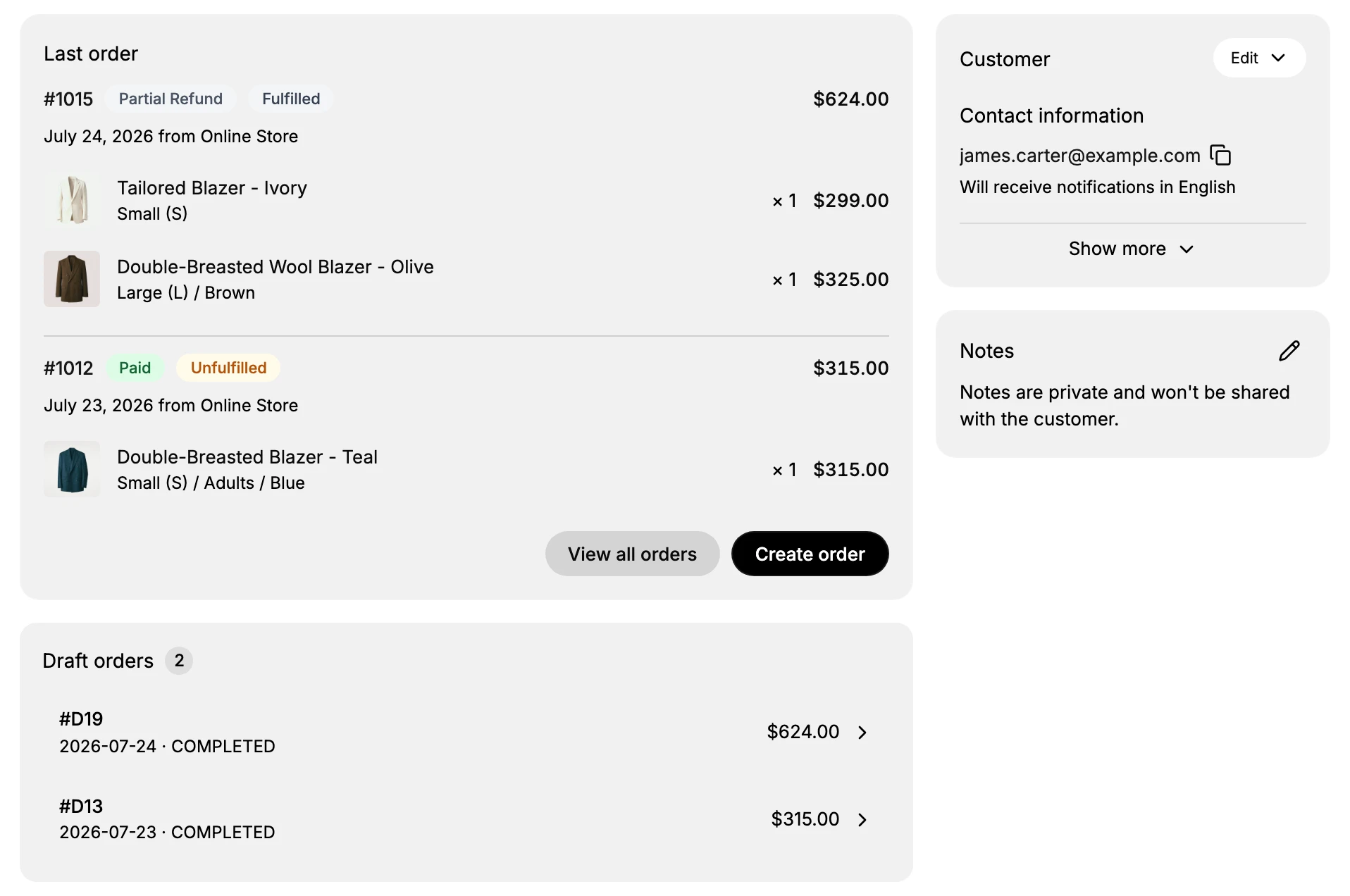
What each order entry shows
Every entry on the card is a whole order, not a summary line.
| Part | What it tells you |
|---|---|
| Order number | The order, for example #1015, which opens that order when you select it |
| Payment status | A badge such as Paid, Payment Pending or Partial Refund |
| Fulfillment status | A second badge, Fulfilled or Unfulfilled |
| Total | What the order came to, on the right of the same line |
| Date and sales channel | The date it was placed and where it came from, such as July 24, 2026 from Online Store |
| Line items | Each product with its image, the variant, the quantity and the price |
The two badges are independent, which is the detail worth pausing on. An order can be Paid and Unfulfilled, meaning you have the money and still owe the goods, or Payment Pending and Fulfilled, meaning the goods have gone and the money has not arrived. The second combination is the one to notice when a customer asks why they have been contacted about payment for something they already received.
The two buttons at the foot of the card
| Button | What it opens |
|---|---|
| View all orders | The Orders overview with a filter already set to this customer, which is the complete history rather than the recent few |
| Create order | The draft order form, with this customer already attached, for a sale you take by phone, by email or in person |
Create order starts a draft, not a finished order. It opens the same form you reach from Orders > Drafts, so what you build there sits on the Draft orders card below until it is completed or paid. Create a Draft Order walks that form, and Customer Order History picks up from View all orders.
The Draft orders card
Below it sits a second card headed Draft orders, with a count beside the heading. A draft is an order your staff built in the admin, usually for a sale taken by phone or in person, rather than one the customer placed themselves.
Each row is compact: the draft number such as #D19, its date and status on one line separated by a dot, the total on the right, and a chevron that opens it. Two statuses appear on these cards, OPEN on a draft that is still waiting and COMPLETED on one that has become an order.
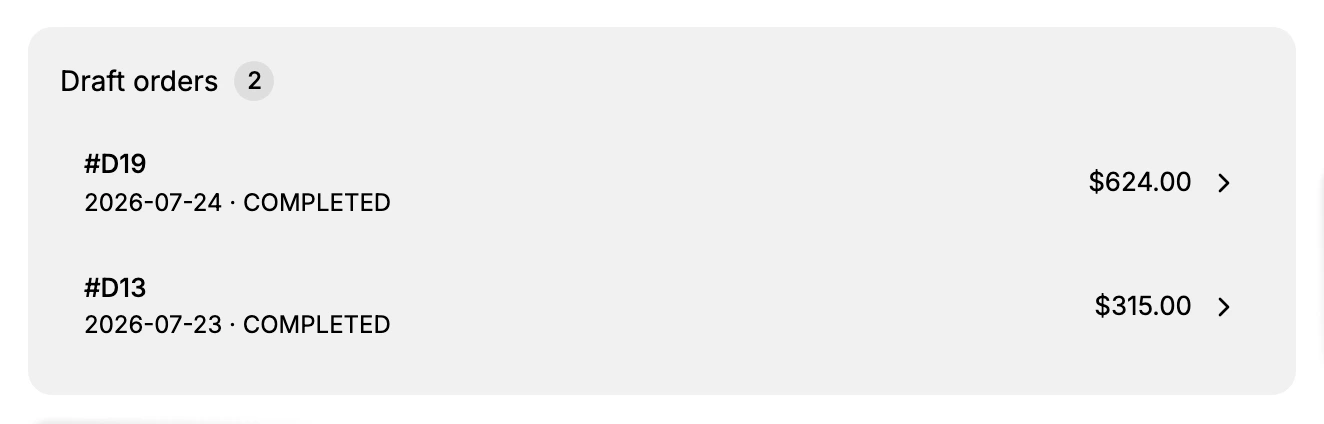
Keeping the two cards apart matters when you are answering a customer. A draft on its own is not a sale, so an OPEN total sitting on this card is not money the customer has spent.
The total on this card is the original, not the current one
There is one difference worth knowing before you quote a figure to a customer. On an order that has been partly refunded, this card shows what the order came to when it was placed. The Orders list and the Amount Spent tile show what is left after the refund.
On the customer in the picture above, order #1015 reads $624.00 on this card and $325.00 in the filtered Orders list, and their Amount Spent of $640.00 is the two orders added up at the list figures. The wording differs too: the badge on the card reads Partial Refund where the list column reads Partially refunded. If a customer is asking what they were charged after a refund, read the Orders list rather than this card.
If something goes wrong
- An order you expect is not on the card. Open View all orders for the complete list, since the card holds the recent ones rather than all of them.
- The customer says they never placed an order you can see. Check whether it is on the Draft orders card, which holds orders made in the admin rather than by the customer. If that card is missing, no draft has ever been made for them.
- A draft you completed is still on the Draft orders card. It stays there, with its status changed to COMPLETED, and the order it became appears on the Last order card above.
- The card reads No orders yet. That customer has not bought anything. Only Create order is offered, since there is no history to open.
- Create order gave you a draft when you wanted an order. That is what the button opens. A draft becomes an order once it is completed or paid for.
- You cannot see the cards at all. Your role may not include View orders. Ask an owner or admin.
Next steps
Related articles
Still stuck?
- Ask Tanqory AIAsk in your own words. It answers from these articles and links the ones it used.
- Ask in your adminThe assistant in your Tanqory admin answers and makes the change for you once you confirm.
- Contact TanqoryWrite to our privacy, security or legal teams, or talk to sales about a plan or a move.