Customer Order History
A customer detail page answers what someone has bought at two depths: a statistics strip with their spend, order count and RFM group, and View all orders, which opens the Orders overview filtered to that person. This covers reading both, why the count and the list can disagree, and which figures on that page ignore the filter.
On this page
Before you answer a customer, reply to a complaint, or decide how far to go to keep someone happy, it helps to know what they have actually bought. Tanqory answers that at two depths, and knowing which one you are looking at saves you from acting on the wrong number.
The shallow read is the statistics strip at the top of the customer's page, which gives you their spend and order count at a glance. The deep read is View all orders, which opens the Orders overview filtered to that one person, where every order is a row you can sort and open.
Before you begin
- The customer has at least one order. View all orders appears only once they do, and before that the card reads No orders yet.
- You have settled which customer record you are reading. A person with two records has their orders split between them, and Merge Duplicate Customer Records combines them.
- Your role includes View customers and View orders, since the history is assembled from both.
- Open Customers in the admin sidebar and select the customer whose orders you want to read.
Steps
1. Read the statistics strip
Five tiles run across the top of a customer's detail page, above their orders.
| Tile | What it tells you |
|---|---|
| Amount Spent | Their lifetime spend |
| Orders | How many orders they have placed |
| Average order value | What a typical order from them comes to |
| Customer since | How long they have been a customer, in plain words such as 4 months ago |
| RFM group | The group Tanqory has put them in, such as CHAMPIONS or NEED_ATTENTION |
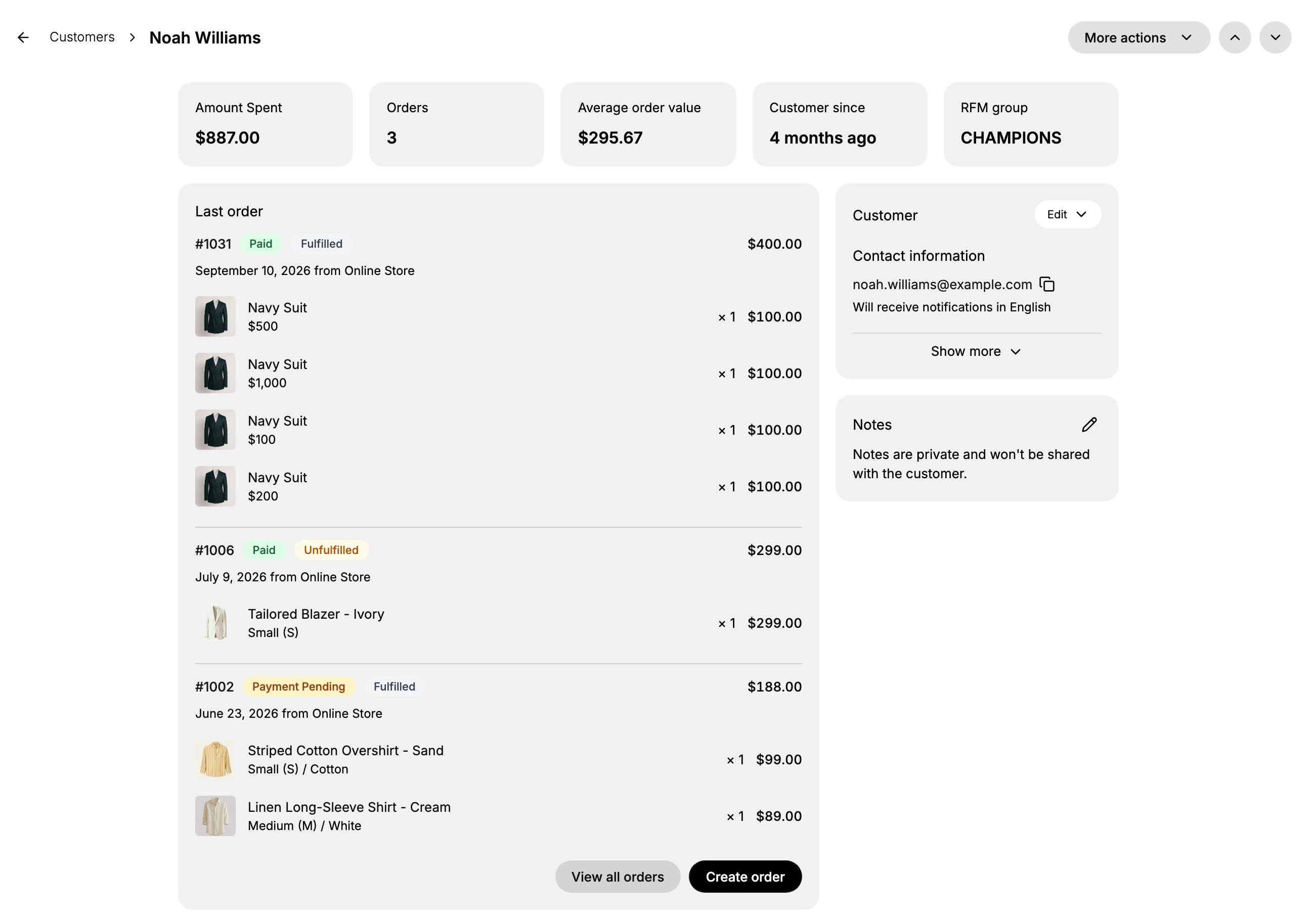
Average order value is their spend divided by their order count, so the figure is already implied by the two tiles beside it. What it saves you is the arithmetic when you are deciding how to treat someone: two customers who have each spent the same amount are different people when one of them did it in a single order.
RFM group is the tile people skip and should not. RFM stands for recency, frequency and monetary value, which is to say how lately this person bought, how often they buy and how much they spend. The group is Tanqory's own reading of those three, so it says in one word what the tiles beside it only imply, and a customer marked CHAMPIONS and one marked NEED_ATTENTION deserve different answers to the same complaint. Tanqory recalculates it, so the value on a record can change between visits without anyone editing the customer.
The order number of the most recent order is not one of these tiles. It is the first entry on the Last order card below them, which Customer Orders on the Detail Page covers in full.
Stop here when the question is about a recent order. Go further when you need the whole history or want to sort it.
2. Open the full list with View all orders
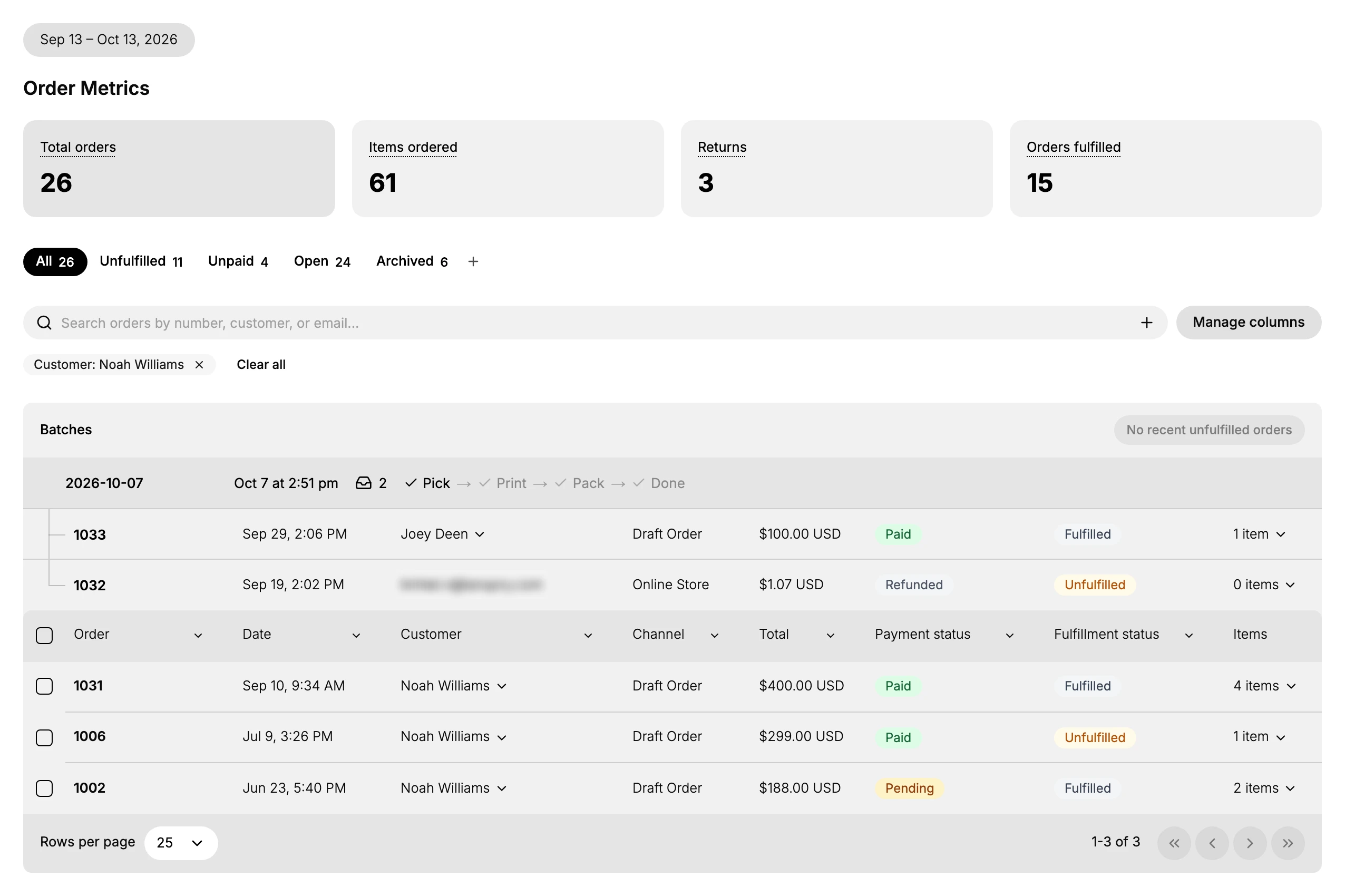
Select View all orders at the foot of the Last order card. The Orders overview opens with a filter already applied to that customer, shown as a chip reading Customer: followed by their name, with an X to drop it and Clear all beside it.
Removing the chip does not take you back to the customer. It leaves you on the Orders overview showing every order in the store, which is a different page from the one you came for.
3. Read the list
Each row is one order, newest first. The first columns are the ones that answer most questions.
| Column | What it holds |
|---|---|
| Order | The order number, which opens the order |
| Date | The date and time it was placed |
| Customer | The customer's name, the same on every row while the filter is on |
| Channel | Where the order came from, such as Online Store or Draft Order |
| Total | The order total with its currency |
| Payment status | Paid, Pending, Partially paid, Partially refunded, Refunded |
| Fulfillment status | Fulfilled, Unfulfilled or Cancelled |
| Items | How many items the order holds |
The table does not stop there. Nine more columns run off to the right, which you reach by scrolling the table sideways: Delivery status, Delivery method, Tags, Destination, Label status, PO number, Return status, Total weight and Risk. Manage columns, above the table on the right, is where you turn the ones you do not use off, which is worth doing if you read this list often.
Return status is the one worth scrolling for while you have a customer on the phone. A row reading Return in progress is an order they have already sent something back from, which changes the answer to most questions about it.
Reading down the two status columns is the fastest way to spot a problem: a run of Unfulfilled rows means this customer is waiting on you, and a Pending row on an old order means money was never collected.
4. Open an order for the full detail
Select any row to open that order's own page, where the line items, payments, fulfillment and the actions you can take on it live. Order Detail Page walks through what you find there.
What on that page ignores the filter
The chip filters the table and nothing above it, which is the trap on this screen.
| Above the table | What it counts |
|---|---|
| Order Metrics | Your whole store over the date range shown, not this customer |
| The Batches panel | Recent unfulfilled work across the store, so it can list orders belonging to people you did not filter for |
Both are visible in the picture above: the metrics read 26 total orders while the table below them reads 1-3 of 3, and the panel between them names other customers. Read the figure at the foot of the table, not the one at the top of the page.
The metrics are on screen only while analytics are shown. The control sits at the top right of the page and names what it will do, so it reads Hide analytics while they are visible and Show analytics once they are not.
Two numbers that do not always agree
The Orders tile counts orders and the filtered list shows rows, so it is natural to use one to check the other. Do not.
On most customers they match, and the one in the pictures reads 3 on the tile and returns three rows. On another customer on the same store the tile read 8 while the filtered list returned nine rows. No rule for the difference was established, so treat the tile as a quick indication and the filtered list as the record when the exact set matters.
If something goes wrong
- An order is missing. The customer may have a second record. Search the Customers list by their email address to check.
- The list shows every order in the store. The filter chip has been cleared. Go back to the customer and use View all orders again.
- The totals look wrong. Check whether you are reading the store-wide Order Metrics rather than the tiles on the customer's own page.
- The Order Metrics cards are not on the page. Analytics are hidden. The control at the top right reads Show analytics while they are.
- A row names somebody else. Look at where it sits. The rows inside the Batches panel are not part of the filtered table.
- A column you were told to check is not there. It is one of the nine off to the right. Scroll the table sideways or turn it on under Manage columns.
- You can open the customer but not their orders. Your role may not include View orders. Ask an owner or admin.
Next steps
Related articles
Still stuck?
- Ask Tanqory AIAsk in your own words. It answers from these articles and links the ones it used.
- Ask in your adminThe assistant in your Tanqory admin answers and makes the change for you once you confirm.
- Contact TanqoryWrite to our privacy, security or legal teams, or talk to sales about a plan or a move.