Abandoned Checkout Detail
Opening an abandoned checkout shows what the customer had in their cart when they left, what it was worth, and whether it has been recovered yet. The Checkout details card lists the items and the total, with a Copy checkout URL button so you can send the customer straight back to their cart, and an Automations card shows the recovery emails that have run. This article walks through the abandoned checkout detail page.
On this page
Opening an abandoned checkout shows what the customer had in their cart when they left, what it was worth, and whether it has been recovered. You reach it from the Abandoned checkouts list by selecting one. The page has the checkout's contents, a button to copy a link back to the cart, and a record of the recovery emails that have run for it. This article walks through the page.
You open it from the Orders > Abandoned checkouts list.
Before you begin
- Your role includes View orders.
- You know which checkout you are after, since the list identifies them by customer and date rather than by an order number.
- Open Orders > Abandoned in the admin sidebar and open the checkout you want to read.
The checkout detail page
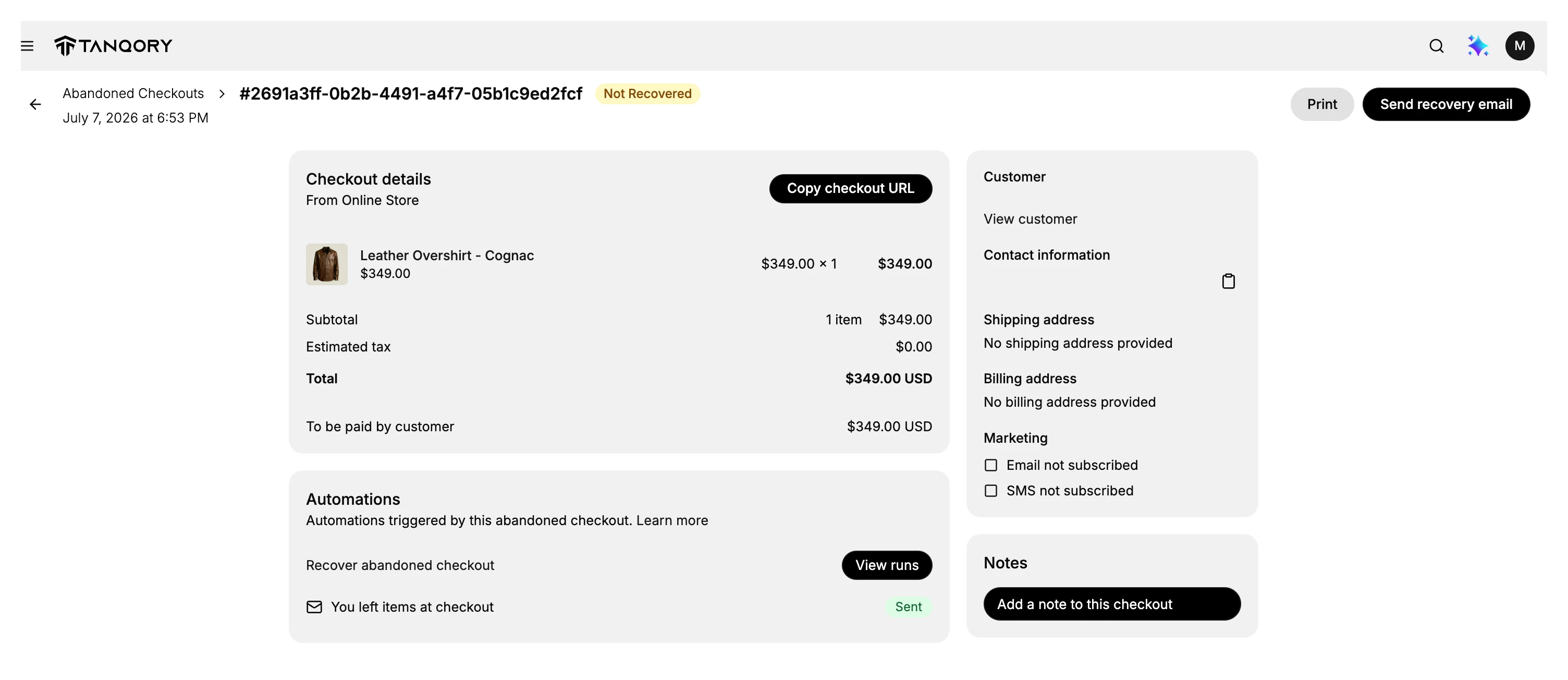
At the top, a breadcrumb shows the checkout's reference and a status badge, Not Recovered until the customer comes back and pays, along with the date it was abandoned. To the right are a Print button and a Send recovery email button, which emails this customer a link back to their checkout.
Checkout details
The Checkout details card, marked From Online Store, shows what the customer was about to buy:
- Each item with its price and quantity.
- The Subtotal, Estimated tax, and Total.
- To be paid by customer, the amount the customer would owe.
The Copy checkout URL button copies a direct link to this checkout, so you can send the customer straight back to the cart they left, with their items still in it.
Automations
The Automations card lists the automations triggered by this abandoned checkout, so you can see what follow-up has already gone out. The Recover abandoned checkout automation is what sends the recovery email, and View runs shows each time it ran. A recovery email such as You left items at checkout appears here with its status, for example Sent once it has gone to the customer.
The customer and notes
The right column carries the customer's details. The Customer card has their contact information and a View customer link to open their record, along with their Marketing subscription status, so you can see whether they have agreed to receive email or SMS. Below it, a Notes card lets you add a private note to the checkout for your team. Use the Send recovery email button at the top of the page, or the Send recovery emails action on the list, to email the customer a link back to their cart.
Best practices
- Use Copy checkout URL to send the customer back to their exact cart, rather than asking them to start over.
- Check the Automations card before sending another email, so you do not contact the customer twice.
- Act while the checkout is fresh, since a recent cart is more likely to be recovered.
Common mistakes
- Sending a recovery email that already went out, which the Automations card would have shown as Sent.
- Assuming the checkout is recovered, when the badge still reads Not Recovered until the customer pays.
Next steps
Related articles
Still stuck?
- Ask Tanqory AIAsk in your own words. It answers from these articles and links the ones it used.
- Ask in your adminThe assistant in your Tanqory admin answers and makes the change for you once you confirm.
- Contact TanqoryWrite to our privacy, security or legal teams, or talk to sales about a plan or a move.